A Panasonic LUMIX Sync alternative for full-resolution delivery (and when to keep LUMIX Sync)
Short answer: for most Lumix owners, LUMIX Sync (or LUMIX Lab on recent bodies) is the right phone app — it's free, wireless, and does remote shooting, live view, location tagging and automatic JPEG transfer. The case for an alternative is narrower: if you need every full-resolution RW2 or JPEG delivered to Dropbox, Google Drive, a gallery or FTP while you're still shooting, CloudTether can pull them over a USB cable with the camera in PC(Tether) mode. We haven't tested a Lumix ourselves yet, so test your body first.
Here's what LUMIX Sync does well, where it stops, how the two compare, and how to try CloudTether with a Lumix.
iPhone, iPad and Android · facts checked November 2026
Cloud storage
Galleries & proofing



Messaging
Transfer & servers
What Panasonic LUMIX Sync is
LUMIX Sync is Panasonic's free app for iPhone and Android. It pairs with supported Lumix cameras over Bluetooth, then uses Wi-Fi for remote shooting with live view and for copying pictures to the phone. With Auto Transfer on, the camera sends each new JPEG to the phone as it's taken, and Location Logging writes the phone's position into your photos. Panasonic's newer LUMIX Lab app covers recent bodies.
Where CloudTether is different
LUMIX Sync is a companion app: it puts pictures on your phone and lets you control the camera from it. CloudTether is a delivery app: it pulls each full-resolution file off the camera over a USB cable and sends it on to cloud storage, galleries or FTP. For a Lumix, CloudTether works over USB only, and we haven't tested a Lumix ourselves yet.
What Panasonic LUMIX Sync does well
- Guided pairing over Bluetooth that hands off to Wi-Fi, then remote shooting with live view and camera settings from the phone.
- Auto Transfer: once paired, turn it on in the camera's Bluetooth menu and each new picture is sent to the phone as it's taken.
- Location Logging writes the phone's GPS position into the pictures you take, with no GPS in the camera.
- Copy pictures and videos from the card to the phone, picked on the phone or sent from the camera's own menu.
Why people look for a Panasonic LUMIX Sync alternative
These are the issues photographers most often search for — common, well-documented ones, not a verdict on the app. Many have fixes, and it's worth trying them first.
No RAW in Auto Transfer
Panasonic's manuals list RAW files, most video, 6K/4K Photo bursts and Post Focus images as not transferred automatically, so the phone gets JPEGs.
Model coverage varies
LUMIX Sync fully supports some bodies and only partly supports others (remote recording and transfer only); recent bodies use LUMIX Lab. Check which app Panasonic lists for your camera.
Wi-Fi is tied up
While Auto Transfer is on, the camera's other Wi-Fi functions are unavailable, and running LUMIX Lab at the same time can stop automatic transfer working properly.
Photos stop at the phone
Getting pictures on to a client folder, a gallery or an FTP server is up to you, one share at a time.
Panasonic LUMIX Sync vs CloudTether, side by side
| Feature | Panasonic LUMIX Sync | CloudTether |
|---|---|---|
| Made by | Panasonic (free) | CloudConcur |
| Cameras | Supported Lumix models (others use LUMIX Lab or Image App) | Canon, Nikon, Sony, Fujifilm; Lumix over USB via Other (not yet tested by us) |
| Connection | Bluetooth to pair, Wi-Fi to transfer | USB cable only for Lumix (camera in PC(Tether) mode) |
| Automatic transfer | Each new JPEG; no RAW or most video | Each new full-resolution RW2 or JPEG, or JPEGs only |
| Where photos go | The phone | The phone, plus cloud storage, galleries, FTP/SFTP or S3 — several at once |
| Live view and remote shutter | Yes | No — on Canon, Nikon, Sony and Fujifilm only, not Lumix |
| Location tagging | Yes, from the phone's GPS | No |
| Platforms | iPhone, Android | iPhone, iPad, Android |
Based on vendor pages, app-store listings and press coverage as of November 2026. Features vary by camera and app version — check Panasonic LUMIX Sync's own documentation for your model. Product names are trademarks of their owners.
Should you switch?
Switch to CloudTether if…
- Clients, editors or a backup need the full-resolution file — RAW included — not just JPEGs.
- Photos must reach Dropbox, Google Drive, SmugMug, ShootProof or an FTP/SFTP server during the shoot.
- You're happy to shoot with a USB cable to the phone.
- A second shooter uses Canon, Nikon, Sony or Fujifilm and you want one routine.
Stick with Panasonic LUMIX Sync if…
- You want wireless transfer — CloudTether can't connect to a Lumix over Wi-Fi.
- You need live view, remote shutter or location tagging on a Lumix — CloudTether's live view and remote shutter cover Canon, Nikon, Sony and Fujifilm only.
- You can't test your body before a paid job: CloudTether's Lumix support is untested by us.
Plenty of photographers keep both: Panasonic LUMIX Sync for what it's best at, CloudTether for getting every frame delivered.
How to switch in 3 steps
Install CloudTether, then:
- 1
Set USB Mode to PC(Tether)
In the camera's setup menu set USB Mode to PC(Tether) — storage, printing or webcam modes won't tether — and connect a USB-C cable to your phone.
- 2
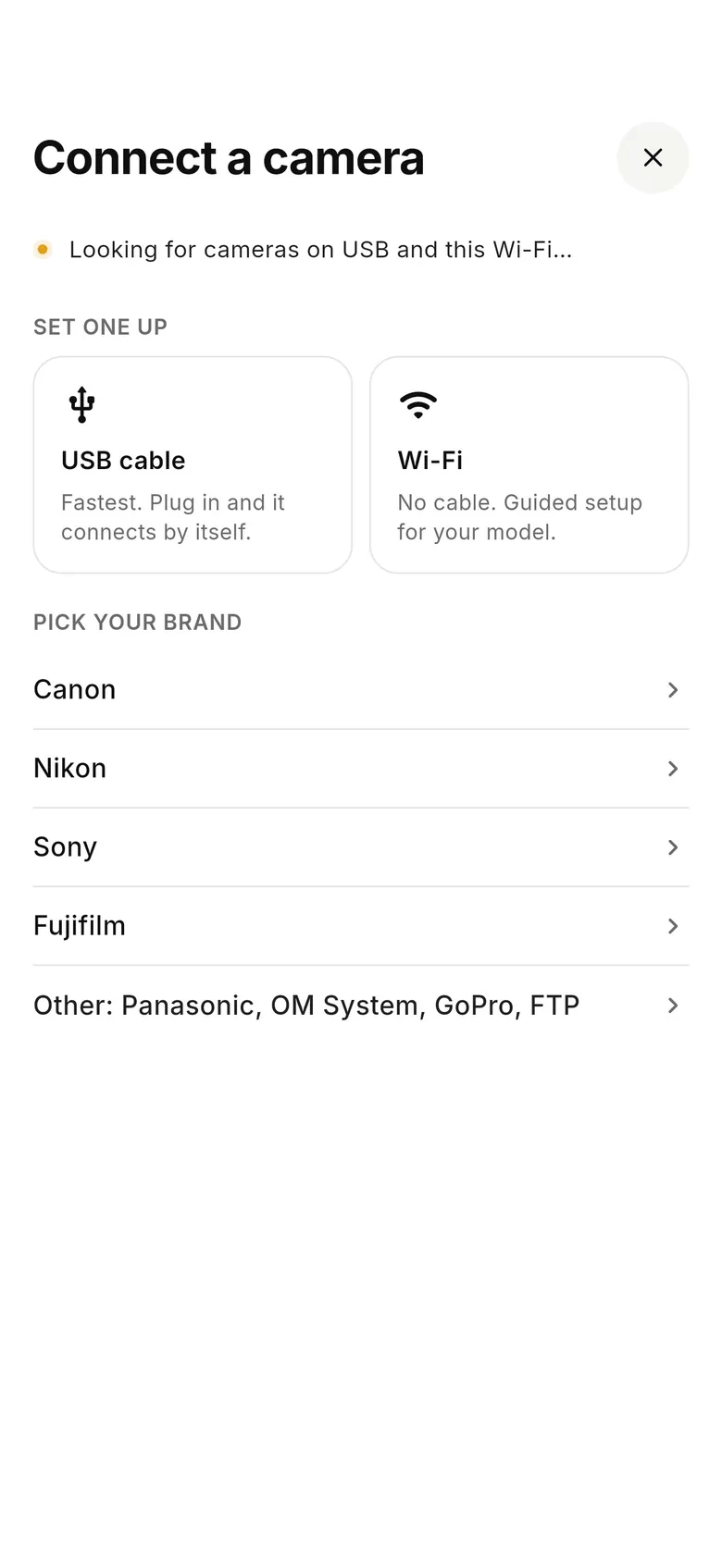
Choose Other and connect
Tap “Connect a camera”, choose Other, and take a test shot. If it arrives, pick where its shots go; if it doesn't, tell us your model so we can look at it.
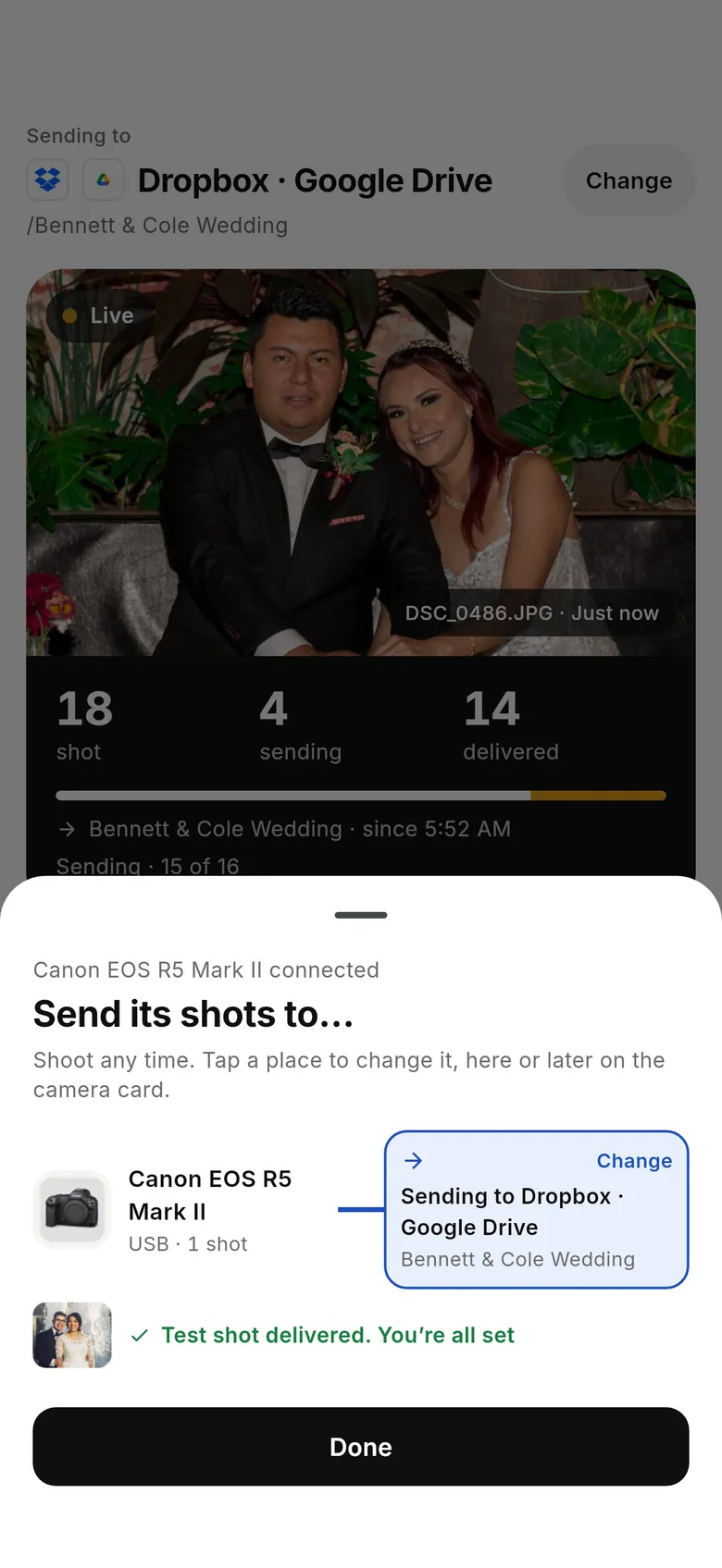
- 3
Shoot and check
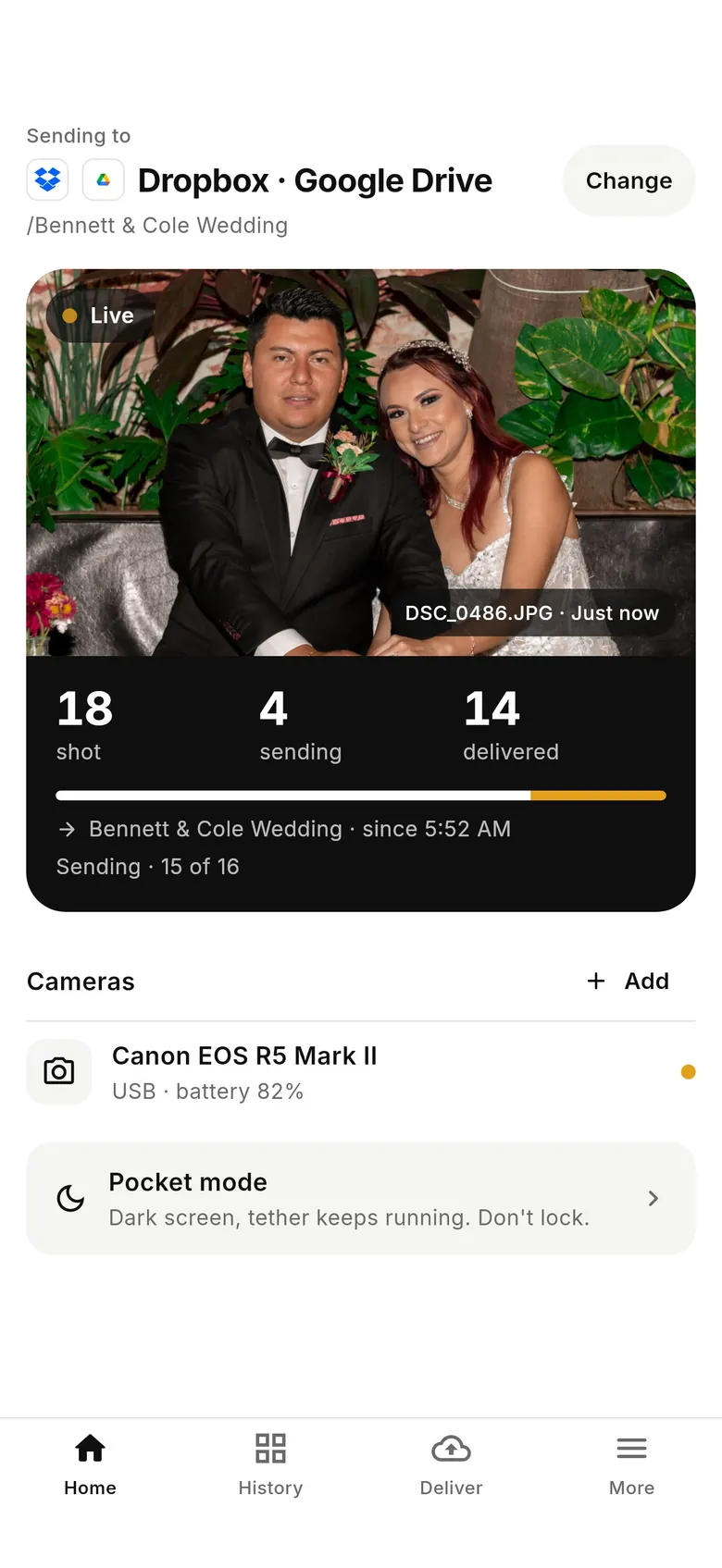
Every frame comes off at full resolution and is delivered; Home shows what's shot, sending and arrived. Keep LUMIX Sync for remote shooting on other days.
Why photographers choose CloudTether
- Auto-delivers every shot to the cloud — Dropbox, Google Drive, SmugMug, ShootProof, FTP and more — seconds after the shutter.
- Runs on the iPhone, iPad or Android you already own — nothing extra to set up or power on location.
- Works across Canon, Sony, Nikon and Fujifilm from a single app.
- Upload once, fan out to multiple destinations in one session.
- Uploads over your phone's mobile data — no venue Wi-Fi required.
- Shoot into an album on your phone with no signal — uploads catch up automatically when you're back online.
Panasonic LUMIX Sync alternative FAQ
Is there a LUMIX Sync alternative that sends RAW files?
Panasonic's Auto Transfer doesn't send RAW. Over USB, with the camera's USB Mode set to PC(Tether), CloudTether can pull each RW2 or JPEG and deliver it to Dropbox, Google Drive or FTP. We haven't tested a Lumix ourselves, so try your body before a paid job.
Can CloudTether connect to a Lumix over Wi-Fi?
No. Lumix Wi-Fi uses Panasonic's own protocol rather than the standard PTP/IP that CloudTether speaks, so the app won't find a Lumix on the network. Use a USB cable.
Does LUMIX Sync transfer automatically?
Yes, on supported models. Pair over Bluetooth and turn on Auto Transfer in the camera's Bluetooth menu, and each new picture is sent to the phone. RAW files, most video and some special modes aren't included, and the camera's other Wi-Fi functions are unavailable while it's on.
What's the difference between LUMIX Sync and LUMIX Lab?
Both are Panasonic phone apps. LUMIX Sync handles remote shooting and transfers on the bodies it supports; LUMIX Lab, for recent bodies, adds LUT creation and transfer, photo editing and, since version 3, a wired connection. Check which app Panasonic lists for your camera.
Which Lumix cameras can tether over USB?
Bodies with a PC(Tether) USB mode — most recent S-series and GH-series models. Older G, GX, GF, FZ and LX models generally don't support tethered shooting at all.
Is LUMIX Tether the same as LUMIX Sync?
No. LUMIX Tether is Panasonic's free desktop software for tethered shooting to a Mac or Windows computer over USB. LUMIX Sync is the phone app for remote control and transfers.
See it for yourself
Install CloudTether, connect your camera and take a test shot — it'll be on your phone and on its way before you lower the camera.
Read next
- LUMIX Tether: how to tether a Panasonic Lumix
- Camera compatibility checker
- Camera makers' apps vs one app for mixed teams
- Bluetooth vs Wi-Fi camera photo transfer
Comparing more tools? See the best camera tethering software roundup.
More comparisons