Camera Tethering App for iPhone — USB-C, Lightning or Wi-Fi
CloudTether is a camera tethering app for iPhone. Plug your Canon, Nikon, Sony or Fujifilm into the iPhone with a USB-C cable — or a Lightning camera adapter on older models — or connect over Wi-Fi, and every full-resolution photo copies to the iPhone seconds after you take it. From there it can save to the phone or upload to Dropbox, Google Drive, a client gallery or your own server while you keep shooting.
- USB-C iPhones plug straight in
- Lightning iPhones with Apple's camera adapter
- Wi-Fi: camera network, hotspot or router
- Full-resolution RAW and JPEG
7-day free trial · iPhone, iPad and Android
What is iPhone camera tethering?
iPhone camera tethering means connecting a camera to an iPhone with a cable or over Wi-Fi so each photo copies to the iPhone the moment it's taken, instead of being imported from the memory card later. A tethering app such as CloudTether detects every new shot, transfers the full-resolution file and can upload it to the cloud while you keep shooting.
It isn't the same as the iPhone's Personal Hotspot, which is also called tethering — although a hotspot can be part of a wireless set-up, as you'll see below. And it isn't the camera maker's companion app, which is built for remote control and picking a few photos to share rather than getting every frame off the camera automatically.
An iPhone makes a surprisingly good tether. It's already in your pocket, it has mobile data for uploads, and a recent model's storage swallows a full day of RAW files. For the bigger picture — what tethering software does on a laptop versus a phone — see our guide to camera tethering software.
More on the basics: camera tethering software (what it is, desktop vs mobile) and camera to cloud (where your photos go after the phone).
How to tether your camera to an iPhone
- 1
Connect the camera
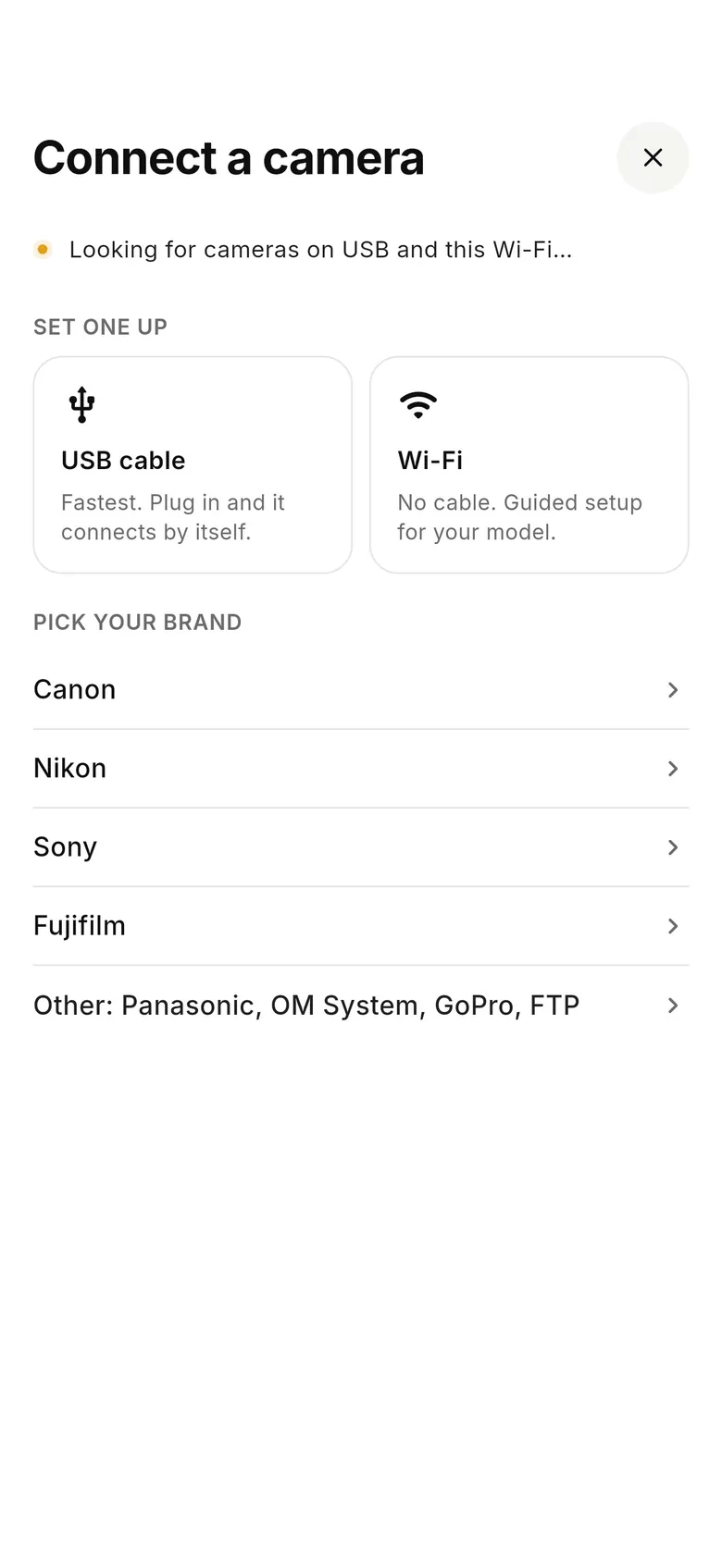
Open CloudTether and tap “Connect a camera”. For USB, set the camera's USB mode if your brand needs it (PC Remote on Sony, USB tether on Fujifilm), then plug the cable into the iPhone. For Wi-Fi, tap “Wi-Fi”, pick your brand and follow the guided set-up; approve the pairing on the camera if it asks.
- 2
Choose where the shots go
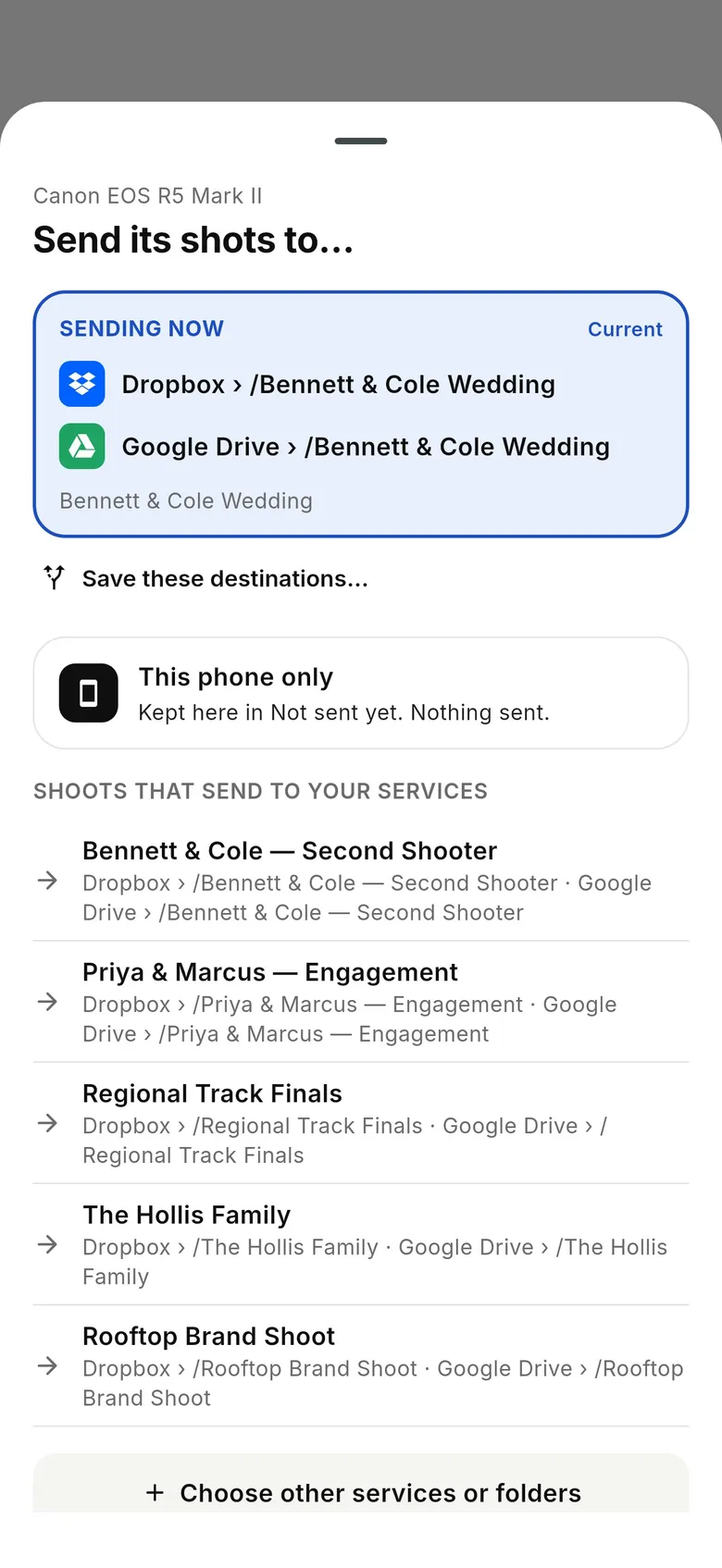
When the camera connects, the “Send its shots to…” sheet shows where it's sending. Keep the shots on the iPhone, or tap “Change” to add Dropbox, Google Drive, a client gallery or an FTP/SFTP server. Take a test shot — “Test shot delivered” means you're ready.
- 3
Shoot on the camera
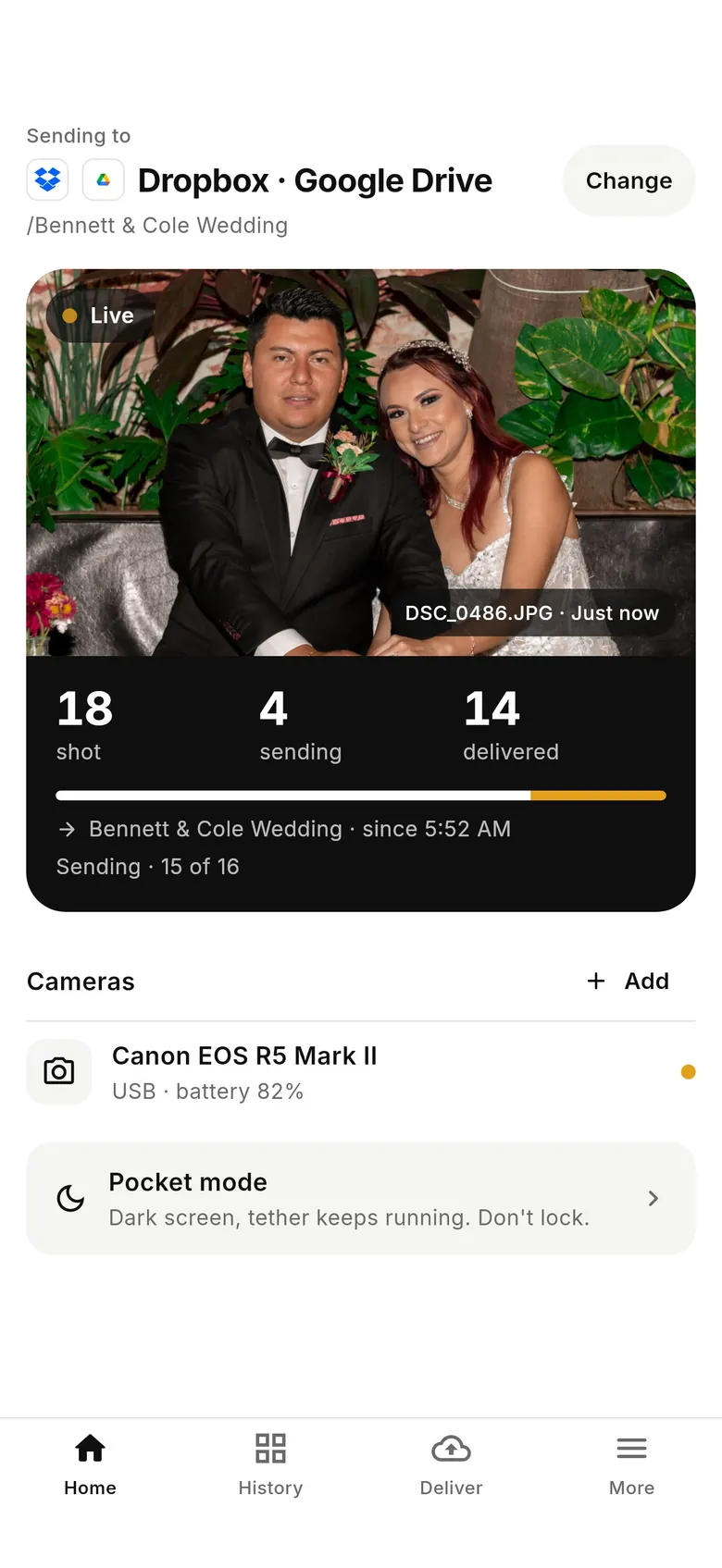
Shoot as normal. Each photo is detected, copied to the iPhone at full resolution and sent on. Home shows how many shots were taken, are sending and have been delivered; turn on Pocket mode to darken the screen while the tether keeps running.
Every screen is shown in the quick start guide.
USB-C or Lightning: which cable do you need?
It depends on your iPhone's port. A wired connection is the fastest and steadiest way to tether, so it's worth getting the right cable — our camera tethering cable guide lists the common camera ports by brand.
iPhone with USB-C (iPhone 15 and later)
Plug a USB-C cable from the camera straight into the iPhone. Most current cameras have a USB-C port, so a USB-C to USB-C cable is all you need.
- • Use a data cable — many cheap USB-C cables only charge.
- • Older cameras with Micro-B or Mini-B ports need a USB-C to Micro-B or Mini-B cable.
- • A short cable (under a metre) is the least likely to drop out.
iPhone with Lightning (iPhone 14 and earlier)
Add Apple's Lightning to USB 3 Camera Adapter (or the older Lightning to USB Camera Adapter), then connect the camera's own USB cable to the adapter.
- • The USB 3 version has a Lightning port to charge the iPhone while you tether.
- • Some cameras need more power than a Lightning port supplies; the powered adapter helps.
- • Avoid unbranded adapters that only support card readers.
Tethering to an iPhone over Wi-Fi
Wi-Fi frees you from the cable. There are three ways to put the camera and iPhone on the same network, and on location the iPhone's Personal Hotspot is usually the best: the camera joins the hotspot, and the iPhone keeps its mobile data for uploads. In a studio, put both on the same router. Or join the camera's own Wi-Fi network from the iPhone's Wi-Fi settings — handy for a quick connection with one camera.
Two iPhone settings matter. Allow CloudTether's Local Network permission the first time it looks for a camera; without it, nothing is found. And many cameras connect only on 2.4 GHz Wi-Fi — on newer iPhones, turn on Maximize Compatibility in Personal Hotspot settings so the camera can see the hotspot. Canon Wi-Fi is verified; on other brands it depends on the model, and Fujifilm Wi-Fi is experimental. Our wireless tethering guide covers each set-up in detail.
iPhone-specific tips
A few things behave differently on an iPhone than on Android, and knowing them saves a frustrating first shoot.
Keep CloudTether open
Tether with the app on screen. Pocket mode darkens the display to save battery while the tether keeps running, and each connected camera gets a Live Activity on the Lock Screen with its shot, sending and delivered counts.
A full card slows the first connection
Over USB, iOS catalogues the whole memory card before the camera is ready, so a card with thousands of files can take a while. Start with a freshly formatted card.
Nikon and CFexpress
We've seen a Nikon Z6 II with a CFexpress card refuse to connect to an iPhone over USB until the card was formatted in the camera. SD cards connected at once. Android was unaffected.
Power for long shoots
Tethering uses the radio and the screen. A USB-PD power bank — or the Lightning adapter's charging port — covers a full wedding day.
An iPhone tethering kit for a day on location
The appeal of tethering to an iPhone is how little you carry compared with a laptop, a tether cable and a table. A typical kit for a wedding or event looks like this:
That's it — no laptop bag, no card reader, no extension lead. Studio photographers who grade on a calibrated monitor still tether to a computer, and that's the right tool for that job; the iPhone is for when you're moving and the photos need to be somewhere else before you are.
Camera and iPhone
Any supported Canon, Nikon, Sony or Fujifilm, and an iPhone with room for the day's files — RAW files run from about 20 to 60 MB each.
One short data cable
USB-C to USB-C for a USB-C iPhone, or the camera's cable plus Apple's Lightning to USB 3 Camera Adapter. Carry a spare.
A small power bank
USB-PD, 10,000 mAh or more, for the iPhone (and the camera if it charges over USB).
A clip or pouch
A belt clip, a strap pouch or a cold-shoe phone mount keeps the iPhone close to the camera with the cable tidy.
Which cameras tether to an iPhone — and the setting each needs
CloudTether supports Canon, Nikon, Sony and Fujifilm. Every body of a brand uses the same code, so one verified camera proves its siblings over USB; the usual snag is a menu setting. USB has been verified on iPhone and Android with the bodies below; Wi-Fi is verified on Canon.
| Brand | Tested by us | Camera setting for USB | Camera setting for Wi-Fi | Models |
|---|---|---|---|---|
| Canon | USB verified (EOS R7, R5 Mark II) · Wi-Fi verified | No USB mode to set. Turn the camera's Wi-Fi off first, and make sure it isn't in a webcam or streaming mode. | Use the camera's “Remote control (EOS Utility)” Wi-Fi function — not “Connect to smartphone” — and approve the pairing on the camera. | |
| Nikon | USB verified (Z6) · Wi-Fi depends on the model | No USB mode to set on current bodies. If one mounts as storage, set its USB option to MTP/PTP. | Join the camera to the same network (Z8, Z9, Z6 III and Zf: network menu → Wi-Fi connection (STA mode)) and approve the prompt on the camera. Test before a job. | |
| Sony | USB verified (ZV-E10) · Wi-Fi unverified | Set USB Connection Mode to PC Remote (called Remote Shooting on newer menus). ZV bodies default to USB streaming — switch them. | Newer bodies (α1, α9 III, α7 IV, α7R V, α7C II) offer wireless PC Remote over an access point; others are USB-first. | |
| Fujifilm | USB verified (X-T3) · Wi-Fi experimental | Set the connection mode to USB TETHER SHOOTING AUTO (X-T5, X-H2 and GFX 100 II: network/USB setting menu). | Experimental in CloudTether — use a cable for paid work. |
 EOS R5 Mark II
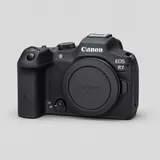 EOS R7
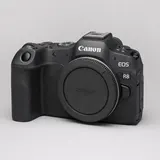 EOS R8
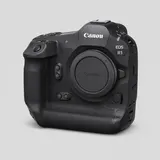 EOS R1
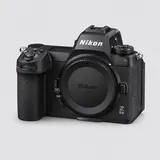 Z6 III
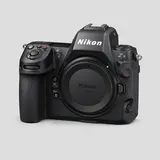 Z8
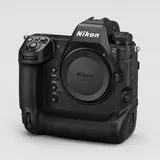 Z9
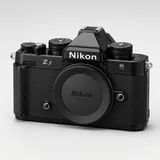 Zf
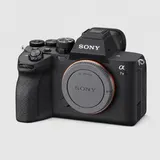 α7 IV
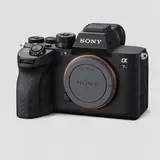 α7R V
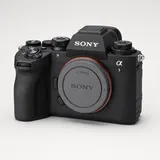 α1
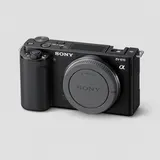 ZV-E10
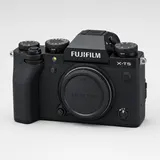 X-T5
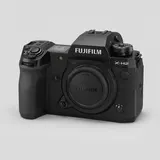 X-H2
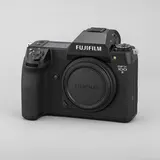 GFX 100 II
Panasonic Lumix, OM System and other cameras that speak standard PTP can connect over USB (set the USB mode to PC/Tether) from the app's “Other” option, but we haven't verified them. Lumix Wi-Fi uses Panasonic's own protocol and isn't supported — see the LUMIX Tether guide.
All supported camerasWhat CloudTether does on an iPhone
Every shot, full resolution
The original RAW (CR3, NEF, ARW, RAF…), JPEG or HEIF, not a phone-sized preview.
Copies on the iPhone
Keep shots in the app, or save copies to Photos or Files as they arrive.
Several destinations at once
Dropbox, Google Drive, OneDrive, SmugMug, ShootProof, FTP/SFTP and more — the iPhone uploads each shot once.
JPEG only and rated send
Leave RAW on the card to save mobile data, or send only shots you rate on the camera (Canon and Nikon).
Up to three cameras
Tether two or three bodies to one iPhone over USB, Wi-Fi or a mix.
Works with no signal
Shots keep coming off the camera and send themselves when the iPhone is back online.
Geotag from the iPhone's GPS
Tag each photo with where you were when you pressed the shutter.
Video clips
New in 1.1: clips recorded while tethered can be sent after your photos. Test with your camera first.
How fast is tethering to an iPhone?
These are real camera-to-phone times from CloudTether's own app logs, not lab tests: the time from the download starting to the full file being on the phone. Over USB a JPEG typically arrives in well under a quarter of a second; RAW files scale with size.
| Camera | Link | Files | Median size | Median time | 90% within |
|---|---|---|---|---|---|
| Canon EOS R7 | USB | JPEG | 0.8 MB | 0.03 s | 0.15 s |
| Canon EOS R5 Mark II | USB | JPEG | 1.1 MB | 0.06 s | 0.10 s |
| Nikon D850 | USB | JPEG / NEF | 19.0 MB | 0.35 s | 1.20 s |
| Fujifilm X-S20 | USB | JPEG | 16.9 MB | 0.39 s | 0.41 s |
| Canon EOS R1 | USB | CR3 (RAW) | 33.4 MB | 1.46 s | 1.99 s |
| Nikon Z 8 | USB | JPEG / NEF | 12.9 MB | 0.34 s | 0.70 s |
| Panasonic Lumix S5 II | USB | JPEG | 9.9 MB | 0.40 s | 0.49 s |
| Canon EOS Rebel T5i | USB | JPEG | 2.2 MB | 0.12 s | 0.28 s |
| Nikon D5000 | USB | NEF (RAW) | 10.4 MB | 0.86 s | 0.99 s |
| Canon EOS R5 Mark II | Wi-Fi | JPEG | 1.1 MB | 0.20 s | 0.26 s |
748 photos over 30 days, measured 2026-10-20. Camera to phone only; the upload to your destinations then depends on your connection. Full method in the USB vs Wi-Fi tethering speed test.
Keep reading
- Tethered shooting and tethered photography
- Tether a camera to Android
- Wireless camera tethering
- Camera tethering app for iPad
- Camera tethering software (overview)
- Camera to cloud from your phone
- How to transfer RAW photos from camera to iPhone
- Camera not detected over USB? Fixes
- Camera tethering cable: which one you need
- Tether two cameras at once
iPhone tethering FAQ
Can I tether my camera to my iPhone?
Yes. CloudTether tethers Canon, Nikon, Sony and Fujifilm cameras to an iPhone over USB or Wi-Fi. Each full-resolution photo copies to the iPhone seconds after you take it, and can upload to the cloud as you shoot.
What cable do I need to connect a camera to an iPhone?
On a USB-C iPhone (iPhone 15 and later), a USB-C cable from the camera — usually USB-C to USB-C. On a Lightning iPhone, Apple's Lightning to USB 3 Camera Adapter plus the camera's own USB cable.
Can I tether to an iPhone wirelessly?
Yes. Put the camera on the iPhone's Personal Hotspot, on the same router, or join the camera's own Wi-Fi. Canon Wi-Fi is verified; other brands depend on the model, and Fujifilm Wi-Fi is experimental.
Do I need a laptop?
No. The iPhone is the tether, the backup and the uploader. There's no computer, card reader or desktop software involved.
Does it upload over mobile data?
Yes. The iPhone uploads over 4G or 5G, so you can deliver from places with no venue Wi-Fi. With no signal at all, shots wait on the iPhone and send when it's back.
Does tethering keep working with the iPhone locked?
Keep CloudTether open while you shoot. Pocket mode darkens the screen to save battery while the tether keeps running, and a Live Activity on the Lock Screen shows each camera's progress.
Why won't my camera connect to my iPhone over USB?
Usually the camera's USB mode (set PC Remote on Sony, USB tether on Fujifilm), a charge-only cable, or a non-camera Lightning adapter. A very full card can also slow the first connection on iPhone; a freshly formatted card helps.
Can I save RAW files to the iPhone's Photos app?
Yes. CloudTether can save copies of each shot to Photos or Files as it arrives. Photos shows RAW from cameras on Apple's supported list; very new cameras arrive in iOS updates.
Does CloudTether have live view or a remote shutter on iPhone?
Yes, new in 1.1.x: open the camera sheet for Live view or Remote on Canon, Nikon, Sony and Fujifilm. There's no exposure control — ISO, shutter speed and aperture stay on the camera, so keep the maker's app if you need those from the phone.
Is it also on iPad and Android?
Yes. CloudTether runs on iPhone, iPad and Android phones and tablets, with the same shoots and destinations.
Turn your iPhone into a camera tether
Install CloudTether, connect your camera and take a test shot. One plan with everything included, starting with a 7-day free trial.