Canon EOS R5 Mark II Tethering App for iPhone & Android
Yes — you can tether the Canon EOS R5 Mark II to an iPhone, iPad or Android phone. With CloudTether it connects over a USB cable or Wi-Fi, and every full-resolution photo — JPEG or CR3 RAW — copies to the phone seconds after you take it, then uploads to Dropbox, Google Drive, a client gallery or your own server while you keep shooting. Wedding, event and commercial photographers who want high resolution and speed in one body.
7-day free trial · iPhone, iPad and Android
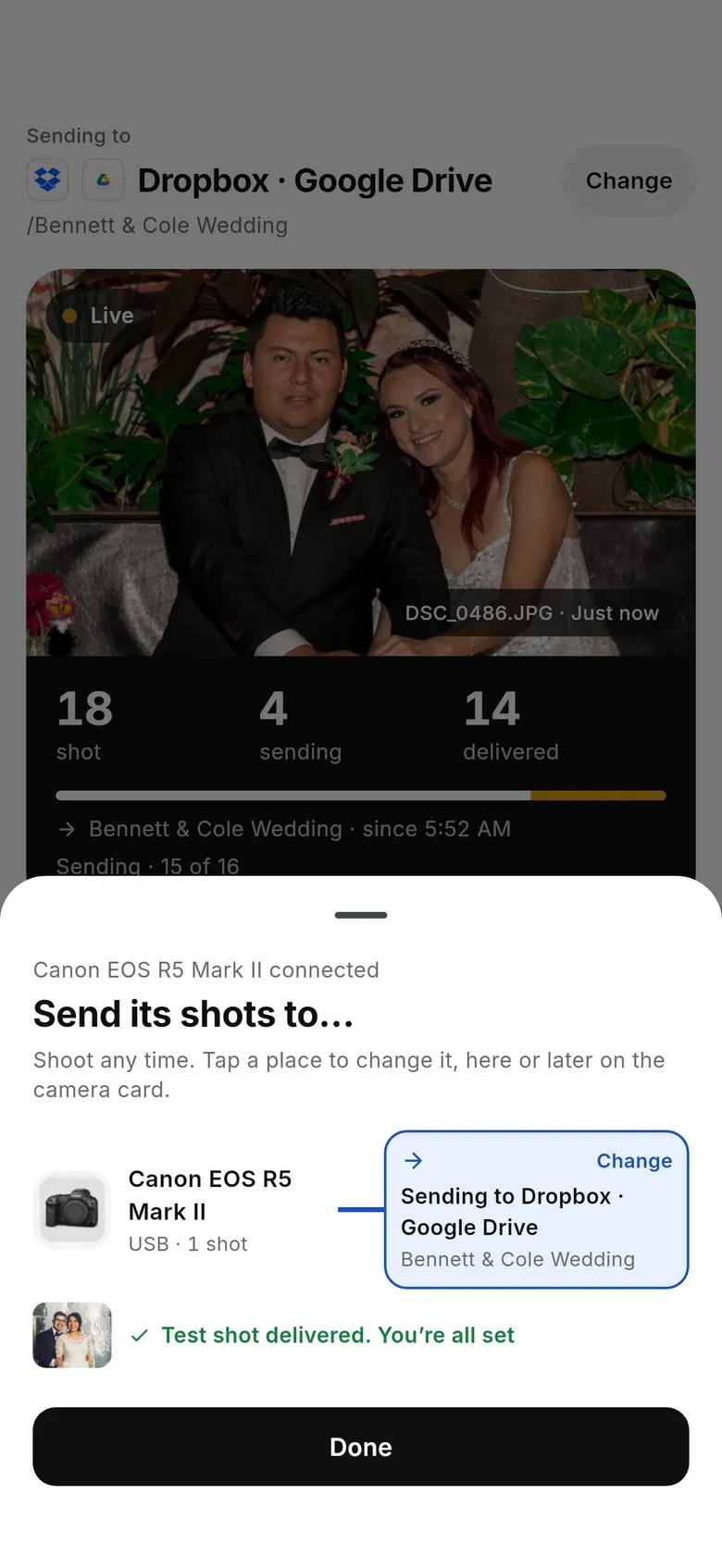
Canon EOS R5 Mark II tethering at a glance
| Tested by us | Verified by us — USB tethering verified in field use, and rated send checked end to end, on an EOS R5 Mark II. |
|---|---|
| USB | Verified |
| Wi-Fi | Verified (Canon) |
| Rated send | Yes — only shots you rate on the camera |
| Files | CR3 RAW, JPEG (and HEIF where the camera makes it) |
“Verified” means we've run that body on real hardware. Every Canon camera runs the same CloudTether code, so a verified Canon body proves its siblings over USB; Wi-Fi is checked model by model. See all supported cameras.
Camera settings for tethering the EOS R5 Mark II
No USB mode to set on EOS bodies. Turn the camera's Wi-Fi off, make sure it isn't in a webcam or streaming mode, and plug in.
Use a data cable: USB-C to USB-C for a USB-C iPhone or Android phone, or Apple's Lightning to USB 3 Camera Adapter for a Lightning iPhone. On Android, accept the USB permission prompt.
MENU → Network settings → set Network to Enable, then set up the EOS Utility (remote control) connection — not the smartphone connection — on the same network as the phone. Approve the pairing on the camera.
On location, put the camera on your phone's hotspot so the phone keeps mobile data for uploads. More in wireless camera tethering.
How to tether the Canon EOS R5 Mark II to your phone
- 1
Set up the EOS R5 Mark II
No USB mode to set on EOS bodies. Turn the camera's Wi-Fi off, make sure it isn't in a webcam or streaming mode, and plug in. Lengthen auto power-off so the camera stays awake while tethered.
- 2
Connect it to your phone
Open CloudTether, tap “Connect a camera” and plug a USB-C cable from the EOS R5 Mark II into your iPhone, iPad or Android phone (a Lightning iPhone needs Apple's camera adapter). For Wi-Fi instead: MENU → Network settings → set Network to Enable, then set up the EOS Utility (remote control) connection — not the smartphone connection — on the same network as the phone. Approve the pairing on the camera.
- 3
Choose where the shots go
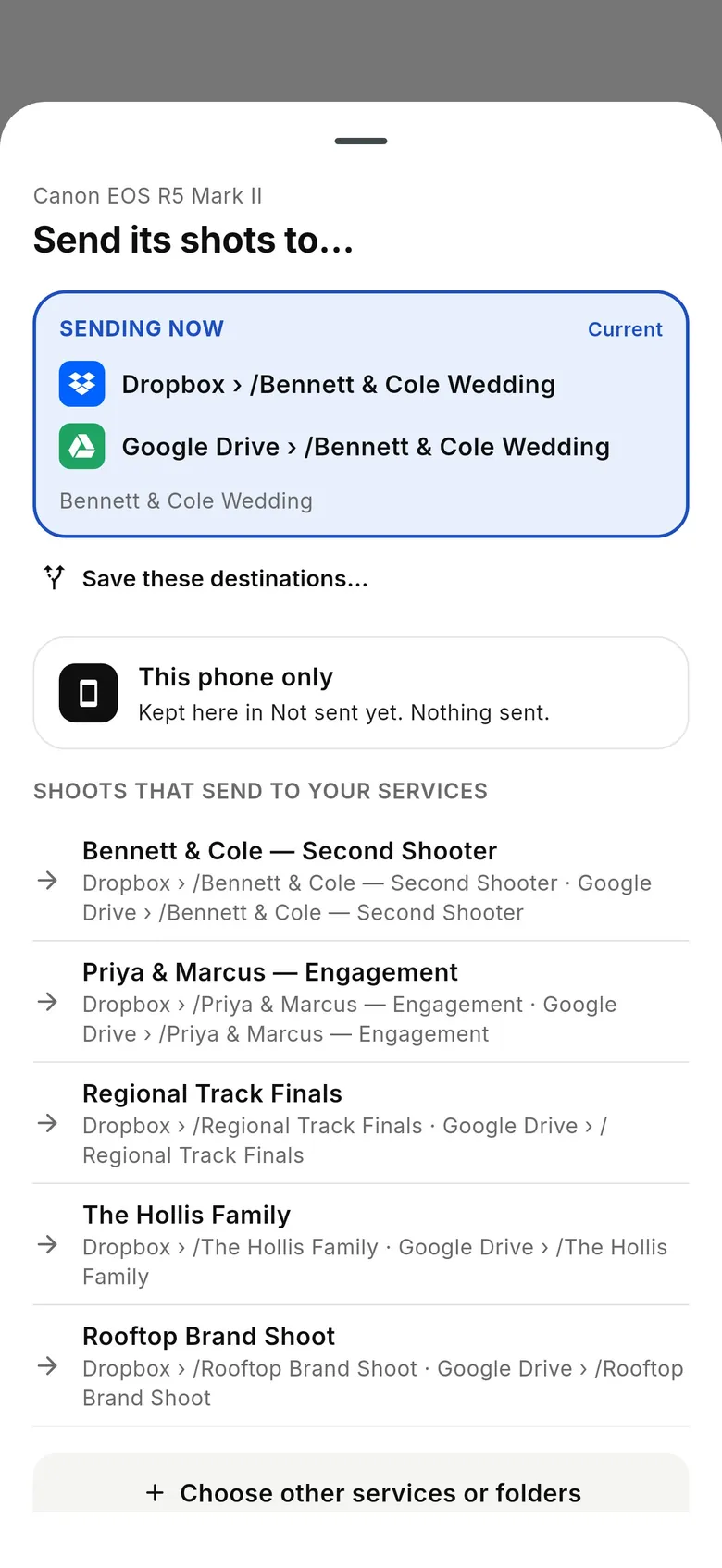
The “Send its shots to…” sheet shows where the camera is sending. Keep shots on the phone, or add Dropbox, Google Drive, a client gallery or an FTP/SFTP server — a shoot can send to several at once. Take a test shot.
- 4
Shoot as normal
Every frame your EOS R5 Mark II captures is copied to the phone at full resolution — JPEG or CR3 RAW — and delivered while you keep shooting. Each photo uploads from the phone once and goes to every destination.
What to know about the EOS R5 Mark II
- The EOS R5 Mark II is the body we used to check rated send end to end: rate a frame on the camera and only rated shots leave it.
- It's also our USB-vs-Wi-Fi benchmark: the same JPEGs took a median 0.06 s over USB and 0.20 s over Wi-Fi in our app logs.
- Its RAW files are large, so for live galleries shoot RAW+JPEG and turn on JPEG only — the CR3 files stay on the card.
Every EOS R5 Mark II frame at full resolution — CR3, JPEG or both
JPEG only: leave RAW on the card to save mobile data
Send only the shots you rate on the camera
Several destinations at once, each photo uploaded once
Keeps working with no signal; uploads catch up later
Run a second body on the same phone (up to three)
How fast does the EOS R5 Mark II tether?
Real Canon EOS R5 Mark II transfers from CloudTether's own app logs — the time from the download starting to the full file being on the phone:
| Link | Files | Median size | Median time | 90% within | Photos |
|---|---|---|---|---|---|
| USB | JPEG | 1.1 MB | 0.06 s | 0.10 s | 108 |
| Wi-Fi | JPEG | 1.1 MB | 0.20 s | 0.26 s | 10 |
Send EOS R5 Mark II photos where they're needed
Each shot uploads from the phone once and goes to every destination on the shoot. Storage gets every file; gallery services such as SmugMug, ShootProof and Photohawk get the JPEGs.
All destinations · how delivery works in camera to cloud.
Guides and comparisons
- All Canon cameras
- Best Canon Camera Connect alternative
- Camera Connect not transferring? Fixes
- Camera not detected over USB? Fixes
- Send only your best shots: rate them in camera
- Faster delivery: JPEG-only and resized photos
- Tether two cameras at once
- Camera tethering app for iPhone
- Tether a camera to Android
- Wireless camera tethering
Canon EOS R5 Mark II tethering FAQ
Can I tether the Canon EOS R5 Mark II to my iPhone or Android phone?
Yes. The Canon EOS R5 Mark II connects to CloudTether on iPhone, iPad or Android with a USB cable or over Wi-Fi, and every photo copies to the phone and on to your destinations as you shoot. We've tested it ourselves: USB tethering verified in field use, and rated send checked end to end, on an EOS R5 Mark II.
Which USB setting does the EOS R5 Mark II need for tethering?
No USB mode to set on EOS bodies. Turn the camera's Wi-Fi off, make sure it isn't in a webcam or streaming mode, and plug in.
Can the EOS R5 Mark II tether over Wi-Fi?
Yes — Canon Wi-Fi is verified. MENU → Network settings → set Network to Enable, then set up the EOS Utility (remote control) connection — not the smartphone connection — on the same network as the phone. Approve the pairing on the camera.
Does CloudTether transfer CR3 RAW files from the EOS R5 Mark II?
Yes. CloudTether copies the original CR3 RAW, JPEG or both, exactly as the camera writes them. Shooting RAW+JPEG? Turn on JPEG only to leave the CR3 files on the card and send just the JPEGs — the fastest option over mobile data.
Can I send only the shots I rate on the EOS R5 Mark II?
Yes. Canon supports rated send: switch on “Only shots I rate in camera” for the shoot, pick a minimum star rating, and only frames you rate on the EOS R5 Mark II are sent.
How fast does the EOS R5 Mark II tether to a phone?
In CloudTether's own app logs: a median 0.06 s per photo over USB (1.1 MB JPEG, 108 photos); a median 0.20 s per photo over Wi-Fi (1.1 MB JPEG, 10 photos). The upload to your destinations then depends on your connection.
Where do my EOS R5 Mark II photos go?
Wherever you choose: Dropbox, Google Drive, OneDrive, SmugMug, ShootProof, an FTP/SFTP server and more — several at once — or just the phone. Gallery destinations such as SmugMug and ShootProof take the JPEGs; storage takes RAW too.
Does CloudTether offer live view or remote shutter for the EOS R5 Mark II?
No. CloudTether is built for capture and delivery: you shoot on the EOS R5 Mark II as normal and every frame comes off it automatically. Keep Canon's own app for remote control.
Tether your EOS R5 Mark II today
Install CloudTether, set the camera as above and take a test shot. One plan with everything included, starting with a 7-day free trial.