Canon Camera Connect not transferring photos? Fixes that work
Camera Connect pairs, then never sends anything — or sends tiny files. Short answer: most failures are the Bluetooth-to-Wi-Fi hand-off, the phone leaving the camera's network, a missing permission or a camera setting. Work through these in order; the first three fix most cases.
Why Camera Connect stops transferring
Camera Connect uses two radios. Bluetooth keeps the camera paired and wakes it up, but photos travel over the camera's own Wi-Fi network. So when you tap to import, the app has to hand the connection over from Bluetooth to Wi-Fi — the “switching to a faster Wi-Fi connection” moment that so many people see hang. Anything that stops the phone joining, or staying on, the camera's network breaks the transfer even though pairing looks fine.
1. Update the app and the camera firmware
Install the latest Camera Connect from the App Store or Google Play and check Canon's site for a firmware update for your body. Connection fixes often arrive in one or the other, and an old app can fail to recognise a newer camera. After updating either, expect to pair again.
2. Give the app the permissions it needs
On iPhone, open Settings › Camera Connect and make sure Bluetooth and Local Network are on, and that Photos access allows the app to add photos. Without Local Network access the app can't reach the camera over Wi-Fi at all — Canon users report the “grant permission to use local network” error even with the switch on, which a reset and re-pair (step 4) clears. On Android, allow Nearby devices (Bluetooth) and, on older versions, Location, plus photos and media access so images can be saved.
3. Keep the phone on the camera's Wi-Fi
The camera's network has no internet, so phones like to jump back to one that does. Turn off any VPN, and when the phone warns that the network has no internet, choose to stay connected. If your iPhone keeps rejoining your home Wi-Fi mid-transfer, turn off Auto-Join for that network while you work. Keep the phone close to the camera, and connect directly to the camera's own access point rather than through a busy router.
4. Reset the camera's wireless settings and pair again
This is Canon's usual fix for a hand-off that never completes. In the camera's wireless or network settings, clear or reset the wireless settings (the exact name varies by body — check your manual). In Camera Connect, delete the camera. On iPhone, also forget the camera under Settings › Bluetooth if it's listed. Then pair from scratch: start the smartphone connection on the camera, open Camera Connect, follow the prompts and accept the confirmation on both screens.
5. Check the camera side
Make sure the camera's airplane mode is off and Wi-Fi or Bluetooth is enabled, the battery isn't nearly flat and the camera isn't going to sleep mid-transfer — lengthen auto power off while you import. A camera generally holds one remote connection at a time, so close EOS Utility or any other app that might be connected. If you also use a USB cable, unplug it: on several EOS bodies wired and wireless connections don't work together.
6. Photos arrive small, or RAW files won't send
Transfers can be resized depending on your settings. If your camera can send images automatically after each shot, check the size option there, and check the import size in the app. For RAW, Canon's app listing says CR3 files can be imported as RAW when you choose the RAW format option; with the JPEG option they're converted and resized. RAW burst files can't be sent to a phone — extract the frames in the camera first. Large movie files can be slow or time out over Wi-Fi.
7. Transfers start but never save
If previews load but downloads fail, check the phone has free storage and that the app is allowed to add photos. Reinstalling the app clears a corrupted state; you'll need to pair again afterwards.
Still stuck?
Try another phone to find out whether the problem follows the camera or the phone, and contact Canon support with your camera model, firmware and app version. Meanwhile, a card reader or a USB cable will always get files off the card.
If you need every full-res shot automatically, here's another way
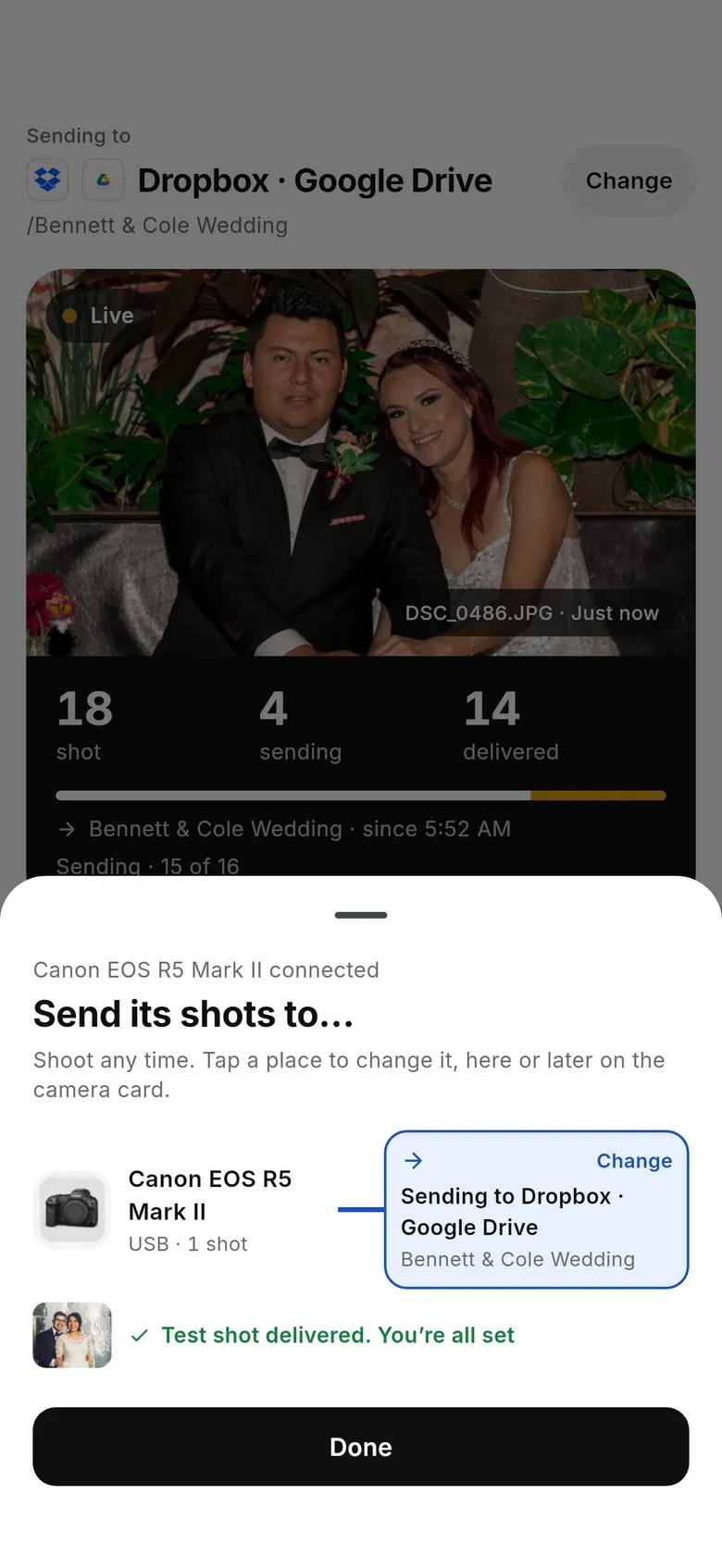
Camera Connect is built for picking and sharing a few shots and for remote live view. If what you actually need is every frame off the camera at full resolution — backed up and on its way to clients while you shoot — CloudTether does that instead. Turn the camera's wireless off and plug a USB-C cable into your iPhone, iPad or Android phone, or use the camera's “Remote control (EOS Utility)” Wi-Fi function (Canon Wi-Fi is verified; don't use “Connect to smartphone”, which only talks to Camera Connect). Each CR3, CR2 or JPEG comes off the camera seconds after you take it and goes to Dropbox, Google Drive, a gallery or an FTP server — or stays on the phone. You can send only shots you rate in camera, and shots wait on the phone if signal drops. There's a 7-day free trial.
FAQ
Why is Canon Camera Connect stuck on “switching to Wi-Fi”?
The app paired over Bluetooth but the phone couldn't join or stay on the camera's Wi-Fi. Turn off VPNs, allow Local Network access on iPhone, stay on the camera's network when warned it has no internet, and if it still hangs, reset the camera's wireless settings, delete the camera in the app and pair again.
Why are my Camera Connect photos low resolution?
Transfers can be resized depending on the camera's auto-send size and the app's import settings. Check both, and for RAW choose the app's RAW format option. RAW burst files can't be sent to a phone.
Can Camera Connect transfer RAW (CR3) files?
Canon's app listing says CR3 files can be imported as RAW when you choose the RAW format option; otherwise they're converted to resized JPEGs.
Can I use Camera Connect and a USB cable at the same time?
Usually not — on several EOS bodies, turn wireless off before using a USB cable. The camera holds one connection at a time.
Is there an alternative that sends every photo automatically?
Yes. CloudTether tethers EOS cameras over USB or Wi-Fi and copies every full-resolution shot to your phone and on to the cloud as you shoot.
Tether your camera to the cloud with CloudTether
Deliver every shot to the cloud or a client gallery, live as you shoot — no laptop. Start with a 7-day free trial on iPhone, iPad or Android.