CloudTether quick start: connect a camera, send shots
The whole app in four short walkthroughs — with screenshots for both the new 1.1 app and 1.0.
Which app version do you have?
CloudTether 1.1 is a redesign of the app. Its tab bar reads Home · History · Deliver · More, and what 1.0 called a cloud album (or a session) is now a shoot. 1.0's tab bar reads Home · Playback · Destinations · More. Each walkthrough below has a switch for both versions; nothing about your cameras or services changes between them.
How CloudTether works
Connect a camera to your phone over USB or Wi-Fi. Each shot is pulled off the camera at full resolution and sent to the places you choose — Dropbox, Google Drive, a client gallery, FTP — or kept on the phone. Your phone uploads each shot once and CloudTether delivers it to every destination, over mobile data if there's no Wi-Fi.
Connect a camera in the CloudTether app
From opening the app to your first shot arriving — over USB or Wi-Fi.
Not sure which you have? 1.1 has the tabs Home · History · Deliver · More; 1.0 has Home · Playback · Destinations · More. What changed in 1.1
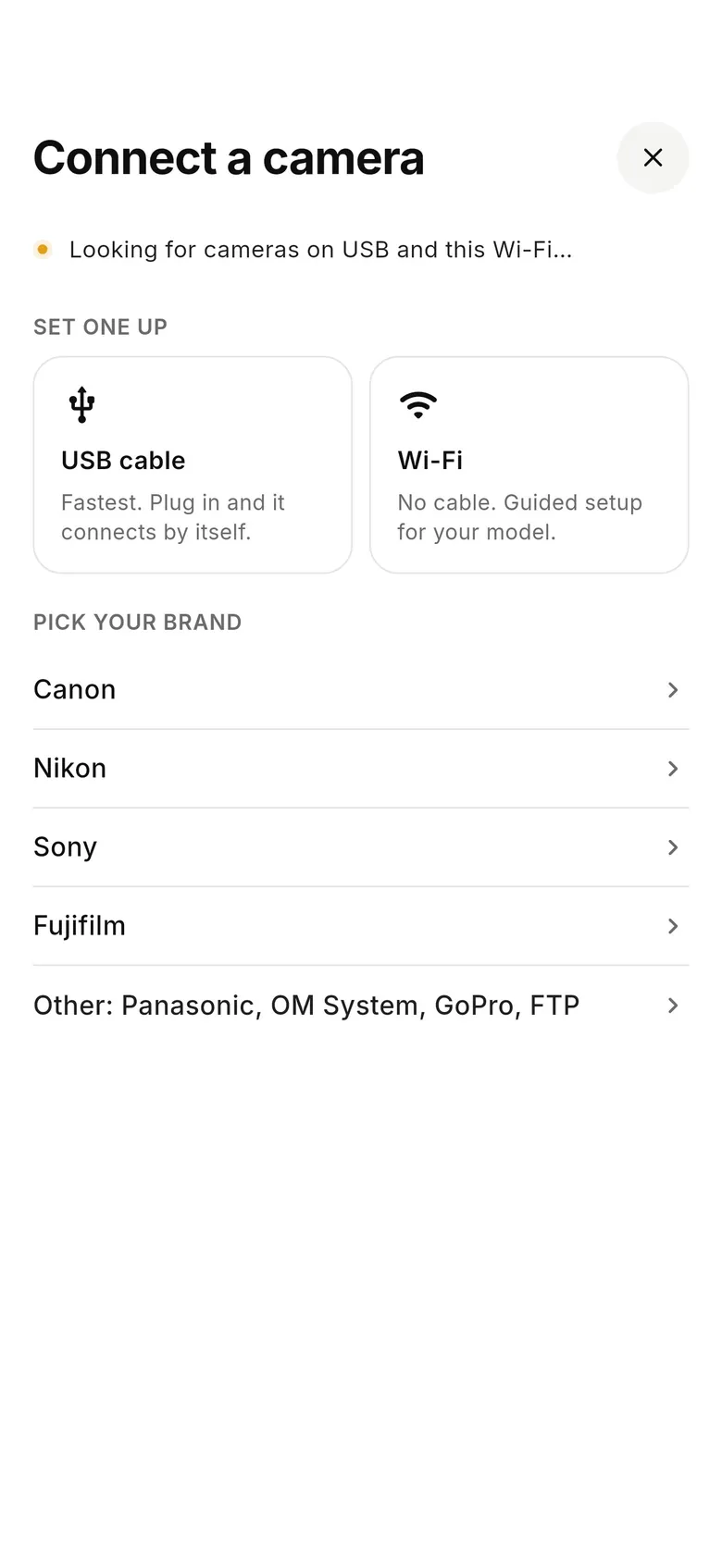
1Open Connect a camera
On Home, tap “Connect a camera” (or “+ Add” under Cameras when one is already connected). Plug in a USB cable and the camera connects by itself, or tap “Wi-Fi” for guided setup — or pick your brand (Canon, Nikon, Sony, Fujifilm, or Other: Panasonic, OM System, GoPro, FTP).
2Confirm on the camera if asked
Over Wi-Fi, many cameras show a pairing or confirm prompt the first time — accept it on the camera. Over USB, set the camera to its PC / tether mode (PC Remote on Sony).
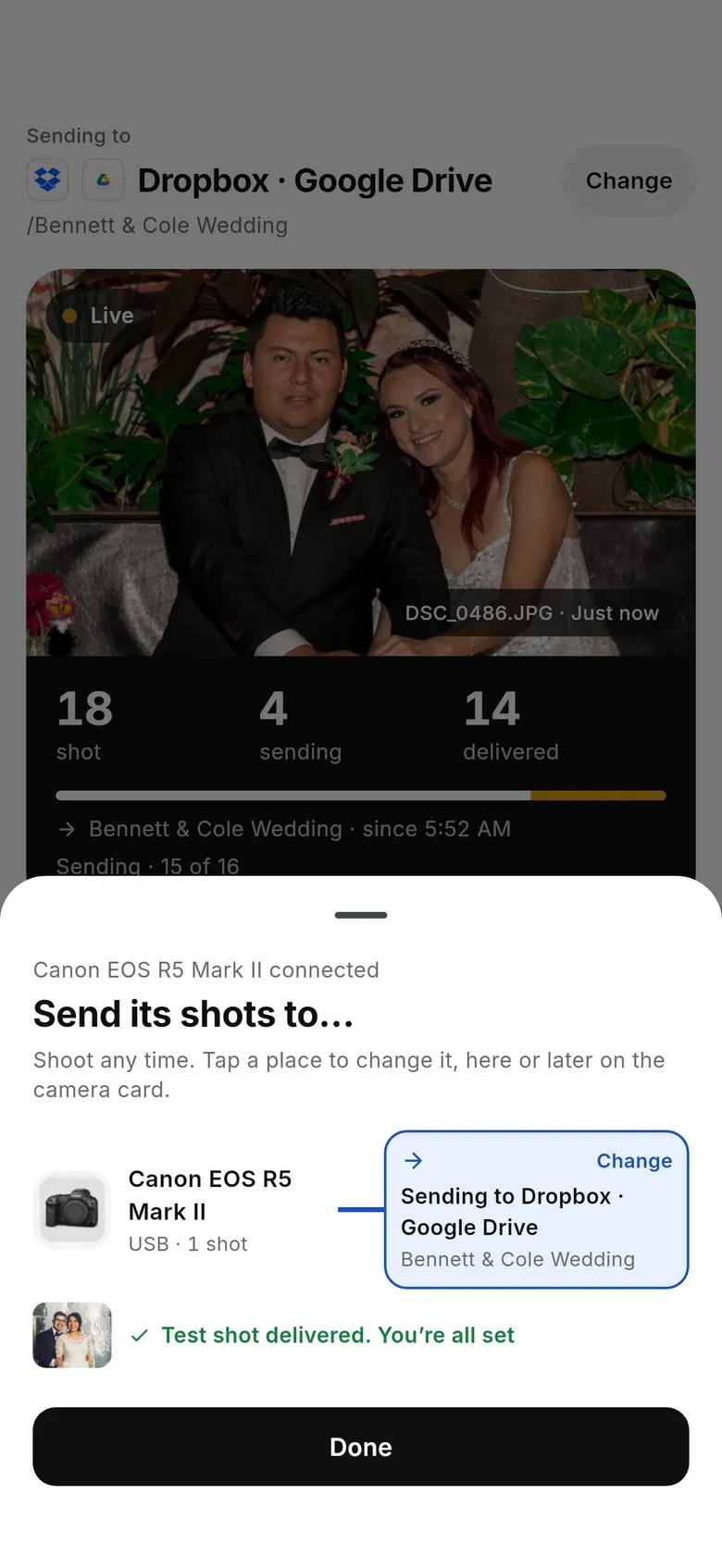
3Choose where its shots go
When the camera connects, the “Send its shots to…” sheet shows the camera and where it is sending — for example “Sending to Dropbox · Google Drive”. Tap “Change” to pick somewhere else, then take a test shot: “Test shot delivered. You’re all set” means it worked.
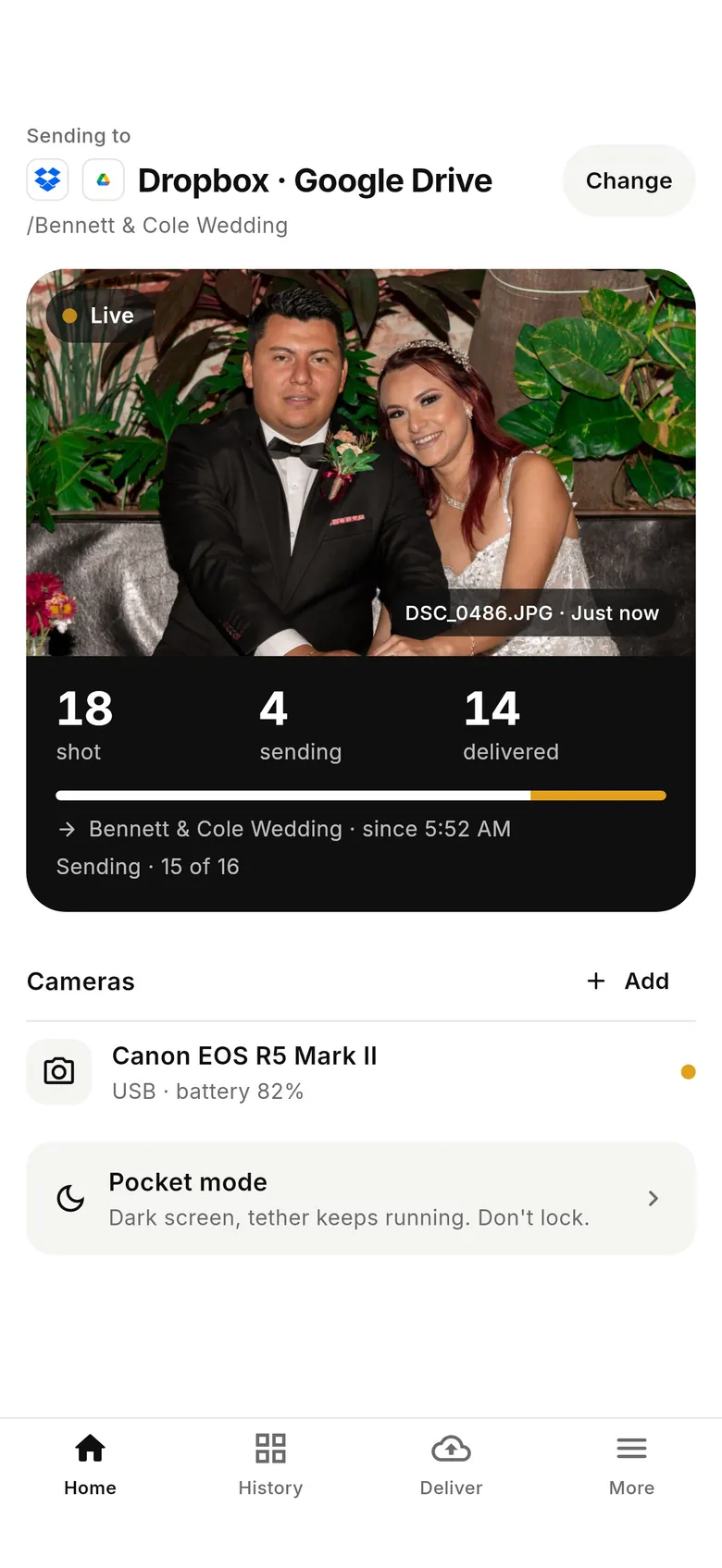
4Shoot
Home now leads with where shots are going (“Sending to Dropbox · Google Drive”, with “Change”) and a live panel of shot / sending / delivered counts. Turn on Pocket mode to darken the screen while the tether keeps running.
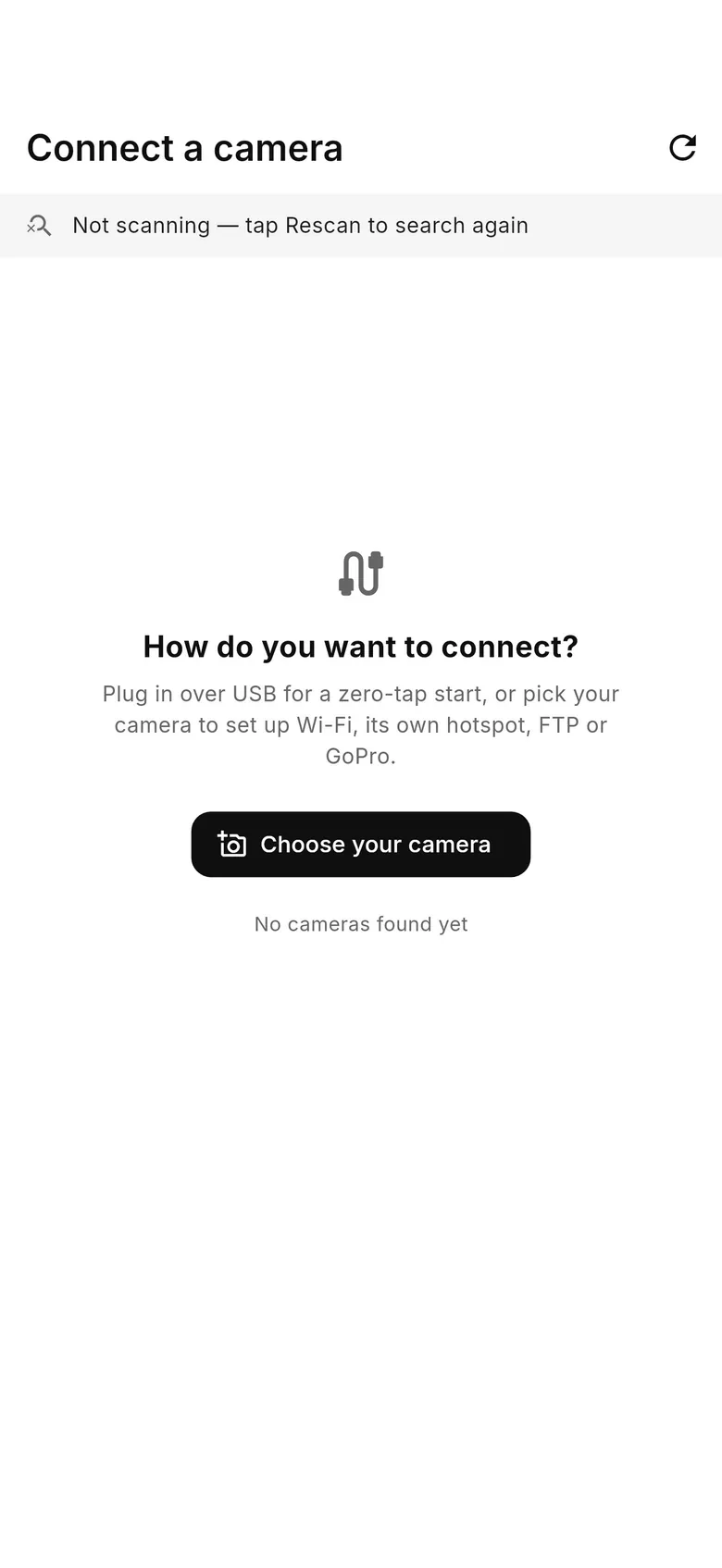
1Open Connect a camera
On Home, tap “Connect a camera” (or “+ Add camera” when one is already connected). Plug in over USB for a zero-tap start, or tap “Choose your camera” to set up Wi-Fi, the camera's own hotspot, FTP or GoPro for your model.
2Confirm on the camera if asked
Over Wi-Fi, many cameras show a pairing or confirm prompt the first time — accept it on the camera (Home shows “Confirm the connection on your camera”). Over USB, set the camera to its PC / tether mode (PC Remote on Sony).
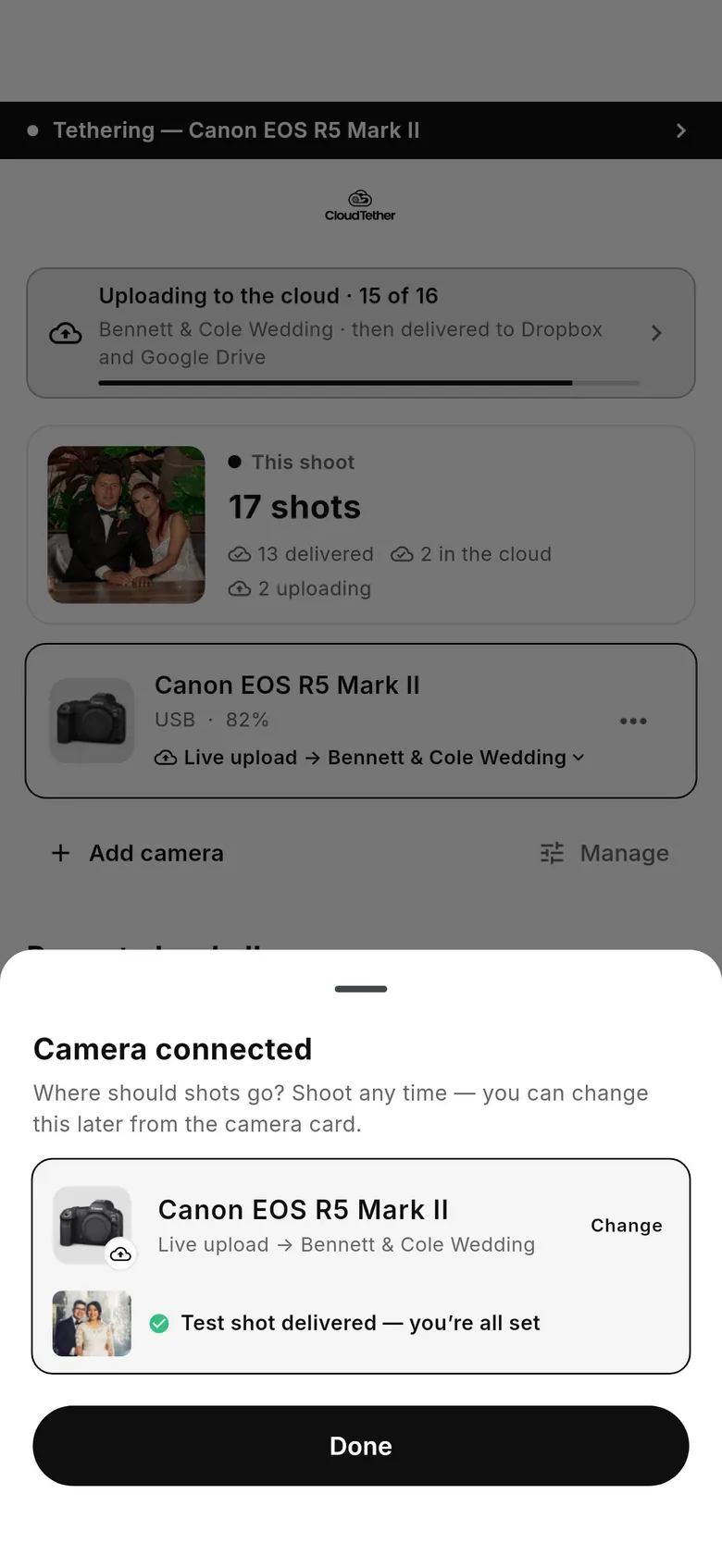
3Choose where shots go
The “Camera connected” sheet asks “Where should shots go?” and shows the camera's current album, e.g. “Live upload → Bennett & Cole Wedding”. Tap “Change” to pick another album, then take a test shot: “Test shot delivered — you’re all set”.
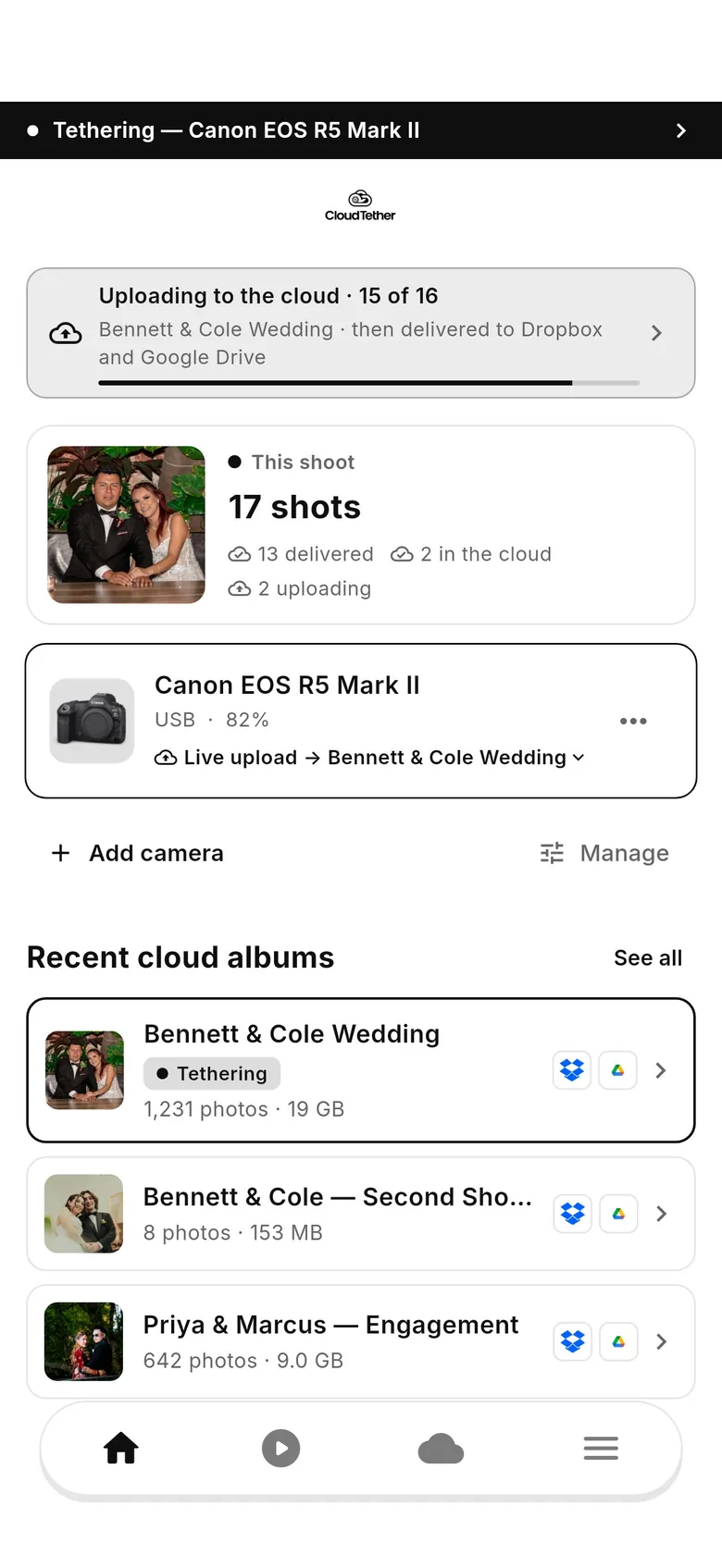
4Shoot
Home shows “This shoot” with captured, uploading, in-the-cloud and delivered counts, and the camera card's “Live upload → album” line. Recent cloud albums are listed below.
Choose where a camera's shots go
Point each camera at your services — or keep its shots on the phone — and change it any time.
Not sure which you have? 1.1 has the tabs Home · History · Deliver · More; 1.0 has Home · Playback · Destinations · More. What changed in 1.1
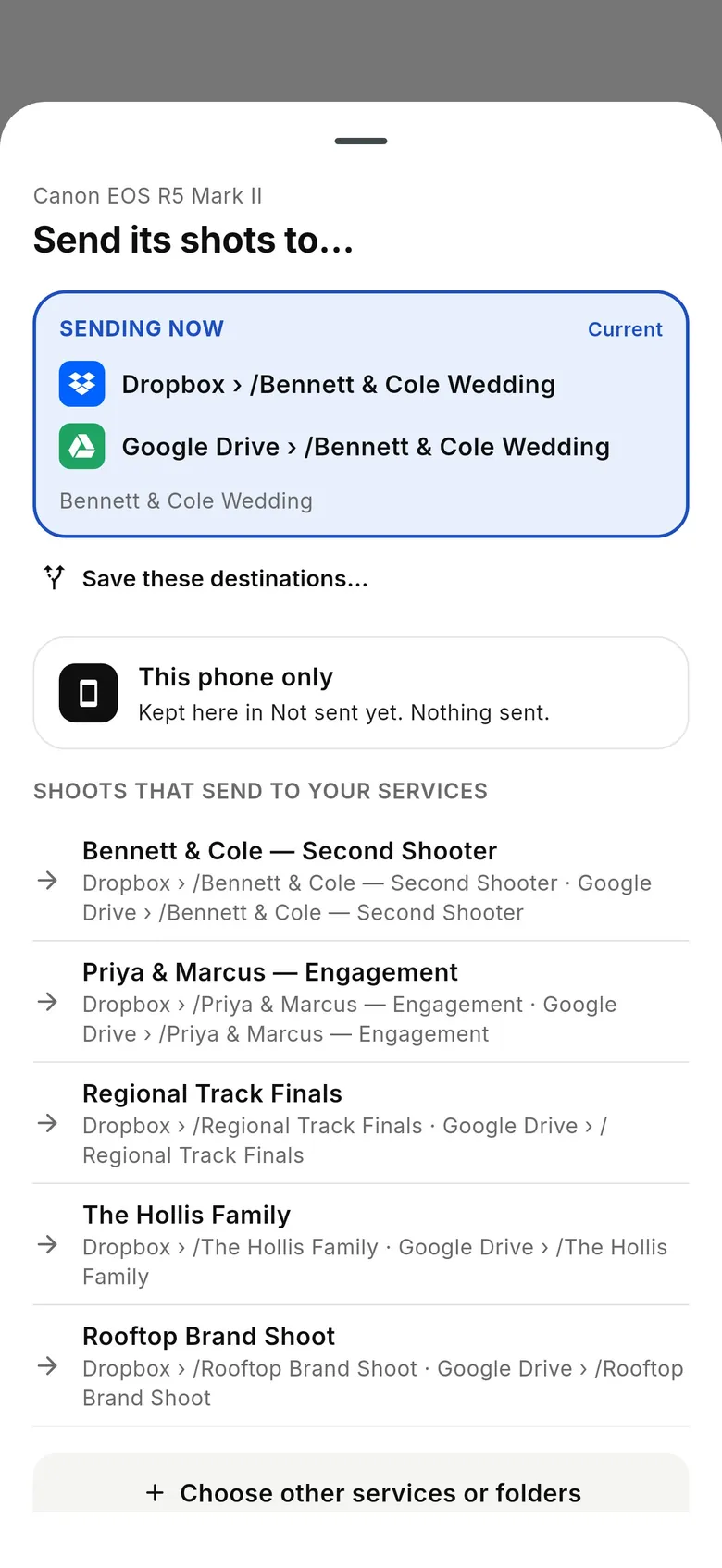
1Open “Send shots to…”
Tap “Change” next to “Sending to …” at the top of Home, or on the sheet that opens when a camera connects. “Sending now” is the current choice; under it are “This phone only” (shots are kept here in Not sent yet, or copied to Photos if you set that up), “New shoot to saved destinations” and “Shoots that send to your services”.
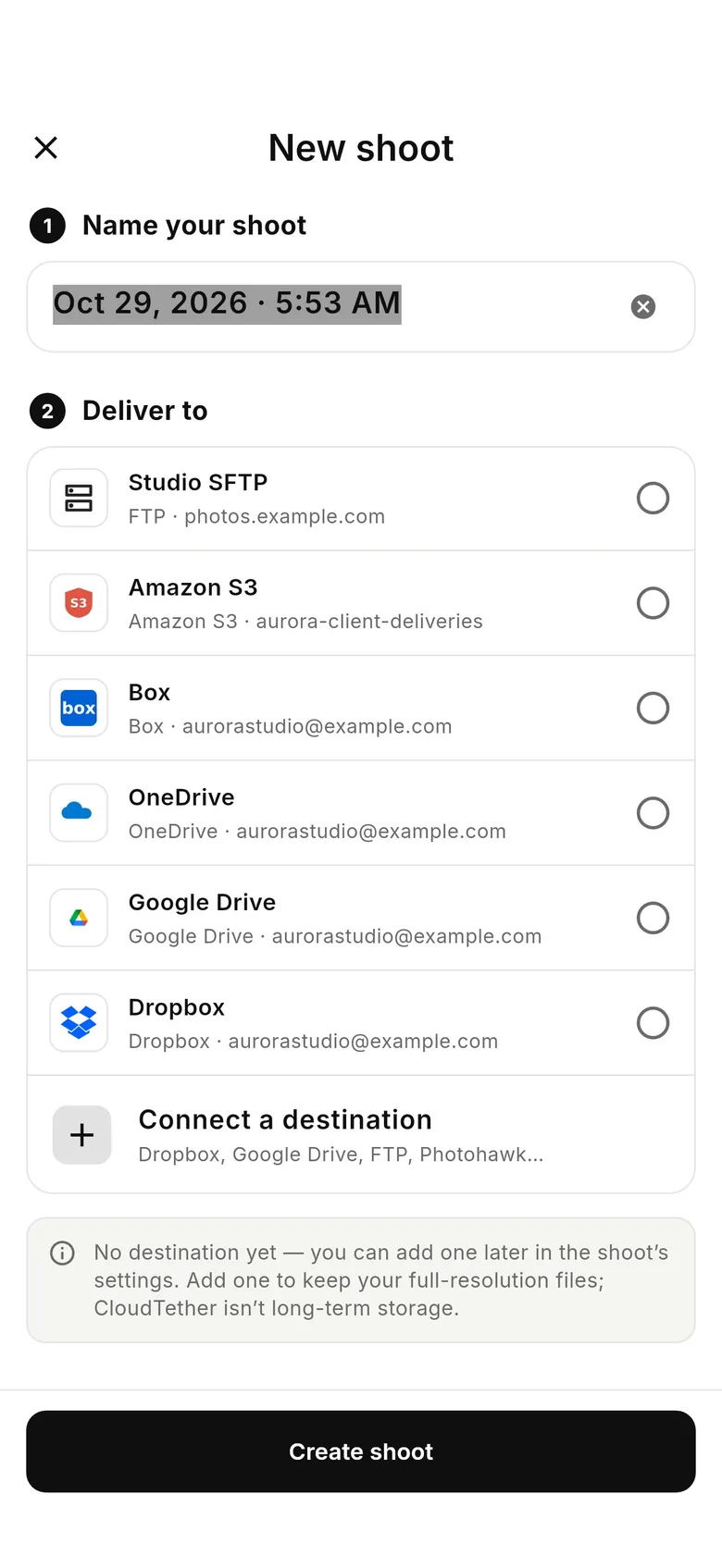
2Pick services for a new shoot
Tap “Choose other services or folders”. Name your shoot (it defaults to today's date and time), tick the services under “Deliver to” — Dropbox, Google Drive, a gallery, FTP… — and tap “Create shoot”.
3Save the set for next time
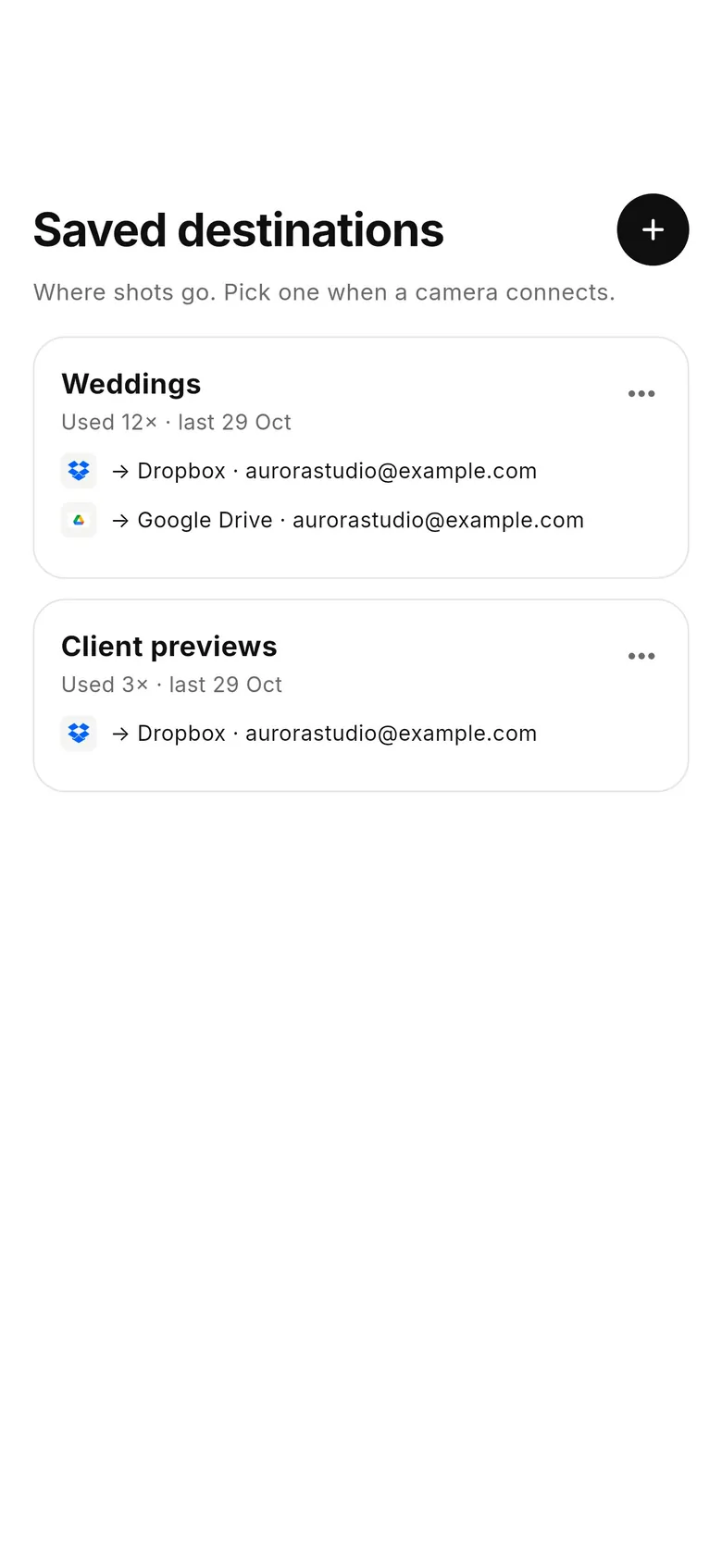
Under the current shoot, tap “Save these destinations…” and give the set a name. It appears in Deliver › Saved destinations and as “New shoot to saved destinations” in the picker — one tap starts a new shoot, named for today, on the same services.
4Reconnecting later
Each camera remembers its choice. Reconnect the same day and it rejoins that shoot; on a later day it starts a new shoot on the same destinations, so next week's job never lands in last week's folder.
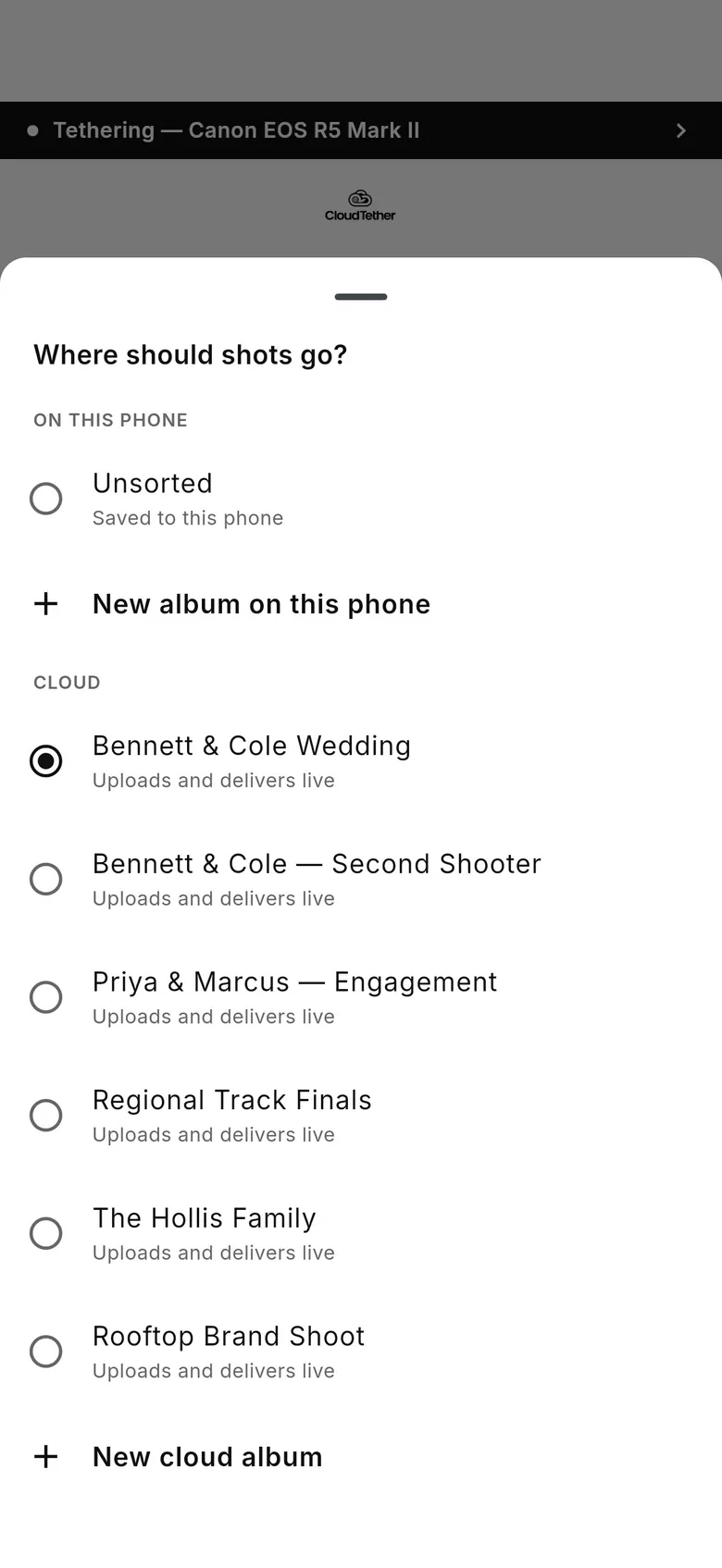
1Open “Where should shots go?”
Tap “Change” on the Camera connected sheet, or the camera's “Live upload → …” line on Home. Pick “Unsorted” (saved to this phone) or an album on this phone under “On this phone”, or a cloud album — which uploads and delivers live — under “Cloud”.
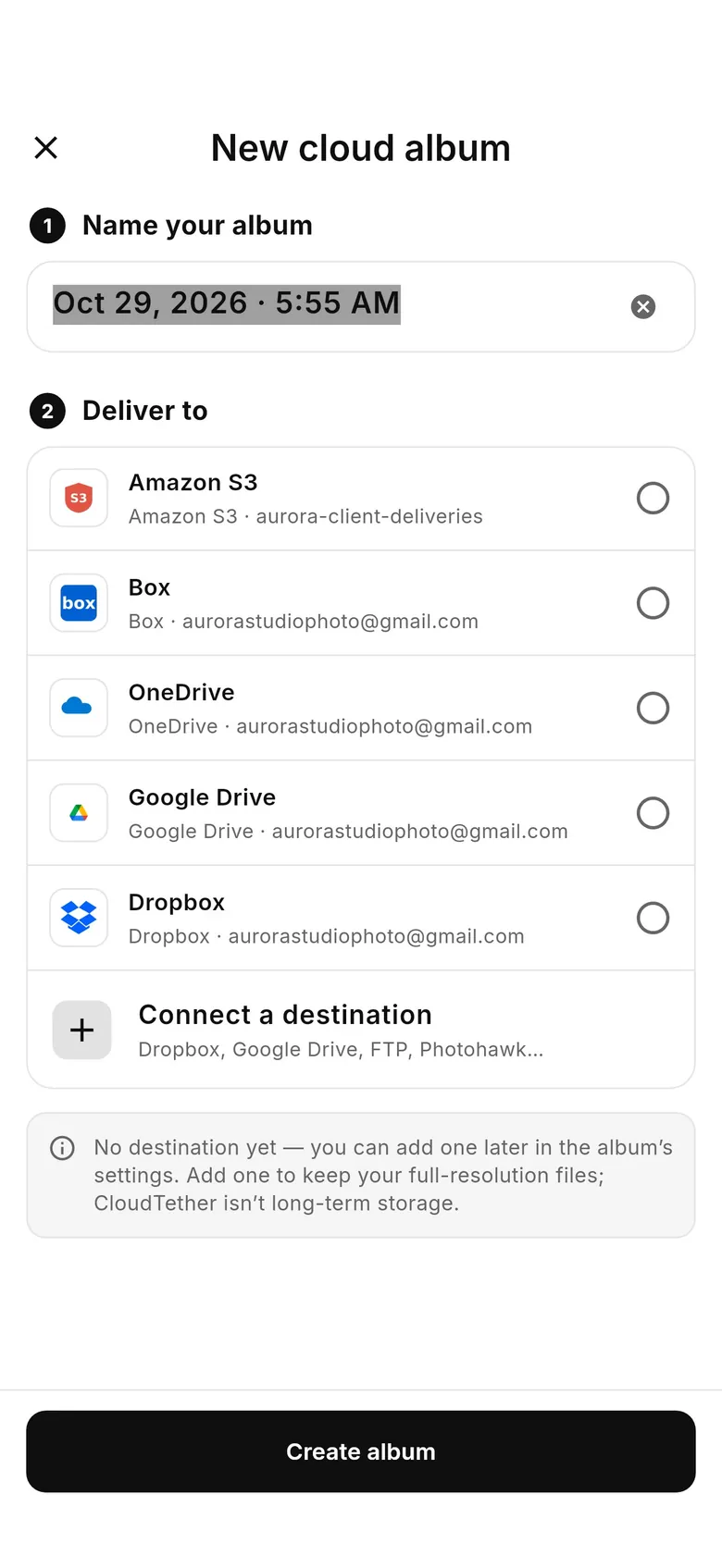
2Create a cloud album
Tap “New cloud album”. Name your album (it defaults to today's date and time), pick the destinations under “Deliver to” and tap “Create album”. The camera starts sending to it straight away.
3Reconnecting later
Each camera remembers its album and returns to it when it reconnects — check the camera's “Live upload → …” line before a new job and pick a new album if needed.
Connect Dropbox, Google Drive or another service
Add a destination once, then every shoot can deliver to it automatically.
Not sure which you have? 1.1 has the tabs Home · History · Deliver · More; 1.0 has Home · Playback · Destinations · More. What changed in 1.1
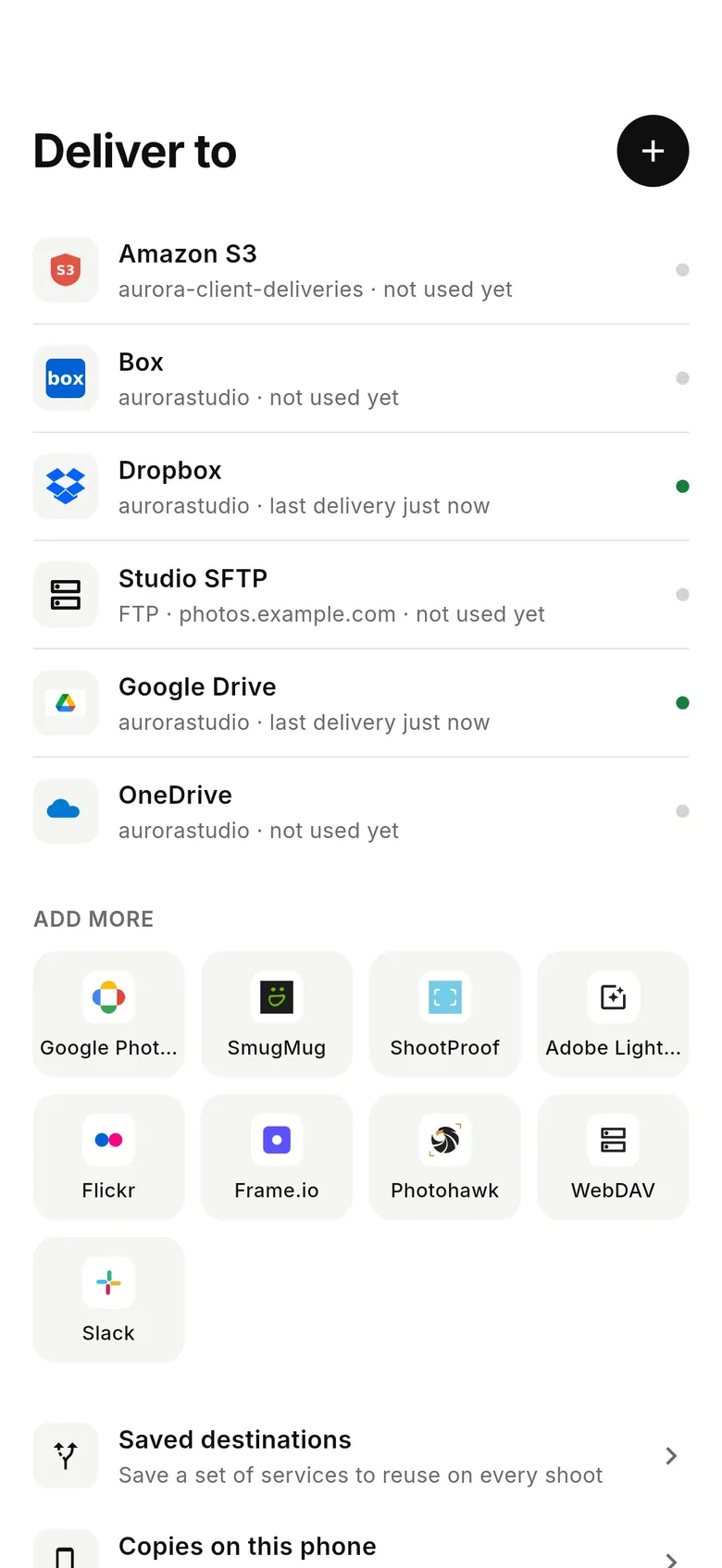
1Open the Deliver tab
Tap “Deliver” in the tab bar. Your connected services are listed under “Deliver to”; tap one under “Add more” (Dropbox, Google Drive, Google Photos, SmugMug, ShootProof, Frame.io, FTP, WebDAV, Slack…) or the + button, then sign in and approve access.
2Set what gets sent
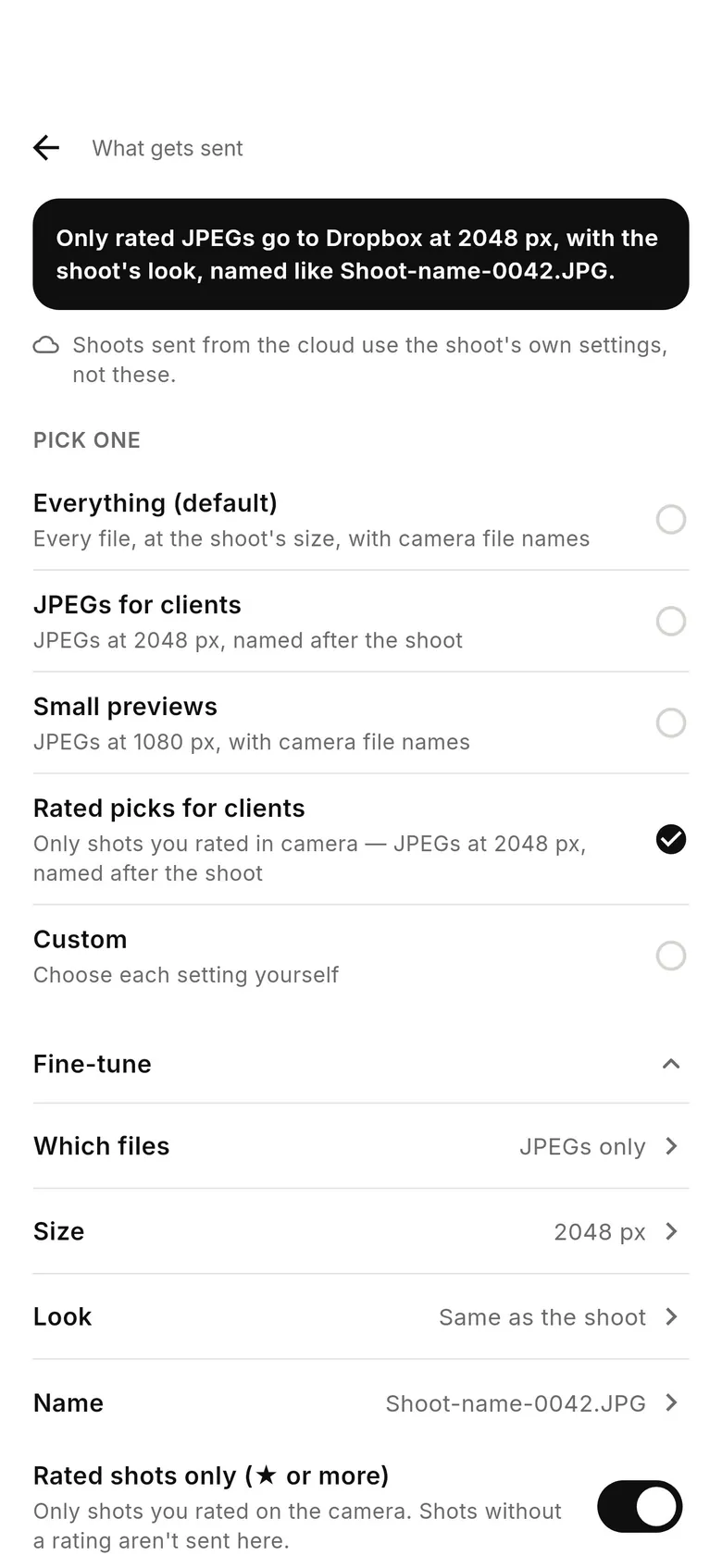
Tap a connected service, then “What gets sent”. Pick “Everything (default)”, “JPEGs for clients” (JPEGs at 2048 px, named after the shoot), “Small previews” (JPEGs at 1080 px), “Rated picks for clients” (only shots you rated in camera) or “Custom”, and use “Fine-tune” for which files, size, look, file name and “Rated shots only (★ or more)”. If the screen notes that shoots sent from the cloud use the shoot's own settings, set size and look in that shoot's settings instead.
3Send only your picks (optional)
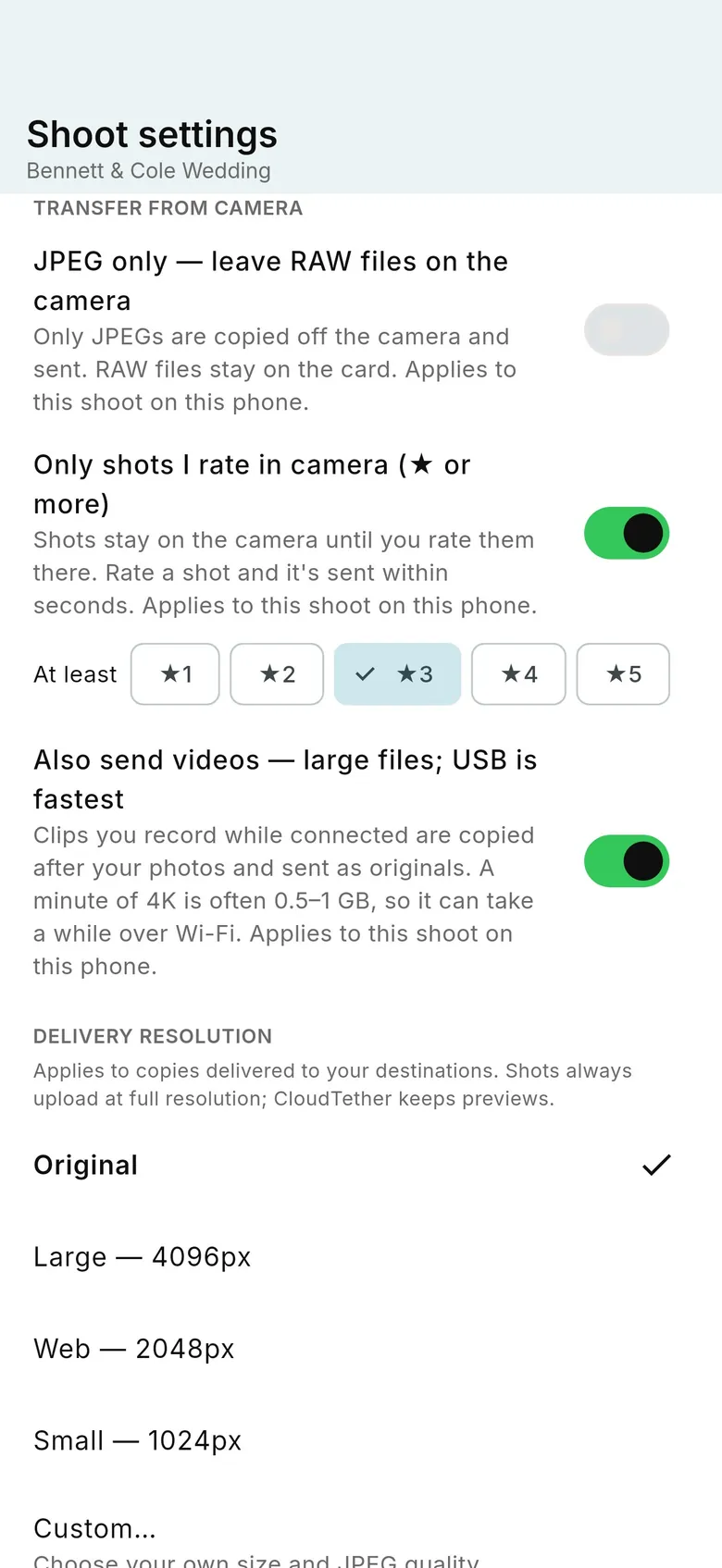
To send only the shots you rate on the camera, open the shoot's settings › “Transfer from camera” and turn on “Only shots I rate in camera”, then pick the minimum — “At least ★3”, say. “Also send videos” copies clips you record while connected; they're large, so USB is fastest.
4FTP or SFTP server (optional)
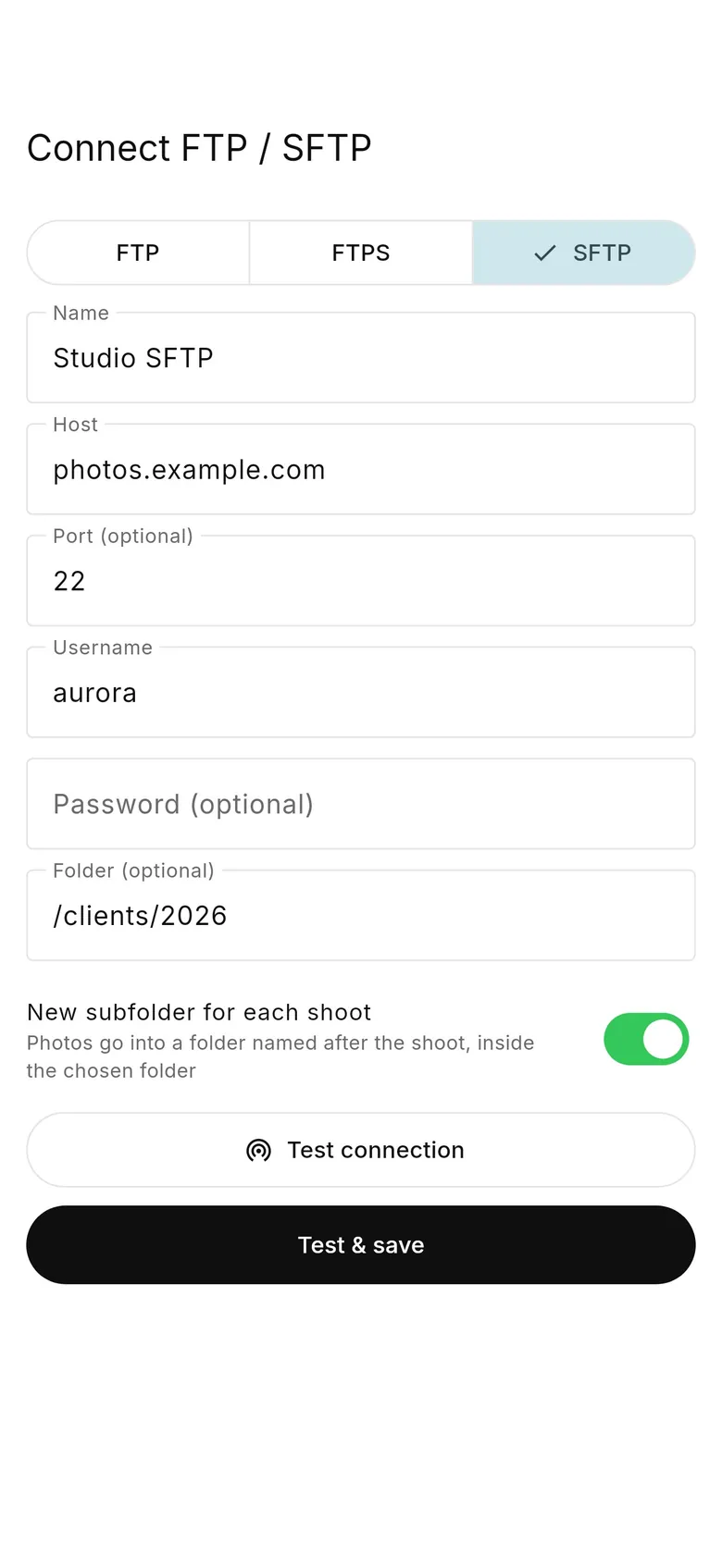
Tap “FTP” under “Add more”, pick FTP, FTPS or SFTP and fill in the host, port, username, password and folder. “New subfolder for each shoot” (on by default) puts each shoot in its own folder inside the one you chose. Tap “Test connection”, then “Test & save”.
5Send a camera's shots there
When a camera connects, choose the service in “Send shots to…” › “Choose other services or folders”, or start a shoot from a saved set. By default a folder named after the shoot is created on the first delivery.
6Copies on the phone (optional)
To also keep copies in Photos, Files or on a USB drive, open Deliver › “Copies on this phone”.
1Open the Destinations tab
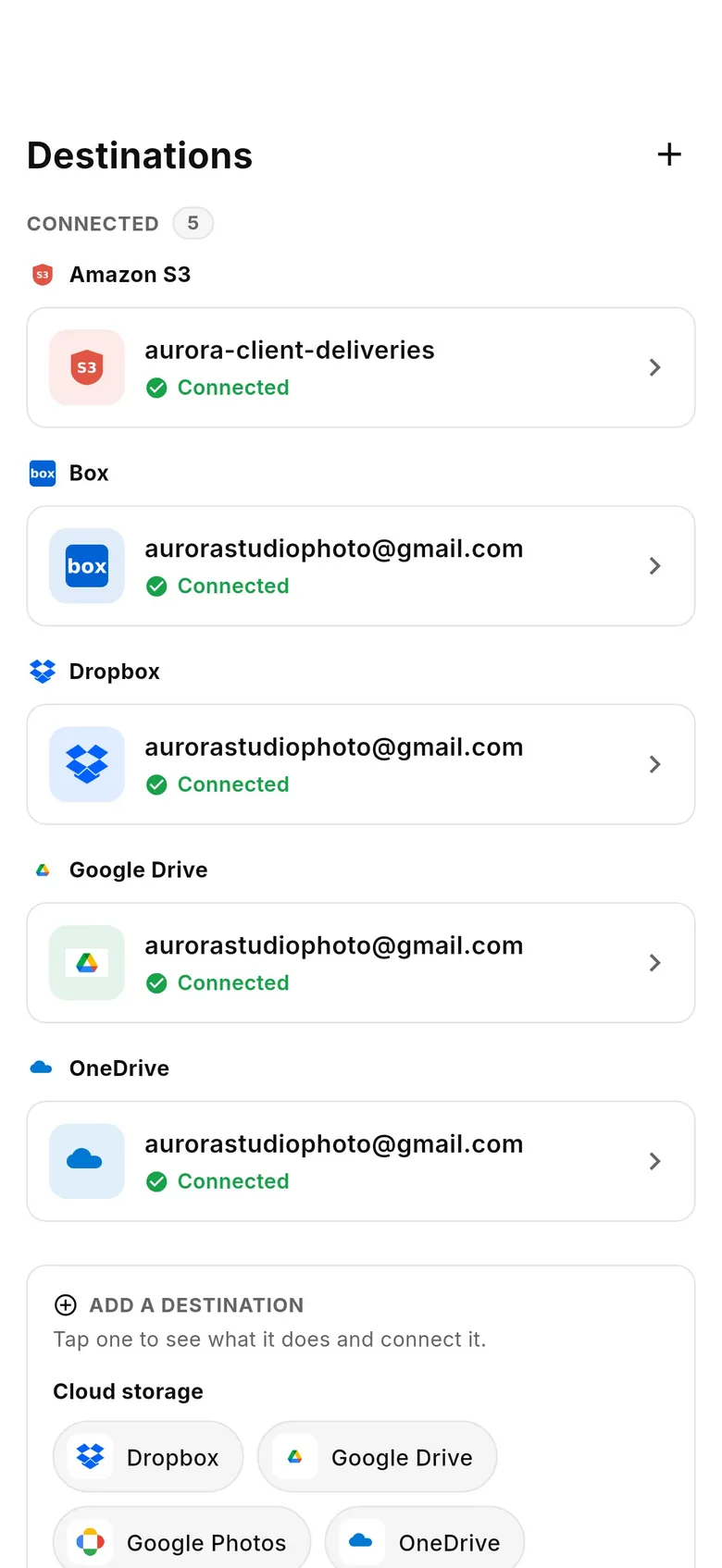
Tap “Destinations” in the tab bar. Under “Add a destination”, tap a service (Dropbox, Google Drive, Google Photos, OneDrive, Box…) to see what it does and connect it — sign in and approve access. Connected ones show “Connected”.
2Attach it to a cloud album
Create a cloud album and tick the service under “Deliver to” (or add it later in the album's settings). Every shot sent to that album is delivered to the service.
3Copies on the phone (optional)
Photos library, Files or USB copies are set up under Playback › Device › Sync.
Find past shoots and unsent shots
Where earlier work lives in the app, and how to send shots that haven't gone anywhere yet.
Not sure which you have? 1.1 has the tabs Home · History · Deliver · More; 1.0 has Home · Playback · Destinations · More. What changed in 1.1
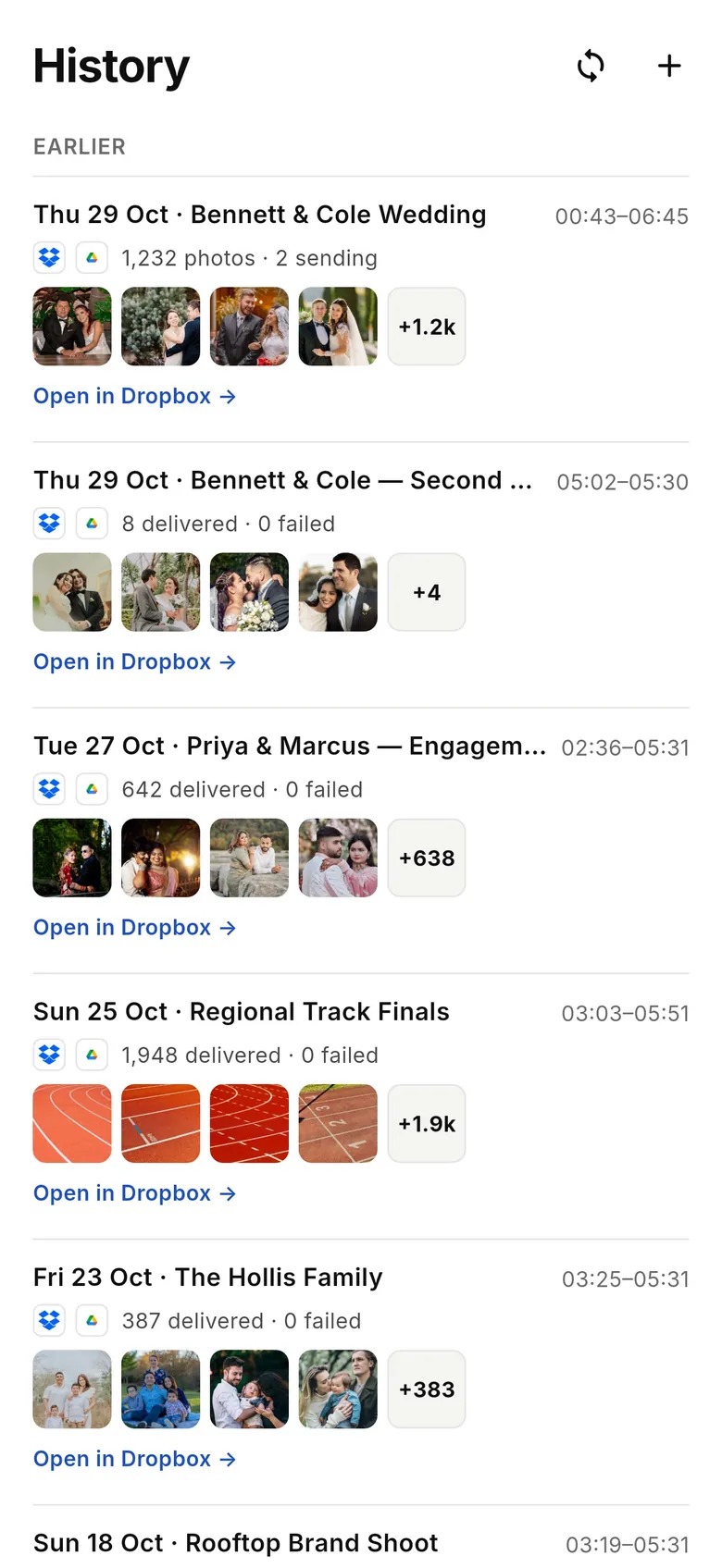
1Open History
Tap “History”. Every shoot is listed newest first as a receipt — date, place and name, how many shots, which services they went to, with a strip of its newest shots (tap one to view it) and “Open in Dropbox” (or your service) links. Shots with no destination are under “Not sent yet”.
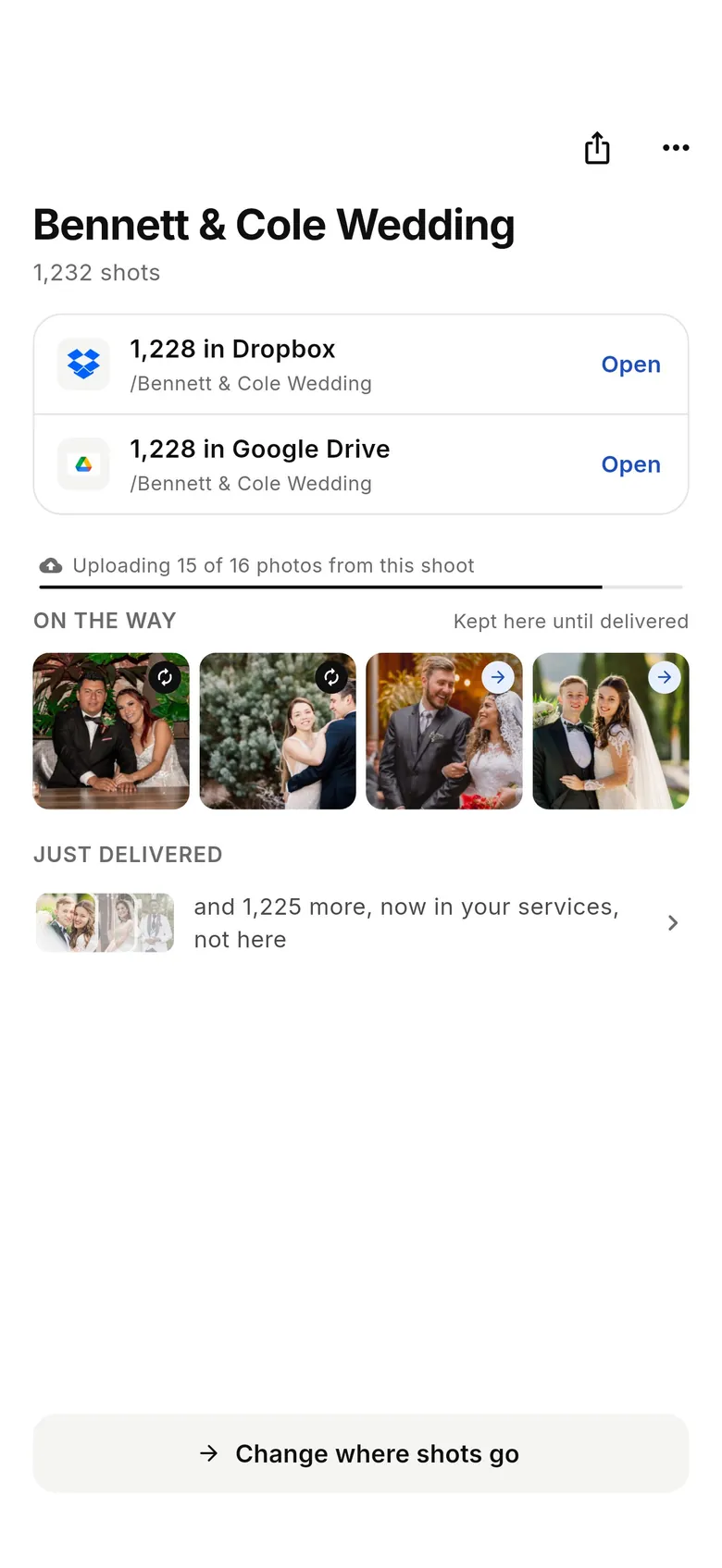
2Open a shoot
Tap a shoot to see how many shots reached each service (with “Open” links), the shots still “On the way” — kept on the phone until delivered — and “Change where shots go”. For shots in Not sent yet, select them and tap “Send these to…”.

3View a shot
Tap any shot to open it full screen; swipe through the shoot, or pinch to zoom into the full-resolution photo. Video clips show a play button. Share and Print are at the top.
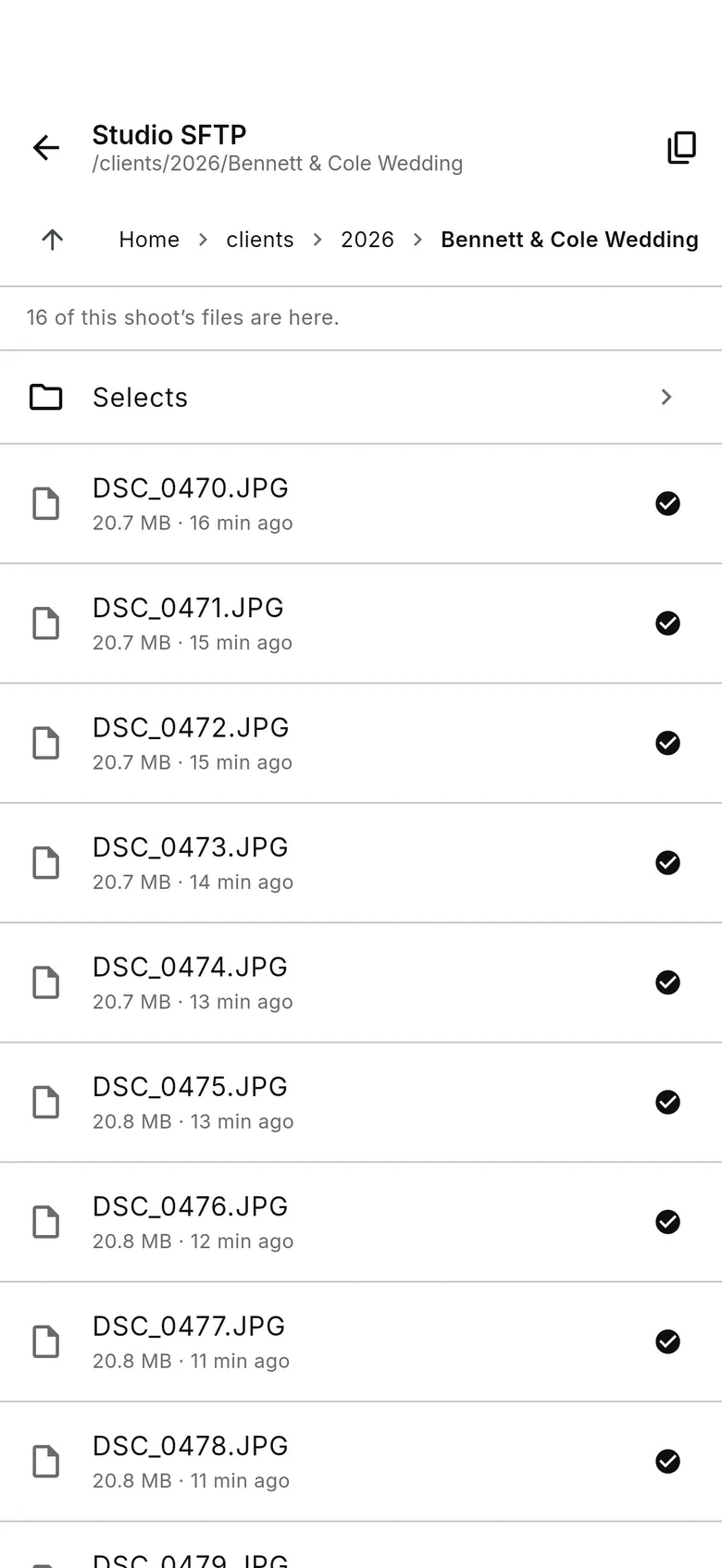
4Browse an FTP or SFTP folder
For an FTP, FTPS or SFTP destination, tap “Browse” on the shoot to look through the server's folders without leaving the app: this shoot's files are marked, and you can step up, open folders or copy the path. Nothing on the server is changed.
5End a shoot
When you end a shoot, a delivery receipt shows how many shots went to each service, with Open links and “Share receipt”.
1Open Playback
Tap “Playback”. Switch between “Device” (Unsorted and albums on this phone) and “Cloud” (your cloud albums). Recent cloud albums are also on Home under “See all”.
2Send or move shots
Select shots, then use “Move to album” or “Send to…” to deliver them, or “Share”.
FAQ
Do I need a laptop to use CloudTether?
No. The phone connects to the camera over USB or Wi-Fi and does the upload itself.
Is a shoot the same as a cloud album or session?
Yes. App 1.1 calls it a shoot; 1.0 calls it a cloud album, and older help says session.
Can one camera send to Dropbox and Google Drive at once?
Yes. Choose both when you pick where the camera's shots go; each shot is uploaded once and delivered to both.
Tether your camera to the cloud with CloudTether
Deliver every shot to the cloud or a client gallery, live as you shoot — no laptop. Start with a 7-day free trial on iPhone, iPad or Android.