LUMIX Tether: how to tether a Panasonic Lumix (and what works on a phone)
Short answer: LUMIX Tether is Panasonic's free tethering software for Windows and Mac. Set the camera's USB Mode to PC(Tether), connect it to the computer with a USB cable, open LUMIX Tether, and you can see live view, change settings and shoot from the computer, with each picture saved there. Tethering a Lumix to a phone is a different story: Panasonic's phone apps aren't tethering tools, and CloudTether's Lumix support over USB is not yet tested by us — details, and how to help us test it, below.
What LUMIX Tether is
LUMIX Tether is Panasonic's own application for tethered shooting with Lumix cameras. It runs on a Windows PC or a Mac, connects over USB, and turns the computer into a remote control and a big screen: live view, focus and exposure settings, the shutter button, and each image saved to a folder on the computer as you shoot. In 2020 Panasonic also released LUMIX Tether for Streaming, a beta aimed at live-streaming with a clean live-view feed; for stills tethering, use the current LUMIX Tether from Panasonic's support site, where it's a free download.
Which Lumix cameras work with LUMIX Tether?
Panasonic lists supported models on the LUMIX Tether download page, and the list grows with updates. It covers the full-frame S series and the higher-end Micro Four Thirds G and GH bodies — models such as the S1, S1R, S1H, S5 and S5 II, and the G9, G9 II, GH5, GH5S, GH6 and GH7 have appeared on it — plus some box-style cameras for video rigs. Entry-level and older compact Lumix cameras generally don't support tethered shooting. Check Panasonic's current list for your exact model before a job, and update the camera's firmware.
What you need
A Windows or Mac computer on an operating system Panasonic lists for the current version, LUMIX Tether from Panasonic's site, a charged battery or mains power for the camera, and a USB data cable. Current S and GH bodies have a USB-C port, so a USB-C to USB-C cable suits a modern laptop and USB-C to USB-A an older one; plug it into the computer's own port rather than a hub. For long sessions on a laptop, a good 3 m cable with a strain-relief clip is sensible — our camera tethering cable guide has the details.
How to tether a Lumix with LUMIX Tether
1. Install LUMIX Tether on the computer. 2. On the camera, open the Setup menu and set USB Mode to PC(Tether). This is the setting people miss: in other USB modes — storage, PictBridge printing or webcam — the camera won't tether. On many bodies, choosing PC(Tether) also stops the camera asking which USB mode to use each time, and a tether icon appears on screen. 3. Connect the cable and switch the camera on. 4. Open LUMIX Tether. The camera is found and live view appears on the computer. 5. Choose the folder images are saved to and whether they also save to the card, then shoot — from the camera or with the software's shutter button. Each picture arrives on the computer as it's taken.
Settings worth checking
Save destination: saving to the computer and the card gives you a second copy if the cable comes out. File format: RAW+JPEG doubles what moves over the cable for every frame; JPEG alone is quicker if you just need review. Live view: it's useful for focus and framing on a product or portrait set, but it keeps the sensor running and drains the battery, so power the camera from mains or USB power where it supports it. Wireless: on Panasonic bodies, Wi-Fi and Bluetooth aren't available while the camera is connected to a computer in tether mode, so turn those features off first.
LUMIX Tether not working? Common fixes
Camera not found: check USB Mode is PC(Tether), not another mode; try another cable — many USB-C cables are charge-only — and a port directly on the computer; quit other camera or import apps; and check the model and operating system are on Panasonic's list for your version of LUMIX Tether. Live view but no files: check the save destination and that there's free space on the computer. It stopped after an update: update LUMIX Tether and the camera firmware together, and restart both. Still stuck: Panasonic's support pages for your model have a tethering section in the camera's online manual.
Lumix tethering in other software
If you'd rather tether straight into an editor, Capture One supports tethering with selected Lumix bodies and has been adding Lumix support in its iPad app; check its camera list for your model and connection. Lightroom Classic doesn't tether Lumix directly in most cases, but you can let LUMIX Tether save into a folder and use Lightroom Classic's Auto Import to pull each file into the catalog. Our Lightroom tethering guide explains that set-up.
Can you tether a Lumix to a phone?
Not with Panasonic's software. Panasonic's phone apps — LUMIX Sync, and LUMIX Lab on recent bodies — pair over Bluetooth and Wi-Fi for remote shooting, picking images to copy and, in LUMIX Lab's case, applying looks; they aren't built to receive every frame automatically as you shoot. Lumix Wi-Fi uses Panasonic's own protocol rather than the standard PTP/IP that tethering apps such as CloudTether speak, which is why third-party phone apps rarely support Lumix over Wi-Fi.
CloudTether and Lumix: what we know, honestly
We haven't tested a Lumix camera ourselves yet, so we don't claim support. Here's what we know. Over USB with the camera's USB Mode set to PC(Tether), a Lumix should connect through CloudTether's standard PTP path — the same code that tethers our verified Fujifilm X-T3 — and Panasonic's RW2 RAW files are recognised. Our anonymised app logs do include a Lumix S5 II sending JPEGs over USB at a median 0.40 s per photo, which is encouraging, but it's one camera in someone else's hands, not our own test. Over Wi-Fi, Lumix isn't supported: it uses Panasonic's LUMIX Sync protocol, not PTP/IP, so CloudTether won't find the camera on the network. And there's no live view or remote shutter in CloudTether on any camera.
Help us test your Lumix
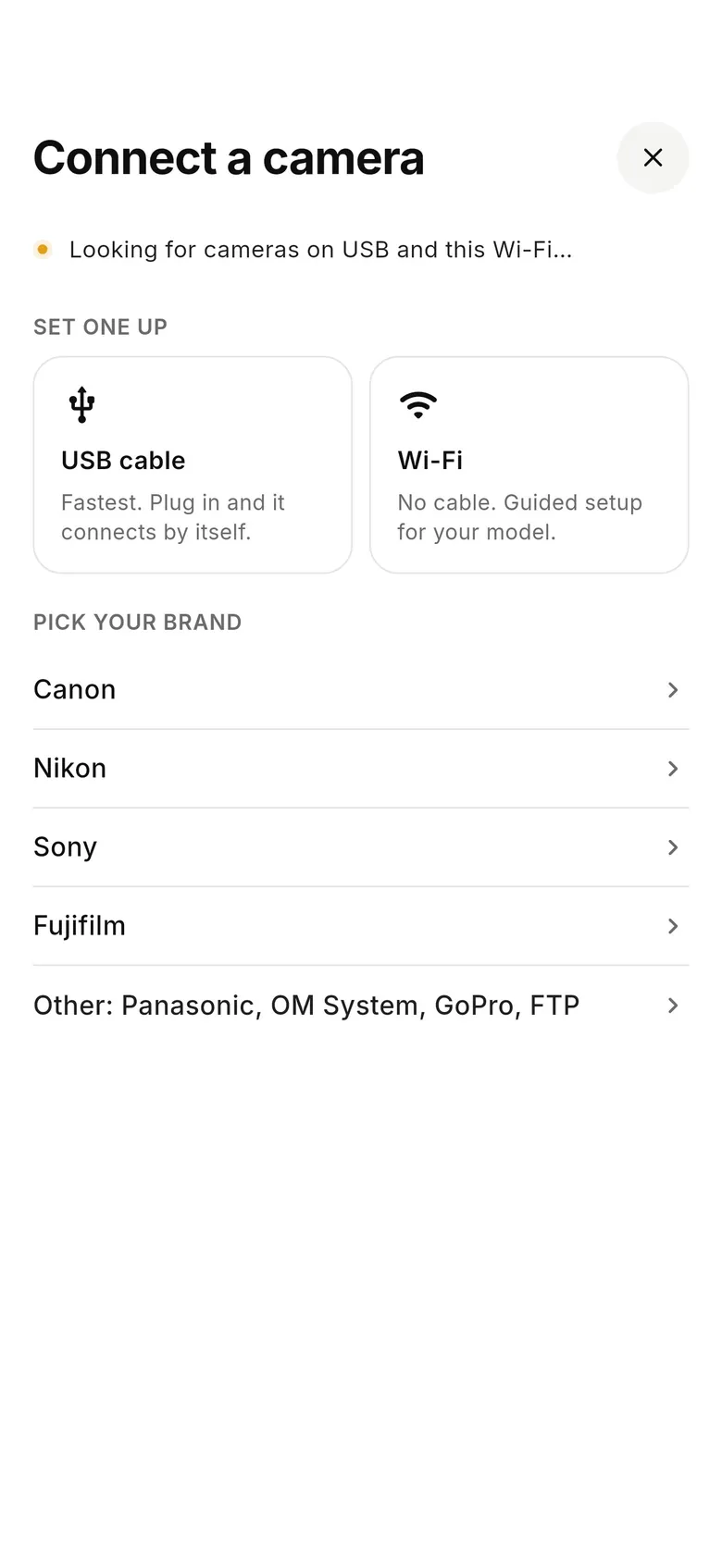
If you shoot Lumix and want every shot on your phone and on its way to Dropbox, Google Drive or a client gallery as you work, try it with CloudTether's 7-day free trial. Set USB Mode to PC(Tether), connect a USB-C cable to your iPhone, iPad or Android phone, tap Connect a camera and choose Other. Take a few test shots and tell us your model and what happened from the Help Centre in the app or on the website — whether the camera connected, whether shots arrived, and in which formats. When the app connects to a camera it doesn't know, it records a short diagnostic of what the camera supports, which tells us a lot about that whole generation of Lumix bodies. Every report helps us move Lumix from untested to verified.
FAQ
Is LUMIX Tether free?
Yes. LUMIX Tether is a free download from Panasonic for Windows and Mac.
How do I tether a Lumix to my computer?
Set the camera's USB Mode to PC(Tether) in the Setup menu, connect a USB data cable, and open LUMIX Tether. Live view appears on the computer and each shot saves there.
Which Lumix cameras support tethering?
Panasonic lists them on the LUMIX Tether page — mainly the S series and higher-end G and GH bodies such as the S5 II, G9 II and GH6. Entry-level and older compacts generally don't.
Why won't LUMIX Tether find my camera?
Most often the USB Mode isn't set to PC(Tether), the cable only charges, or another app has the camera. Plug straight into the computer and check your model is on Panasonic's list.
Can LUMIX Tether work over Wi-Fi?
LUMIX Tether is built around a USB connection, and the camera's Wi-Fi and Bluetooth turn off while it's tethered. Panasonic's Wi-Fi tools are its LUMIX Sync and LUMIX Lab phone apps.
What's the difference between LUMIX Tether and LUMIX Sync?
LUMIX Tether is desktop software for tethered shooting to a Windows PC or Mac over USB, with live view and every shot saved to the computer. LUMIX Sync is Panasonic's phone app for pairing, remote shooting and copying selected images over Bluetooth and Wi-Fi. LUMIX Lab, on recent bodies, adds looks and sharing on the phone.
Does CloudTether work with Lumix cameras?
Not yet tested by us. Over USB in PC(Tether) mode a Lumix should connect through CloudTether's standard PTP path, and RW2 files are recognised. Lumix Wi-Fi isn't supported. Try the 7-day free trial and tell us how it goes.
Can I send Lumix photos to the cloud as I shoot?
With a phone tether over USB, possibly — we're asking Lumix owners to help us test it with CloudTether's free trial. With a computer, let LUMIX Tether save into a synced Dropbox or Google Drive folder.
Tether your camera to the cloud with CloudTether
Deliver every shot to the cloud or a client gallery, live as you shoot — no laptop. Start with a 7-day free trial on iPhone, iPad or Android.