Lightroom tethering: how to tether your camera to Lightroom Classic
Short answer: Lightroom tethering happens in Lightroom Classic. Connect a supported camera to your computer with a USB cable, choose File › Tethered Capture › Start Tethered Capture, name the session, pick a destination folder and click OK. Each shot then imports into your catalog as you take it, with an optional develop preset applied. The cloud-based Lightroom app doesn't have tethered capture, so if you'd rather tether to a phone, there's another route at the end.
What you need before you start
Three things. A computer running Lightroom Classic — the Mac or Windows app with the catalog and folders, not the cloud-based Lightroom. A camera on Adobe's tethered camera support list: Adobe publishes it model by model for Canon, Nikon and Sony, and it is the first thing to check when tethering fails, because a body that isn't on the list won't appear, however good the cable. And a USB data cable from the camera to the computer's own port — see our camera tethering cable guide if you're not sure which one fits. Update Lightroom Classic and the camera's firmware first; support for newer bodies arrives in Lightroom updates.
Step 1: set up the camera
Switch the camera on and connect the cable. Turn off the camera's Wi-Fi or Bluetooth connection functions, which on several bodies block USB communication. Close anything else that grabs cameras when they're plugged in — the maker's own utility (Canon EOS Utility, Nikon NX Tether, Sony Imaging Edge), Image Capture or Photos on a Mac, or a cloud app's photo import. Only one app can control the camera at a time. Sony bodies need their USB connection mode set to PC Remote (Remote Shooting on newer menus); on most Canon and Nikon bodies there's nothing to set. Use a card in the camera so it can keep its own copy if your settings allow.
Step 2: start Tethered Capture
In Lightroom Classic, go to the Library module and choose File › Tethered Capture › Start Tethered Capture. The Tethered Capture Settings dialog opens. Session Name becomes the name of the folder your shots go into — use the client or job. Tick Segment Photos By Shots if you want a subfolder per set-up, and Lightroom will ask for a shot name when you start. Naming sets the file-name template, such as the session name plus a sequence number. Destination is the parent folder on disk; a fast internal or external SSD with plenty of space is best. Under Information you can apply a metadata preset (copyright, contact) and keywords to every incoming image. Click OK.
Step 3: use the tether bar
A small floating tether bar appears. It shows the camera it found and its current shutter speed, aperture, ISO and white balance, plus a Develop Settings menu and a capture button. If it says no camera detected, jump to the fixes below. From the Develop Settings menu, pick a preset to apply to every new shot as it arrives — a colour profile and lens corrections for a product set, say — or choose Same as Previous so the edit on the last frame carries over. You can fire from the camera as usual or from the bar's button, and on supported bodies Lightroom Classic can also show a live view. Ctrl+T (Windows) or Cmd+T (Mac) hides and shows the bar, and New Shot from the Tethered Capture menu starts a new segment.
Step 4: review as you shoot
Each frame imports into the catalog as it lands. Switch to Loupe view in the Library module to see the newest shot large, or open it in Develop to fine-tune; Auto Advance Selection, in the Tethered Capture menu, keeps the newest image selected. Clients and art directors can watch a calibrated screen or a second display, and you can flag, rate and keyword as you go. When you're finished, choose File › Tethered Capture › Stop Tethered Capture, or simply close the bar.
Which cameras does Lightroom Classic tether?
Adobe lists supported models by brand on its tethered camera support page. Canon and Nikon have the longest lists; Sony support is newer and covers selected bodies; other brands need other routes. A brand-new body often appears a few months after release. Fujifilm is the special case: Fujifilm makes its own Tether Shooting Plug-in for Lightroom Classic, in a standard version and a paid PRO version with an extra control panel, which lets supported X and GFX bodies tether in Lightroom. Check Fujifilm's plug-in page for the current camera list and the Lightroom Classic versions it supports.
| Brand | Lightroom Classic tethering | If your model isn't listed |
|---|---|---|
| Canon | Many EOS models, listed one by one | Canon EOS Utility saves to a folder Lightroom Classic can watch |
| Nikon | Many Z and DSLR models, listed one by one | Nikon NX Tether saves to a folder Lightroom Classic can watch |
| Sony | Selected Alpha models, listed one by one | Sony Imaging Edge Desktop (Remote) saves to a folder |
| Fujifilm | Through Fujifilm's Tether Shooting Plug-in (standard or PRO) | Fujifilm's free Tether App, or a watched folder |
| Panasonic Lumix and others | Check Adobe's list | The maker's software, such as LUMIX Tether, plus a watched folder |
Always check Adobe's tethered camera support page for your exact model and operating system.
The watched-folder workaround: Auto Import
If Lightroom Classic can't tether your camera directly, let the camera maker's free software do the tethering and have Lightroom pick the files up. Set the maker's app to save into an empty folder, then in Lightroom Classic choose File › Auto Import › Auto Import Settings, pick that folder as the watched folder, set a destination and naming, and enable it. Lightroom moves each new file into the catalog as it appears. It's a few seconds slower than native tethered capture, but it works with almost any camera and you keep the maker's live view and camera controls.
Lightroom tethering not working? Common fixes
"No camera detected": check the model is on Adobe's list for your operating system, quit every other app that talks to cameras, turn the camera's Wi-Fi off, and try another cable and a port directly on the computer, not a hub. Stop and restart Tethered Capture, or restart Lightroom Classic. Camera detected but photos don't arrive: on Sony, check the PC Remote save destination (PC, or PC plus camera); on some bodies a full or missing card, or a dial in video mode, blocks capture. Shots arrive slowly: very large RAW files on a USB 2 port or a long passive cable are the usual cause. It stopped after an update: update Lightroom Classic and check that the operating system's camera or USB permissions are allowed. If a body still won't tether, the Auto Import workaround above almost always will.
Does Lightroom (cloud) or Lightroom CC have tethered capture?
No. Tethered capture is a Lightroom Classic feature. The cloud-based Lightroom desktop app — once called Lightroom CC — and Lightroom on phones and tablets don't offer tethered capture from an external camera, as of October 2026, and Adobe's community forums still carry requests for it. If you search for "Lightroom CC tethered capture" because that's the app you use, you have three options: install Lightroom Classic, which is included in Adobe's Photography plans, and tether there; let the maker's software tether to a folder and import from it; or send shots into Lightroom from your phone as you shoot, below.
The limits of tethering to Lightroom Classic
Lightroom Classic tethering is built for a computer on set. You need a laptop or desktop, a cable run from the camera, power and a table or cart. It's USB-based and depends on Adobe's model list. And the photos land in a catalog on that one computer: getting them to a client, an editor or a backup off site is a separate step. For studio and product work, that's fine — it's what the tool is for. On location — a wedding, an event, a press job — the cable and laptop are usually what people want to get rid of.
The phone alternative: tether to your phone, deliver to Lightroom
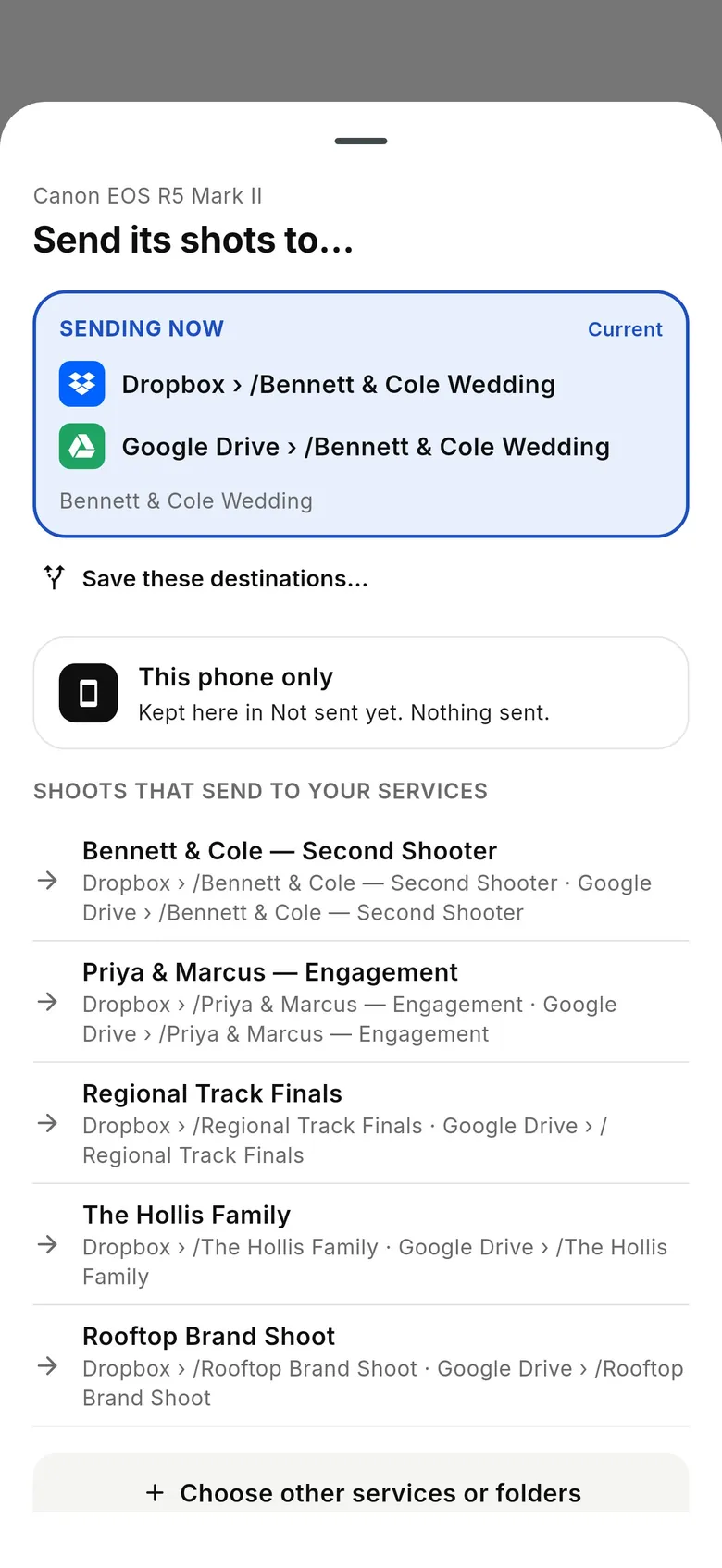
CloudTether tethers a Canon, Nikon, Sony or Fujifilm camera to an iPhone, iPad or Android phone over USB or Wi-Fi and copies every full-resolution RAW or JPEG as you shoot. It can then send each shot into a Lightroom album — connect your Adobe account in CloudTether's Deliver tab and pick the album; this needs an Adobe plan that includes Lightroom's cloud storage. If you've turned on Lightroom Classic's sync, photos added to Lightroom this way can also download into your Classic catalog. Or deliver to a Dropbox or Google Drive folder and point Lightroom Classic's Auto Import at the synced folder on your computer. Either way, there's no laptop on location, and the photos are waiting when you sit down to edit. CloudTether has no live view or remote shutter — you shoot on the camera. There's a 7-day free trial.
FAQ
How do I tether my camera to Lightroom?
In Lightroom Classic, connect a supported camera by USB, choose File › Tethered Capture › Start Tethered Capture, set the session name, naming and destination, and click OK. Each shot imports into your catalog as you take it.
Can you tether in Lightroom CC or the Lightroom cloud app?
No. Tethered capture is only in Lightroom Classic. Lightroom (cloud) on desktop, phones and tablets doesn't tether an external camera, as of October 2026.
Why does Lightroom say no camera detected?
Usually the model isn't on Adobe's supported list, another app has the camera, the camera's Wi-Fi is on, or the cable or hub is the problem. Quit the maker's software, turn Wi-Fi off, plug straight into the computer and restart Tethered Capture.
Can Lightroom Classic tether wirelessly?
Lightroom Classic's tethered capture is designed around a USB connection. For wireless, use the maker's software with Auto Import, or tether wirelessly to a phone with an app such as CloudTether.
How do I apply a preset to tethered shots?
Choose a preset from the Develop Settings menu in the tether bar. It is applied to every new photo as it imports; Same as Previous copies the edit from the last shot.
Can I tether a Sony or Fujifilm camera to Lightroom?
Selected Sony bodies tether directly; check Adobe's list. Fujifilm X and GFX bodies tether through Fujifilm's Tether Shooting Plug-in (standard or PRO) for Lightroom Classic, on the models Fujifilm lists. Otherwise let the maker's software save to a folder and use Auto Import.
Can my phone send photos to Lightroom as I shoot?
Yes. CloudTether tethers the camera to your phone and can deliver each shot to a Lightroom album, or to a Dropbox or Google Drive folder that Lightroom Classic imports from.
Tether your camera to the cloud with CloudTether
Deliver every shot to the cloud or a client gallery, live as you shoot — no laptop. Start with a 7-day free trial on iPhone, iPad or Android.