Capture One tethering on desktop, iPad and iPhone (and Android?)
Short answer: Capture One tethers cameras on three kinds of device. Capture One Pro on Mac and Windows is the long-standing studio tool; Capture One for iPad tethers over a USB-C cable, or wirelessly with selected cameras; and the Capture One mobile app also runs on iPhone. There's no Capture One for Android — Capture One says it has no plans to build one. If you need to tether to an Android phone, or want every shot delivered to the cloud as you shoot, there's an alternative at the end.
Capture One in one paragraph
Capture One is professional raw-processing and editing software, made by the company of the same name, that grew up around tethered shooting in commercial studios. Shots land in the app as you take them, on a screen big enough to judge focus and colour, with styles and adjustments applied as they arrive. It's sold as a subscription or licence; prices and bundles vary, so check Capture One's site. The same company makes Capture One for iPad and a mobile app for iPhone, which share sessions and styles with the desktop app.
How to tether in Capture One Pro (Mac and Windows)
1. Create a session (File › New Session), give it the client or job name, and choose where it lives — a session keeps its Capture, Selects, Output and Trash folders together. 2. Connect a supported camera with a USB data cable and switch it on; quit the camera maker's software first. 3. Open the Capture tool tab. The camera appears with its battery level and settings, and the Capture button fires the shutter. 4. Set Next Capture Naming (for example the session name plus a counter), Next Capture Location (the session's Capture folder by default) and Next Capture Adjustments — apply defaults, copy from the last image, or apply a style you choose. 5. Shoot from the camera or from Capture One. Each image appears in the viewer; open Live View on supported cameras to compose and focus on screen. Capture One Live can share a session with clients remotely in a browser.
Which cameras does Capture One tether?
Capture One publishes a supported-camera list that shows, per model, whether raw files are supported and whether tethering and live view work. Canon, Nikon, Sony and Fujifilm have the broadest tethering support, plus Phase One digital backs, Leica and others; support for a brand-new body often arrives in a later update. Capture One's support pages say the mobile apps support the same cameras as Capture One Pro for tethering, with some exceptions — check the list for your body and for wired versus wireless on iPad.
Capture One for iPad: tethering on a tablet
Capture One for iPad launched in 2022 as an editor and added tethered shooting in 2023. Wired tethering uses the iPad's USB-C port and a USB-C cable from the camera; wireless tethering followed for selected cameras, and the list has grown in updates. On an iPad, Capture One shows each shot as it arrives, lets you rate and adjust it, and can sync sessions with the desktop app or share them for review. It suits location shoots where a laptop is too much — a lookbook, a portrait session — with the iPad on a stand next to the camera. Battery and storage are the limits: a long session of large RAW files fills an iPad quickly, so plan power and space.
Capture One mobile on iPhone
Capture One's mobile app runs on iPhone as well as iPad. On iPhone it's built for editing and quick review with Capture One's colour tools, and its App Store listing describes shooting to mobile over USB or Wi-Fi with supported cameras. The iPhone can also be used as a tethered camera into Capture One on a Mac or iPad. Features differ between iPad and iPhone and change with updates, so check the current listing and Capture One's support pages for your camera and device.
Is there Capture One for Android?
No. Capture One's own support article explains why Capture One Mobile isn't available for Android and says the company has no plans to develop it. Pages online that describe a "Capture One for Android" app aren't from Capture One. If your team uses Android phones or tablets, you'll need a different app to tether on them.
Tethering tips that apply on every device
Use a short, known-good data cable for wired tethering — a charge-only USB-C cable is the most common reason a camera never appears; our camera tethering cable guide covers the rest. Turn off the camera's own Wi-Fi when tethering over USB, and don't run the maker's app at the same time. Format the card in the camera before a session. Decide whether shots should also save to the card. And test your exact body with the version you have before a paid job, because tethering support is model by model.
Capture One on iPad vs a laptop on set
An iPad is lighter, quieter and easier to hand to a client than a laptop, and its screen is good enough to judge focus and expression. A laptop or desktop still wins on screen size and calibration, on storage for a long day of RAW files, on the full desktop toolset — tethering presets, advanced masking, plug-ins and output recipes — and on tethering more camera models. Many photographers use both: the iPad for light location work, Capture One Pro in the studio, with sessions moving between them.
Capture One and the camera maker's software
Only one app can control a camera at a time. Quit Canon EOS Utility, Nikon NX Tether, Sony Imaging Edge or Fujifilm's Tether App before you open Capture One, and on a Mac make sure Image Capture or Photos isn't set to open when a camera connects. On Sony bodies set the USB connection mode to PC Remote; on Fujifilm, choose the USB tether shooting mode. If Capture One doesn't support your body for tethering yet, the maker's software can save to a folder that Capture One imports from, at the cost of a little delay.
Where Capture One tethering stops
Capture One is an editor with tethering built in. The images land in a session on the computer or iPad, which is exactly right for on-set review and grading. Getting every frame to a client folder, a gallery or an off-site backup while you're still shooting is a separate job — and on location, a laptop or iPad on a stand is still something to carry, power and watch.
The phone alternative for delivery: CloudTether
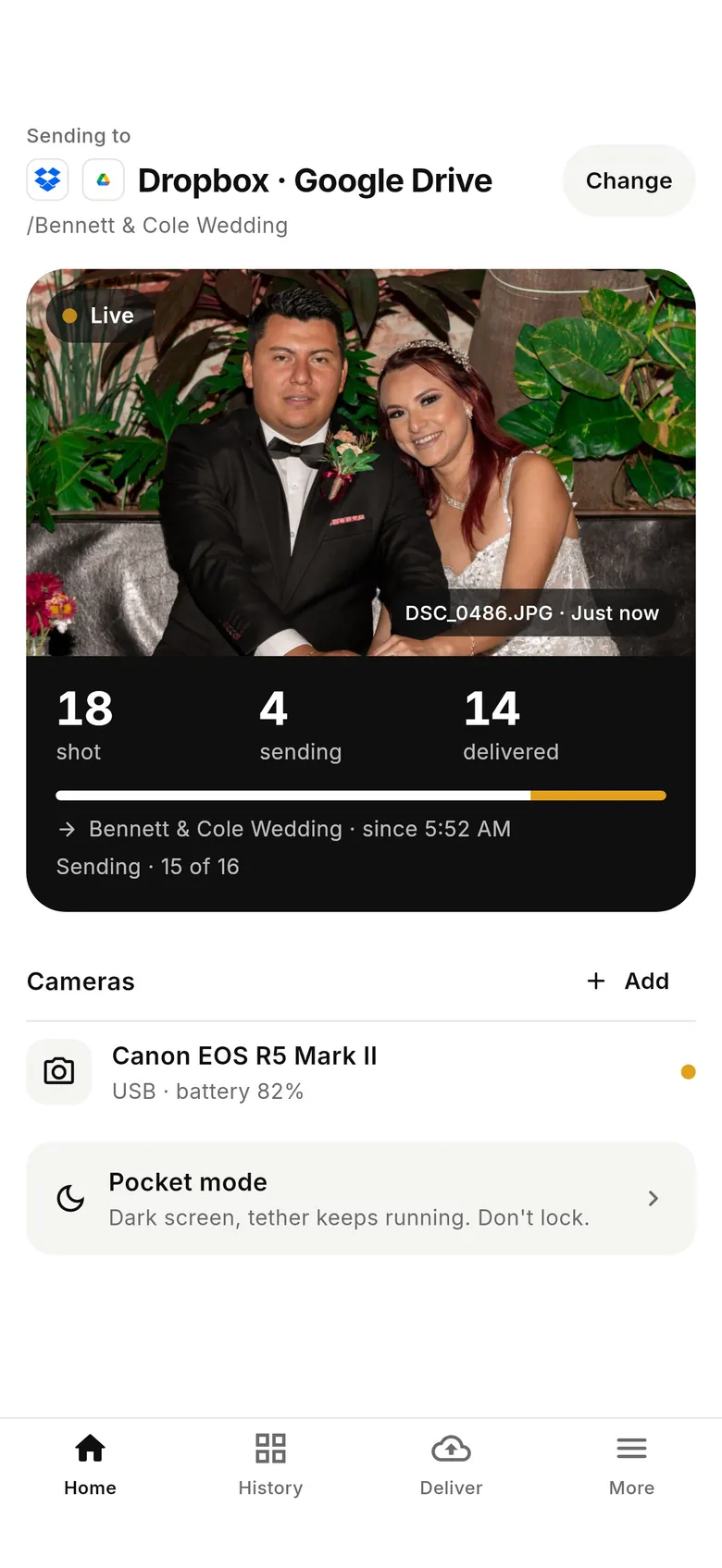
CloudTether tethers Canon, Nikon, Sony and Fujifilm cameras to an iPhone, iPad or Android phone over USB or Wi-Fi and delivers every full-resolution RAW or JPEG to Dropbox, Google Drive, a Lightroom album, a client gallery or an FTP server as you shoot. USB is verified on all four brands; Wi-Fi is verified on Canon and experimental on Fujifilm. It isn't an editor, and it has no live view or remote shutter — many photographers use Capture One in the studio and CloudTether on location, or deliver to a folder that Capture One picks up later. There's a 7-day free trial.
FAQ
Can Capture One for iPad tether?
Yes. Capture One for iPad tethers over the iPad's USB-C port with a USB-C cable, and wirelessly with selected cameras. Check Capture One's list for your body.
Is there Capture One for Android?
No. Capture One says it has no plans to make Capture One Mobile for Android. To tether a camera to an Android phone, use an app such as CloudTether.
Does Capture One mobile work on iPhone?
Yes. The Capture One mobile app runs on iPhone and iPad. Features differ by device and change with updates, so check the App Store listing for tethering on iPhone with your camera.
How do I start tethering in Capture One Pro?
Create a session, connect a supported camera by USB, open the Capture tool tab, set Next Capture Naming, Location and Adjustments, and shoot. Each image lands in the session's Capture folder.
Which cameras does Capture One support for tethering?
Capture One publishes a list showing tethering and live view per model. Canon, Nikon, Sony and Fujifilm are well covered; new bodies are added in updates.
Can Capture One tether over Wi-Fi?
On selected cameras, yes — on desktop and iPad. Wired USB tethering is supported on far more bodies and is faster.
Can I use Capture One and CloudTether together?
Yes, just not over the same connection at once. Tether to Capture One in the studio for on-set grading, and use CloudTether on location to get every frame off the camera and delivered from your phone. Deliver to a Dropbox or Google Drive folder and import those files into a Capture One session when you're back at your desk.
Can I deliver tethered shots to the cloud as I shoot?
Not directly from Capture One's tether. CloudTether tethers your camera to a phone and sends each shot to Dropbox, Google Drive, galleries or FTP live.
Tether your camera to the cloud with CloudTether
Deliver every shot to the cloud or a client gallery, live as you shoot — no laptop. Start with a 7-day free trial on iPhone, iPad or Android.