The best Sony Transfer & Tagging alternative when you need more than FTP
Short answer: if you shoot Sony and file captioned pictures to a newsroom or agency FTP server, keep Transfer & Tagging — its voice-memo captions and IPTC presets are made for that job, and it's free. If what you need is every full-resolution frame delivered as you shoot to Dropbox, Google Drive, a client gallery or an FTP/SFTP server — or several at once — from a team that also shoots Canon, Nikon or Fujifilm, CloudTether is the better alternative. It tethers over USB-C to iPhone, iPad and Android.
Below: what Transfer & Tagging does well, where photographers run into its limits, a side-by-side table and how to add CloudTether in three steps.
iPhone, iPad and Android · facts checked November 2026
Cloud storage
Galleries & proofing



Messaging
Transfer & servers
What Sony Transfer & Tagging is
Transfer & Tagging is Sony's free app for iPhone, iPad and Android, built for news, sports and agency photographers. It receives pictures from a supported Alpha in the background while you shoot, using the camera's FTP transfer function, or over a cable; turns voice memos recorded on the camera into IPTC captions; applies caption and IPTC presets; and uploads to FTP servers from the phone. It needs a Sony account.
Where CloudTether is different
Transfer & Tagging is built around the press workflow on Sony bodies: captions, IPTC metadata and filing to FTP. CloudTether is built around getting every frame off a Sony, Canon, Nikon or Fujifilm and delivering it to many kinds of destination — FTP/SFTP, but also Dropbox, Google Drive, client galleries, Lightroom and S3 — with one upload fanned out to several at once.
What Sony Transfer & Tagging does well
- Background transfer while you keep shooting: on supported Alpha bodies (some need a firmware update) the camera's FTP transfer function sends all or selected stills to the phone without interrupting the shoot.
- Voice memos recorded on the camera arrive with the picture and become IPTC caption text (memos up to 50 seconds), and a Caption Glossary fixes names speech recognition gets wrong.
- Up to 50 IPTC presets, caption templates and FTP presets, synced across devices through Sony's Creators' Cloud, plus automatic FTP upload from the phone over mobile data.
- It can write FTP settings made in the app to the camera, and import protected images quickly over a cable.
Why people look for a Sony Transfer & Tagging alternative
These are the issues photographers most often search for — common, well-documented ones, not a verdict on the app. Many have fixes, and it's worth trying them first.
Sony bodies only
It works with supported Sony cameras, and features vary by model — Sony keeps a per-model list. A second shooter on Canon or Nikon needs a different app and routine.
Delivery means FTP
The app files to FTP servers. Sending the same frames to a client's Dropbox, a Google Drive folder or a proofing gallery is a separate step.
Account and regional dependencies
Sign-in needs a Sony account, and voice-input captioning relies on Google services, so where those aren't offered you type captions instead.
Pairing and hotspot hiccups
App Store reviews mention pairing problems with some cameras and timeouts when transferring through an iPhone hotspot. Sony's support pages and firmware updates are the first thing to check.
Sony Transfer & Tagging vs CloudTether, side by side
| Feature | Sony Transfer & Tagging | CloudTether |
|---|---|---|
| Made by | Sony (free; Sony account required) | CloudConcur |
| Cameras | Supported Sony Alpha models (features vary by model) | Sony, Canon, Nikon and Fujifilm |
| Connection | Camera's FTP transfer over Wi-Fi, in the background; cable for protected images | USB-C cable (PC Remote on Sony, verified on a ZV-E10); Wi-Fi verified on Canon |
| What transfers | All or selected stills | Every full-resolution ARW or JPEG — or JPEGs only, or resized copies, per destination |
| Captions and IPTC | Voice memo to text, glossary, up to 50 IPTC presets | No caption editor — the camera's metadata stays in the file |
| Where photos go | The phone, then FTP servers | The phone, plus FTP/SFTP, Dropbox, Google Drive, galleries, Lightroom or S3 — several at once |
| Live view and remote shutter | No — it's a transfer and captioning app | New: yes, with USB set to PC Remote — no exposure control |
| Platforms | iPhone, iPad, Android | iPhone, iPad, Android |
Based on vendor pages, app-store listings and press coverage as of November 2026. Features vary by camera and app version — check Sony Transfer & Tagging's own documentation for your model. Product names are trademarks of their owners.
Should you switch?
Switch to CloudTether if…
- Photos must reach Dropbox, Google Drive, SmugMug, ShootProof, Lightroom or S3 — not only an FTP server.
- You want one shot sent to several places at once from a single upload.
- Your team mixes Sony with Canon, Nikon or Fujifilm bodies.
- You want every frame by default, with a JPEG-only or resized copy for each destination.
Stick with Sony Transfer & Tagging if…
- You file captioned pictures to a wire or newsroom and rely on voice-memo captions and IPTC presets.
- You want the camera's background FTP transfer over Wi-Fi — CloudTether connects Sony bodies over USB, and wireless PC Remote isn't tested by us yet.
- You only ever deliver by FTP and want a free app.
Plenty of photographers keep both: Sony Transfer & Tagging for what it's best at, CloudTether for getting every frame delivered.
How to switch in 3 steps
Install CloudTether, then:
- 1
Set the Sony to PC Remote
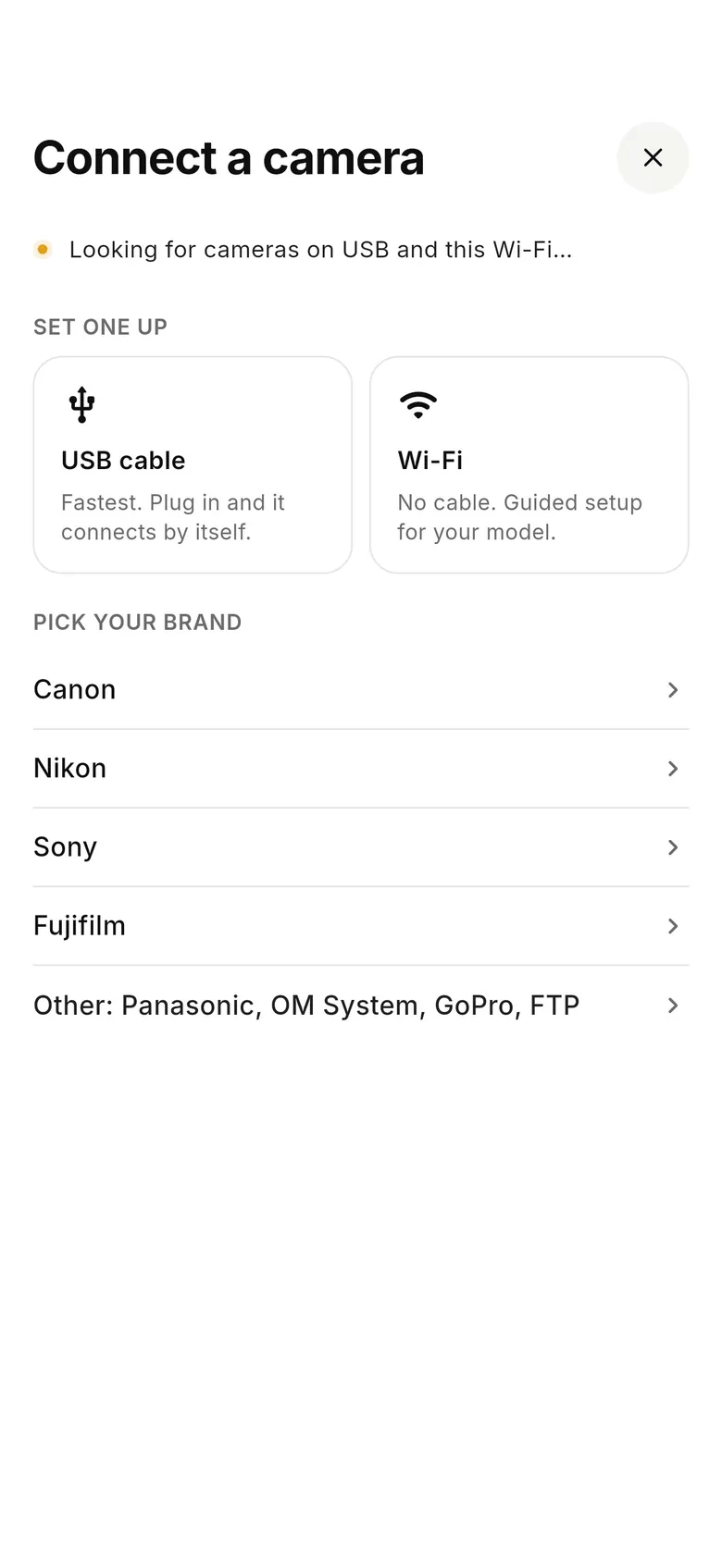
In the camera's USB settings choose PC Remote, plug a USB-C cable into your phone and tap “Connect a camera” in CloudTether. The Alpha connects by itself.
- 2
Add your FTP server — and the rest
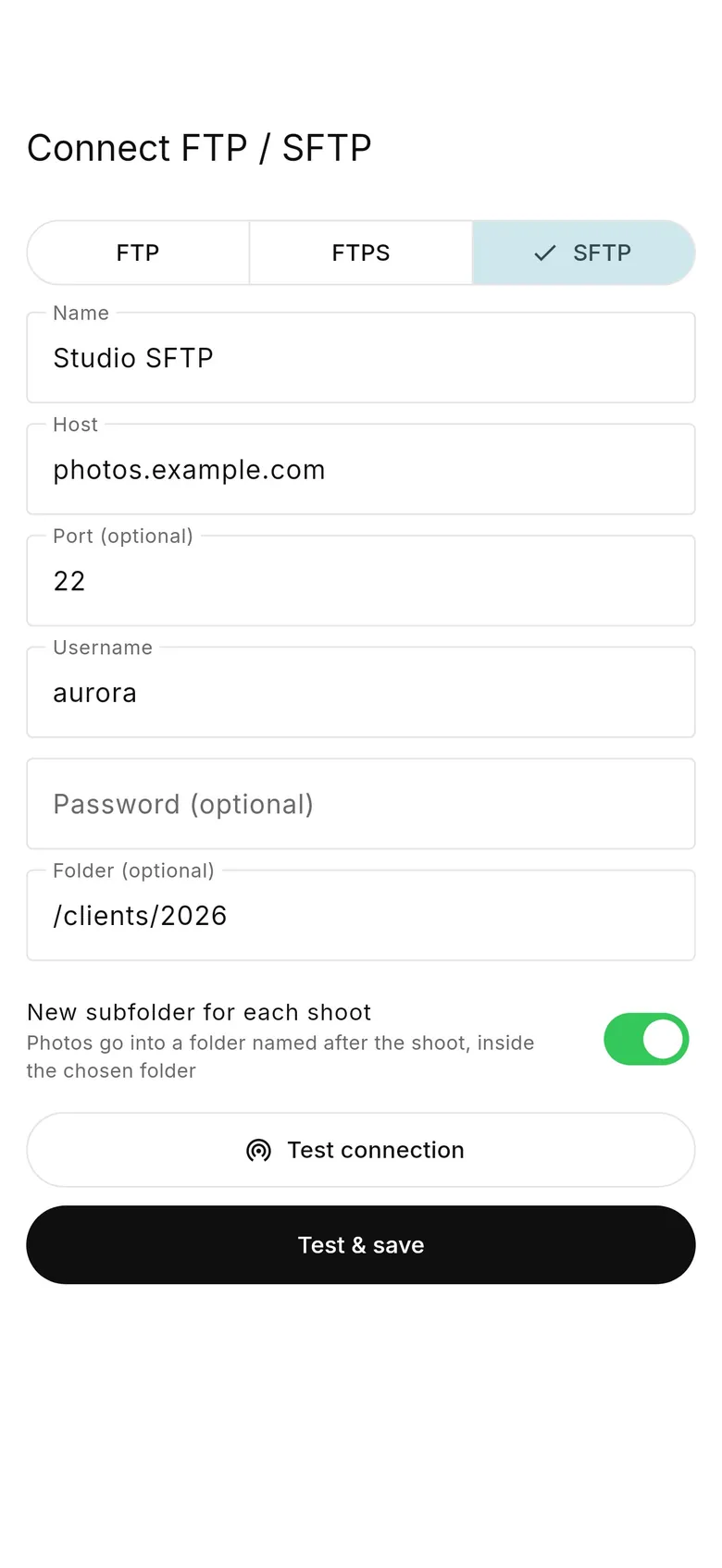
In the Deliver tab add your FTP or SFTP server and folder, plus any Dropbox folder or gallery the same shoot should feed. One upload from the phone reaches all of them.
- 3
Shoot
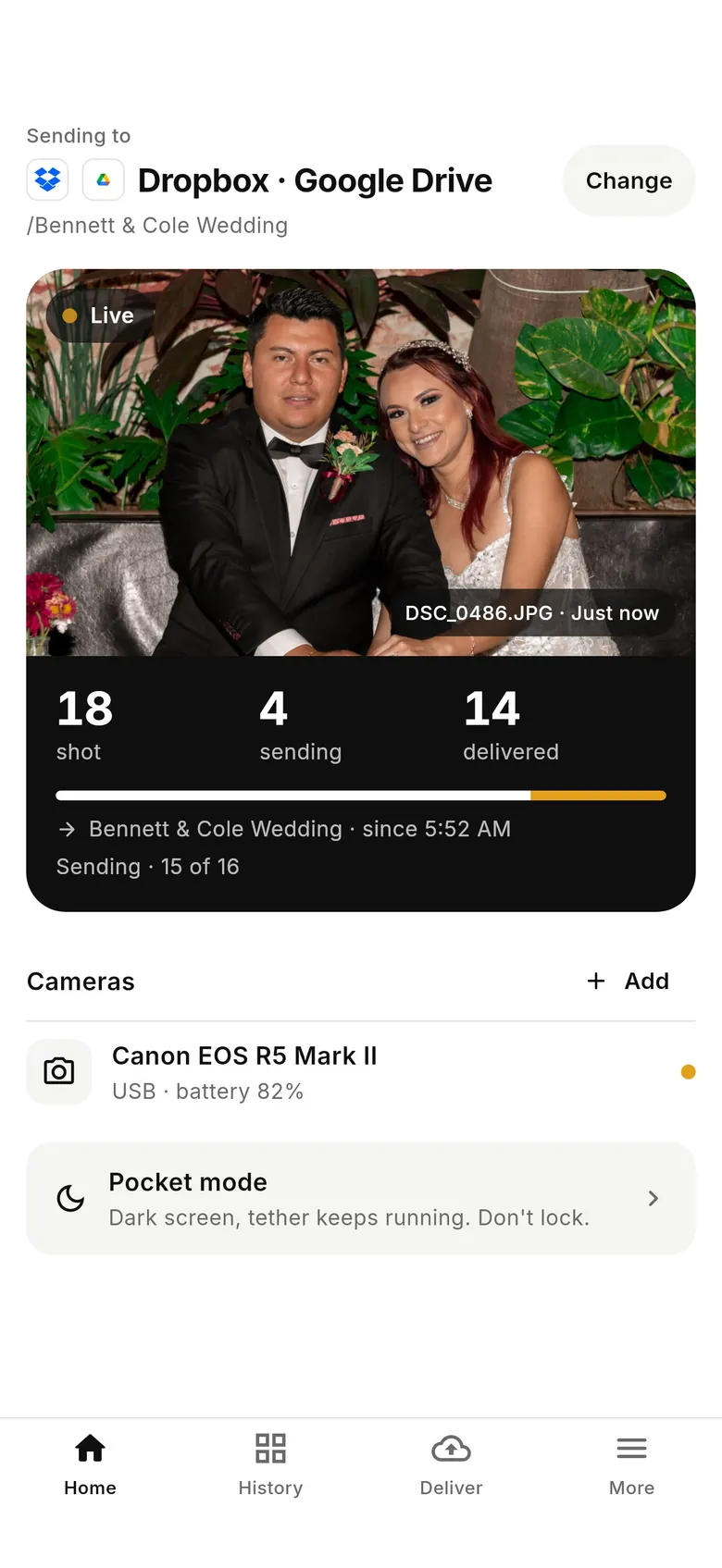
Every frame comes off at full resolution and files itself; Home shows what's been shot, is sending and has arrived. Keep Transfer & Tagging for captioned jobs — just not on the same connection at once.
Why photographers choose CloudTether
- Auto-delivers every shot to the cloud — Dropbox, Google Drive, SmugMug, ShootProof, FTP and more — seconds after the shutter.
- Runs on the iPhone, iPad or Android you already own — nothing extra to set up or power on location.
- Works across Canon, Sony, Nikon and Fujifilm from a single app.
- Upload once, fan out to multiple destinations in one session.
- Uploads over your phone's mobile data — no venue Wi-Fi required.
- Shoot into an album on your phone with no signal — uploads catch up automatically when you're back online.
Sony Transfer & Tagging alternative FAQ
What is the best alternative to Sony Transfer & Tagging?
It depends on the job. For Sony shooters filing captioned pictures to FTP, nothing replaces Transfer & Tagging's voice-memo captions, so keep it. If you need every frame delivered to cloud storage, a client gallery or several destinations at once, or your team mixes Canon, Nikon and Fujifilm with Sony, CloudTether does that from one phone app.
Does CloudTether add IPTC captions like Transfer & Tagging?
No. CloudTether delivers the file the camera wrote, so metadata set in the camera stays in it, but it has no voice-memo-to-text or IPTC preset editor. For captioning on the phone, Sony's Transfer & Tagging and Nikon's NX MobileAir are built for that.
Can CloudTether upload to an FTP server?
Yes. FTP and SFTP are built in, with a folder path you choose and automatic retries on patchy networks. The phone uploads over mobile data or Wi-Fi, and the same shot can go to Dropbox, Google Drive or a gallery at the same time.
How does a Sony camera connect to CloudTether?
Over USB with the camera's USB connection set to PC Remote. That's verified on a Sony ZV-E10, and α7, α1 and α9 bodies run the same code. Wireless PC Remote on newer bodies isn't tested by us yet, so use a cable for paid work.
Do I need a Sony account to use CloudTether?
No. You sign in to CloudTether, and each destination connects with its own sign-in — Dropbox, Google Drive, SmugMug and ShootProof through their own secure log-in, an FTP server with its host and credentials.
Can I use Transfer & Tagging and CloudTether on the same shoot?
Only one app can hold the camera's connection at a time, so pick per job: Transfer & Tagging for captioned wire filing over the camera's FTP transfer, CloudTether over a cable when every frame must reach cloud folders, galleries or several places at once.
Do both apps work on Android?
Yes. Transfer & Tagging is on iPhone, iPad and Android, and so is CloudTether (Android 6.0 or later, over USB-C).
See it for yourself
Install CloudTether, connect your camera and take a test shot — it'll be on your phone and on its way before you lower the camera.
Read next
- Sony camera tethering with CloudTether
- Sony USB tethering
- Tether to your own SFTP or FTP server
- Sony Creators' App alternative
- Press and newsroom photography
Comparing more tools? See the best camera tethering software roundup.
More comparisons