
The best Fujifilm XApp alternative for every full-resolution frame
If you want every shot from your X or GFX body on your phone at full resolution — and delivered to Dropbox, Google Drive, a gallery or an FTP server while you work — the best Fujifilm XApp alternative is a tethering app that copies each file over a USB cable as the camera writes it. CloudTether does that on iPhone, iPad and Android, and handles Canon, Nikon and Sony bodies too.
XApp stays the best tool for Fujifilm's own features. Here's what it does well, what people search about, and how to switch in three steps.
7-day free trial · iPhone, iPad and Android · facts checked October 2026
Cloud storage
Galleries & proofing



Messaging
Transfer & servers
What Fujifilm XApp is
Fujifilm XApp is Fujifilm's free companion app for X and GFX cameras: Bluetooth pairing, image transfer to the phone (original or compressed size), remote shooting, location tagging, firmware updates and settings backup.
Where CloudTether is different
XApp is built around browsing and hand-picking shots to share to your phone. CloudTether is built around automatic, hands-free delivery: every frame is detected as you shoot and routed on to the cloud destinations you choose, at full resolution — and it works the same way across Canon, Sony and Nikon too, not just Fujifilm.
What Fujifilm XApp does well
- It's Fujifilm's free companion app for X and GFX cameras: Bluetooth pairing, remote shooting, location tagging and firmware updates.
- You can queue images for transfer — even automatically — and Fujifilm says they can keep sending while you shoot or with the camera switched off.
- A Photo resize option lets you choose original or compressed size, and recent bodies with current firmware can send RAF files.
Why people look for a Fujifilm XApp alternative
These are the issues photographers most often search for — common, well-documented ones, not a verdict on the app. Many have fixes, and it's worth trying them first.
Compressed by default
If Photo resize is set to compressed, you get smaller copies on the phone. Set it to the original size before a job where size matters.
Slow for big files
Bluetooth only pairs; images travel over the camera's Wi-Fi, so large RAF and high-resolution GFX files can take a while to arrive.
Features differ by body
RAW transfer and some options depend on the model and firmware — check Fujifilm's compatibility list for yours.
Phone only, Fujifilm only
XApp brings photos to the phone; sending them to clients or a newsroom, and any non-Fujifilm second body, is separate.
Fujifilm XApp vs CloudTether, side by side
| Feature | Fujifilm XApp | CloudTether |
|---|---|---|
| Made by | Fujifilm (free) | CloudConcur (7-day free trial) |
| Cameras | Fujifilm X and GFX bodies on Fujifilm's list | Fujifilm, Canon, Nikon and Sony |
| Connection | Bluetooth plus Wi-Fi | USB tether mode (verified on an X-T3); Wi-Fi is experimental |
| What transfers | Selected or auto-queued images, original or compressed size | Every full-resolution RAF or JPEG, or JPEGs only |
| Where photos go | The phone | The phone, plus cloud storage, galleries, FTP/SFTP or S3 — several at once |
| Firmware updates and settings backup | Yes | No |
| Live view and remote shutter | Yes | New: remote shutter over USB in tether shooting mode; live view over Wi-Fi (USB on bodies that support it) — no exposure control |
Based on vendor pages, app-store listings and press coverage as of October 2026. Features vary by camera and app version — check Fujifilm XApp's own documentation for your model. Product names are trademarks of their owners.
Should you switch?
Switch to CloudTether if…
- You need every frame off the camera automatically at full resolution, backed up and delivered as you shoot.
- Photos must reach Dropbox, Google Drive, SmugMug, ShootProof or an FTP/SFTP server during the job.
- You'd rather use a cable — it's faster and steadier for large files.
Stick with Fujifilm XApp if…
- You need firmware updates, settings backup or remote shooting — keep XApp for those.
- You want to tether over Wi-Fi: CloudTether's Fujifilm Wi-Fi is still experimental.
- You want to send only rated shots — over Fujifilm tethering CloudTether sends every shot.
- You tether to a computer: the free Fujifilm Tether App (formerly X Acquire) does that on Mac and Windows, and Fujifilm's Tether Shooting Plug-in adds tethering to Lightroom Classic.
Plenty of photographers keep both: Fujifilm XApp for what it's best at, CloudTether for getting every frame delivered.
How to switch in 3 steps
Install CloudTether, then:
- 1
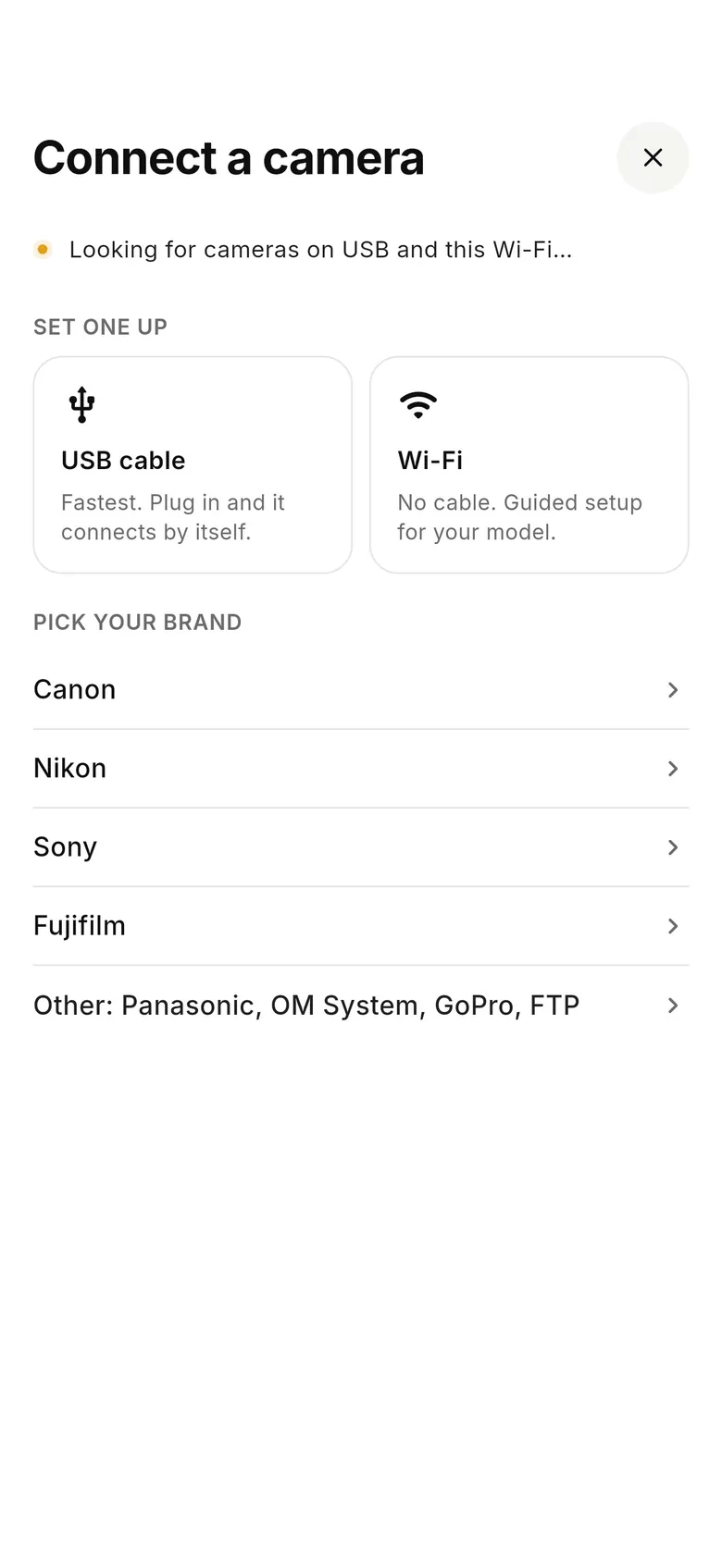
Set the camera to USB tether
In the connection settings choose USB tether shooting (the name varies a little by body), then connect a USB-C cable to your phone.
- 2
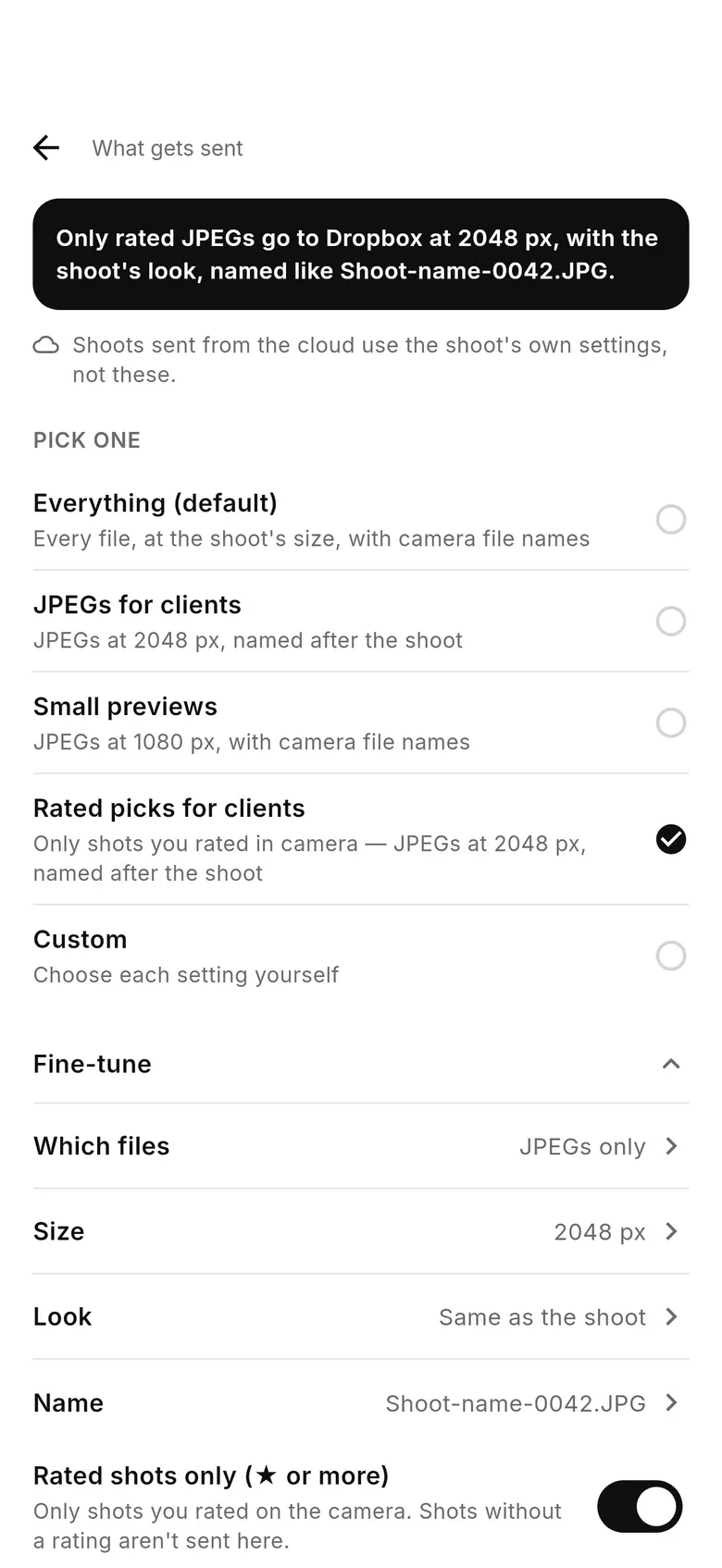
Choose what gets sent
Pick where the camera's shots go. Per service you can send everything, JPEGs only or smaller copies for clients — the originals still come off the camera.
- 3
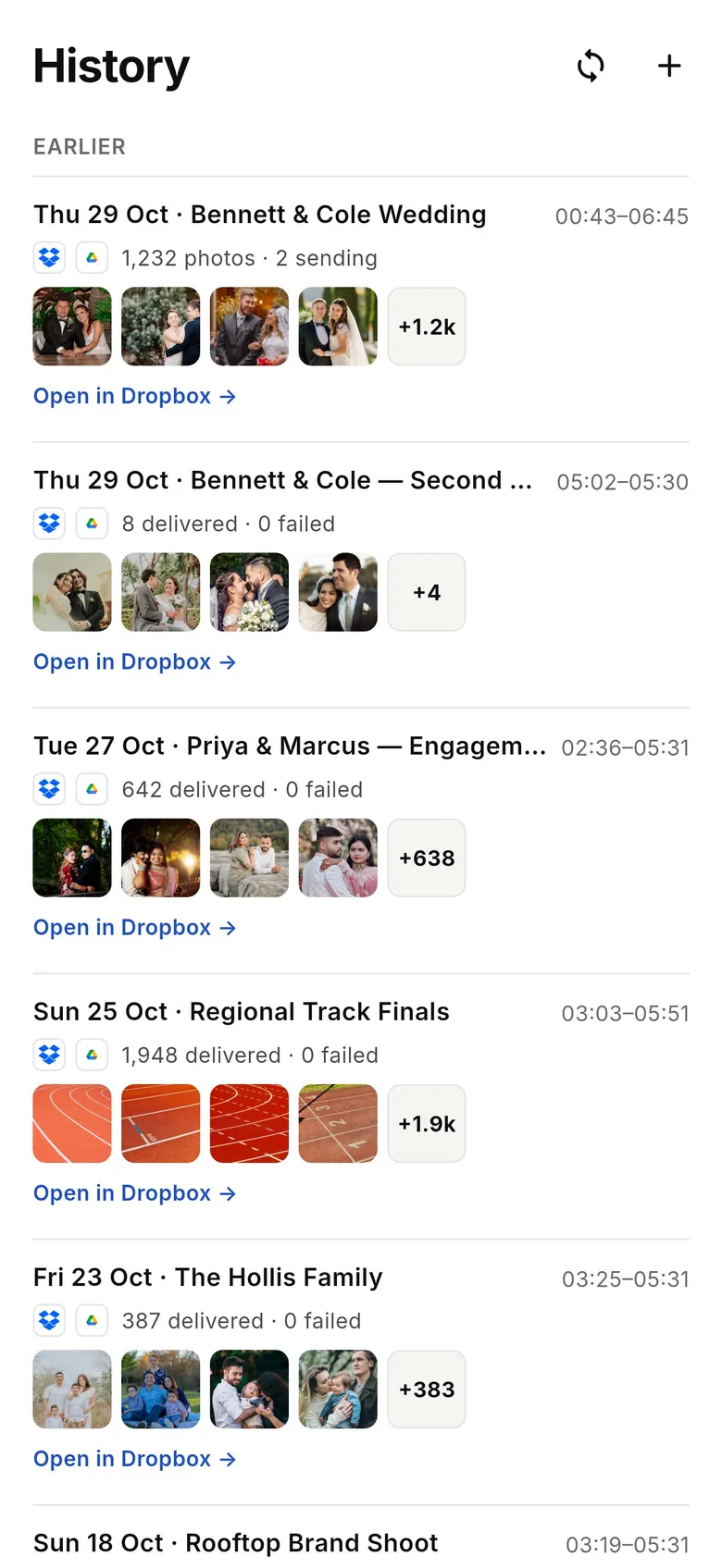
Shoot and check the receipt
Every frame is copied off and delivered as you shoot. History lists each shoot with how many shots reached each service.
Why photographers choose CloudTether
- Auto-delivers every shot to the cloud — Dropbox, Google Drive, SmugMug, ShootProof, FTP and more — seconds after the shutter.
- Runs on the iPhone, iPad or Android you already own — nothing extra to set up or power on location.
- Works across Canon, Sony, Nikon and Fujifilm from a single app.
- Upload once, fan out to multiple destinations in one session.
- Uploads over your phone's mobile data — no venue Wi-Fi required.
- Shoot into an album on your phone with no signal — uploads catch up automatically when you're back online.
Fujifilm XApp alternative FAQ
What is the best alternative to Fujifilm XApp?
For tethering to a computer, the free Fujifilm Tether App. For every shot off the camera at full resolution, onto your phone and on to Dropbox, Google Drive, a gallery or FTP as you shoot, CloudTether — over USB, on iPhone, iPad and Android.
Why are my XApp photos small?
Check XApp's Photo resize option: set to compressed, it sends smaller copies. Choose the original size if you need full resolution.
Does CloudTether transfer full-resolution Fujifilm files automatically?
Yes. CloudTether detects each capture and copies the full-resolution RAF or JPEG automatically, then delivers it to destinations like Dropbox, Google Drive, SmugMug and ShootProof — no selecting per shot.
Which connection should I use with a Fujifilm?
USB. Set the camera's connection mode to USB tether shooting — verified on an X-T3. CloudTether's Fujifilm Wi-Fi is still experimental, so use a cable for paid work.
Can I send only rated shots from a Fujifilm?
Not over Fujifilm tethering — every shot is sent. You can still send JPEGs only, or smaller copies, to each destination.
Can I keep using XApp?
Yes — for firmware updates, settings backup and remote shooting. Use CloudTether for delivery, but not over the same connection at once.
Does CloudTether work with GFX cameras?
Fujifilm X and GFX bodies that tether over USB use the same code as the X-T3 we verified. Very large GFX files take longer to copy, so test your body before a paid job.
What happens if I lose signal while shooting?
Nothing is lost. The camera-to-phone link doesn't need the internet, so every shot still comes off the camera and waits safely on the phone; uploads to your services start by themselves when the connection is back.
See it for yourself
Install CloudTether, connect your camera and take a test shot — it'll be on your phone and on its way before you lower the camera. Start with a 7-day free trial.
Read next
- Fujifilm camera tethering with CloudTether
- How to transfer RAW photos from camera to iPhone
- Camera not detected over USB? Fixes
- JPEG-only and resized delivery
Comparing more tools? See the best camera tethering software roundup.
More comparisons