Tether straight to your own SFTP or FTP server
Newsroom ingest, an agency drop box, a studio NAS or your own archive — every frame on your server seconds after the shutter.
Why deliver to your own server
Plenty of photo pipelines start with a server, not a cloud drive. Wire services and newsrooms ingest over FTP. Agencies and sports desks give photographers an upload account. Studios run a NAS with a watched folder that feeds their editing or DAM system. And some photographers simply want originals on storage they own. Tethering your camera to your phone with CloudTether turns any of these into a live drop: each shot is pulled off the camera and filed to your server while you keep shooting.
Delivered from the cloud, not from your phone
When you're signed in, your phone uploads each photo once to CloudTether, and CloudTether's servers deliver it to your SFTP or FTP server — the same way they deliver to Dropbox or Google Drive. Your phone doesn't need to keep a connection open to your server, or stay online while that last leg happens. If your server is briefly unreachable or a delivery stalls, it's retried automatically for a while rather than lost. After an SFTP upload, the file's size on the server is checked against what was sent before it counts as delivered. This works with every version of the app. The one thing the phone still has to do is get each photo up once, over mobile data or Wi-Fi.
SFTP, FTPS or FTP?
Choose SFTP if your server offers it. It runs over SSH (normally port 22), encrypts the login and the files, and it's what most modern hosts and NAS boxes provide. FTPS is FTP with TLS encryption; CloudTether starts TLS on the normal FTP connection (explicit FTPS, usually port 21). Plain FTP sends the password and the photos unencrypted — use it only where a newsroom or legacy system insists, ideally with an account that can do nothing but upload. CloudTether signs in with a username and password; SSH key login isn't supported yet.
Add the server and test it
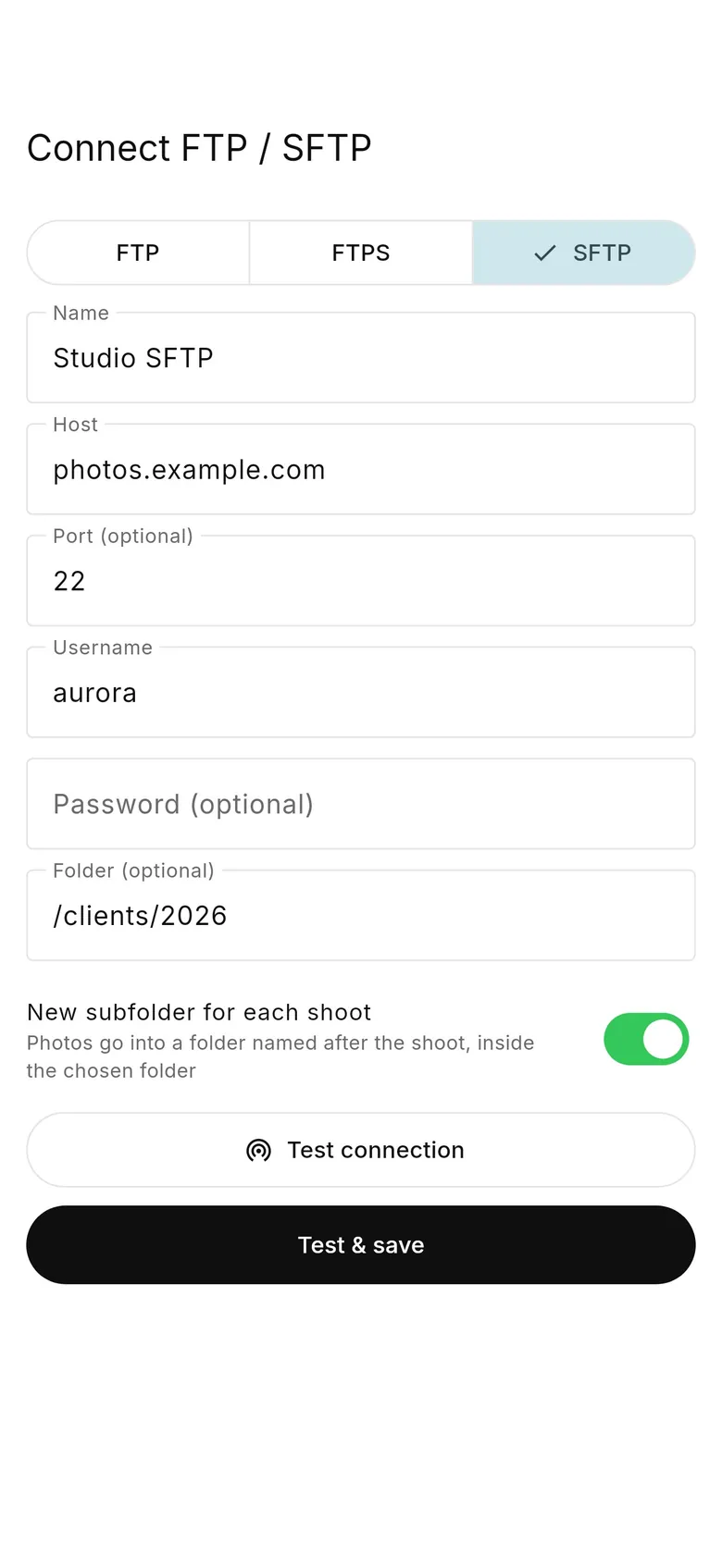
In app 1.1, open the Deliver tab and tap FTP; in app 1.0, open Destinations and choose FTP / SFTP. You can also add it from the web dashboard's Destinations page. Pick FTP, FTPS or SFTP, then fill in a name, the host, the port (leave it blank for the usual one), the username, the password and, optionally, a folder. Tap “Test connection” before you save, so a typo shows up now rather than at the venue. If the phone can't reach the server — for example it's only reachable on the studio's own network — the app tells you and lets you save anyway, but remember the delivery comes from CloudTether's servers, so the server must be reachable from the internet.
Where files land: paths start at the login folder
The folder you enter is relative to the account's login (home) folder, and a leading slash is ignored. So “/Shoots/Acme” means Shoots/Acme inside the account's home, not a folder at the root of the server. A path elsewhere on the disk, like /srv/photos, can't be reached unless the account's home is that folder. The clean set-up is a dedicated upload account whose home folder — or chroot, on servers that lock SFTP users into one directory — is the place photos should go. Then leave the folder blank, or enter a subfolder such as “2026”. Missing folders are created for you.
A folder for each shoot, or one exact folderApp 1.1+
By default each shoot gets its own folder inside the one you chose, named after the shoot (characters servers dislike, such as a colon, become a dash). That keeps jobs apart without any filing. If your server watches one exact folder — a newsroom ingest or a hot folder feeding other software — you want files to land directly in it instead. In CloudTether 1.1 the FTP / SFTP form has a “New subfolder for each shoot” switch: turn it off and photos go straight into the chosen folder.
File names and overwrites
On an FTP or SFTP server a file with the same name in the same folder is replaced. One camera never repeats a name within a shoot, but two cameras — or a camera whose counter has wrapped round — can both produce IMG_0001.JPG. If more than one body files to the same folder, give each camera its own file-name prefix in its menu, or let each shoot keep its own subfolder.
Check what arrived without leaving the appApp 1.1+
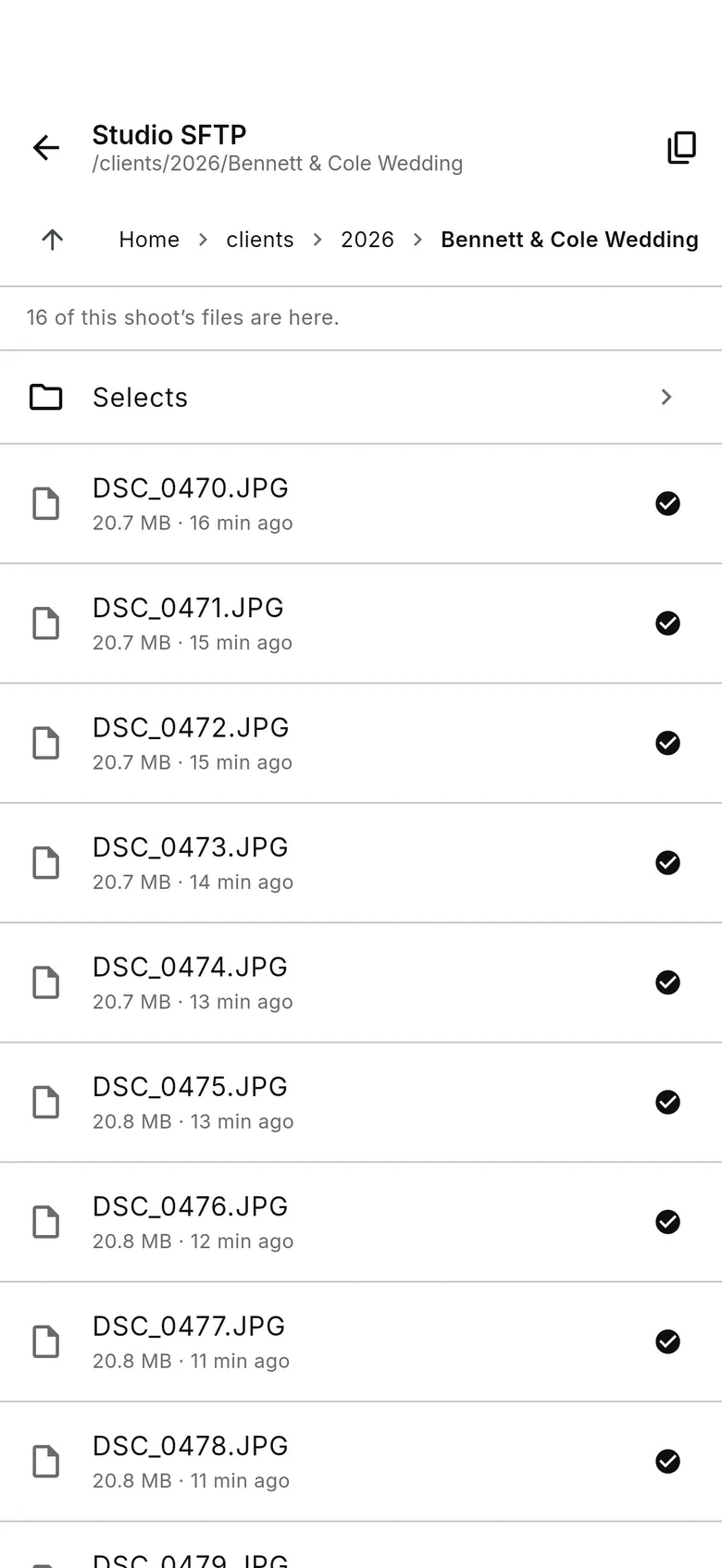
In CloudTether 1.1, a delivered shot's FTP or SFTP destination has a Browse button: a read-only view of the server folder with file sizes and dates, this shoot's files marked, and Copy path. It's the quick way to confirm the newsroom has your frames, without a separate FTP app. The web dashboard can also browse the server's folders when you pick the destination's folder.
Keep the login safe
Your password is stored encrypted and is never shown in logs or error messages. Use an account made for uploads, with write access only to the photo folder, so a leaked password can't touch anything else. When something fails, the error says what went wrong — wrong username or password, connection timed out or refused, or permission denied creating a folder — which is usually enough to fix it with your host. Never send your password to anyone who asks for it, including CloudTether support: we don't need it to help you.
Photos, not huge videos
Photos of any size deliver comfortably. Very large files, such as long video clips, to a slow server connection may not finish within a single delivery attempt; for those, a faster server or a cloud drive is the better target.
FAQ
Can I tether my camera straight to an FTP or SFTP server?
Yes. Tether the camera to your phone with CloudTether and add your server as a destination. Each shot uploads once from the phone and CloudTether's servers deliver it to your SFTP, FTPS or FTP server.
Does my phone need to stay online until the file reaches my server?
Only until the photo has uploaded once to CloudTether. The delivery to your server happens from CloudTether's servers and is retried automatically if your server is briefly unavailable.
Why did my files land in my home folder instead of /srv/photos?
Paths are relative to the account's login folder, and a leading slash is ignored. Set the upload account's home (or chroot) to the folder you want and leave the folder field blank.
Can I use an SSH key instead of a password?
Not yet. CloudTether signs in to SFTP with a username and password. Use a dedicated upload account with access only to the photo folder.
Can photos go straight into one folder, with no folder per shoot?
Yes, in CloudTether 1.1: turn off “New subfolder for each shoot” on the FTP / SFTP destination.
Tether your camera to the cloud with CloudTether
Deliver every shot to the cloud or a client gallery, live as you shoot — no laptop. Start with a 7-day free trial on iPhone, iPad or Android.