Several photographers delivering to one folder
A team covering one event, every frame landing in one place for the client or the desk — no laptop in the middle.
The set-up: one phone per photographer
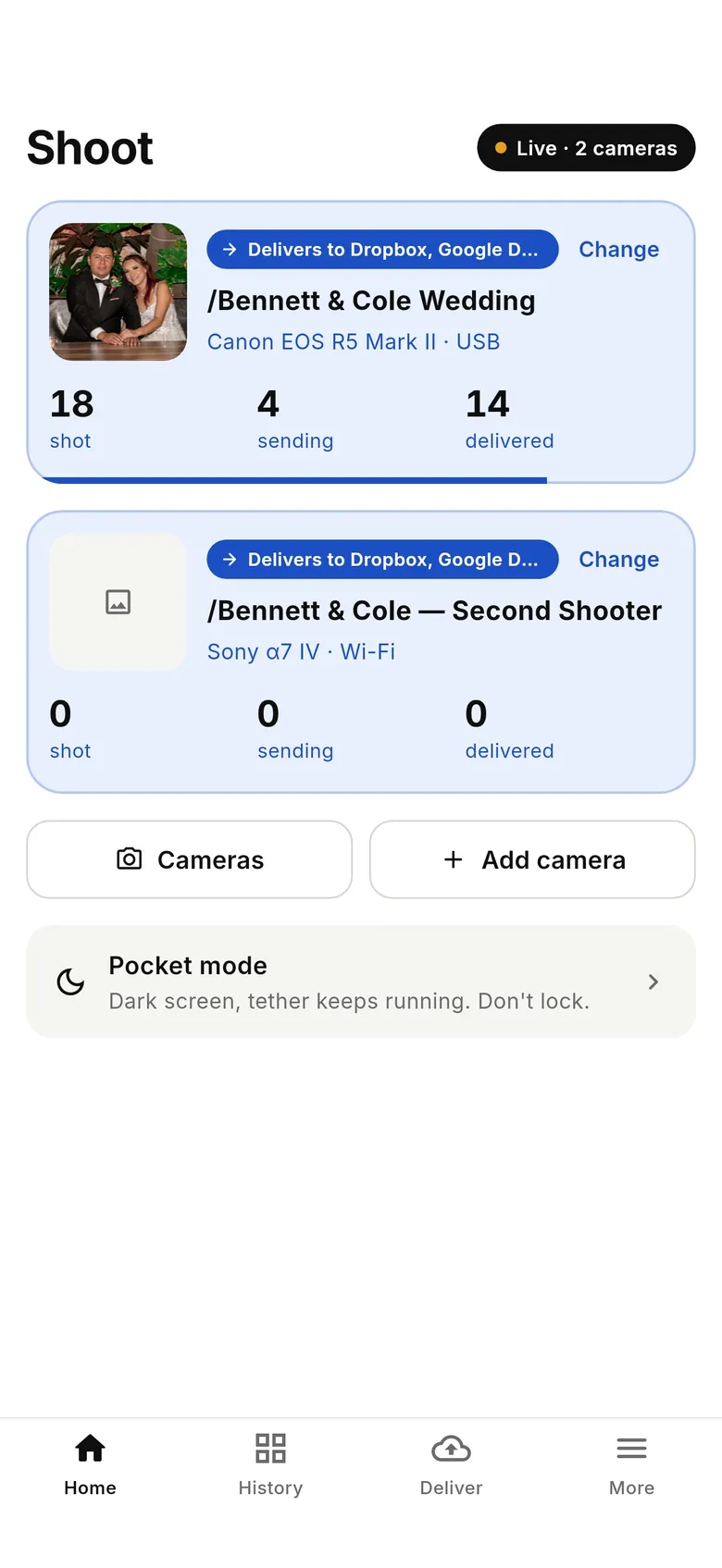
Each photographer runs CloudTether on their own phone, tethers their own camera over USB or Wi-Fi, and shoots into their own shoot. Every shoot points at the same destination — a shared Dropbox or Google Drive folder, a client gallery, or one SFTP server. There's no central laptop to ingest cards and nothing to merge afterwards: each phone delivers its photographer's shots as they're taken, and the shared folder fills from all of them at once. Each photographer signs in on their own phone; creating a shoot needs an account.
Point everyone at the same place
For Dropbox or Google Drive, share one folder with the team, and have each photographer connect their own account and choose that folder when they pick where shots go (“Choose other services or folders” in app 1.1, the album's destinations in 1.0). For a server, give each photographer the same host and folder — ideally each with their own upload login, so one password can be changed without affecting the others. For a gallery such as SmugMug or ShootProof, deliver to the same gallery.
Give each photographer a subfolder
The tidiest layout is one parent folder for the event with a subfolder per photographer. That's what CloudTether does by default: pick the event's folder as the destination and each shoot creates a folder named after itself on the first delivery. Name the shoots after the photographer — “Gala 2026 – Sam”, “Gala 2026 – Priya” — and the client sees one event folder with everyone's work neatly apart, and nobody's files can clash.
Everyone in one folder? Avoid file-name clashes
If the client wants a single flat folder, plan the file names. Two cameras of the same brand both write names like IMG_1234.JPG, and services handle a clash differently: some keep both copies by adding a number, while FTP and SFTP servers replace the older file. The fix is in the cameras: Canon, Nikon, Sony and Fujifilm all let you change the file-name prefix in the camera menu (look for a setting called File name, File naming or Edit file name). Give each body its own prefix — SAM_, PRI_ — and every name is unique. For a server, CloudTether 1.1 also has a “New subfolder for each shoot” switch on the FTP / SFTP destination to file straight into one folder.
One photographer, two cameras
A single photographer doesn't need a second phone for a second body. One phone can tether several cameras at once — over USB, Wi-Fi or a mix — and we've run a Sony and a Canon together on one phone. Each camera can send into the same shoot or its own. For Wi-Fi, put the cameras and the phone on one network, such as the phone's hotspot or a travel router, because a phone can only join one camera's own Wi-Fi at a time.
Plan the radio, not just the folders
Several phones and cameras in one room means a lot of Wi-Fi. The most dependable arrangement is each photographer on a USB-C cable, with phones uploading over their own mobile data. If you're on Wi-Fi, give each pair its own link — the camera's own network or that photographer's hotspot — rather than everyone on the venue's guest Wi-Fi, which often stops devices seeing each other. If a phone loses signal, its shots wait on that phone and catch up when it's back; the others carry on.
Who sees what
Each photographer's app shows their own shots — sent, waiting and delivered. Whoever is coordinating watches the shared folder or gallery, where everyone's work appears together. Agree before doors open who covers which room or moment, and use shoot names that say so; it makes the folder self-explanatory for the client.
A five-minute check before doors
Every photographer connects their camera and takes one test shot. In app 1.1, “Test shot delivered. You're all set” confirms it reached the destination. Then open the shared folder and check every photographer's test shot is there, with distinct names, in the place the client expects.
Choose where a camera's shots go
Point each camera at your services — or keep its shots on the phone — and change it any time.
Not sure which you have? 1.1 has the tabs Home · History · Deliver · More; 1.0 has Home · Playback · Destinations · More. What changed in 1.1
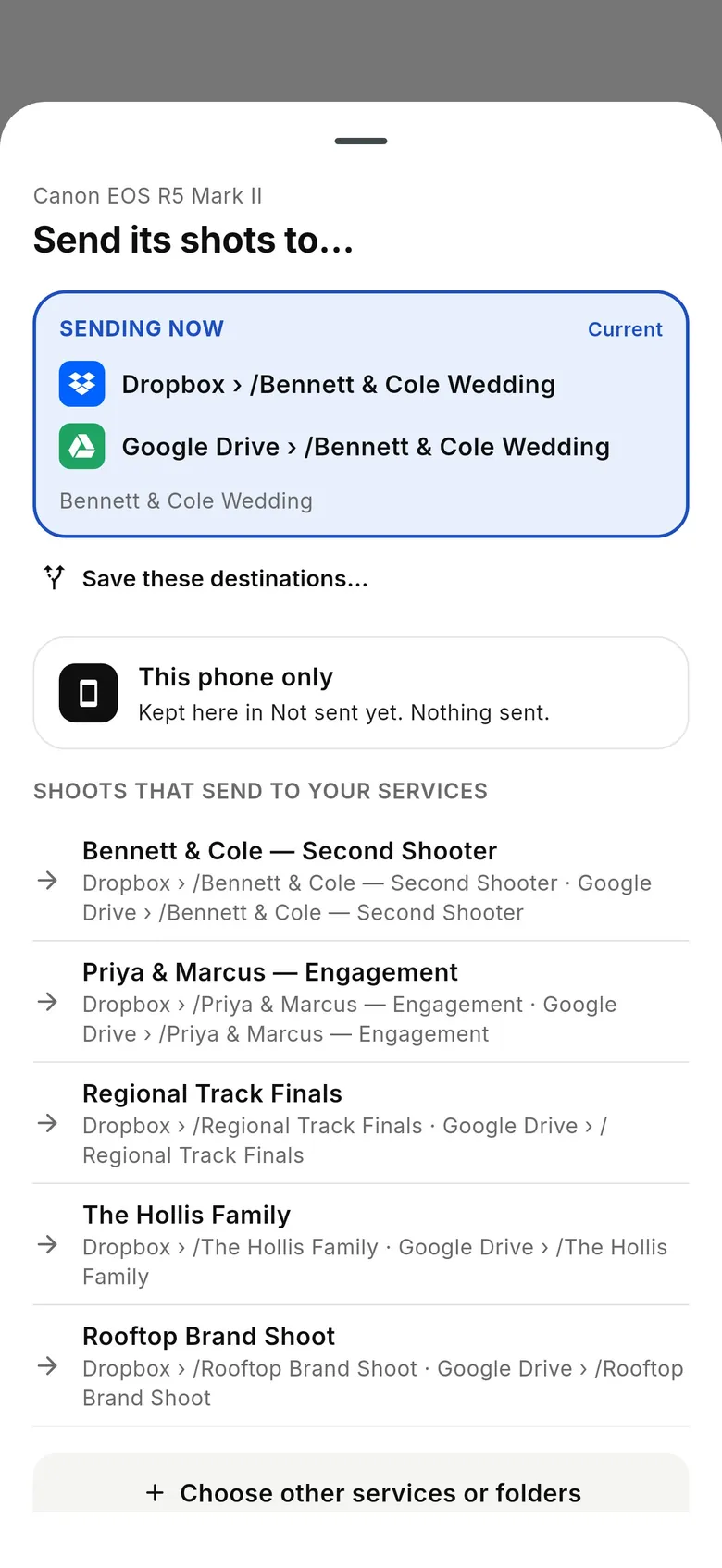
1Open “Send shots to…”
Tap “Change” next to “Sending to …” at the top of Home, or on the sheet that opens when a camera connects. “Sending now” is the current choice; under it are “This phone only” (shots are kept here in Not sent yet, or copied to Photos if you set that up), “New shoot to saved destinations” and “Shoots that send to your services”.
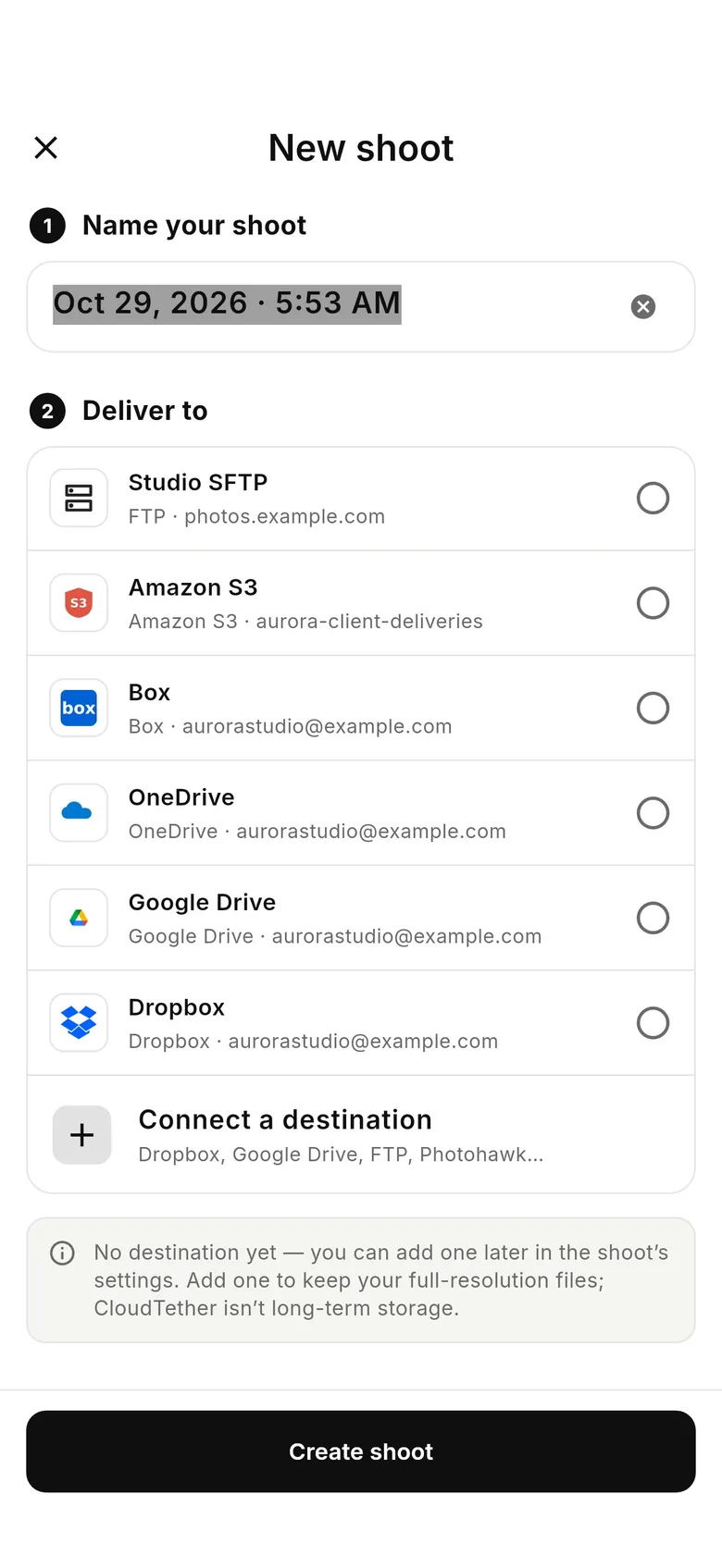
2Pick services for a new shoot
Tap “Choose other services or folders”. Name your shoot (it defaults to today's date and time), tick the services under “Deliver to” — Dropbox, Google Drive, a gallery, FTP… — and tap “Create shoot”.
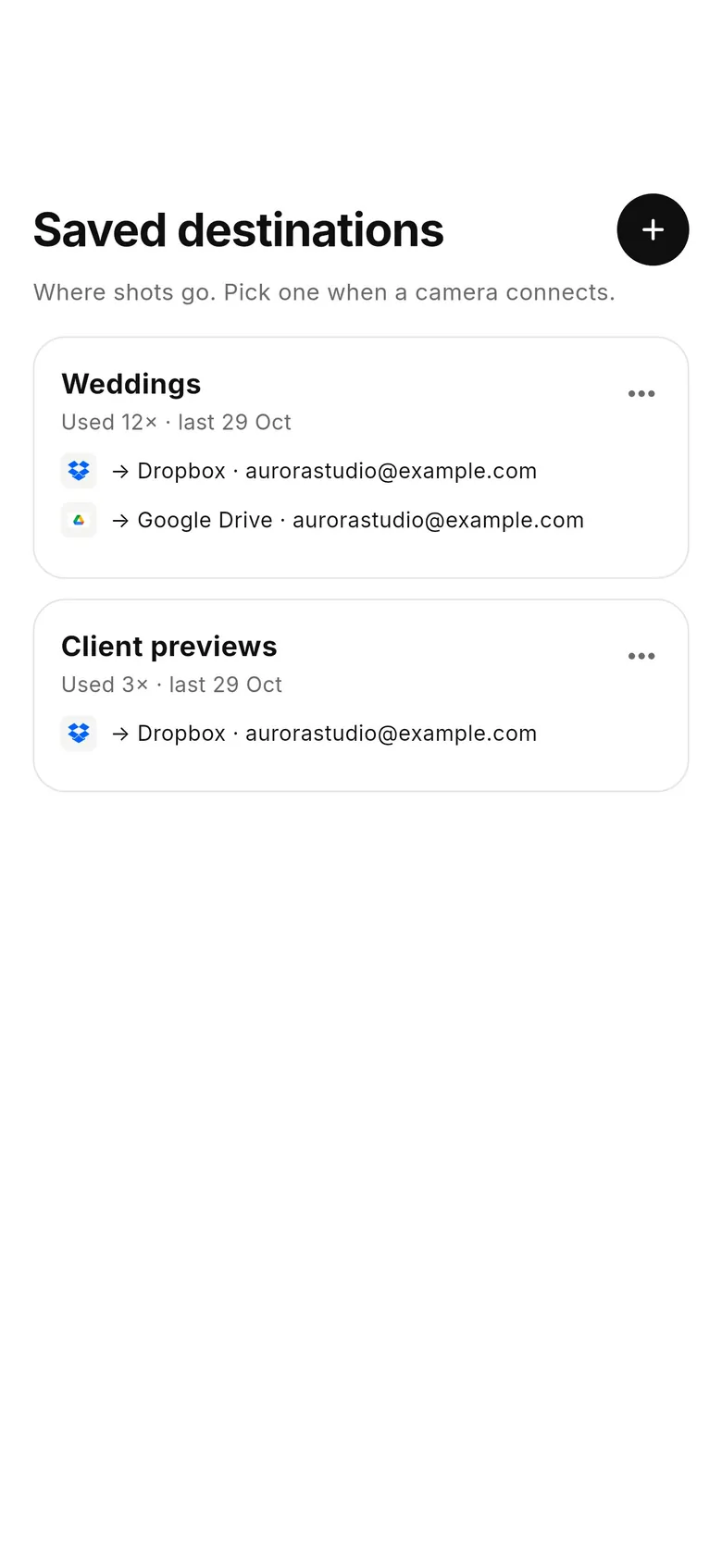
3Save the set for next time
Under the current shoot, tap “Save these destinations…” and give the set a name. It appears in Deliver › Saved destinations and as “New shoot to saved destinations” in the picker — one tap starts a new shoot, named for today, on the same services.
4Reconnecting later
Each camera remembers its choice. Reconnect the same day and it rejoins that shoot; on a later day it starts a new shoot on the same destinations, so next week's job never lands in last week's folder.
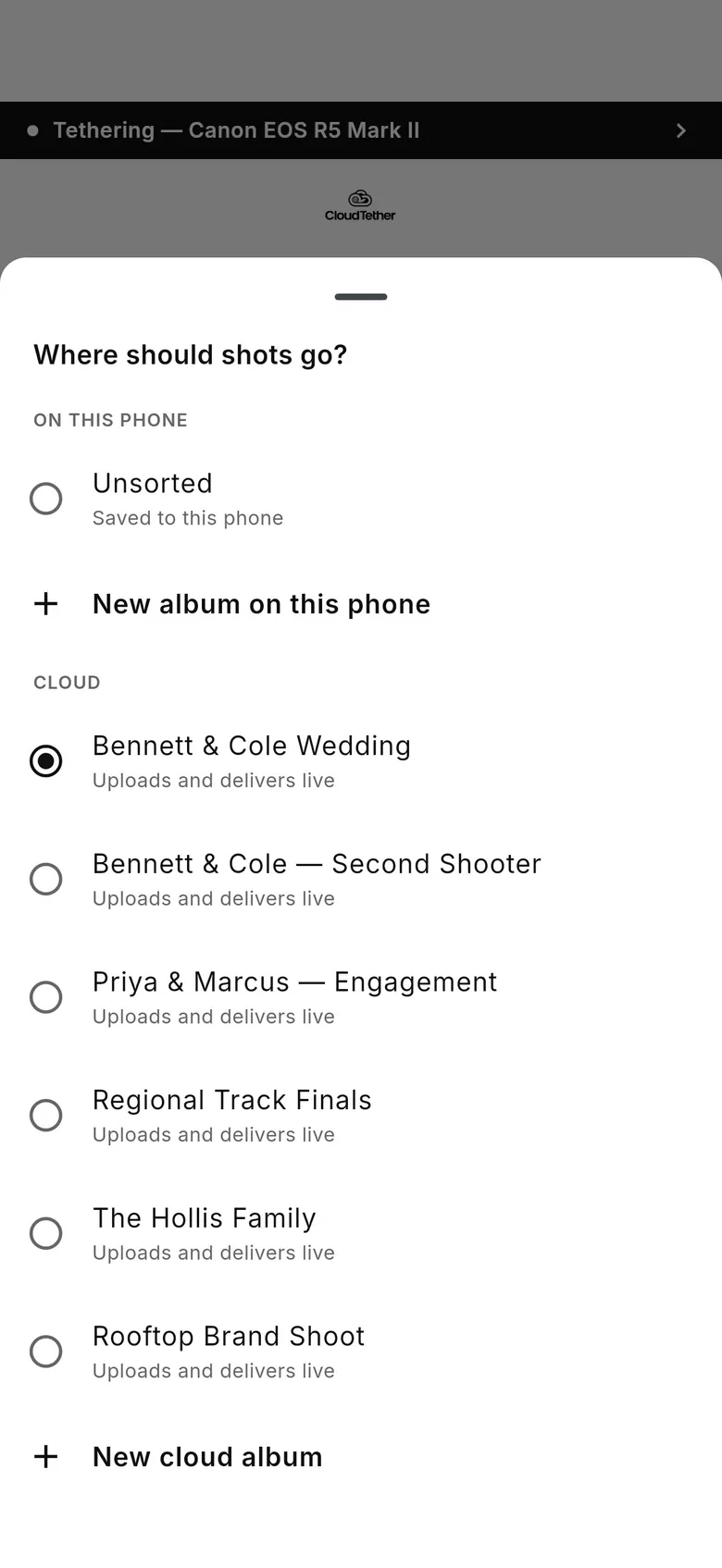
1Open “Where should shots go?”
Tap “Change” on the Camera connected sheet, or the camera's “Live upload → …” line on Home. Pick “Unsorted” (saved to this phone) or an album on this phone under “On this phone”, or a cloud album — which uploads and delivers live — under “Cloud”.
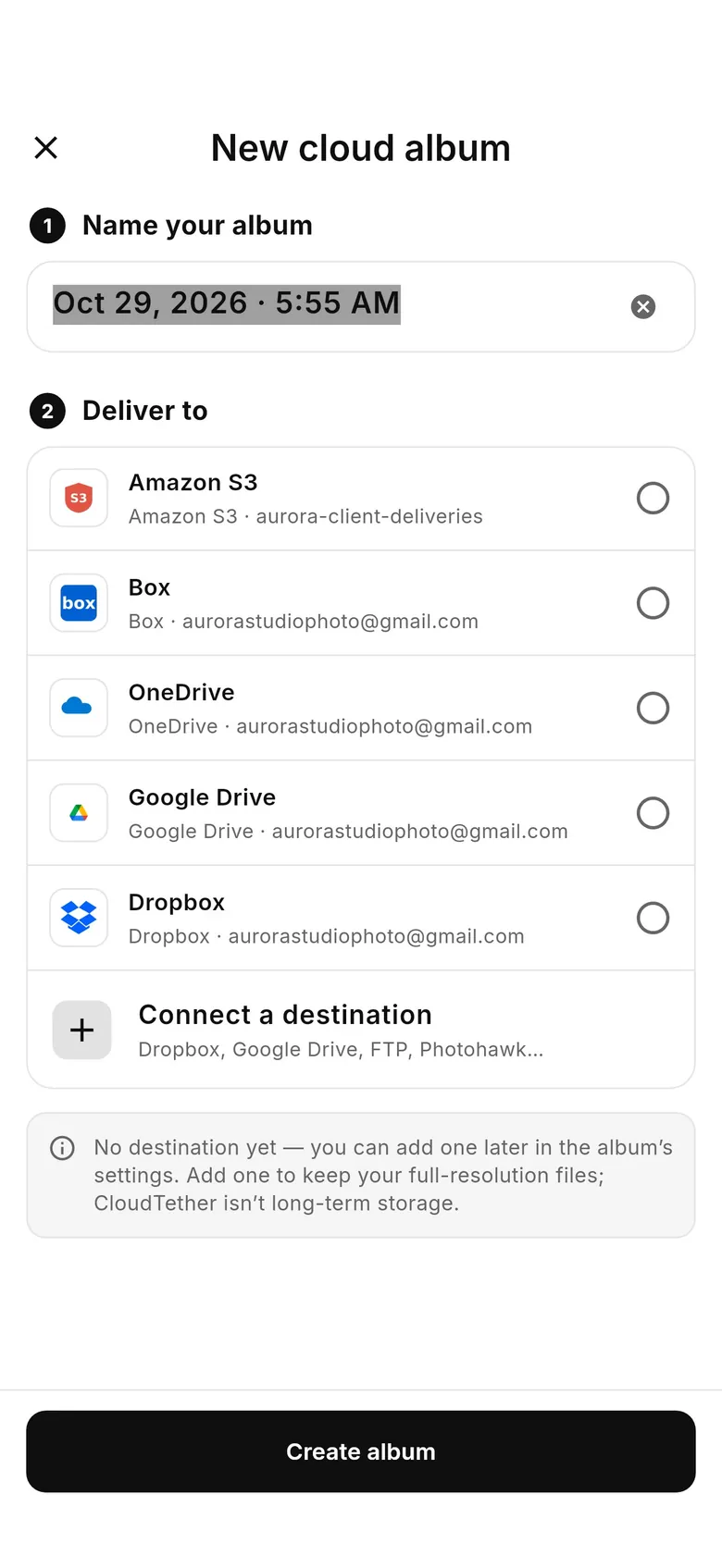
2Create a cloud album
Tap “New cloud album”. Name your album (it defaults to today's date and time), pick the destinations under “Deliver to” and tap “Create album”. The camera starts sending to it straight away.
3Reconnecting later
Each camera remembers its album and returns to it when it reconnects — check the camera's “Live upload → …” line before a new job and pick a new album if needed.
FAQ
Can two photographers deliver to the same Dropbox folder at once?
Yes. Each runs CloudTether on their own phone with their own shoot, and both choose the same shared folder. Each phone delivers its own shots as they're taken.
How do I stop two cameras overwriting each other's files?
Give each camera its own file-name prefix in its menu, or keep the default folder per shoot so each photographer's files land in their own subfolder.
Does each photographer need their own phone?
Each photographer needs a phone for their own camera. One photographer with two bodies can tether both to one phone.
Do we need a laptop to combine everyone's photos?
No. Every phone delivers to the shared destination directly, so the event folder fills from everyone in real time.
Tether your camera to the cloud with CloudTether
Deliver every shot to the cloud or a client gallery, live as you shoot — no laptop. Start with a 7-day free trial on iPhone, iPad or Android.