Camera makers' apps vs one app for mixed teams
Your team shoots Canon, Nikon and Sony. Do you need three apps, three set-ups and three ways to deliver?
The mixed-brand problem
Few teams are single-brand for long. A wedding studio has a lead on Canon and a second shooter on Sony; a newsroom has whatever the staff and freelancers bring; an events company picks up a Nikon for a long lens. Each camera maker has a free phone app — Canon Camera Connect, Nikon SnapBridge, Sony's Creators' App, Fujifilm's app — and each is built for its own brand. That's fine for one photographer. For a team, it means a different app, pairing routine and set of settings for every body, and a separate answer to “where do the photos go next?”
What the makers' apps do well
They're free, made by the people who made the camera, and know it intimately. Depending on the brand and body they handle Bluetooth pairing, remote shooting and live view, location from the phone, camera settings, and sometimes firmware updates or the maker's own cloud service. If you need any of those, keep the app — CloudTether doesn't try to replace them.
Where a team runs into friction
The makers' apps are designed to bring images onto the phone, so delivery to a client folder, a gallery or a newsroom server is a separate step for someone to do. Every brand's app has its own transfer options and pairing flow, so training a team, or helping a freelancer at the door, means knowing several. And there's no common place to see whether everyone's shots are going out.
What one app changes
With CloudTether the steps are the same whatever the camera: connect over USB or Wi-Fi, choose where its shots go, shoot. Canon, Nikon, Sony and Fujifilm all connect from the same Connect screen, and every shot is delivered at full resolution to the same kinds of destination — a shared Dropbox or Google Drive folder, SmugMug or ShootProof, an SFTP server, or the phone's Photos. One phone can even run two different brands at once; we've tethered a Sony and a Canon together. The team learns one routine, and delivery happens as they shoot, not afterwards.
Side by side
Purpose: the makers' apps connect a phone to that brand's cameras for transfer and control; CloudTether tethers any of the four main brands and delivers every shot onward. Brands: one each, versus Canon, Nikon, Sony and Fujifilm in one app. Where photos go: the phone, or the maker's own service, versus the destinations you choose, several at once. When: usually you pick what to transfer, versus every frame (or only the ones you rate in camera, on Canon and Nikon, in 1.1) automatically. Remote control and live view: a strength of the makers' apps; not what CloudTether is for.
Be honest about each body
Support isn't identical across brands, and it's better to know before the job. Over USB we've verified a Canon EOS R7, Nikon Z6, Sony ZV-E10 and Fujifilm X-T3, and the rest of each brand's modern bodies use the same code. Over Wi-Fi, Canon is verified; on other brands it depends on the model, and Fujifilm Wi-Fi is still experimental — a cable is the safe choice. Some features differ too: rating-driven sending in 1.1 works on Canon and Nikon but not over Sony's or Fujifilm's tether. Check each model on the supported cameras list, and have every photographer do a test shot.
Using both
You can keep the maker's app for firmware, settings and remote work and use CloudTether for delivery — just not over the same connection at once. On Canon, use the camera's Remote control (EOS Utility) Wi-Fi function for CloudTether rather than “Connect to smartphone”, which only pairs with Canon's own app; and on several Canon bodies, turn wireless off before using a USB cable. On Sony, set USB to PC Remote.
Which should your team use?
If each photographer just wants a few shots on their phone, the maker's app is free and already there. If the team needs every shot delivered to the same places, the same way, whatever camera is in hand — live, from the phone, with no laptop — one tether-and-deliver app is less to learn and less to go wrong.
Connect a camera in the CloudTether app
From opening the app to your first shot arriving — over USB or Wi-Fi.
Not sure which you have? 1.1 has the tabs Home · History · Deliver · More; 1.0 has Home · Playback · Destinations · More. What changed in 1.1
1Open Connect a camera
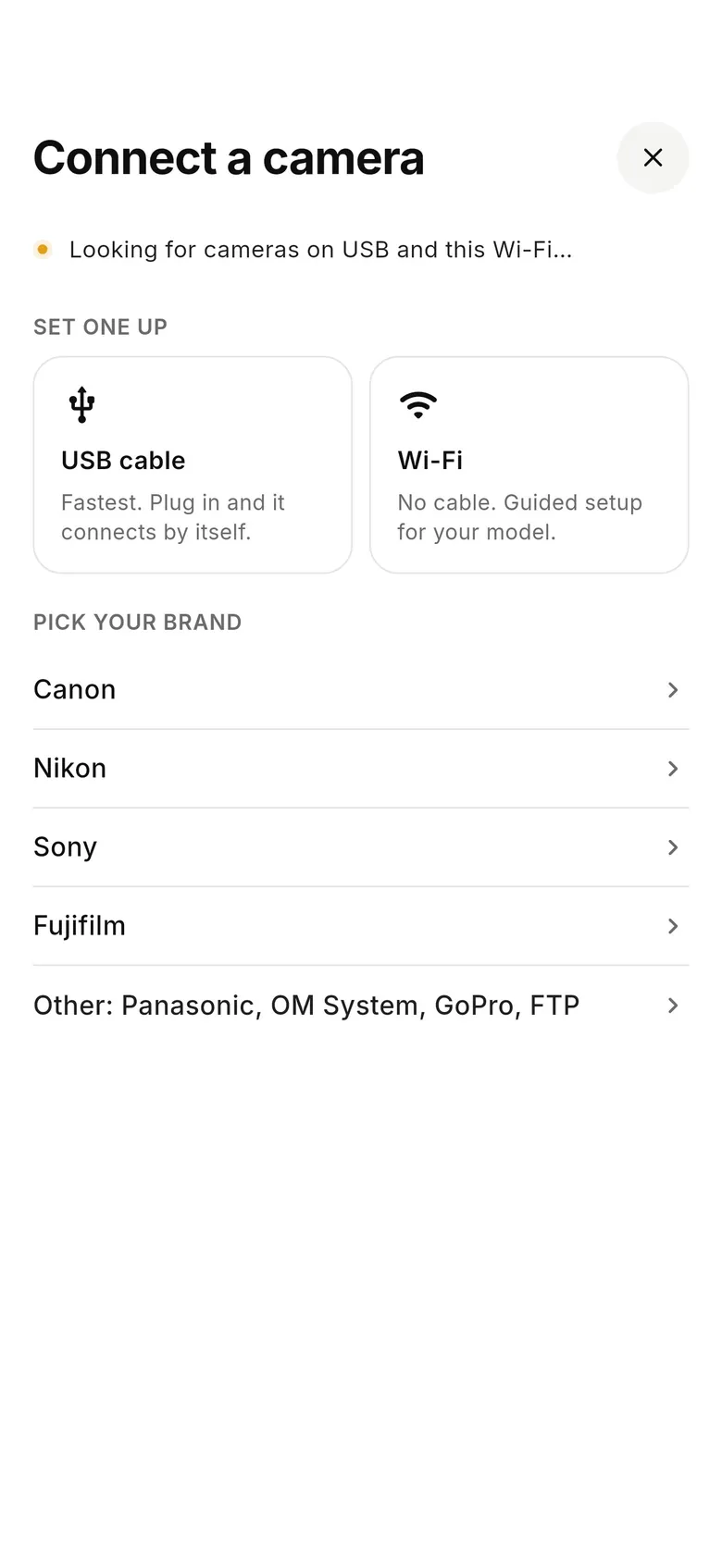
On Home, tap “Connect a camera” (or “+ Add” under Cameras when one is already connected). Plug in a USB cable and the camera connects by itself, or tap “Wi-Fi” for guided setup — or pick your brand (Canon, Nikon, Sony, Fujifilm, or Other: Panasonic, OM System, GoPro, FTP).
2Confirm on the camera if asked
Over Wi-Fi, many cameras show a pairing or confirm prompt the first time — accept it on the camera. Over USB, set the camera to its PC / tether mode (PC Remote on Sony).
3Choose where its shots go
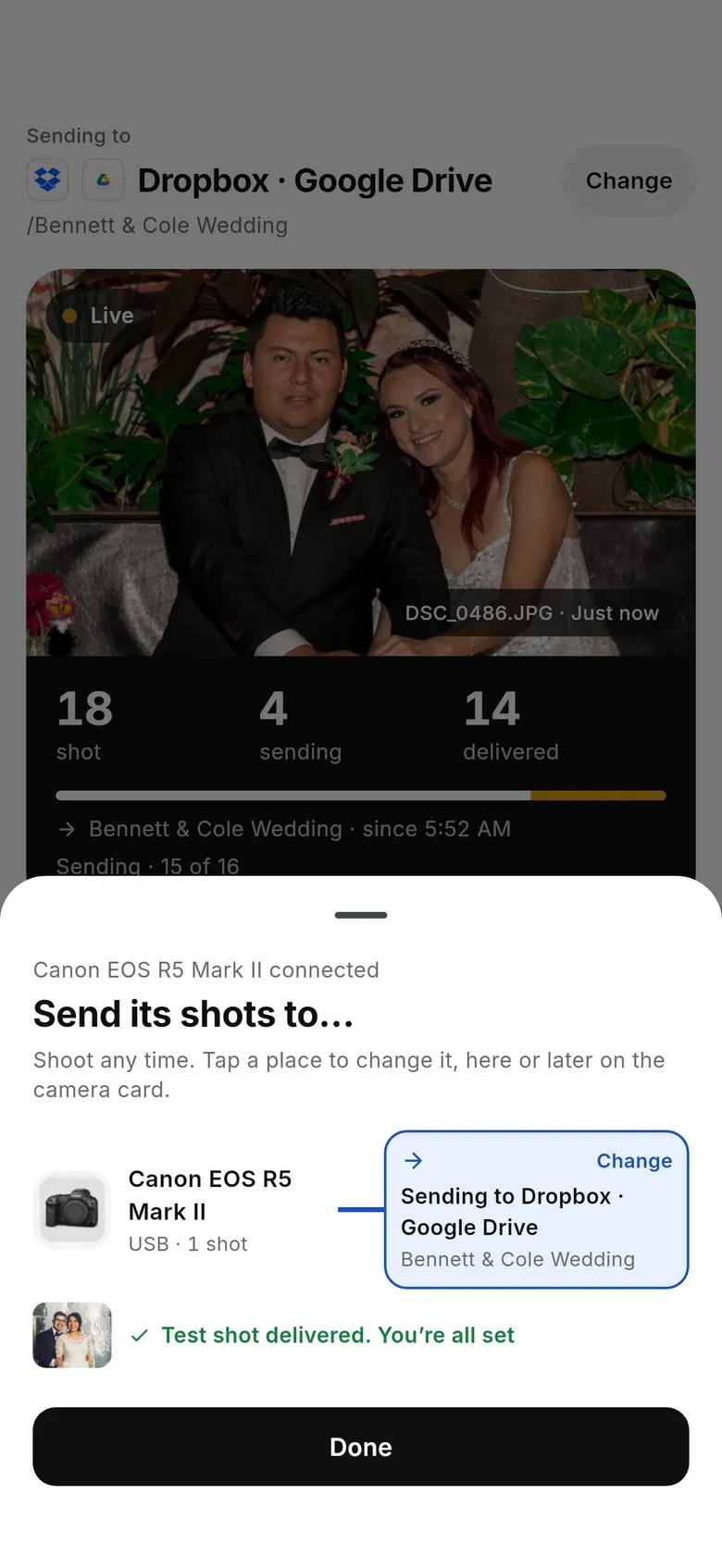
When the camera connects, the “Send its shots to…” sheet shows the camera and where it is sending — for example “Sending to Dropbox · Google Drive”. Tap “Change” to pick somewhere else, then take a test shot: “Test shot delivered. You’re all set” means it worked.
4Shoot
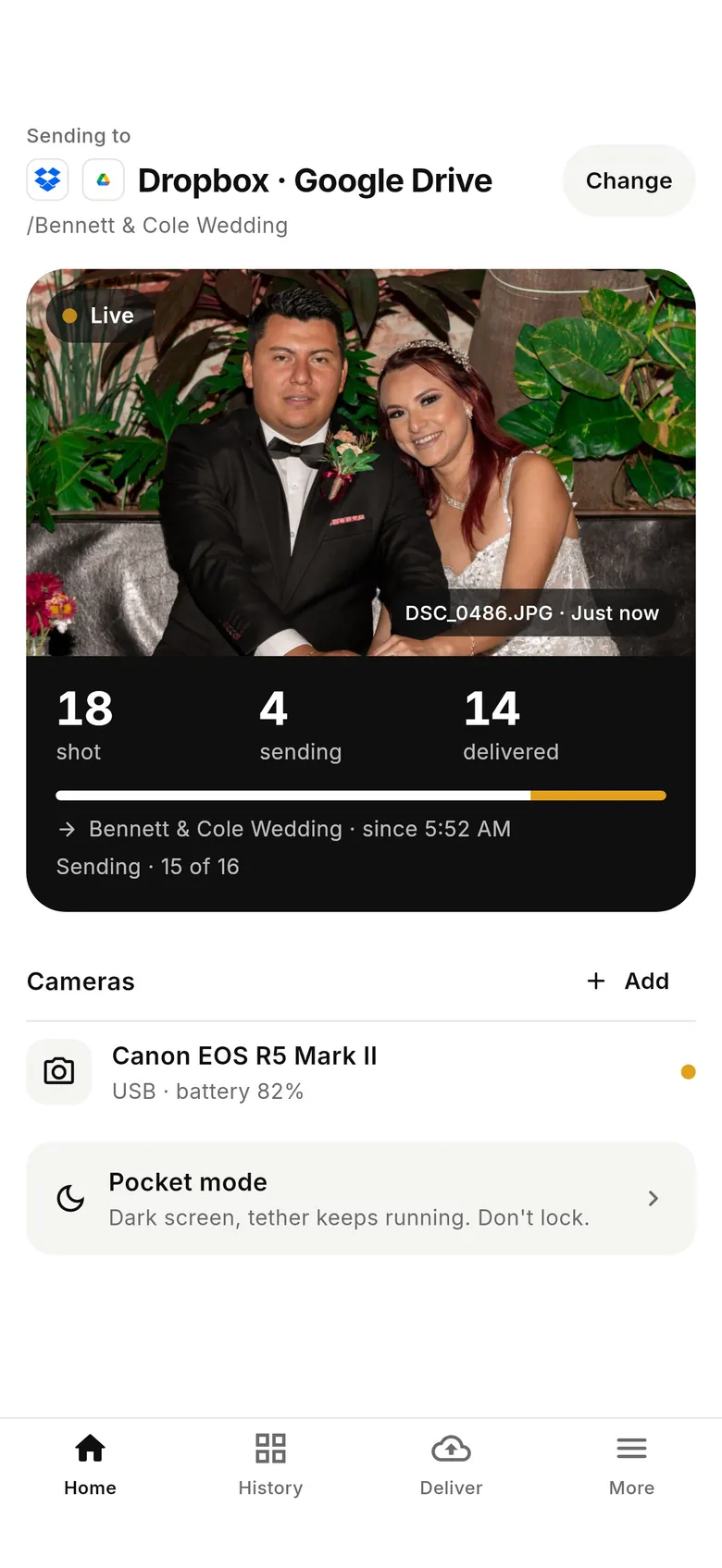
Home now leads with where shots are going (“Sending to Dropbox · Google Drive”, with “Change”) and a live panel of shot / sending / delivered counts. Turn on Pocket mode to darken the screen while the tether keeps running.
1Open Connect a camera
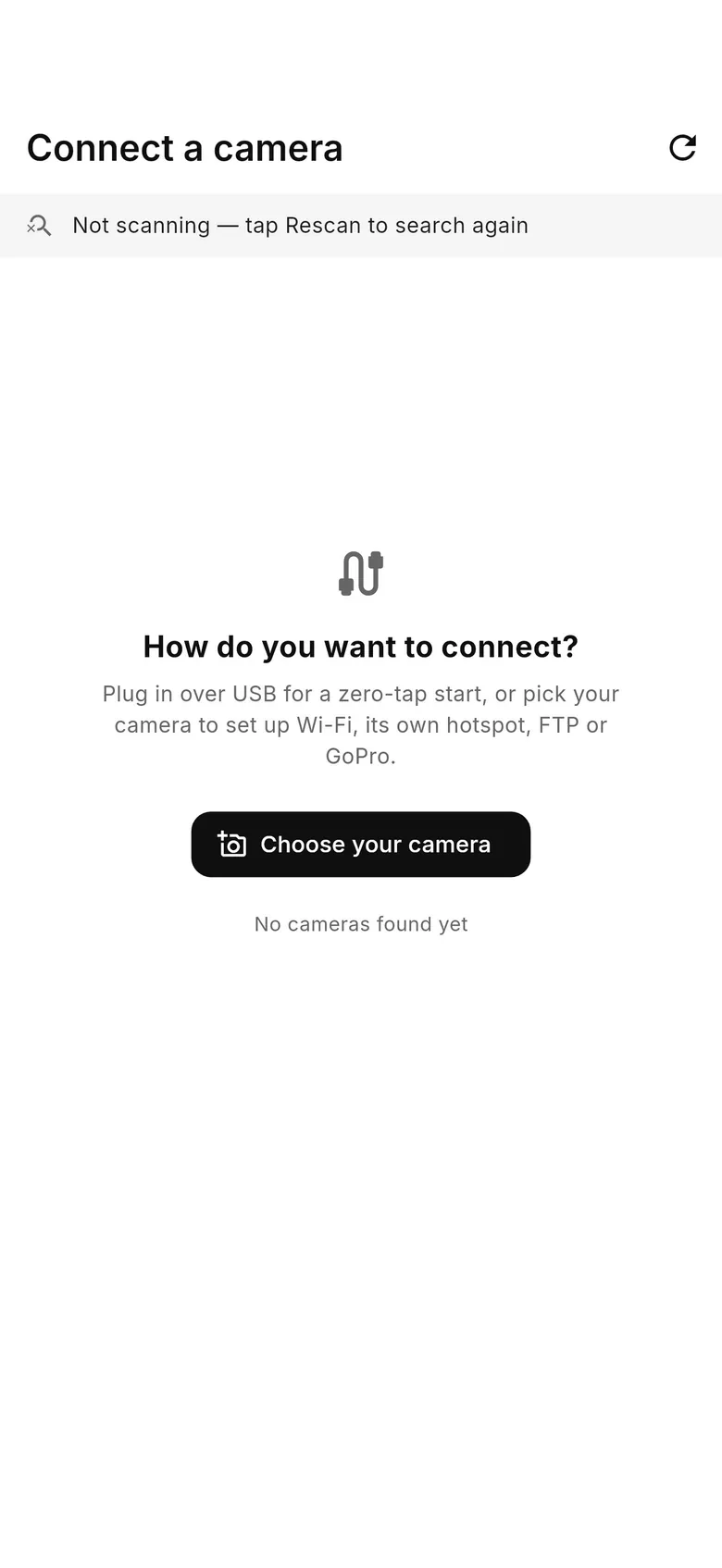
On Home, tap “Connect a camera” (or “+ Add camera” when one is already connected). Plug in over USB for a zero-tap start, or tap “Choose your camera” to set up Wi-Fi, the camera's own hotspot, FTP or GoPro for your model.
2Confirm on the camera if asked
Over Wi-Fi, many cameras show a pairing or confirm prompt the first time — accept it on the camera (Home shows “Confirm the connection on your camera”). Over USB, set the camera to its PC / tether mode (PC Remote on Sony).
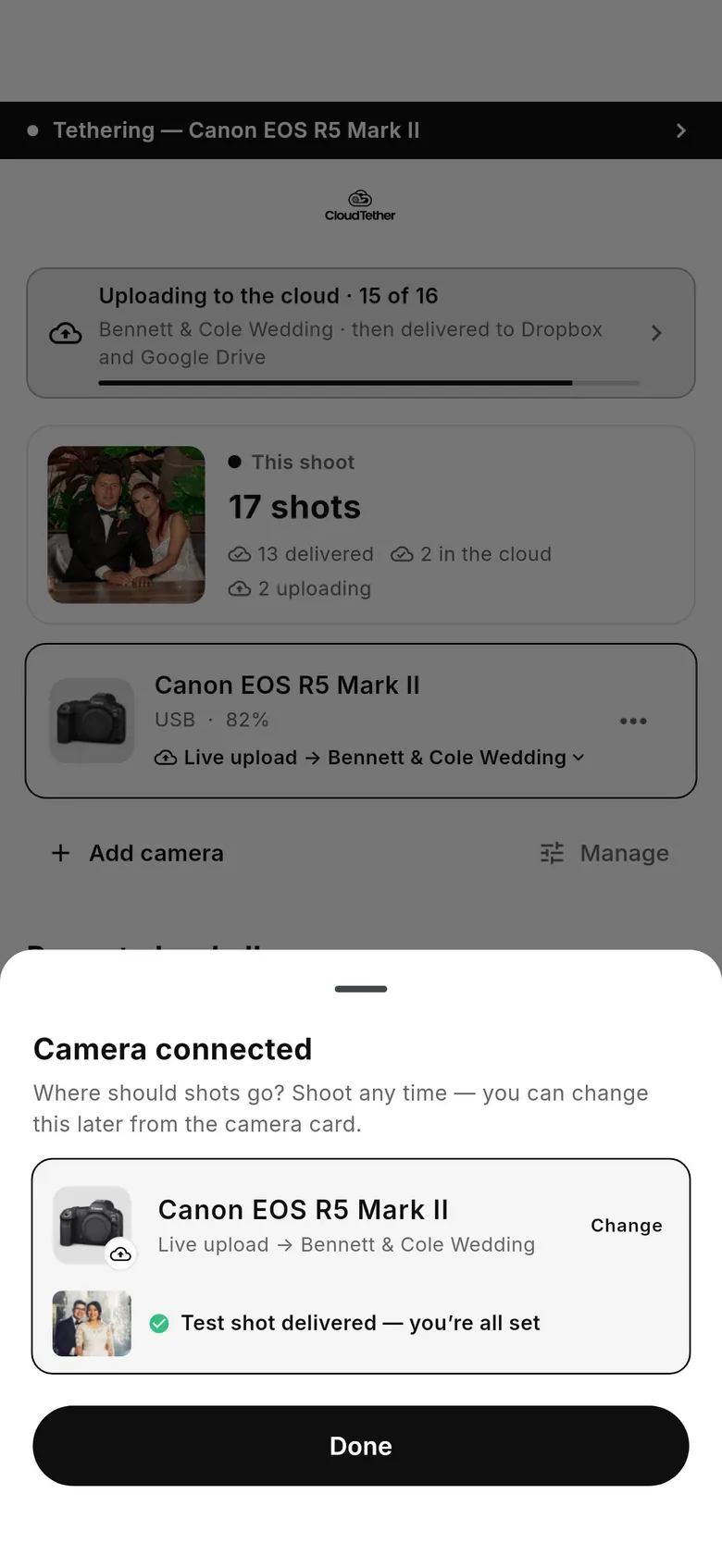
3Choose where shots go
The “Camera connected” sheet asks “Where should shots go?” and shows the camera's current album, e.g. “Live upload → Bennett & Cole Wedding”. Tap “Change” to pick another album, then take a test shot: “Test shot delivered — you’re all set”.
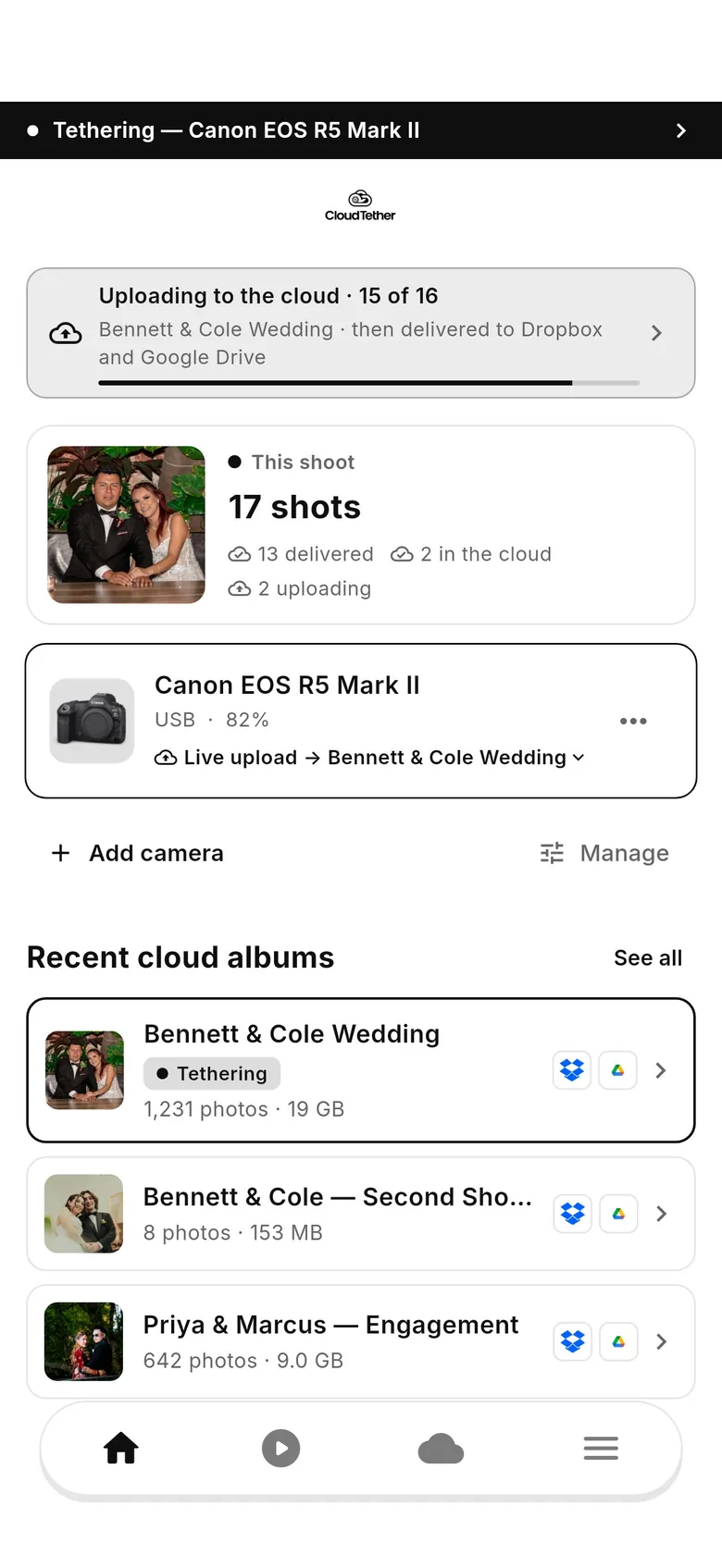
4Shoot
Home shows “This shoot” with captured, uploading, in-the-cloud and delivered counts, and the camera card's “Live upload → album” line. Recent cloud albums are listed below.
FAQ
Do I need a different app for each camera brand?
Not for delivery. CloudTether tethers Canon, Nikon, Sony and Fujifilm cameras from one app and sends every shot to the same destinations.
Can I keep using Canon Camera Connect or Nikon SnapBridge?
Yes, for remote control, settings or firmware. Use CloudTether for delivery, but not over the same camera connection at the same time.
Can one phone tether a Canon and a Sony at once?
Yes. One phone can tether several cameras of different brands at once; a Sony and a Canon have been run together.
Is every camera supported equally?
No. USB is verified on all four main brands; Wi-Fi is verified on Canon and model-dependent elsewhere. Check your model on the supported cameras list.
Tether your camera to the cloud with CloudTether
Deliver every shot to the cloud or a client gallery, live as you shoot — no laptop. Start with a 7-day free trial on iPhone, iPad or Android.