Tether two cameras to one phone at the same time
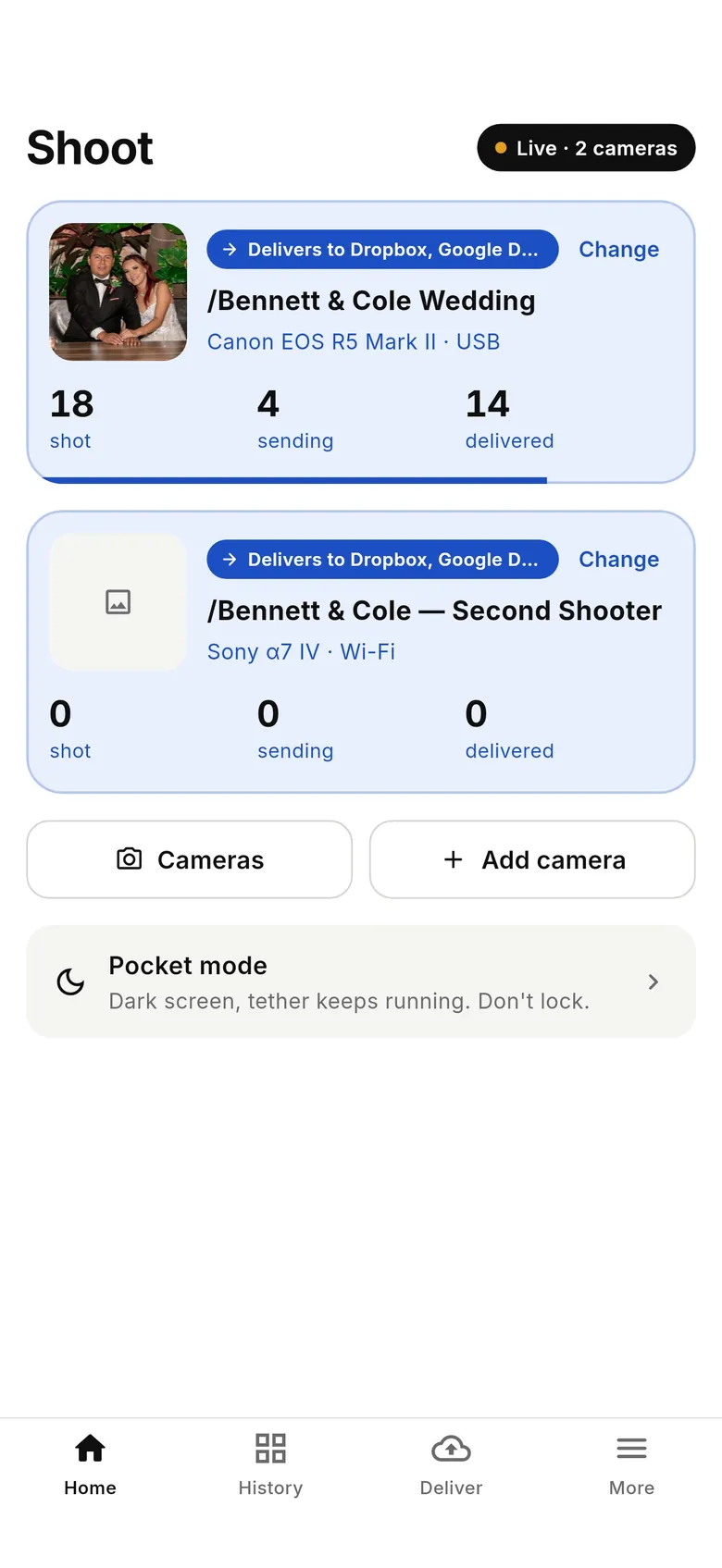
CloudTether can tether more than one camera to the same phone — up to three at once, over USB, Wi-Fi or a mix of both. Each camera sends to the shoot you choose for it: both bodies into one client gallery, or a second shooter's camera into a shoot of its own with different destinations. We've run a Sony and a Canon on one phone together, and Home shows a live panel for each camera.
- Up to three cameras on one phone
- Mix USB and Wi-Fi
- One shared shoot or a shoot per camera
- Tested with a Sony and a Canon together
Who it's for
Wedding and event photographers carrying a wide and a tele body; a studio adding a second angle; a stage covered from two positions into one gallery; a lead and a second shooter sharing a phone at a small event. With only one body tethered, half the day still comes home on cards. For several photographers each on their own phone, see one delivery folder for multiple photographers.
How it works
Connect the first camera as usual, then tap “Add another camera” on the Cameras screen and connect the next; the header shows a live count such as 2/3. When a new camera connects, CloudTether asks where its shots should go — “Same shoot as your other camera” comes first — and remembers it for that camera next time. Each camera shows as a chip, camera → shoot, with Change to point it somewhere else, even mid-shoot. Each shot uploads once and is delivered to its shoot's destinations.
USB is the most reliable link per camera, and mixing is fine — one body on a cable and one on Wi-Fi. Two Wi-Fi cameras need to join the same network as the phone, such as its hotspot or a travel router, because a phone can only join one camera's own network at a time. See access point vs station mode.
Keep the files apart
Two bodies of the same make can write the same file name. If both send to one folder, give each camera its own file-name prefix in its menu, or choose “Shoot name + file name” for that destination — see original file names. On iPhone each camera gets its own Live Activity on the Lock Screen. Full walkthrough: how to tether two cameras at once.
How to tether two cameras to one phone
Connect the first camera
Connect over USB or Wi-Fi and choose where its shots go.
Add another camera
On the Cameras screen, tap “Add another camera” and connect the second body. For two Wi-Fi cameras, put both on the phone's hotspot or a travel router.
Choose its shoot
Pick “Same shoot as your other camera” or another shoot. Change it later from the camera's chip.
FAQ
Can I tether two cameras to one phone?
Yes — up to three at once, over USB, Wi-Fi or a mix. We've tested a Sony and a Canon together on one phone.
Can two Wi-Fi cameras connect to one phone?
Yes, when both cameras and the phone are on the same network, such as the phone's hotspot or a travel router.
Can each camera send to different places?
Yes. Each camera sends to the shoot you choose for it, and each shoot has its own destinations.
Do both cameras need to be the same brand?
No. Canon, Nikon, Sony and Fujifilm bodies can run side by side.
Two cameras at once is part of the one CloudTether plan
Every feature and every destination is included. Download CloudTether for iPhone, iPad or Android; the price for your country is shown in the app before you subscribe.