Pocket mode: keep tethering with the phone's screen dark
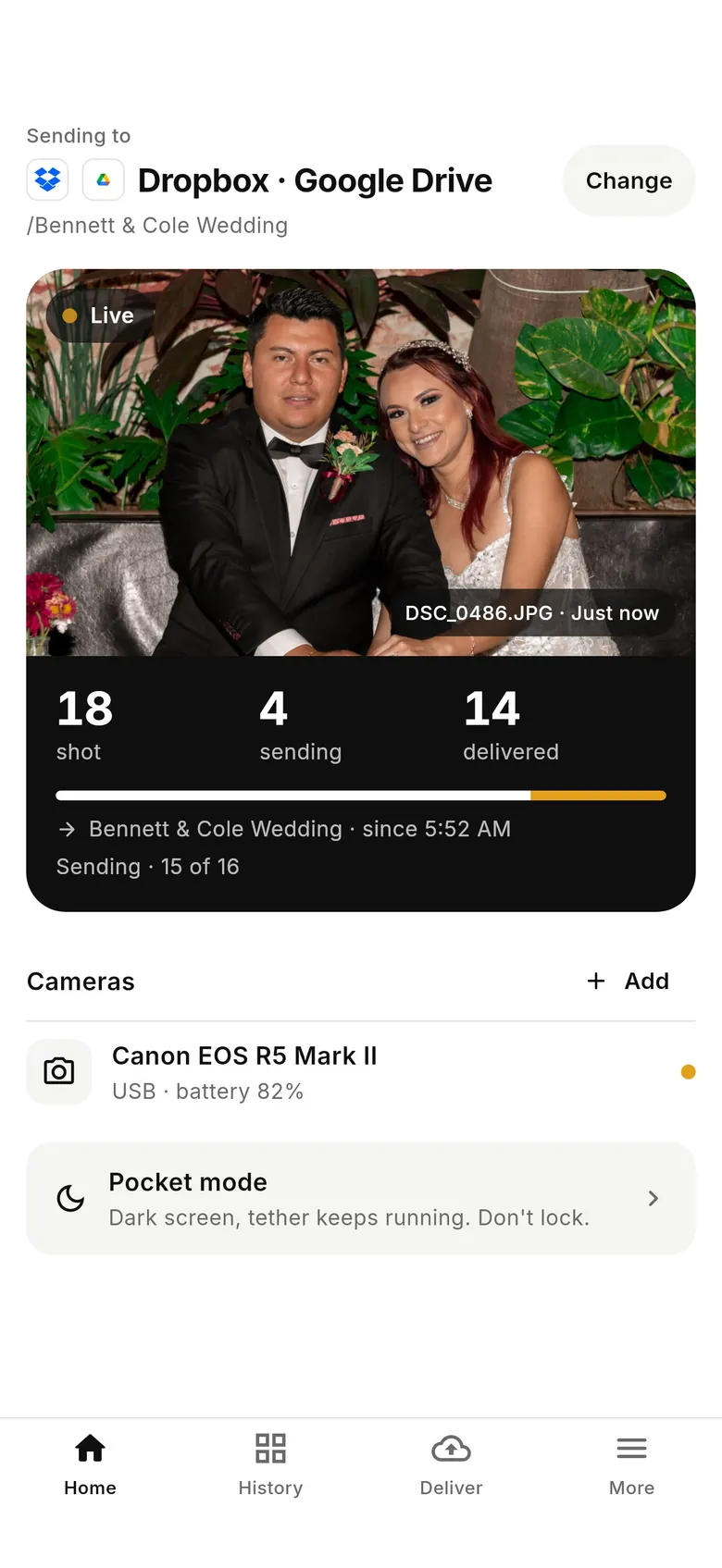
Pocket mode is how you put the phone away mid-shoot without stopping the tether. Tap Pocket mode on CloudTether's Home screen and the display goes dark and dims to its minimum, while the app keeps copying every shot off the camera and sending it to your destinations. A single large count shows how many shots you've taken, with what's sending and delivered. Double-tap anywhere to wake it.
- Dark, dimmed screen — tether keeps running
- Shot, sending and delivered counts at a glance
- Double-tap anywhere to wake
- No need to lock the phone
Why Pocket mode exists
Tethering to a phone works best with the app open: phones limit what apps can do in the background, and on iPhone pressing the lock button pauses the camera link. But a bright screen in a pocket or a strap pouch wastes battery and can be tapped by accident. Pocket mode is the middle ground — the app stays in front and the screen stays awake, but dark and dimmed, so the tether runs all day without you holding the phone. It's the recommended way to tether on iPhone and iPad, and just as handy on Android.
What you see
A black screen with one big number — every connected camera's shots since it connected, added together — and a status line with what's sending and delivered, plus where the shots are going and which cameras are connected. The top reads “Pocket mode · Tether running” (or “No camera connected” if the cable comes out). Double-tap anywhere to return to Home. On OLED phones a black screen draws very little power, and the app hands brightness back to your normal setting when you leave.
Tips for a long day
Don't press the lock button — Pocket mode keeps the screen awake for you. Plug in a small USB-C power bank for full-day events, and lengthen the camera's auto power off so it doesn't sleep between moments. On iPhone, each connected camera also gets a Live Activity on the Lock Screen with its counts. If the signal drops, shots keep arriving on the phone and wait to upload — see offline queue.
How to use Pocket mode while tethering
Connect a camera and start the shoot
Connect over USB or Wi-Fi and take a test shot so you know delivery works.
Tap Pocket mode on Home
The row reads “Dark screen, tether keeps running. Don't lock.” The screen goes dark and dims.
Put the phone away; double-tap to wake
Keep shooting. Double-tap anywhere on the dark screen to return to Home.
FAQ
Can I lock my iPhone while tethering?
Use Pocket mode instead. On iPhone the camera link pauses while the phone is locked; Pocket mode keeps the app running with a dark screen.
Does Pocket mode save battery?
Yes — the screen is dimmed to its minimum and mostly black, which draws little power, especially on OLED phones.
How do I get out of Pocket mode?
Double-tap anywhere on the screen.
Does it work with two cameras?
Yes. The count adds up every connected camera's shots, and the status line names the cameras.
Pocket mode is part of the one CloudTether plan
Every feature and every destination is included. Download CloudTether for iPhone, iPad or Android; the price for your country is shown in the app before you subscribe.