Sony Ctrl w/ Smartphone won't connect to Imaging Edge Mobile: fixes
By the CloudTether team · Updated
Short answer: first make sure your camera is one Sony assigns to Imaging Edge Mobile rather than the Creators' App. Then turn on the camera's smartphone function before opening the app, join the camera's Wi-Fi with the QR code or password it shows, allow the app Location and Local Network access, and stay on that network when the phone says it has no internet.
Likely causes
- The camera belongs to the other app: recent bodies use the Creators' App and don't appear in Imaging Edge Mobile.
- The camera's smartphone function isn't on, or it's waiting on a screen you haven't confirmed.
- The phone isn't on the camera's Wi-Fi, or keeps leaving it for a network with internet.
- Location or Local Network access switched off for the app on iPhone.
- A VPN, airplane mode or the phone's own hotspot getting in the way.
- The camera's network name or password was reset, so the phone's saved details no longer match.
How to fix it, step by step
Check which Sony app your camera uses
Sony assigns each camera to one phone app. Recent bodies use the Creators' App; many older Alpha, RX and ZV models use Imaging Edge Mobile. Look your model up on Sony's compatibility list. If it's a Creators' App camera, Imaging Edge Mobile won't find it however long you try — switch apps and see our Creators' App fixes.
Turn on the camera's smartphone function first
Start the connection on the camera before opening the app. Depending on the body that's Ctrl w/ Smartphone in the Network menu, or a Send to Smartphone option in playback. The camera then shows its network name and password, or a QR code.
Join the camera's Wi-Fi
Scan the QR code in the app, or join the camera's network from the phone's Wi-Fi settings with the password on the camera screen. If the camera's network details were reset, forget the old network on the phone first, because the saved password no longer matches.
Allow the app's permissions
On iPhone, open the app's page in Settings and turn on Location and Local Network — Sony's troubleshooting asks for both for its apps, and without them the app can't see or reach the camera. On Android, allow Location (or Nearby devices) and photos access.
Clear anything that pulls the phone away
When the phone warns that the camera's network has no internet, choose to stay connected. Turn off VPNs, airplane mode and the phone's own hotspot, and Wi-Fi Assist or the automatic switch to mobile data. Keep the phone close to the camera.
Reset and try again
Turn the camera off and on, restart the phone and connect again from the camera's smartphone function. If it still fails, reset the camera's network settings and reinstall the app. Trying another phone tells you whether the problem is the camera or the phone.
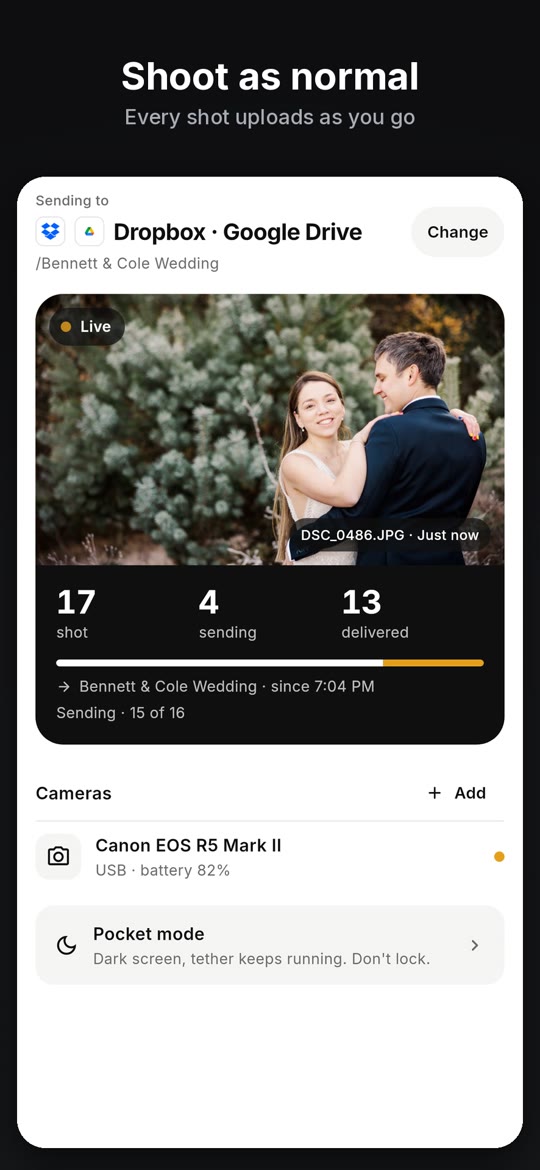
What a working tether looks like
The CloudTether app in 21 seconds: connect, choose where photos go, shoot, delivered.
Once the camera is connected, every shot comes off it and goes where you chose — no picking, no importing.
On screen: Plug in your camera: USB cable or Wi-Fi. Choose where photos go: set it once, then just shoot. Shoot as normal: every shot uploads as you go. Camera to cloud in seconds: on your phone, then delivered. Every photo, delivered: see exactly what arrived. Dropbox, Drive, ShootProof: SmugMug, Lightroom, FTP and more. Two cameras at once: Canon, Nikon, Sony, Fujifilm.Sending to a phone isn't the same as PC Remote
Sony cameras have two quite different ways to talk to another device. The smartphone function that Imaging Edge Mobile uses sends images you choose, or lets you shoot remotely. PC Remote is the tethering mode: the connected device receives each shot as it's taken. They're set up in different menus, and leaving a smartphone connection on can stop PC Remote from starting — on the ZV-E10, switch it off before tethering with MENU › Network › Ctrl w/ Smartphone › Off.
FAQ
Why won't Imaging Edge Mobile find my Sony camera?
Most often the camera is assigned to the Creators' App instead, the camera's smartphone function isn't on, or the app lacks Location and Local Network permission on iPhone.
Should I use Imaging Edge Mobile or the Creators' App?
Whichever Sony assigns to your camera. Recent bodies use the Creators' App; many older ones use Imaging Edge Mobile. Check Sony's compatibility list.
Why does my phone keep disconnecting from the Sony camera's Wi-Fi?
The camera's network has no internet, so the phone tries to leave it. Choose to stay connected, and turn off VPNs and Wi-Fi Assist or the automatic switch to mobile data.
Can I tether a Sony to my phone without Imaging Edge Mobile?
Yes. With the camera's USB mode set to PC Remote, CloudTether copies every shot over a USB cable as you take it, whichever Sony app your camera uses.
Does PC Remote work with Imaging Edge Mobile connected?
Disconnect the smartphone connection first. Otherwise the camera keeps the connection for the app.
Tether your camera to your phone with CloudTether
Canon, Nikon, Sony and Fujifilm over USB or Wi-Fi, on iPhone, iPad and Android. Every full-resolution shot is copied off the camera and delivered to Dropbox, Google Drive, a client gallery or FTP while you keep shooting.