Canon Wi-Fi stuck on pairing in Remote control (EOS Utility) mode
By the CloudTether team · Updated
Short answer: when a Canon sits on “Start EOS Utility on the computer” and the phone sits on Pairing, it's almost always waiting for you to approve the connection on the camera body. If no prompt appears, check you chose Remote control (EOS Utility) rather than Connect to smartphone, that camera and phone are on the same 2.4 GHz network, and that the camera isn't still set up for a computer it paired with before.
Likely causes
- The “connect to this device?” prompt on the camera not approved, or missed because the screen went to sleep.
- Connect to smartphone chosen instead of Remote control (EOS Utility) — that mode only talks to Canon's Camera Connect app.
- Camera and phone on different networks, or on a guest network that isolates devices from each other.
- A 5 GHz-only network or hotspot that many Canon bodies can't join.
- The camera's EOS Utility connection set up for a computer before, so it's expecting that device.
- Local Network permission declined on iPhone, so nothing is found at all.
How to fix it, step by step
Choose Remote control (EOS Utility), not Connect to smartphone
Tethering apps use the camera's computer-connection mode. Connect to smartphone pairs only with Canon's Camera Connect and never shows another app's prompt, so the connection just stalls. On the EOS R7 and R5 the route is below; on the R5 Mark II, R3 and R1 it's in a Network settings menu, where Network must be set to Enable first.
- MENU
- Wireless features
- Wi-Fi/Bluetooth connection
- Remote control (EOS Utility)
Put the camera and phone on the same network
The simplest setup is the camera joining your phone's hotspot: the phone keeps its mobile data for uploads. A studio router works too. Avoid guest and venue networks that isolate devices — the phone will never see the camera on them.
Use 2.4 GHz
Canon Wi-Fi is commonly 2.4 GHz. If your router or hotspot is 5 GHz-only or uses band steering, use a 2.4 GHz network, or turn on Maximise Compatibility in the iPhone's Personal Hotspot settings.
Leave the camera on the EOS Utility screen
After joining the network, the camera shows “Start EOS Utility on the computer”. Leave it there; that's the camera waiting for a connection, not an error.
Connect from the phone and allow Local Network
In CloudTether, tap Connect a camera › Wi-Fi › Canon. On iPhone, accept the Local Network permission the first time — if you declined it, turn it on in Settings › CloudTether › Local Network. If the camera isn't discovered, enter its IP address from the camera's network information screen.
Approve the prompt on the camera
When the phone shows Pairing, look at the camera: it asks whether to connect to this device. Press OK or SET. This is the step people miss, and until you do the app keeps waiting. Raise auto power off during setup so the camera's screen doesn't sleep and hide the prompt.
Re-pair if the camera expects another device
If the camera's EOS Utility connection was set up for a computer — or a previous phone — before, it may keep waiting for that device. Delete the saved connection in the camera's wireless settings, set up the Remote control (EOS Utility) connection again on your network, and approve the new prompt.
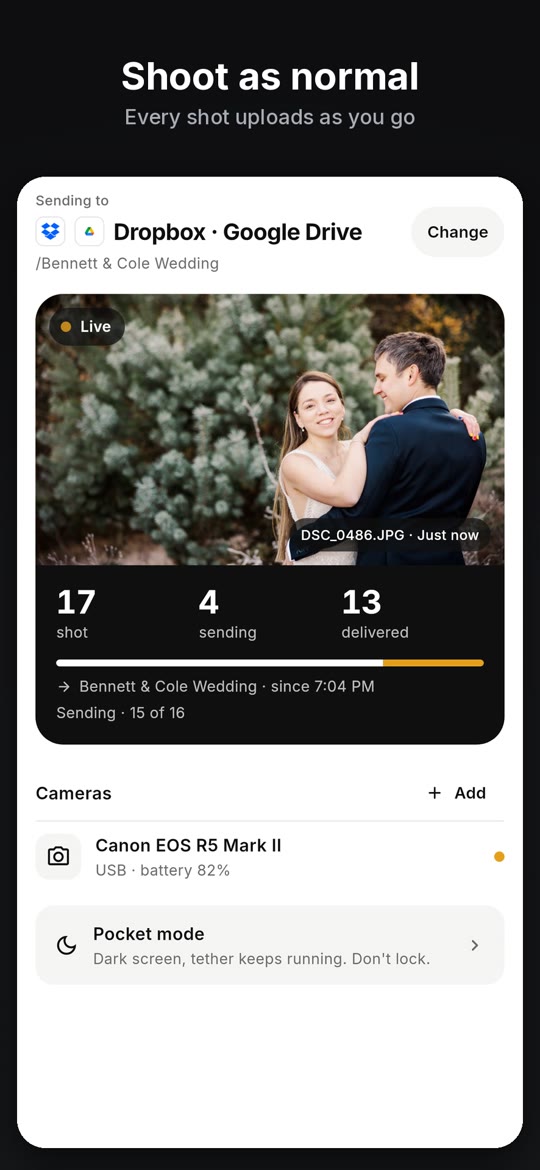
What a working tether looks like
The CloudTether app in 21 seconds: connect, choose where photos go, shoot, delivered.
Once the camera is connected, every shot comes off it and goes where you chose — no picking, no importing.
On screen: Plug in your camera: USB cable or Wi-Fi. Choose where photos go: set it once, then just shoot. Shoot as normal: every shot uploads as you go. Camera to cloud in seconds: on your phone, then delivered. Every photo, delivered: see exactly what arrived. Dropbox, Drive, ShootProof: SmugMug, Lightroom, FTP and more. Two cameras at once: Canon, Nikon, Sony, Fujifilm.Still stalling?
Turn the camera's Wi-Fi off and on, restart the app and try again with the phone close to the camera. Try the phone's hotspot instead of a router, or the reverse, to rule out the network. Close Camera Connect and turn the camera's Bluetooth pairing off if it keeps grabbing the camera. On a deadline, use USB instead: turn the camera's Wi-Fi off, plug in a data cable and it connects by itself with no pairing.
FAQ
Why is my Canon stuck on “Start EOS Utility on the computer”?
It's waiting for a device to connect. Connect from the app, then approve the “connect to this device?” prompt on the camera when the phone shows Pairing.
Should I use Connect to smartphone or Remote control (EOS Utility)?
Remote control (EOS Utility) for tethering apps such as CloudTether. Connect to smartphone only pairs with Canon's Camera Connect.
Why can't my Canon see my iPhone hotspot?
Many Canon bodies use 2.4 GHz. Turn on Maximise Compatibility in Personal Hotspot settings.
The camera never shows a prompt. What now?
Check both devices are on the same non-guest network, allow Local Network on iPhone, enter the camera's IP address if it isn't found, and delete any old EOS Utility connection on the camera before setting it up again.
Is Canon Wi-Fi tethering reliable?
Canon Wi-Fi is verified in CloudTether on the EOS R7, but USB is faster and steadier: a median 0.06 s per JPEG over USB against 0.20 s over Wi-Fi on an EOS R5 Mark II.
Tether your camera to your phone with CloudTether
Canon, Nikon, Sony and Fujifilm over USB or Wi-Fi, on iPhone, iPad and Android. Every full-resolution shot is copied off the camera and delivered to Dropbox, Google Drive, a client gallery or FTP while you keep shooting.