Install the app
Where to get CloudTether and how the app and dashboard fit together.
CloudTether runs on iPhone, iPad and Android — that's what connects to your camera and does the tethering. Download it from the App Store (iPhone and iPad) or Google Play (Android phones and tablets).
There's also a web dashboard (this site) where you manage your workspace, destinations, team and billing from a computer. Your account is shared across both, so anything you set up on the web is there in the app and vice versa.
To tether a camera you'll always use the CloudTether app, because it needs a direct USB or Wi-Fi link to the camera. A computer isn't involved at all.
Which device to use
- iPhone with USB-C (iPhone 15 and later): plugs into most current cameras with a single USB-C cable.
- iPhone with Lightning (iPhone 14 and earlier): works too, with Apple's Lightning to USB 3 Camera Adapter.
- Android: any phone or tablet with USB-C and USB host (OTG) support, which almost every current phone has.
- iPad: great for a studio or a client viewing station. A Wi-Fi-only iPad has no mobile data, so if it joins a camera's own Wi-Fi network, uploads wait until it's back on a network with internet — use a hotspot or router instead.
First run checklist
- Open the app and sign in (or sign up) — see Create your account.
- Allow the permissions the app asks for: Local Network on iPhone (needed to find Wi-Fi cameras), the USB device prompt on Android when you first plug a camera in, Photos if you want copies saved to your library, and notifications for tethering and delivery status.
- Add at least one destination in the Deliver tab — or keep shots on the phone.
- Connect your camera from Home → Connect a camera and take a test shot.
While you shoot
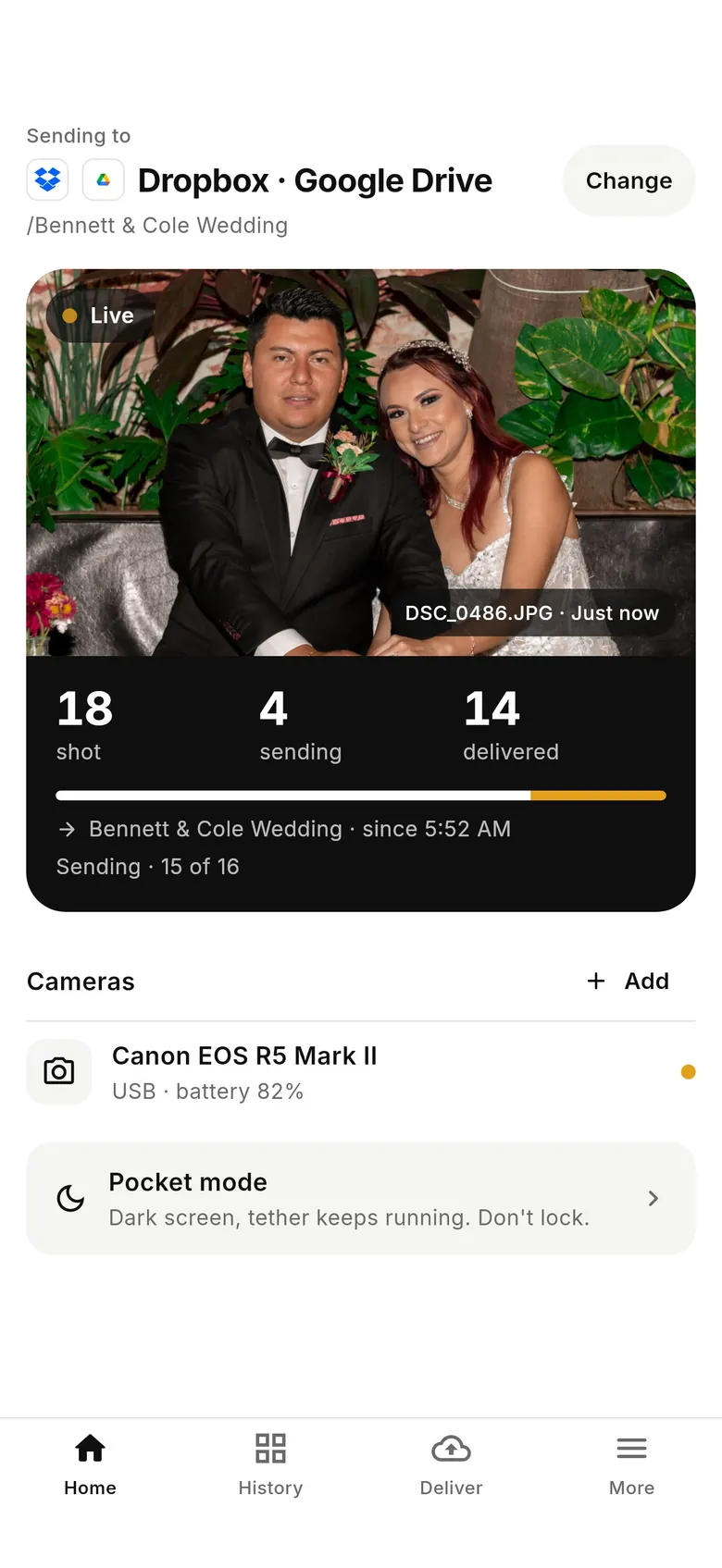
- Keep the app open. Tethering runs while the app is in the foreground; turn on Pocket mode to darken the screen and save battery while the tether keeps running.
- Keep the phone charged. A battery pack helps on long days; on a Lightning iPhone the camera adapter's Lightning port charges while you tether.
- Lengthen the camera's auto power-off so it doesn't sleep and drop the connection.
App versions
CloudTether 1.1's tab bar reads Home · History · Deliver · More, and a job is called a shoot. In 1.0 it read Home · Playback · Destinations · More, and a shoot was a cloud album. Nothing about your cameras or services changes between versions — update from your app store to get the latest.
Updating
Keep the app updated from the App Store or Google Play: new camera support and fixes ship in app updates. The changelog lists what changed in each release.