Tethered shooting set-up: a studio checklist
Short answer: a reliable tethered studio set-up comes down to seven things — a stable workstation at the camera, a data cable secured with strain relief, mains power for the camera and computer, a fast capture drive plus a second copy, a naming scheme decided before the first frame, a calibrated screen and a colour reference, and a test shot that proves it all works. Use the checklist below the day before and again on set.
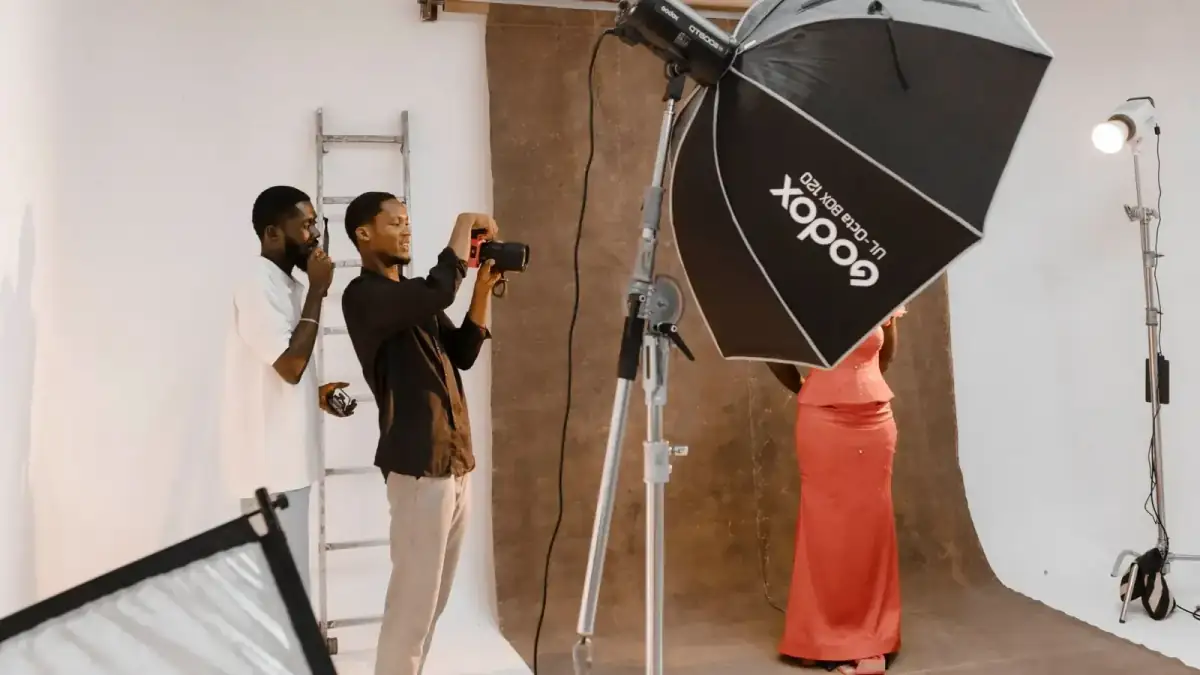
The checklist
Run through these in order when you build the set. Each one prevents a specific way tethered shoots go wrong.
Test the exact kit the day before
Same camera body, cable, computer, software version and operating system you'll use on set. Tethering support is model by model, and an update the night before is a common way to break it.
Set up the workstation
A tether table or laptop stand at standing height, close to the camera, with the screen angled so you and the client can both see it without walking into the set. Keep drinks off it.
Run and secure the cable
Use a known data cable of the right length (3 m to 5 m is typical; longer runs need an active cable). Lock it at the camera with a strain-relief clip or cable lock, loop some slack, and tape or route it along the tripod and floor so nobody trips on it.
Sort out power
Mains power for the computer, and the camera's AC adapter or dummy battery for long sessions, or several charged batteries. Disable the camera's auto power off and the computer's sleep.
Prepare storage and backup
Capture to a fast SSD with plenty of free space, keep the camera card recording as a second copy where the software allows, and decide when the session gets copied to a third place — a backup drive or a synced cloud folder.
Decide naming and session structure
Name the session after the client or job, choose a file-name pattern (job, date, sequence or SKU), and set up folders or segments per look or product so the files sort themselves.
Set colour
Calibrate the monitor, shoot a grey card or colour chart under the set's light, set a custom white balance, and save a starting preset that applies to every frame on import.
Fire a test shot
Take a frame, check it lands, opens, is named correctly, has the preset applied and also exists on the card. Only then bring in the talent or the product.
The workstation: tether table and screen
A dedicated tether table on a stand puts the laptop where you need it and keeps it level and stable; a rolling cart works for bigger sets with a separate monitor. Height matters more than people think: at standing height you can check a frame without bending, and a client can look over your shoulder. Keep a hood or shade for the screen if there's window light. If the art director or client reviews on a second display, mirror or extend it from the same computer rather than adding another app that reads the files.
Cable management and strain relief
The camera's USB port is the weakest point of the whole set-up. A cable hanging straight from it levers on the port every time the camera moves, and a foot catching it can damage the camera or pull the tripod over. Lock the plug with a clip or a cable-lock accessory, take the weight with a loop of slack fastened to the tripod, and run the rest along the floor under a mat or tape. Right-angle plugs reduce the leverage on some bodies. Carry a spare cable; it's the cheapest insurance on set. Our cable guide covers plugs, lengths and active cables.
Power for a long day
A camera tethered all day uses more power than normal shooting, because it stays awake and talks to the computer constantly. Most makers sell an AC adapter or dummy battery for their bodies; otherwise rotate charged batteries at natural breaks. The laptop should be on mains, with its own sleep and display-off settings stretched for the session. On Windows, check USB power-saving isn't putting the port to sleep.
Storage, backups and naming
Tether to a fast internal or external SSD with room for the whole day at full RAW size, plus headroom. Keep recording to the card too, where your camera and software allow saving to both — it's a free second copy. At lunch and at the end of the day, copy the session to a backup drive or let a synced cloud folder upload it. Decide naming before the first frame: renaming hundreds of files afterwards wastes time and breaks links to edits.
Colour you can trust on set
If the client is judging colour on your screen, that screen must be calibrated, and the room light shouldn't be shining on it. Shoot a grey card or colour chart at the start of each lighting set-up, set a custom white balance from it, and build a camera profile or preset you apply on import. Lock the set's ambient light as far as you can — a window changing through the day changes every frame.
Where a phone fits in a studio
A camera can only be tethered to one device at a time, so the studio tether usually stays on the computer. But not every set needs one. For lighter sets — headshots, simple product runs, behind-the-scenes on a second body — CloudTether can tether the camera to a phone or iPad over USB or Wi-Fi and send every frame to a shared Dropbox or Google Drive folder that the client or retoucher watches. No laptop, table or long cable. CloudTether's live view and remote shutter help frame and fire from the phone, but there's no exposure control or on-set grading.
FAQ
What do I need for a tethered studio set-up?
A camera your software supports, a computer, a USB data cable with strain relief, a tether table or stand, mains power, a fast capture drive with a backup, and a calibrated screen.
How long should a tether cable be in a studio?
Usually 3 m to 5 m from camera to computer. Longer runs need an active cable; avoid chaining passive extensions.
Should I save to the card while tethering?
Yes, where your camera and software allow saving to both. It's a free second copy if the computer or drive fails.
How do I stop the tether disconnecting?
Secure the cable at the camera, use mains power, disable the camera's auto power off and the computer's sleep, and turn off USB power-saving.
Do I need a tether table?
Not strictly, but a stable stand at standing height close to the camera makes checking frames and showing clients much easier.
Can I run a studio tether from a phone?
For lighter sets, yes: CloudTether tethers to a phone or iPad and delivers each frame to a shared folder. Use a computer when you need live view or on-set grading.
Tether your camera to the cloud with CloudTether
Deliver every shot to the cloud or a client gallery, live as you shoot — no laptop. Canon, Nikon, Sony and Fujifilm over USB or Wi-Fi, on iPhone, iPad or Android.