Sony Imaging Edge Desktop: how to tether a Sony to a computer (Remote, Viewer, Edit)
Short answer: Imaging Edge Desktop is Sony's free software suite for Mac and Windows, made of three apps — Remote for tethered shooting with live view, Viewer for browsing and rating, and Edit for developing RAW files. To tether, set the camera's PC Remote option, connect it to the computer with a USB cable, open Remote and choose where shots are saved. It's the simplest free way to tether a Sony Alpha to a computer. It's still updated for new cameras in 2026; on phones, Sony's app is now the Creators' App. If you'd rather tether to a phone and deliver shots as you go, there's an alternative at the end.
What's in Imaging Edge Desktop
Remote is the tethering app: it connects to the camera, shows live view on the computer, lets you change exposure, focus and drive settings, fires the shutter, and saves each shot to a folder you choose. Viewer is a fast browser for the folder: compare frames, rate and tag them, and hand files to Edit or another editor. Edit develops Sony's ARW RAW files — exposure, colour, lens corrections — and is where Pixel Shift Multi Shooting images from supported bodies are combined into one high-resolution file. All three are free downloads from Sony's support site, and Sony keeps adding new cameras in updates. Imaging Edge Webcam, which turns a camera into a webcam, is a separate download.
Imaging Edge Desktop, Imaging Edge Mobile and Creators' App
The names have shifted, which confuses searches. Imaging Edge Desktop is the computer suite above and is still current. Imaging Edge Mobile was Sony's phone app for transfers and remote shooting; recent Sony bodies use the Creators' App instead (Sony also renamed Imaging Edge Mobile Plus to Creators' App), and Sony assigns each camera to one app, so check Sony's compatibility list for yours. Creators' Cloud is Sony's online service that the Creators' App connects to. For tethered shooting to a computer, Imaging Edge Desktop's Remote is the Sony tool.
Which Sony cameras work with Imaging Edge Desktop?
Remote supports most Alpha mirrorless bodies from the last several generations — the α1, α9 and α7 families, the α6000-series APS-C bodies, and ZV cameras with PC Remote — plus some RX compacts. Support levels differ: some bodies offer full live view and settings control, some only shooting and transfer, and wireless PC Remote is limited to newer bodies. Sony lists every model and its functions on the Imaging Edge Desktop support pages, so check yours and update the camera's firmware before a job.
What you need
A Mac or Windows computer on an operating system Sony currently supports, the latest Imaging Edge Desktop, and a USB data cable from the camera to a port on the computer itself. Use the camera's USB-C port where it has one; several Alpha bodies also have a Micro-USB port, which is slower. A charge-only cable is the most common reason Remote never sees the camera. Our camera tethering cable guide covers ports and lengths.
How to tether a Sony with Imaging Edge Remote over USB
1. Install Imaging Edge Desktop and open Remote. 2. On the camera, turn PC Remote on. On recent menus it's under Network › PC Remote Function (sometimes Remote Shoot Setting); on older bodies, set USB Connection to PC Remote in the setup menu. ZV bodies default to a USB streaming (webcam) mode — switch it. 3. Set Still Img. Save Dest. to PC only, PC+Camera or Camera only; PC+Camera keeps a copy on the card. 4. Connect the cable. The camera appears in Remote's list; double-click it. 5. In Remote's settings, choose the save folder and file naming. 6. Shoot from the camera or with Remote's shutter button. Each image lands in the folder and appears in Viewer, if open. Turn on live view in Remote to compose and focus on screen.
Tethering wirelessly with Remote
Newer bodies can run PC Remote over Wi-Fi — either connecting directly to the computer or through an access point. You pair the camera and computer once from the camera's network menu and Remote, then connect as above. Wireless is handy when a cable would be in the way, but it's slower and less steady, especially with large ARW files; for a fixed studio set, USB is still the better choice. Which bodies support it, and how, is on Sony's model list.
Settings that matter
Save destination: PC+Camera gives you a second copy if the cable is pulled; PC only is fastest and keeps the card clear. RAW+JPEG doubles the data per frame; JPEG alone is quicker when the point is review. Live view: useful for product and portrait sets, but it keeps the sensor active, so power the camera from USB or a dummy battery for long sessions where the body supports it. Naming: set a session prefix in Remote so files from different set-ups don't collide. And on bodies with both, use the USB-C port, not Micro-USB.
A simple studio workflow with Remote and Viewer
Make a folder per job and point Remote at it before the first frame. Open Viewer on the same folder on a second screen, or side by side, so the client sees each picture large as it lands while you work the camera. Rate selects in Viewer as you go, so the picks are easy to find when you edit. Shoot a colour chart at the start of each lighting set-up. During breaks, copy the folder to a second drive or a synced cloud folder, and at the end of the day check the file count against the card before you format it.
Imaging Edge Desktop not working? Common fixes
Camera not listed in Remote: check PC Remote is switched on and the USB mode isn't mass storage, MTP or streaming; use a data cable and a port directly on the computer; quit other apps that grab cameras, such as Lightroom Classic's tethered capture, Capture One, Image Capture or Photos; and update Remote and the camera's firmware. Shots stay on the card: change Still Img. Save Dest. to include the PC. Live view not available: some bodies don't offer it over Remote — check Sony's list. It stopped after an OS update: install the latest Imaging Edge Desktop, which Sony updates for new systems, and reboot.
Imaging Edge Desktop's limits
It's Sony only and computer-bound. You need a laptop or desktop on set, and the photos end up in a folder there — sending them to a client, a gallery or an off-site backup is a separate step. Edit is capable for ARW files, but many photographers prefer to tether Remote into a folder and edit in Lightroom Classic or Capture One. Both of those can also tether selected Sony bodies directly; check their camera lists.
The phone alternative: tether your Sony to iPhone or Android
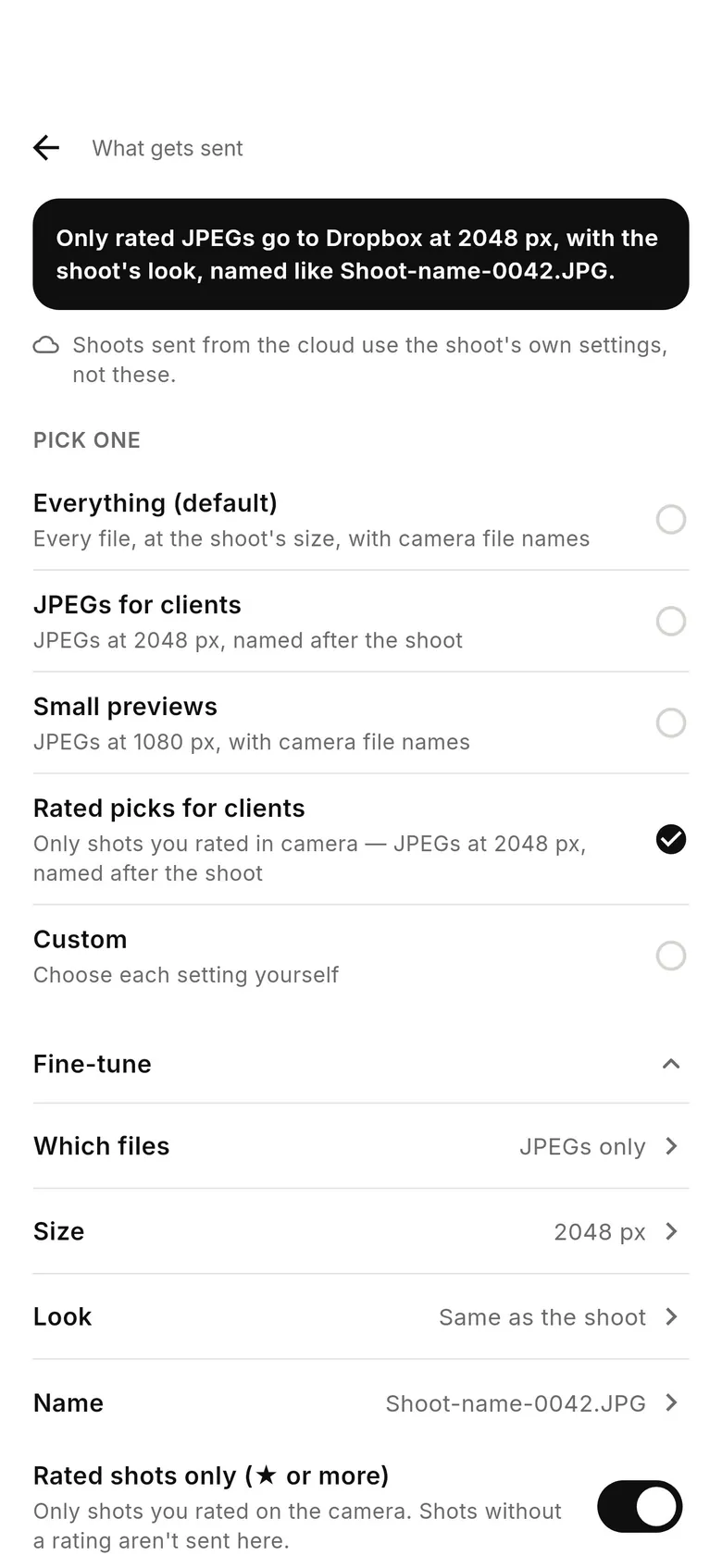
CloudTether tethers a Sony Alpha or ZV to an iPhone, iPad or Android phone with a USB-C cable — using the same PC Remote setting — and copies every full-resolution ARW or JPEG as you shoot, then can send it to Dropbox, Google Drive, a client gallery or an FTP server. Sony USB tethering is verified on the ZV-E10, and other Sony bodies use the same code, so they're expected to work over USB but not yet tested by us; Sony Wi-Fi in CloudTether isn't verified. Rated send isn't available over Sony tether, so every shot is sent (you can send JPEGs only). CloudTether has no live view or remote shutter — keep Remote or the Creators' App for that. There's a 7-day free trial.
FAQ
What is Sony Imaging Edge Desktop?
Sony's free Mac and Windows software suite: Remote for tethered shooting with live view, Viewer for browsing and rating, and Edit for developing ARW RAW files.
Is Imaging Edge Desktop free?
Yes. Remote, Viewer and Edit are free downloads from Sony's support site.
How do I tether a Sony camera to my computer?
Turn on the camera's PC Remote option, set where stills are saved, connect a USB data cable and open Imaging Edge Remote. Each shot is saved to the folder you choose.
Is Imaging Edge Desktop discontinued?
No. Sony was still releasing updates for new cameras in 2026. It's the phone app, Imaging Edge Mobile, that recent bodies have replaced with the Creators' App.
Why doesn't Imaging Edge Remote see my camera?
Usually PC Remote is off, the camera is in a mass-storage or streaming USB mode, the cable only charges, or another app has the camera. Fix those and update Remote and the firmware.
Can Imaging Edge Remote tether over Wi-Fi?
On newer bodies that support wireless PC Remote, yes, after pairing the camera and computer. USB is faster and steadier.
Can I tether a Sony to my phone instead?
Yes. CloudTether tethers a Sony to iPhone, iPad or Android over USB-C in PC Remote mode (verified on the ZV-E10) and delivers each shot to the cloud as you shoot.
Tether your camera to the cloud with CloudTether
Deliver every shot to the cloud or a client gallery, live as you shoot — no laptop. Start with a 7-day free trial on iPhone, iPad or Android.