NX Tether: how to use Nikon's tethering software (and alternatives)
Short answer: NX Tether is Nikon's free tethering software for Mac and Windows. Connect a supported Nikon Z or DSLR body to your computer with a USB cable (or over a network on bodies with a wireless transmitter), open NX Tether, choose a destination folder, and every shot is saved to the computer as you take it — with live view and camera settings on screen. It's the simplest free way to tether a Nikon to a computer. If you'd rather tether to a phone and send shots on to the cloud, there's an alternative at the end.
What NX Tether is
NX Tether is the tethering application in Nikon's NX software family, alongside NX Studio for viewing and editing. Version 2.0, released in February 2024, brought the remote-control features that used to be in Nikon's paid Camera Control Pro 2 — live view, changing exposure and focus settings, and firing the shutter from the computer — into the free app, and later updates have added cameras. It saves each picture to a folder on the computer as you shoot and can hand it to NX Studio or another editor. It's made for Nikon cameras only.
Which cameras work with NX Tether?
Nikon splits supported bodies into those with all features and those with limited tethering functions, and adds new bodies in updates. The lists below are from Nikon's NX Tether pages as of late 2026; check Nikon's download page for your model and the current version.
| Support level | Cameras (examples from Nikon's lists) | Wireless |
|---|---|---|
| All features | Z9, Z8, Z6III, Z7II, Z6II, Z7, Z6, Z5II, D6, D780 | Built in on Z9, Z8 and Z6III; Z7II, Z6II, Z7, Z6 and D780 use the WT-7 transmitter; D6 uses WT-6 or WT-5 |
| Limited functions | Zf, Z5, Zfc, Z50, Z30 | Zf has a built-in transmitter; others: check Nikon's list |
Nikon's lists change between versions; older DSLRs that aren't listed generally need Camera Control Pro 2 or third-party software.
What you need
A Mac or Windows computer on an operating system Nikon currently supports (recent releases have dropped older systems, including Windows 10 in a later version), the latest NX Tether from Nikon's download centre, and current camera firmware. For a wired tether, a USB data cable from the camera's own port to a port on the computer — Nikon notes it may not work through a USB hub. Most current Z bodies use USB-C; our camera tethering cable guide covers older connectors and lengths.
How to tether a Nikon with NX Tether over USB
1. Install NX Tether and quit any other app that talks to cameras — Nikon warns it may misbehave alongside Camera Control Pro 2, Nikon Transfer 2 or similar software, and on a Mac, Image Capture or Photos can grab the camera too. 2. Switch the camera off, connect the cable, then switch it on. 3. Open NX Tether. The camera's name appears and the main window shows its current settings. 4. Set the destination folder and file naming in the app's settings before you start. 5. Shoot from the camera, or click the shutter button in NX Tether. Each picture is saved to the folder and shown in the viewer. Turn on live view in the app to compose and focus on the computer screen.
How to tether wirelessly with NX Tether
Wireless tethering needs a body with a built-in wireless transmitter (Z9, Z8, Z6III and Zf) or an optional WT- transmitter on cameras that support one. You pair the camera and computer first with Nikon's Wireless Transmitter Utility — a separate free Nikon tool — choosing the camera's network or a shared router, then open NX Tether as usual. Expect it to be slower than USB, especially with large NEF files, and keep the camera and computer close. For a studio set that doesn't move, USB is still the steadier choice.
Settings that matter
Destination folder and naming: set them before the first frame, so a session's files land together with sensible names. Save to card as well: Nikon bodies can save to the computer only or to the computer and the card; choosing both gives you a second copy if the cable is pulled. Image quality: if you shoot RAW+JPEG, both files transfer, which doubles the transfer per shot. Live view: it's handy for focus on a product set, but it keeps the sensor active and uses more power, so plug the camera into mains power or a USB-PD source for long sessions.
A simple NX Tether workflow for a studio day
Create a folder per job before the client arrives and point NX Tether at it. Shoot a grey card or colour chart at the start of each set-up so you can match colour later. Keep NX Studio, or your usual editor, open on the same folder to review and flag frames as they land — NX Tether shows each picture, but culling and editing happen elsewhere. Back the folder up to a second drive or a synced cloud folder during breaks. And at the end of the day, compare the file count on the card with the folder before you format anything.
NX Tether not working? Common fixes
Camera not detected: check it's on Nikon's list for your version, update NX Tether and the camera's firmware, quit other camera apps, try a different cable and a port directly on the computer, and switch the camera off and on with the cable connected. Some Nikon bodies power their USB interface even when switched off, so reconnecting with the camera on helps. Shots not arriving: check the save destination setting and that the camera isn't writing to the card only. Wireless keeps dropping: re-run the Wireless Transmitter Utility pairing, move closer, or switch to USB. Limited controls: on bodies in the limited list, some functions aren't available — that's by design.
NX Tether's limits
NX Tether is computer-bound and Nikon-only. You need a laptop or desktop on set, and the photos end up in a folder on that computer: delivering them to a client, a gallery or an off-site backup is a separate step. There's no phone version — Nikon's phone app, SnapBridge, is built for pairing, remote shooting and sending reduced-size copies, not full tethered capture. And if your team mixes Nikon with other brands, each needs its own maker's software.
Other Nikon tethering software
If you need more than NX Tether: Lightroom Classic tethers many Nikon bodies directly into a catalog; Capture One tethers Nikon on Mac, Windows and iPad with on-set editing; and multi-camera tools such as Smart Shooter run several bodies from one computer. Each publishes its own camera list. Our roundup of the best camera tethering software compares them.
The phone alternative: tether your Nikon to iPhone or Android
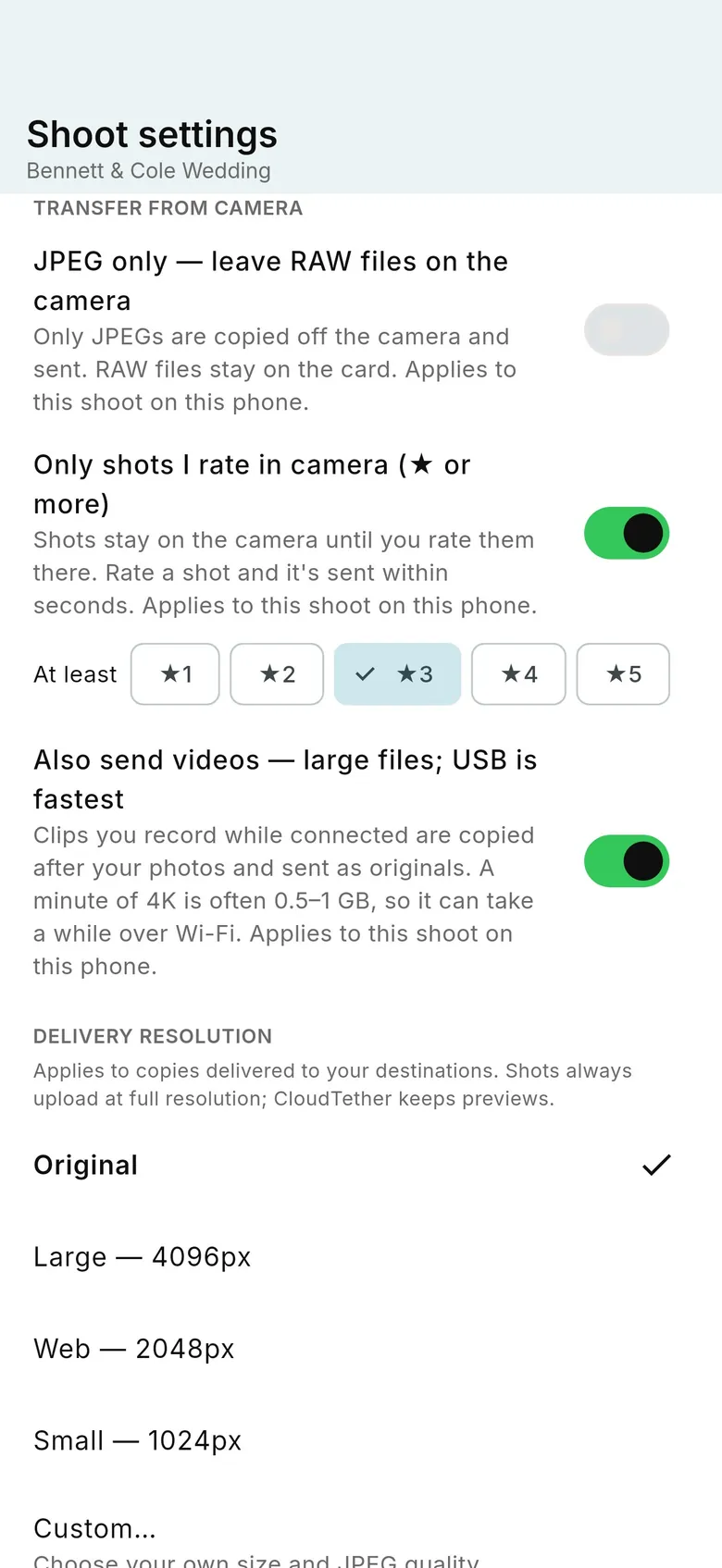
CloudTether tethers a Nikon to an iPhone, iPad or Android phone with a USB-C cable and copies every full-resolution NEF or JPEG as you shoot — or only the shots you rate on the camera. From the phone each shot can go to Dropbox, Google Drive, a client gallery or an FTP server while you keep working, with no laptop. Nikon USB tethering is verified on the Z6, and other Nikon bodies use the same code, so they're expected to work over USB but not yet tested by us. Nikon Wi-Fi in CloudTether depends on the model and isn't verified yet. CloudTether has no live view or remote shutter, so keep NX Tether for that. There's a 7-day free trial.
FAQ
Is NX Tether free?
Yes. NX Tether is a free download from Nikon for Mac and Windows. Since version 2.0 it includes live view and remote control that used to need Camera Control Pro 2.
Which Nikon cameras work with NX Tether?
Nikon lists full support for bodies such as the Z9, Z8, Z6III, Z7II, Z6II, Z7, Z6, Z5II, D6 and D780, and limited functions on the Zf, Z5, Zfc, Z50 and Z30. Check Nikon's page for your model and version.
Can NX Tether tether wirelessly?
Yes, on bodies with a built-in wireless transmitter (Z9, Z8, Z6III, Zf) or a compatible WT- transmitter. Pair them with Nikon's Wireless Transmitter Utility first. USB is faster.
Why doesn't NX Tether see my camera?
Usually an unsupported model or version, another camera app holding the camera, a hub or charge-only cable, or old firmware. Update everything, quit other apps and plug straight into the computer.
Is there an NX Tether app for iPhone or Android?
No. NX Tether is a desktop app. Nikon's phone app is SnapBridge. To tether a Nikon to a phone and get every full-resolution shot, use an app such as CloudTether.
What's the difference between NX Tether and Camera Control Pro 2?
Camera Control Pro 2 was Nikon's paid remote-control software. NX Tether 2.0 brought its main features — live view and camera control — into the free app for supported bodies.
Can I tether a Nikon to my phone and upload to the cloud?
Yes. CloudTether tethers a Nikon to iPhone, iPad or Android over USB-C (verified on the Z6) and delivers each shot to Dropbox, Google Drive, galleries or FTP as you shoot.
Tether your camera to the cloud with CloudTether
Deliver every shot to the cloud or a client gallery, live as you shoot — no laptop. Start with a 7-day free trial on iPhone, iPad or Android.
Related
- Nikon camera tethering with CloudTether
- Best Nikon SnapBridge alternative
- SnapBridge not working? Fixes
- Best camera tethering software (2026)
- Lightroom tethering: how to tether your camera
- Camera tethering cable: which one you need
- Nikon WU-1a, Wireless Mobile Utility and Wireless Transmitter Utility