SnapBridge not working or not transferring photos: how to fix it
SnapBridge won't connect, drops out, or sends photos that are far too small. Short answer: re-pair from scratch after any update, keep the phone on the camera's Wi-Fi, and remember that auto link sends reduced-size copies by design — originals and RAW are a manual download.
How SnapBridge moves photos
SnapBridge keeps a low-power Bluetooth link to the camera all the time. That link is enough to wake the camera, sync the clock and location, and trigger transfers — but larger files travel over Wi-Fi. Nikon's auto link sends reduced-size JPEGs in the background: 2 megapixels, or 8 megapixels on many recent bodies. RAW, video and full-size originals are downloaded by hand. Knowing which path you're on explains most “it's not working” moments.
1. Update SnapBridge and the camera firmware
Install the latest SnapBridge and check Nikon's download centre for camera firmware. Both regularly include connection fixes. Updates can also change the pairing data, so plan to pair again afterwards.
2. Pair again from scratch
This fixes more SnapBridge problems than anything else, especially after an update. Delete the camera in SnapBridge. On iPhone, open Settings › Bluetooth and choose Forget This Device for the camera if it's listed. On the camera, delete the paired device in the Bluetooth or connect-to-smart-device menu. Then start pairing from the camera's menu and confirm on both the phone and the camera — if the camera's prompt is missed, pairing silently fails. Be patient: the list of cameras can take a while to appear.
3. Check permissions
Allow SnapBridge Bluetooth access and, on iPhone, Local Network access, plus permission to add photos. On Android, allow Nearby devices (and Location on older versions) and keep the app from being battery-optimised, or background transfers stop when the phone sleeps. On iPhone, background transfers depend on SnapBridge being allowed to run in the background.
4. Keep the Wi-Fi link up
Nikon's own help notes that iOS may end the camera's Wi-Fi connection while it's connecting or after it has connected, and that a second attempt often works — so retry before assuming it's broken. Turn off VPNs, choose to stay connected when the phone says the network has no internet, keep the phone close, and don't let the camera sleep during a long download.
5. Photos are only 2 MP (or 8 MP)
That's auto link working as designed: it sends small copies for quick sharing. To get full resolution, open the camera in SnapBridge, select pictures and download them at original size. You can choose the download size in the app's settings on bodies that offer it.
6. RAW files and videos won't transfer automatically
Auto link doesn't send RAW (NEF/NRW) or video. Since SnapBridge 2.6, NEF files can be downloaded manually from Wi-Fi-capable cameras. Big files take time over Wi-Fi, so keep the phone close and the camera awake.
7. It used to work and now doesn't
Restart both the phone and camera, turn the phone's Bluetooth off and on, and on Android clear SnapBridge's cache. If the camera was paired with another phone or app since, pair again with this one. As a last resort, reset the camera's network settings and reinstall SnapBridge.
If you need every full-res shot automatically, here's another way
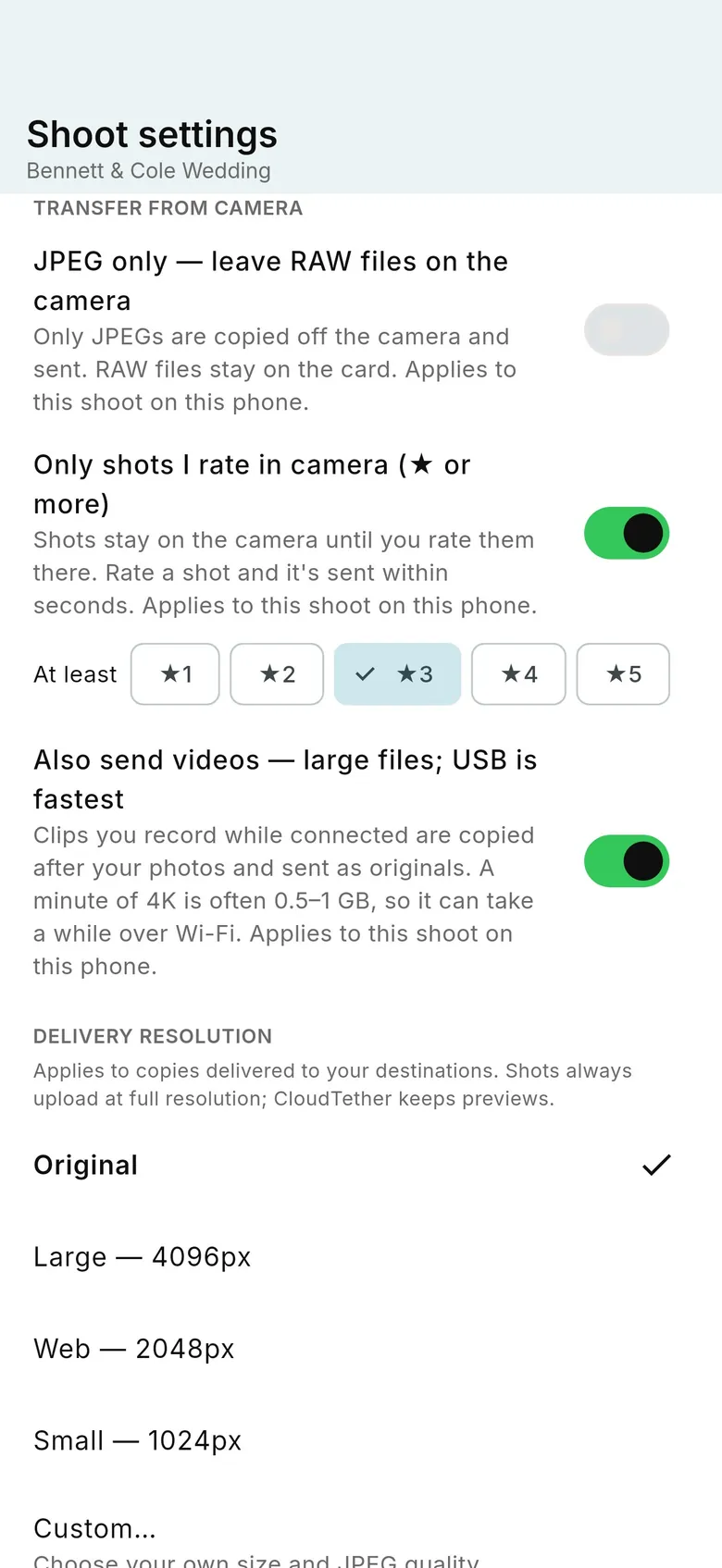
SnapBridge is ideal for location data, remote shooting and quick shares. If you need every frame at full resolution — NEF or JPEG — off the camera and delivered while you shoot, CloudTether is built for that. Plug a USB-C cable from your Nikon into an iPhone, iPad or Android phone (USB is verified on a Nikon Z6, and recent Z bodies and DSLRs use the same code; Wi-Fi depends on the model). Every shot comes off the camera at full size and goes to Dropbox, Google Drive, a gallery or an FTP server, or stays on the phone. Rate frames on the camera and you can send only those. There's a 7-day free trial.
FAQ
Why does SnapBridge only send 2 MP photos?
Auto link transfers reduced-size copies by design — 2 MP, or 8 MP on many recent bodies. Download originals manually in the app, or tether with CloudTether to get every full-resolution file automatically.
Why won't SnapBridge connect to my camera?
Usually stale pairing data after an update, a missed confirmation on the camera, or missing Bluetooth or Local Network permission. Delete the camera in the app, forget it in the phone's Bluetooth settings, delete the phone on the camera, and pair again.
Can SnapBridge transfer RAW files?
Yes, manually: since version 2.6, NEF files can be downloaded from Wi-Fi-capable cameras. Auto link doesn't send RAW.
Why does SnapBridge keep disconnecting on iPhone?
Nikon notes that iOS can end the camera's Wi-Fi connection during or after connecting; retrying often works. Keep the phone close, turn off VPNs and stay on the camera's network when warned it has no internet.
Is there an alternative to SnapBridge for full-resolution transfers?
Yes. CloudTether tethers Nikon cameras over USB and copies every full-resolution NEF or JPEG to your phone and on to the cloud as you shoot.
Tether your camera to the cloud with CloudTether
Deliver every shot to the cloud or a client gallery, live as you shoot — no laptop. Start with a 7-day free trial on iPhone, iPad or Android.