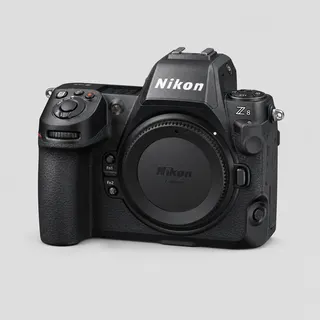
Nikon Z8 to Dropbox: auto-upload as you shoot
Tether your Nikon Z8 to your phone over USB or Wi-Fi and deliver every shot straight to Dropbox the instant you press the shutter — no laptop, no SD-card import. The go-to for client delivery folders.
By the CloudTether team · Updated

How it works for Nikon Z8 → Dropbox
Your phone sits between the camera and Dropbox: no laptop, no card reader.
 Step 1Nikon Z8
Connect it to your phone with a USB-C data cable or over Wi-Fi, then shoot as normal.
- Step 2Your phone
CloudTether copies each full-resolution photo off the camera seconds after the shutter and uploads it once.
- Step 3Dropbox
Every shot lands in Dropbox while you keep shooting — and in any other destination on the shoot.
How to live-upload Nikon Z8 photos to Dropbox
Connect your Nikon Z8 to your phone and every shot lands in Dropbox live as you shoot. Here's the full setup, start to finish:
- 1
Connect your Nikon Z8
Connect over USB (PC connection mode) for the fastest, most dependable transfer. Or connect over the camera's Wi-Fi or a shared network. On a first wireless connection, confirm the link on the camera when prompted.
- 2
Connect Dropbox
Connects via Dropbox OAuth — no passwords stored. Pick where photos should land — each session becomes its own dated folder. Share a link before you pack up the kit.
- 3
Shoot as normal
Every frame your Nikon Z8 captures is detected and downloaded at full resolution while you keep shooting — JPEG, or RAW.
- 4
Photos deliver to Dropbox
Each photo uploads from your phone once and lands in Dropbox live, seconds after the shutter — and fans out to any other destinations on the session too.
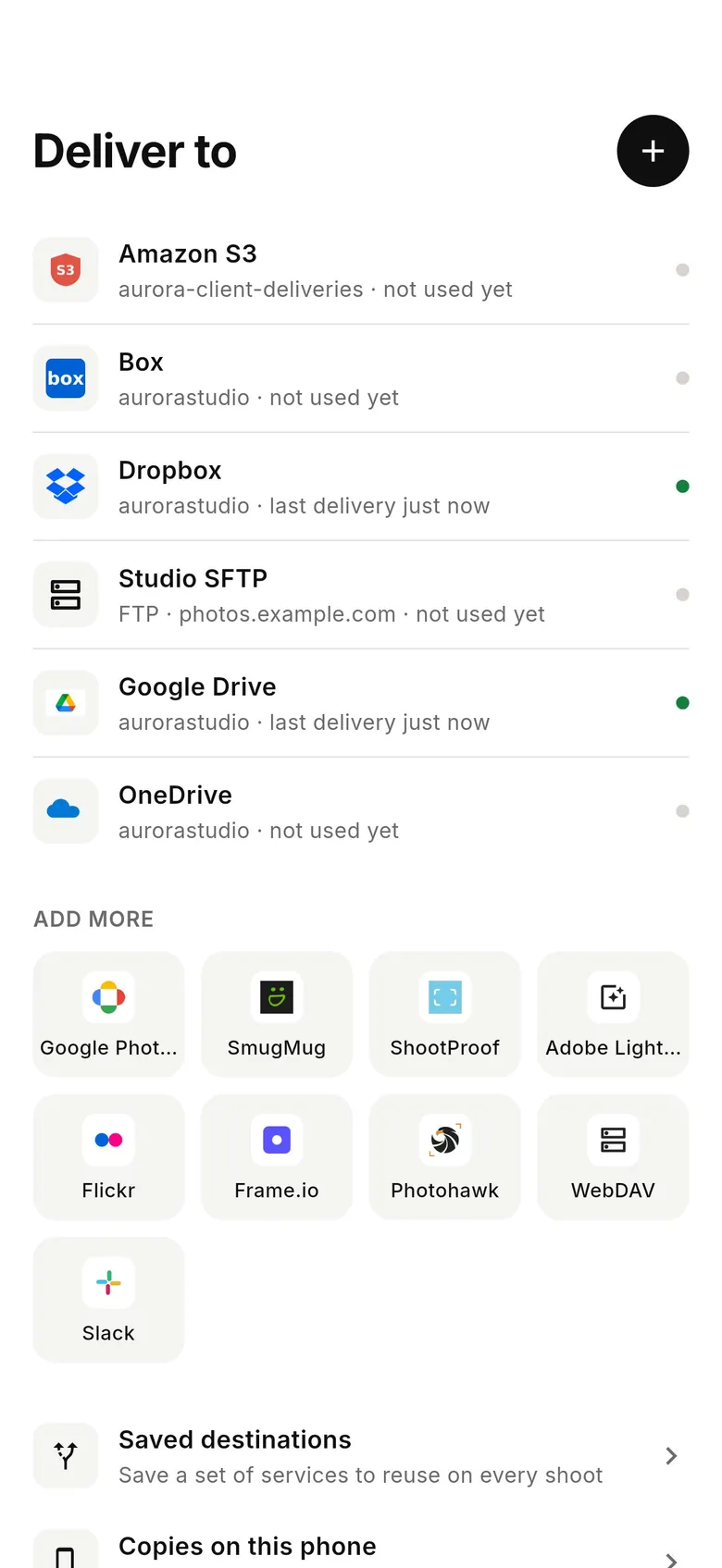
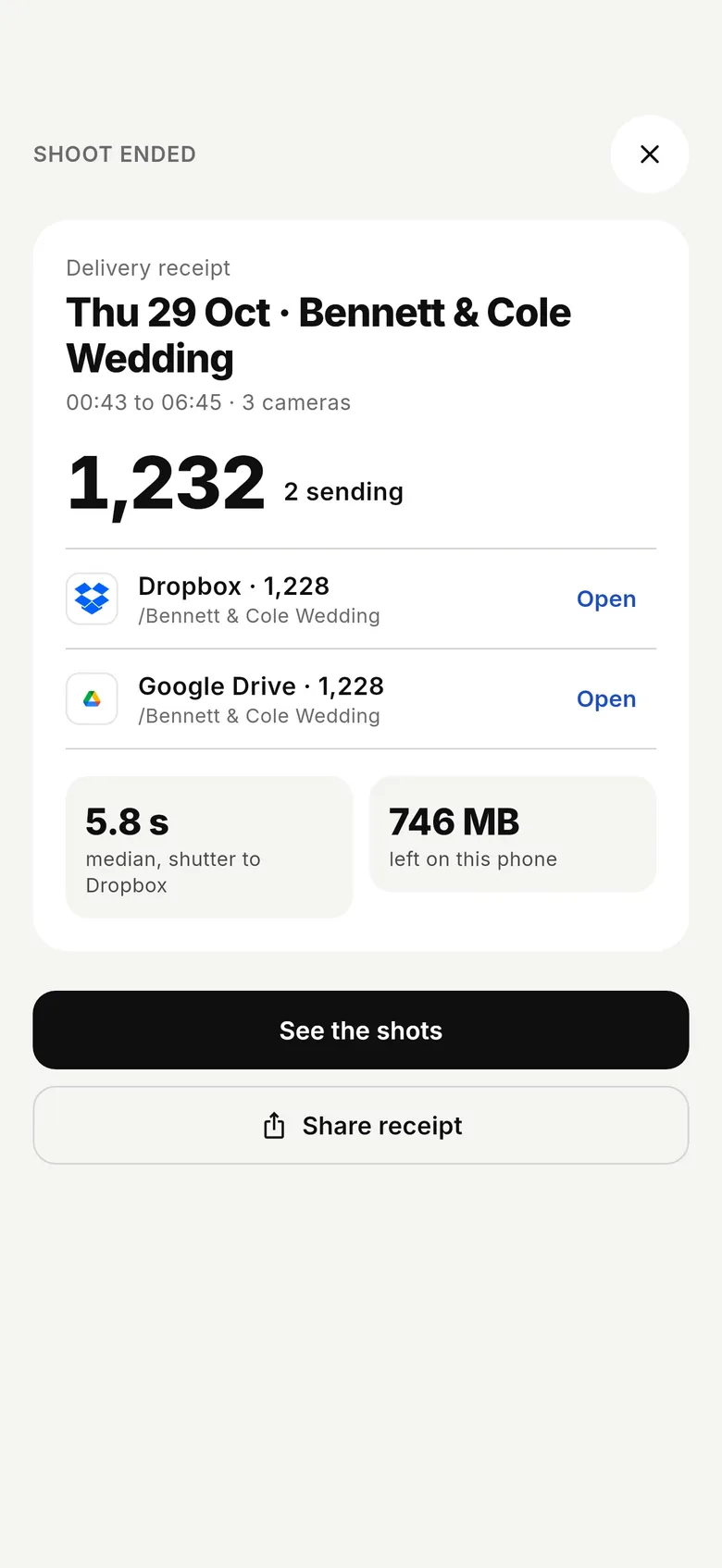
Dropbox in the CloudTether app
Connect Dropbox once, then every shoot from your Nikon Z8 can deliver to it.
Connecting the Nikon Z8
The Z8 tethers over USB-C in its default USB mode — nothing to switch — and it already appears in CloudTether's app logs: Z 8 users' photos reached the phone in a median 0.34 s per JPEG or NEF (median file 12.9 MB) over USB. Lengthen the standby timer so it doesn't sleep mid-job.
On an iPhone, a Nikon shooting to CFexpress can refuse the USB connection until the card has been formatted in the camera; SD and Android weren't affected in our testing. Wi-Fi uses Network menu → Connect to smart device → Wi-Fi connection (STA mode) on the same network as the phone or its hotspot, with a confirm prompt on the camera — supported by the camera but not yet tested by us.
Z8 shooters tend to fire long bursts, so filtering matters: rated send works on Nikon (rate in playback, only those frames go), and High Efficiency RAW or JPEG only keeps the phone's uplink ahead of the shutter.
It's a do-everything body for weddings, events and sports, often used alongside a Z9. Where a desk or client needs frames fast — sports, news, corporate — JPEG only to a shared folder gets publishable files there in seconds, while the NEFs wait on the card for the edit.
Getting the most out of Dropbox
Dropbox takes every file exactly as the camera wrote it — JPEG, RAW or both — so one folder can be the off-site backup and the client hand-off at once. By default CloudTether creates a folder named after the shoot on the first delivery; you can pick an existing folder instead, such as one already shared with the client or your editor, so new frames appear for them without another link.
If the folder is for clients rather than for you, open Dropbox in the Deliver tab, choose “What gets sent” and pick “JPEGs for clients” (2048 px JPEGs named after the shoot). For a backup folder, leave it on Everything.
Dropbox is also the simplest hand-off to a retoucher working elsewhere: the shared folder syncs to their computer, and Lightroom Classic's Auto Import can watch it, so files reach their catalog while you're still shooting. Each shoot gets its own folder, and a camera reconnecting on a later day starts a new shoot on the same destinations, so next week's job never lands in last week's folder.
- Share the shoot folder's link before you start — it fills as you shoot.
- RAW files use Dropbox storage fastest; JPEG only or a client preset saves space.
- If Dropbox signs CloudTether out, shots wait on the phone until you reconnect it.
A typical Nikon Z8 to Dropbox workflow
- Connect the Z8 over USB-C (no mode to set) and pick the Dropbox folder; in our app logs Z8 files reach the phone in about a third of a second.
- Leave Dropbox on Everything for a complete off-site copy, using High Efficiency RAW to keep NEFs smaller.
- For long bursts, add JPEG only or rated send so the phone's upload keeps pace with the shutter.
Nikon Z8 to Dropbox: what to know
The Nikon Z8 is a full-frame body — wedding, event and sports pros who want a do-everything body. CloudTether pulls each frame off it the moment you shoot and delivers it to Dropbox: the JPEG, the NEF RAW, or both, exactly as the camera wrote them.
NEF files are far larger than JPEGs, so if your Dropbox recipients only need to view or pick images, deliver JPEG for the fastest turnaround and keep the NEF originals on the card or in a second destination.
Measured in the field: 22 Nikon Z8 photos tethered over USB reached the phone in a median 0.34 s (median file 12.9 MB), before the upload to Dropbox.
Each session becomes its own dated folder. Share a link before you pack up the kit.
Connects via Dropbox OAuth — no passwords stored.
Nikon Z8 to Dropbox — FAQ
Can I upload Nikon Z8 photos to Dropbox automatically?
Yes. Tether your Nikon Z8 to your phone with CloudTether over USB or Wi-Fi, and every shot uploads to Dropbox live as you shoot — no card offload and no card import.
Can I send Nikon Z8 photos to Dropbox live while I'm shooting?
Yes — each frame lands in Dropbox seconds after the shutter, live, while you keep shooting. There's no SD-card step in the middle.
How does CloudTether connect my Nikon Z8 to Dropbox?
Your Nikon Z8 tethers to your phone over USB or its own Wi-Fi; connects via Dropbox OAuth — no passwords stored.
Do I need a laptop to send Nikon photos to Dropbox?
No. CloudTether runs on your phone — your Nikon Z8 connects to the phone and uploads straight to Dropbox over mobile data or Wi-Fi, anywhere you have signal.
Can I send RAW files from my Nikon Z8 to Dropbox?
Yes. Dropbox receives the files exactly as your Nikon Z8 wrote them — RAW, JPEG or both. To save mobile data, turn on JPEG only and leave RAW files on the camera.
Can Dropbox keep up with a Nikon Z8 shooting bursts?
The camera-to-phone leg is quick — a median 0.34 s per file over USB in our logs — but the upload depends on signal. For bursts, JPEG only or rated send keeps the queue short.
Do Z8 NEF files go to Dropbox at full resolution?
Yes. Dropbox receives the NEF and JPEG exactly as the Z8 wrote them.
Should I send NEF or JPEG from the Z8 to Dropbox?
Both, if Dropbox is your backup — it stores NEF files untouched, and High Efficiency RAW keeps them smaller. If the folder is for a client, set Dropbox's “What gets sent” to JPEGs and keep the NEFs on the card or in a separate folder.
 Canon EOS R5 to Dropbox
 Canon EOS R6 Mark II to Dropbox
 Sony α7 IV to Dropbox
 Sony α7 III to Dropbox
 Nikon Z6 III to Dropbox
 Fujifilm X-T5 to Dropbox