Nikon Z6 III to Google Drive live
Tether your Nikon Z6 III to your phone over USB or Wi-Fi and deliver every shot straight to Google Drive the instant you press the shutter — no laptop, no SD-card import. Shared Drives for teams already on Google Workspace.
By the CloudTether team · Updated

How it works for Nikon Z6 III → Google Drive
Your phone sits between the camera and Google Drive: no laptop, no card reader.
- Step 1Nikon Z6 III
Connect it to your phone with a USB-C data cable or over Wi-Fi, then shoot as normal.
- Step 2Your phone
CloudTether copies each full-resolution photo off the camera seconds after the shutter and uploads it once.
- Step 3Google Drive
Every shot lands in Google Drive while you keep shooting — and in any other destination on the shoot.
How to live-upload Nikon Z6 III photos to Google Drive
Connect your Nikon Z6 III to your phone and every shot lands in Google Drive live as you shoot. Here's the full setup, start to finish:
- 1
Connect your Nikon Z6 III
Connect over USB (PC connection mode) for the fastest, most dependable transfer. Or connect over the camera's Wi-Fi or a shared network. On a first wireless connection, confirm the link on the camera when prompted.
- 2
Connect Google Drive
Connects via Google OAuth — scoped to a folder you choose. Pick where photos should land — route per-session folders into a Shared Drive so the whole team has instant access.
- 3
Shoot as normal
Every frame your Nikon Z6 III captures is detected and downloaded at full resolution while you keep shooting — JPEG, or RAW.
- 4
Photos deliver to Google Drive
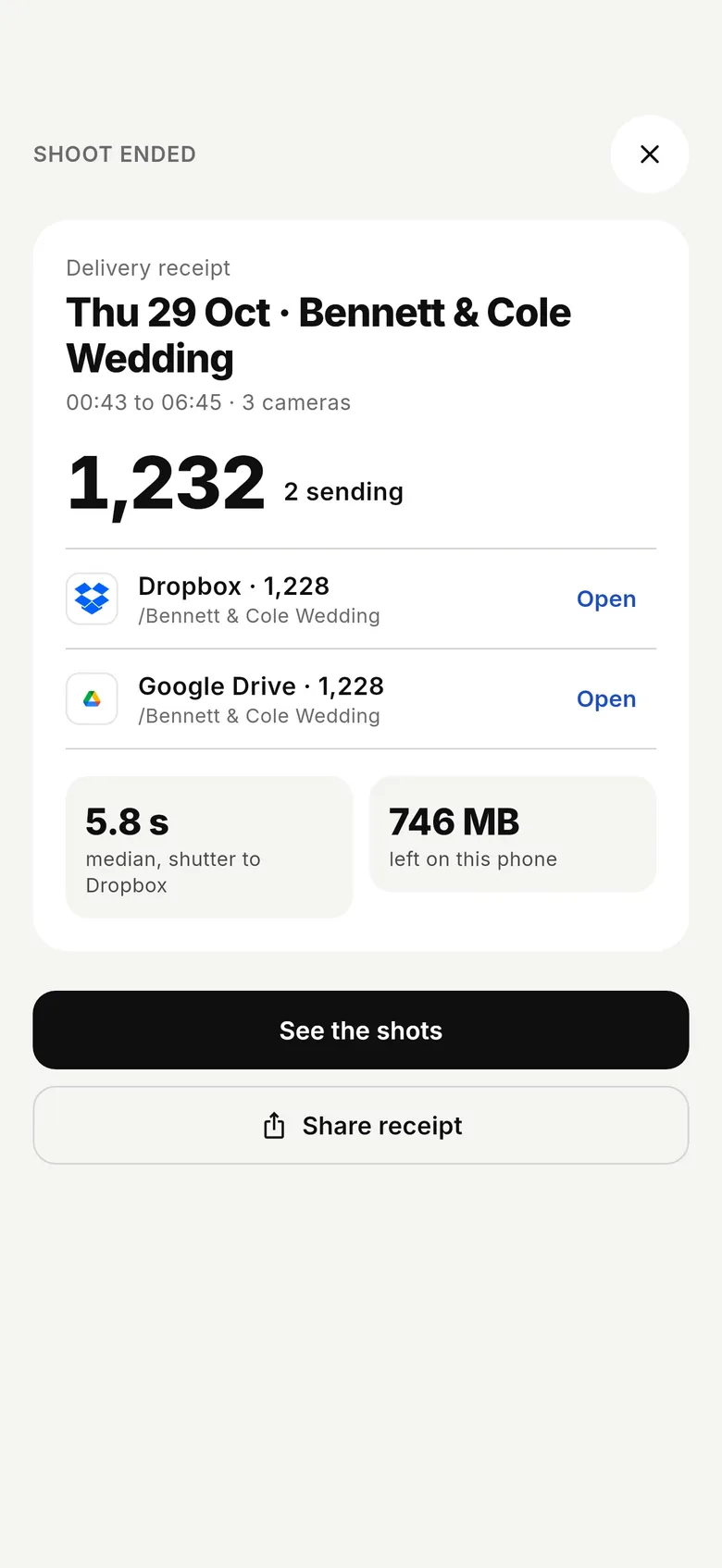
Each photo uploads from your phone once and lands in Google Drive live, seconds after the shutter — and fans out to any other destinations on the session too.
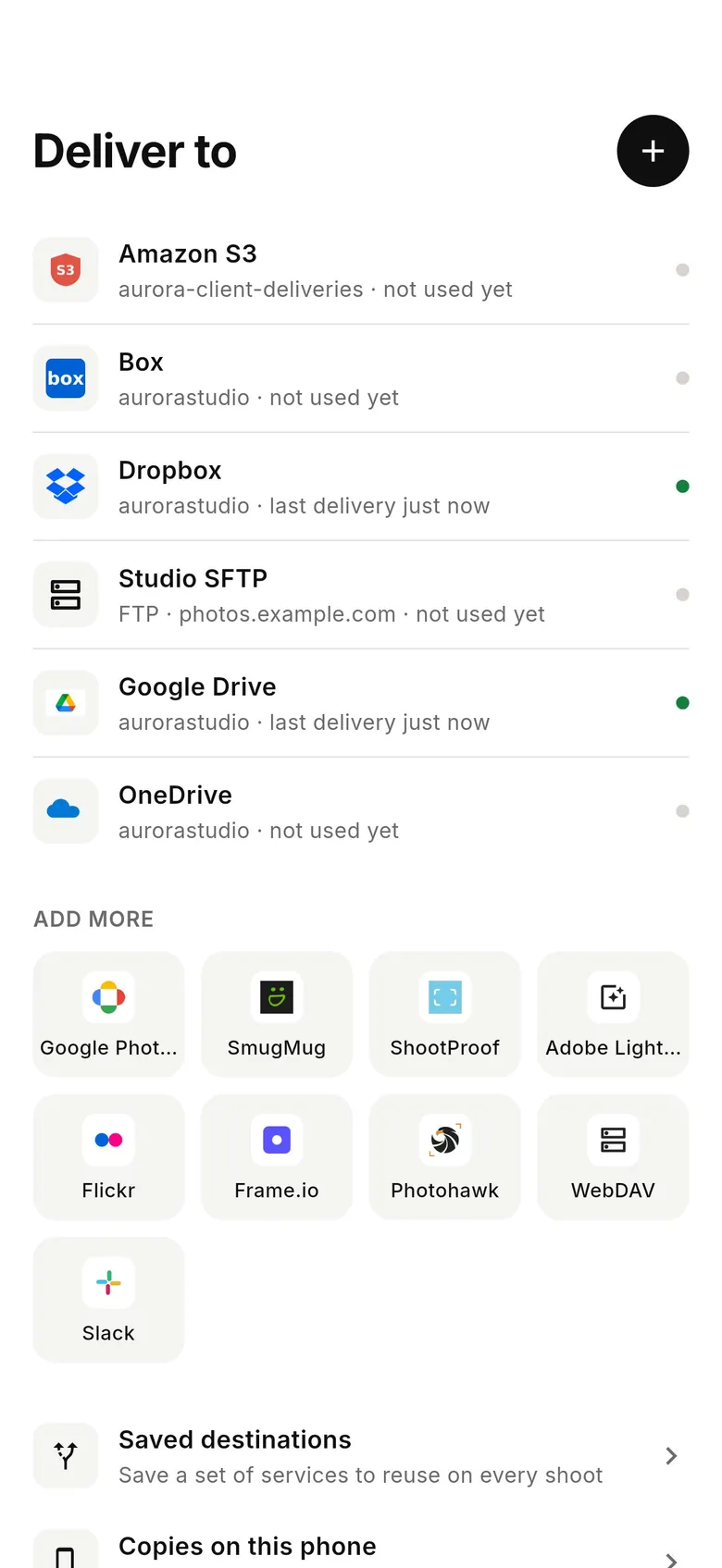
Google Drive in the CloudTether app
Connect Google Drive once, then every shoot from your Nikon Z6 III can deliver to it.
Connecting the Nikon Z6 III
The Z6 III connects over USB-C with no USB mode to change — current Nikon bodies tether in their default USB mode. Lengthen the standby timer so the camera stays awake while tethered. It shares its USB code with the Nikon Z6, our verified Nikon test body.
If you shoot to a CFexpress card and an iPhone won't see the camera, format the card in the camera: we've seen a Nikon on CFexpress refuse to connect over USB to an iPhone until the card was formatted in camera, while SD connected at once and Android wasn't affected.
For Wi-Fi: Network menu → Connect to smart device → Wi-Fi connection (STA mode) → Create profile, join the same network as the phone (or its hotspot) and approve the prompt on the camera — not yet tested by us. Rated send works over Nikon tethering: rate in playback and only rated frames are sent. High Efficiency RAW keeps NEF files smaller for faster delivery.
Wedding and event shooters often pick the Z6 III for speed at a lower price than the Z8 — the same jobs where clients want previews during the day. Review in playback during a lull, rate the keepers, and only those leave the camera while the full set stays on the card.
Getting the most out of Google Drive
Google Drive stores every file untouched — CR3, NEF, ARW, RAF and JPEG — in a folder you choose, with a folder per shoot inside it, and CloudTether's Google access is scoped to that folder. Teams on Google Workspace can route shoots into a Shared Drive, so editors, producers and the client's comms team all see each frame without being invited file by file.
Drive previews JPEGs instantly in a browser or the Drive app; RAW files are there to download into Lightroom or Capture One later. If people will look at photos on their phones during the event, send JPEGs or 2048 px copies to that folder and keep the RAW in a separate backup.
For a press office or agency, a Drive folder is often the hand-off the client already uses: editors open it in a browser, search by name or date and download what they need. Because each shoot gets its own folder inside the one you picked, a multi-day conference stays organised by day without sorting afterwards. If the organisation restricts third-party apps, a Workspace admin may need to allow CloudTether before you can pick a Shared Drive.
- Share the parent folder once — shoot folders created inside it inherit its sharing.
- Uploads count against the Google account's or Shared Drive's storage.
- Drive works over mobile data, so no venue Wi-Fi is needed.
A typical Nikon Z6 III to Google Drive workflow
- Choose the event's Google Drive folder or Shared Drive in CloudTether and plug the Z6 III in over USB-C.
- Switch on rated send and star frames in playback — only rated shots go to Drive, so the folder holds selects.
- Keep the full set of NEF files on the card, or add a second storage destination for everything.
Nikon Z6 III to Google Drive: what to know
The Nikon Z6 III is a full-frame body — wedding and event shooters who want speed at a lower price. CloudTether pulls each frame off it the moment you shoot and delivers it to Google Drive: the JPEG, the NEF RAW, or both, exactly as the camera wrote them.
NEF files are far larger than JPEGs, so if your Google Drive recipients only need to view or pick images, deliver JPEG for the fastest turnaround and keep the NEF originals on the card or in a second destination.
Route per-session folders into a Shared Drive so the whole team has instant access.
Connects via Google OAuth — scoped to a folder you choose.
Nikon Z6 III to Google Drive — FAQ
Can I upload Nikon Z6 III photos to Google Drive automatically?
Yes. Tether your Nikon Z6 III to your phone with CloudTether over USB or Wi-Fi, and every shot uploads to Google Drive live as you shoot — no card offload and no card import.
Can I send Nikon Z6 III photos to Google Drive live while I'm shooting?
Yes — each frame lands in Google Drive seconds after the shutter, live, while you keep shooting. There's no SD-card step in the middle.
How does CloudTether connect my Nikon Z6 III to Google Drive?
Your Nikon Z6 III tethers to your phone over USB or its own Wi-Fi; connects via Google OAuth — scoped to a folder you choose.
Do I need a laptop to send Nikon photos to Google Drive?
No. CloudTether runs on your phone — your Nikon Z6 III connects to the phone and uploads straight to Google Drive over mobile data or Wi-Fi, anywhere you have signal.
Can I send RAW files from my Nikon Z6 III to Google Drive?
Yes. Google Drive receives the files exactly as your Nikon Z6 III wrote them — RAW, JPEG or both. To save mobile data, turn on JPEG only and leave RAW files on the camera.
Can I send only rated Z6 III photos to Google Drive?
Yes. Nikon supports rated send: turn on “Only shots I rate in camera”, pick a minimum rating, and only those frames are delivered.
Will Drive keep the Z6 III's NEF files intact?
Yes. Google Drive stores NEF and JPEG files untouched, ready to download into your editor later.
Can the Z6 III upload to Google Drive without venue Wi-Fi?
Yes. The Z6 III connects to the phone over USB, and the phone uploads to Drive over mobile data. With no signal, shots wait on the phone and upload when it returns.