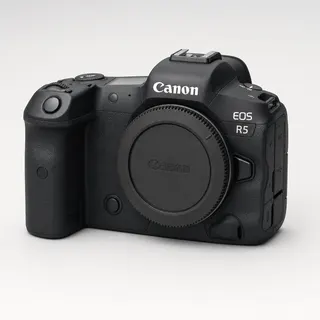
Canon EOS R5 to Adobe Lightroom: auto-upload as you shoot
Tether your Canon EOS R5 to your phone over USB or Wi-Fi and deliver every shot straight to Adobe Lightroom the instant you press the shutter — no laptop, no SD-card import. Adobe Lightroom albums that sync across every device, instantly.
By the CloudTether team · Updated

How it works for Canon EOS R5 → Adobe Lightroom
Your phone sits between the camera and Adobe Lightroom: no laptop, no card reader.
 Step 1Canon EOS R5
Connect it to your phone with a USB-C data cable or over Wi-Fi, then shoot as normal.
- Step 2Your phone
CloudTether copies each full-resolution photo off the camera seconds after the shutter and uploads it once.
- Step 3Adobe Lightroom
Every shot lands in Adobe Lightroom while you keep shooting — and in any other destination on the shoot.
How to live-upload Canon EOS R5 photos to Adobe Lightroom
Connect your Canon EOS R5 to your phone and every shot lands in Adobe Lightroom live as you shoot. Here's the full setup, start to finish:
- 1
Connect your Canon EOS R5
Connect over USB with the camera set to PC/tether mode for the most reliable, fastest link. Or go wireless with the camera's “Remote control (EOS Utility)” Wi-Fi function — not “Connect to smartphone” — on the camera's own network, your phone's hotspot or a shared router. On a first wireless connection, approve the link on the camera body when prompted.
- 2
Connect Adobe Lightroom
Connects via Adobe OAuth. Pick where photos should land — pick a Lightroom album — every frame streams in as you shoot, ready to edit before you leave the venue.
- 3
Shoot as normal
Every frame your Canon EOS R5 captures is detected and downloaded at full resolution while you keep shooting — JPEG, or RAW.
- 4
Photos deliver to Adobe Lightroom
Each photo uploads from your phone once and lands in Adobe Lightroom live, seconds after the shutter — and fans out to any other destinations on the session too.
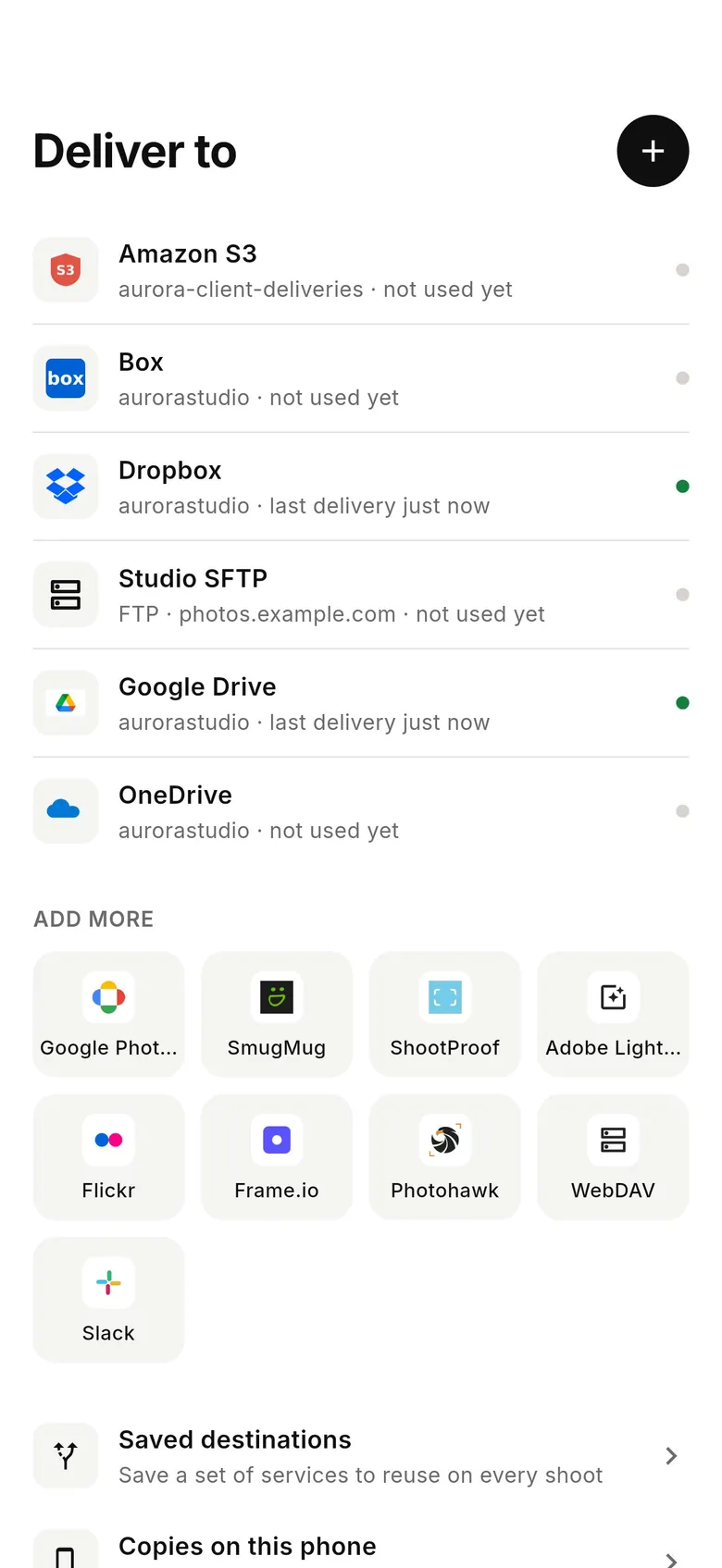
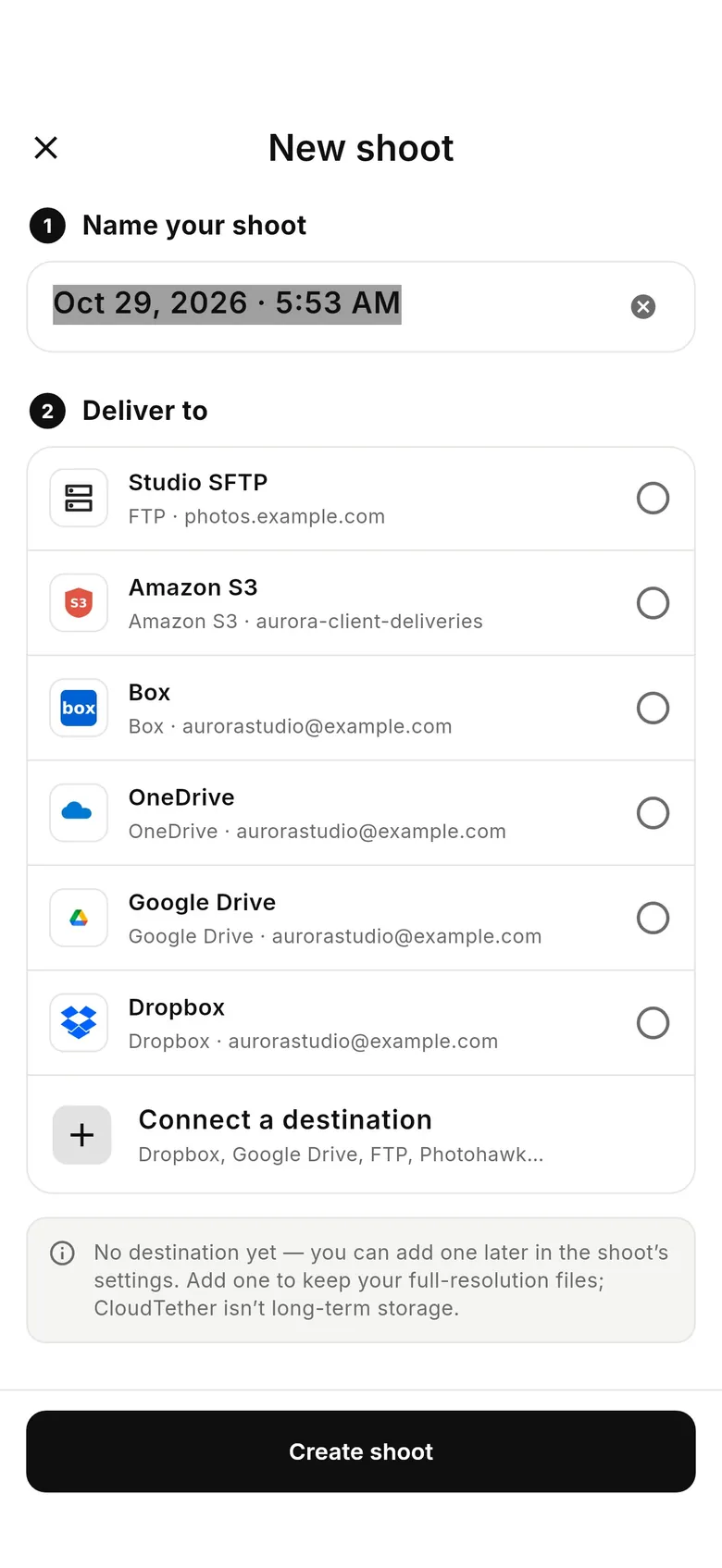
Adobe Lightroom in the CloudTether app
Connect Adobe Lightroom once, then every shoot from your Canon EOS R5 can deliver to it.
Connecting the Canon EOS R5
The EOS R5 has a USB-C port, so it plugs straight into a USB-C iPhone, iPad or Android phone with one USB-C to USB-C data cable; a Lightning iPhone needs Apple's Lightning to USB 3 Camera Adapter and a USB-C to USB-A cable. There's no USB mode to pick on EOS bodies. Switch the R5's wireless functions off — Canon disables USB communication while Wi-Fi is on — make sure it isn't in a webcam or streaming mode, and plug in. CloudTether opens the camera by itself.
For Wi-Fi, go to MENU → Wireless features → Wi-Fi/Bluetooth connection → Remote control (EOS Utility) — not the smartphone connection — join the camera to your phone's hotspot or the same router, and approve the pairing on the camera. Canon Wi-Fi pairing is verified in CloudTether on the EOS R7; the R5 speaks the same EOS protocol, but we haven't tested its Wi-Fi ourselves, so treat the cable as the default for paid work.
The R5 writes big CR3 RAW files. Canon's C-RAW setting makes smaller CR3s, and RAW+JPEG with CloudTether's “JPEG only” option leaves the RAW on the card altogether. Rated send works on Canon: rate frames in playback and, with “Only shots I rate in camera” on, only those leave the camera.
Who shoots it: wedding, portrait and commercial photographers who need high resolution — exactly the work where a client gallery or an editor is waiting on files. For those jobs, pair the R5 with a storage destination for the CR3 files and a gallery or shared folder for the JPEGs.
Getting the most out of Adobe Lightroom
Adobe Lightroom takes the original files, RAW included, into the Lightroom album you pick, so frames are in your Lightroom library on desktop, web and mobile, ready to cull and edit before you leave the venue. It needs an Adobe plan that includes Lightroom's cloud storage, and you connect with Adobe's own sign-in. Video clips are skipped for Lightroom.
If you edit in Lightroom Classic with sync turned on, photos added this way can also download into your Classic catalog. RAW fills Lightroom's cloud storage fastest; if the album is only for showing selects, a JPEG delivery saves space and upload time while the RAW stays on the card.
This route suits photographers who edit on the go: frames arrive in the album on an iPad or laptop, you flag and rate in Lightroom, and edits sync to every device. It's also a tidy way to hand a session to a retoucher who already works in Lightroom — share the album from Lightroom once it has filled.
- Lightroom Classic's own tethered capture needs a computer; this route doesn't.
- Pick the album per shoot so each job stays separate in your library.
- Uploads wait on the phone when there's no signal and catch up later.
A typical Canon EOS R5 to Adobe Lightroom workflow
- Connect your Adobe account in CloudTether's Deliver tab and pick the Lightroom album for this job.
- Tether the R5 over USB-C and send RAW — Lightroom keeps the CR3 files, so you can start culling on an iPad or laptop while you're still shooting.
- Rate keepers on the camera; with sync on, the album also downloads into Lightroom Classic for the final edit back at the studio.
Canon EOS R5 to Adobe Lightroom: what to know
The Canon EOS R5 is a full-frame body — wedding, portrait and commercial photographers who need high resolution. CloudTether pulls each frame off it the moment you shoot and delivers it to Adobe Lightroom: the JPEG, the CR3 RAW, or both, exactly as the camera wrote them.
CR3 files are far larger than JPEGs, so if your Adobe Lightroom recipients only need to view or pick images, deliver JPEG for the fastest turnaround and keep the CR3 originals on the card or in a second destination.
Pick a Lightroom album — every frame streams in as you shoot, ready to edit before you leave the venue.
Connects via Adobe OAuth.
Canon EOS R5 to Adobe Lightroom — FAQ
Can I upload Canon EOS R5 photos to Adobe Lightroom automatically?
Yes. Tether your Canon EOS R5 to your phone with CloudTether over USB or Wi-Fi, and every shot uploads to Adobe Lightroom live as you shoot — no card offload and no card import.
Can I send Canon EOS R5 photos to Adobe Lightroom live while I'm shooting?
Yes — each frame lands in Adobe Lightroom seconds after the shutter, live, while you keep shooting. There's no SD-card step in the middle.
How does CloudTether connect my Canon EOS R5 to Adobe Lightroom?
Your Canon EOS R5 tethers to your phone over USB or its own Wi-Fi; connects via Adobe OAuth.
Do I need a laptop to send Canon photos to Adobe Lightroom?
No. CloudTether runs on your phone — your Canon EOS R5 connects to the phone and uploads straight to Adobe Lightroom over mobile data or Wi-Fi, anywhere you have signal.
Can I send RAW files from my Canon EOS R5 to Adobe Lightroom?
Yes. Adobe Lightroom receives the files exactly as your Canon EOS R5 wrote them — RAW, JPEG or both. To save mobile data, turn on JPEG only and leave RAW files on the camera.
Does Lightroom receive the EOS R5's CR3 RAW files?
Yes. Unlike gallery services, Lightroom takes the original files, RAW included, into the album you pick. It needs an Adobe plan with Lightroom's cloud storage, and big CR3 files use it quickly — C-RAW helps.
Is this the same as tethering the R5 in Lightroom Classic?
No. Lightroom Classic's tethered capture needs a computer cabled to the camera. Here the R5 tethers to your phone and each frame is sent into a Lightroom album; with Classic sync on, it reaches your catalog too.
 Sony α7 IV to Adobe Lightroom