Camera adapter not working on iPhone: Lightning and USB-C fixes
By the CloudTether team · Updated
Short answer: on a Lightning iPhone, use Apple's Lightning to USB 3 Camera Adapter — cheap third-party adapters often won't pass a camera through — and plug power into its Lightning port if iOS says the accessory needs too much power. On a USB-C iPhone you don't need an adapter at all: a USB-C data cable goes straight from the camera. Then plug in with the phone unlocked, allow the accessory if asked and set the camera's tether mode.
Likely causes
- A third-party or non-camera Lightning adapter that doesn't pass a camera through.
- No power on the adapter, so iOS refuses an accessory that wants more than the iPhone gives.
- A USB-C hub, dock or multi-port dongle between camera and phone.
- The iPhone locked, or a new accessory not yet allowed to connect.
- A charge-only cable behind the adapter.
- The camera in mass storage, webcam or streaming mode, so Photos sees it but a tethering app can't.
How to fix it, step by step
Use the right adapter — or none
A Lightning iPhone (iPhone 14 and earlier) needs Apple's Lightning to USB 3 Camera Adapter, with the camera's own cable ending in USB-A plugged into it. A USB-C iPhone or iPad (iPhone 15 and later) needs no adapter: use a USB-C to USB-C data cable, or a cable with the camera's plug — Micro-USB, Micro-B USB 3 — at one end and USB-C at the other.
Give the adapter power if iOS asks
If iOS says the accessory needs too much power, connect a charger or power bank to the USB 3 adapter's Lightning port. Apple's older Lightning to USB Camera Adapter has no power port, so it can't fix that message. The powered port also keeps the phone charged while you tether, which helps on a long day.
Plug the camera straight in
On a USB-C iPhone, avoid hubs, docks and multi-port dongles for the camera; connect it directly first. If you need to charge at the same time, test the hub at home before relying on it at a job.
Unlock the iPhone and allow the accessory
Plug the camera in with the iPhone unlocked. iPhones restrict USB accessories after they've been locked for a while, and recent iOS versions may ask whether to allow a new accessory to connect — tap Allow. The “Trust This Computer” prompt is for plugging an iPhone into a computer; a camera doesn't trigger it.
Check the cable behind the adapter
Many USB cables only carry power. If the camera charges but the phone never reacts, swap in a known data cable — the one that came with the camera is a safe bet.
Set the camera's USB mode
Sony: PC Remote (Remote Shooting on newer menus) — the ZV-E10 defaults to USB streaming and must be switched. Fujifilm: USB TETHER SHOOTING AUTO (or FIXED). Nikon: nothing to set on current bodies; choose MTP/PTP if an older body mounts as storage. Canon: nothing to set, but turn the camera's Wi-Fi off, as several EOS bodies disable USB while wireless is on.
Close Photos import and connect in CloudTether
When a camera connects, the Photos app may offer to import from it. Close that screen, open CloudTether, tap Connect a camera on Home and plug in, and keep the app open the first time. Over USB, iOS catalogues the whole card before the camera is ready, so a card with thousands of files can take a while — a freshly formatted card connects faster.
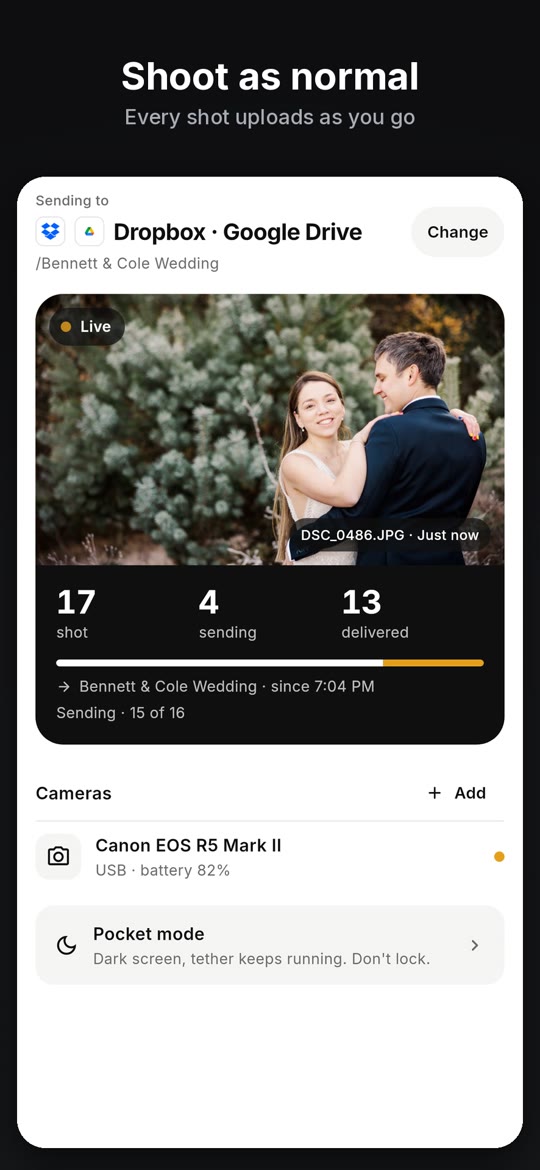
What a working tether looks like
The CloudTether app in 21 seconds: connect, choose where photos go, shoot, delivered.
Once the camera is connected, every shot comes off it and goes where you chose — no picking, no importing.
On screen: Plug in your camera: USB cable or Wi-Fi. Choose where photos go: set it once, then just shoot. Shoot as normal: every shot uploads as you go. Camera to cloud in seconds: on your phone, then delivered. Every photo, delivered: see exactly what arrived. Dropbox, Drive, ShootProof: SmugMug, Lightroom, FTP and more. Two cameras at once: Canon, Nikon, Sony, Fujifilm.Photos import isn't tethering
The Photos app's import copies what's already on the card, once, when you ask. Tethering copies each new shot as you take it. Photos can also read a camera in mass storage mode, which is why “Photos sees it” doesn't prove the camera is set up to tether. If Photos sees the camera but CloudTether doesn't, check the camera's tether mode first: PC Remote on Sony, USB tether shooting on Fujifilm.
While you shoot
Keep CloudTether on screen. Pocket mode darkens the display to save battery while the tether keeps running, and each connected camera gets a Live Activity on the Lock Screen with its shot, sending and delivered counts. On iPhone we've also seen a Nikon with a CFexpress card refuse to connect until the card was formatted in the camera; SD cards connected at once.
FAQ
Which adapter does a Lightning iPhone need for a camera?
Apple's Lightning to USB 3 Camera Adapter, plus the camera's cable ending in USB-A. Its Lightning port supplies power and charges the phone.
What does “this accessory requires too much power” mean?
The iPhone can't power the connected device on its own. Plug a charger or power bank into the USB 3 adapter's Lightning port.
Do I need an adapter for a USB-C iPhone?
No. A USB-C iPhone takes a USB-C data cable straight from a USB-C camera, or a cable with the camera's plug at one end and USB-C at the other.
Do I need to tap Trust when I plug a camera into my iPhone?
No. That prompt is for connecting an iPhone to a computer. Recent iOS versions may ask to allow a new accessory; tap Allow.
Photos can see my camera, so why can't the tethering app?
Photos can read a camera in mass storage mode, which can't tether. Set the camera's tether mode, such as PC Remote on Sony or USB tether shooting on Fujifilm.
Tether your camera to your phone with CloudTether
Canon, Nikon, Sony and Fujifilm over USB or Wi-Fi, on iPhone, iPad and Android. Every full-resolution shot is copied off the camera and delivered to Dropbox, Google Drive, a client gallery or FTP while you keep shooting.