During a shoot
What to expect while tethering — progress, keeping the app open, and dropouts.
Once a session is running, each shutter press shows up in the app within a second or two and moves through downloading → uploading → delivered.
Keep the app open
On iPhone, iPad and Android, keep CloudTether open in the foreground while you shoot — mobile devices limit sustained background work, so keeping it on screen runs transfers reliably. A pocket-mount or hot-shoe phone mount keeps it open and out of the way.
If the connection drops
Photos queue on the phone and resume automatically when the connection returns — nothing is lost. The app keeps a local copy of each frame until it's safely delivered.
Battery
Because each photo uploads once and fans out server-side, battery use is modest. For full-day events, a small USB-PD power bank is a good idea.
Find past shoots and unsent shots
Where earlier work lives in the app, and how to send shots that haven't gone anywhere yet.
Not sure which you have? 1.1 has the tabs Home · History · Deliver · More; 1.0 has Home · Playback · Destinations · More. What changed in 1.1
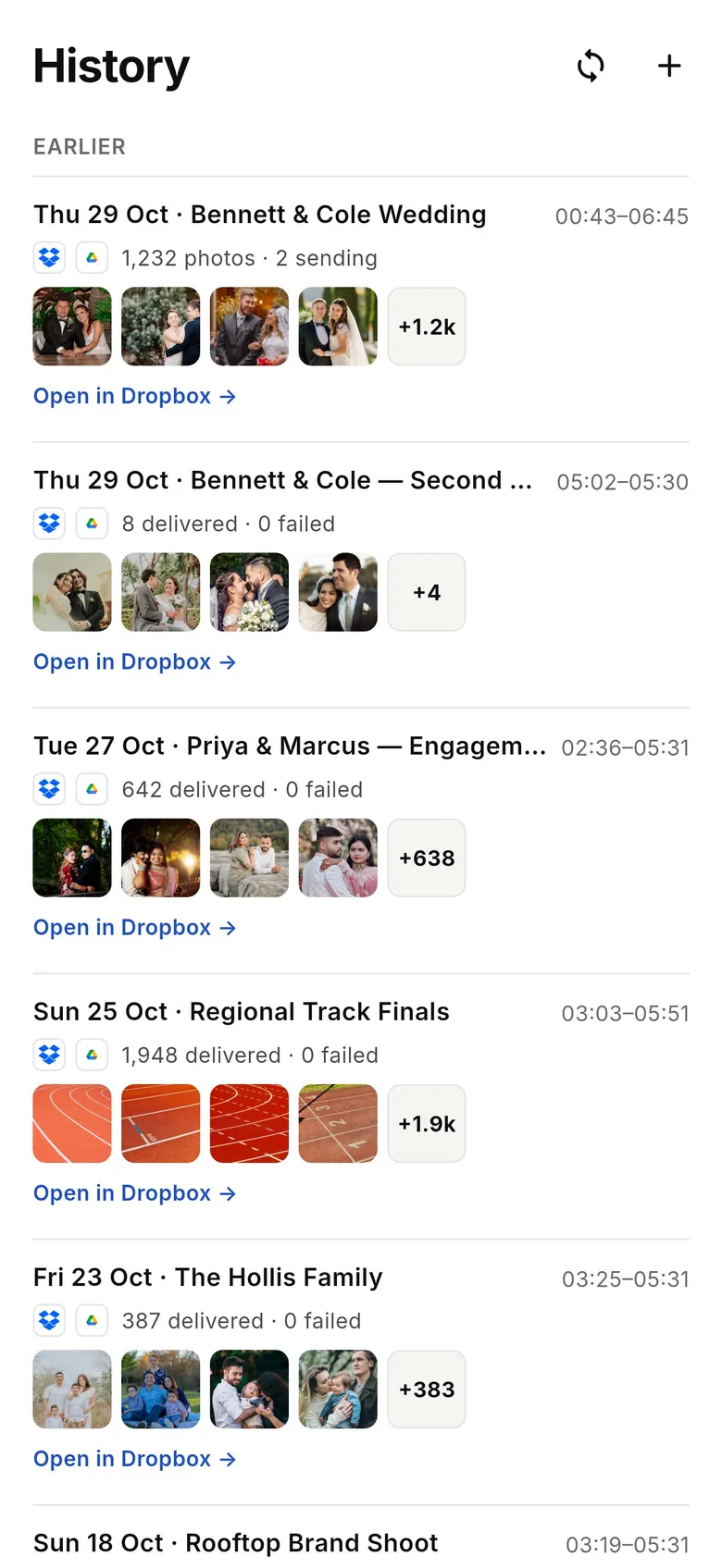
1Open History
Tap “History”. Every shoot is listed newest first as a receipt — date, place and name, how many shots, which services they went to, with a strip of its newest shots (tap one to view it) and “Open in Dropbox” (or your service) links. Shots with no destination are under “Not sent yet”.
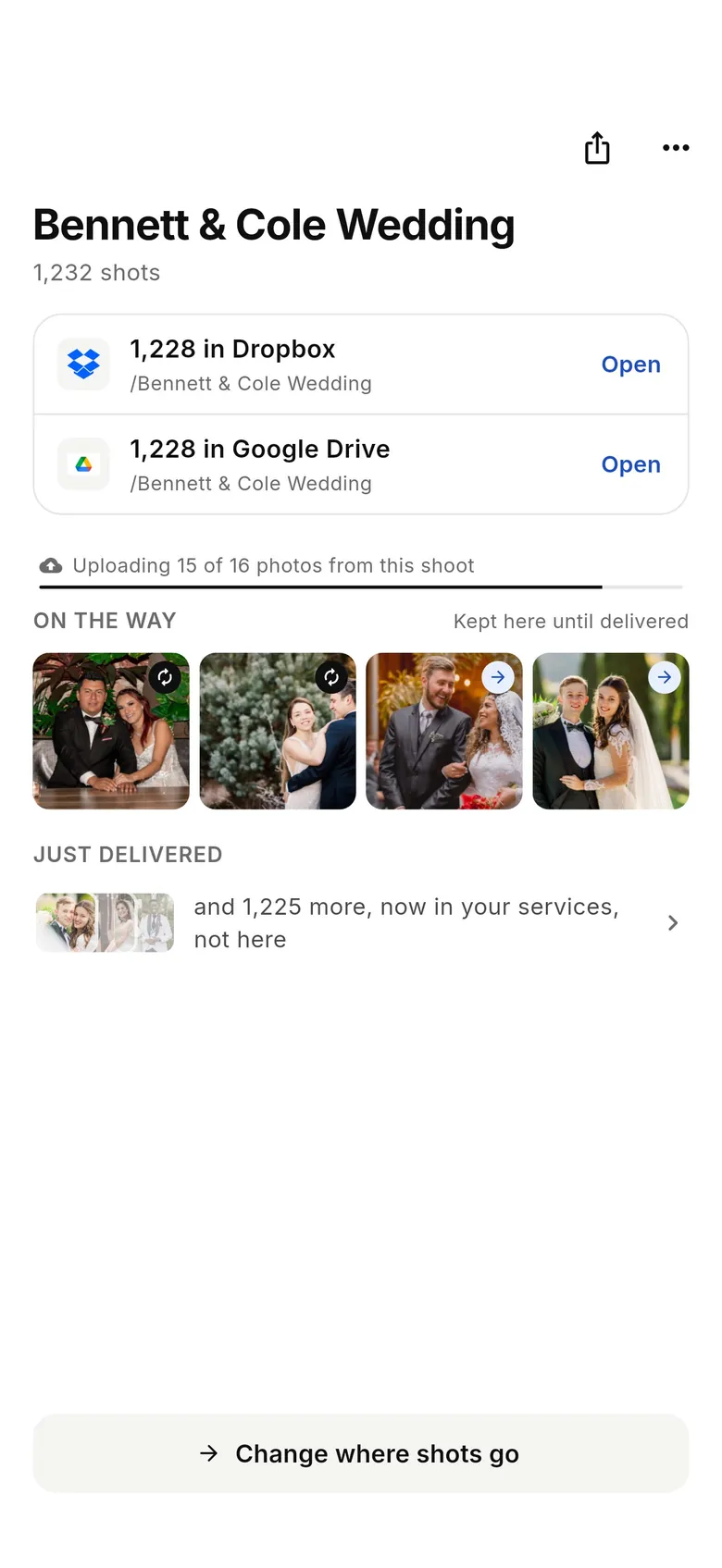
2Open a shoot
Tap a shoot to see how many shots reached each service (with “Open” links), the shots still “On the way” — kept on the phone until delivered — and “Change where shots go”. For shots in Not sent yet, select them and tap “Send these to…”.

3View a shot
Tap any shot to open it full screen; swipe through the shoot, or pinch to zoom into the full-resolution photo. Video clips show a play button. Share and Print are at the top.
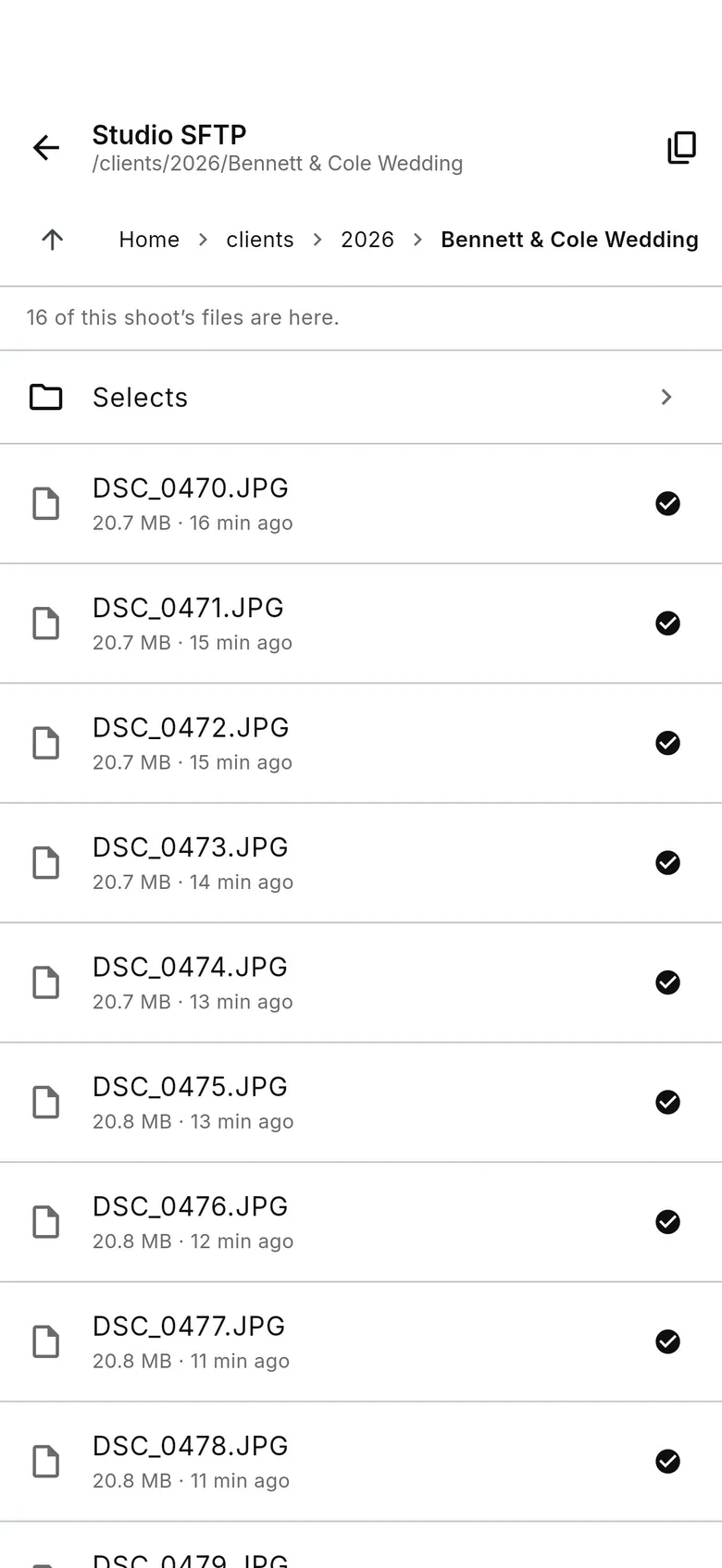
4Browse an FTP or SFTP folder
For an FTP, FTPS or SFTP destination, tap “Browse” on the shoot to look through the server's folders without leaving the app: this shoot's files are marked, and you can step up, open folders or copy the path. Nothing on the server is changed.
5End a shoot
When you end a shoot, a delivery receipt shows how many shots went to each service, with Open links and “Share receipt”.
1Open Playback
Tap “Playback”. Switch between “Device” (Unsorted and albums on this phone) and “Cloud” (your cloud albums). Recent cloud albums are also on Home under “See all”.
2Send or move shots
Select shots, then use “Move to album” or “Send to…” to deliver them, or “Share”.