Sony to Google Drive: auto-upload as you shoot
Tether your Sony to your phone over USB or Wi-Fi and deliver every shot straight to Google Drive the instant you press the shutter — no laptop, no SD-card import. Shared Drives for teams already on Google Workspace.
By the CloudTether team · Updated

How it works for Sony → Google Drive
Your phone sits between the camera and Google Drive: no laptop, no card reader.
- Step 1Sony
Connect it to your phone with a USB-C data cable or over Wi-Fi, then shoot as normal.
- Step 2Your phone
CloudTether copies each full-resolution photo off the camera seconds after the shutter and uploads it once.
- Step 3Google Drive
Every shot lands in Google Drive while you keep shooting — and in any other destination on the shoot.
How to live-upload Sony photos to Google Drive
Connect your Sony to your phone and every shot lands in Google Drive live as you shoot. Here's the full setup, start to finish:
- 1
Connect your Sony
Connect over USB with the camera in PC Remote mode for a stable, high-speed tether. Newer bodies (α1, α9 III, α7 IV, α7R V, α7C II) can also tether over Wi-Fi with wireless PC Remote — not yet tested by us, so USB is the dependable path. In PC Remote, set Still Img. Save Dest. to PC+Camera to keep a copy on the card.
- 2
Connect Google Drive
Connects via Google OAuth — scoped to a folder you choose. Pick where photos should land — route per-session folders into a Shared Drive so the whole team has instant access.
- 3
Shoot as normal
Every frame your Sony captures is detected and downloaded at full resolution while you keep shooting — JPEG, or RAW.
- 4
Photos deliver to Google Drive
Each photo uploads from your phone once and lands in Google Drive live, seconds after the shutter — and fans out to any other destinations on the session too.
Google Drive in the CloudTether app
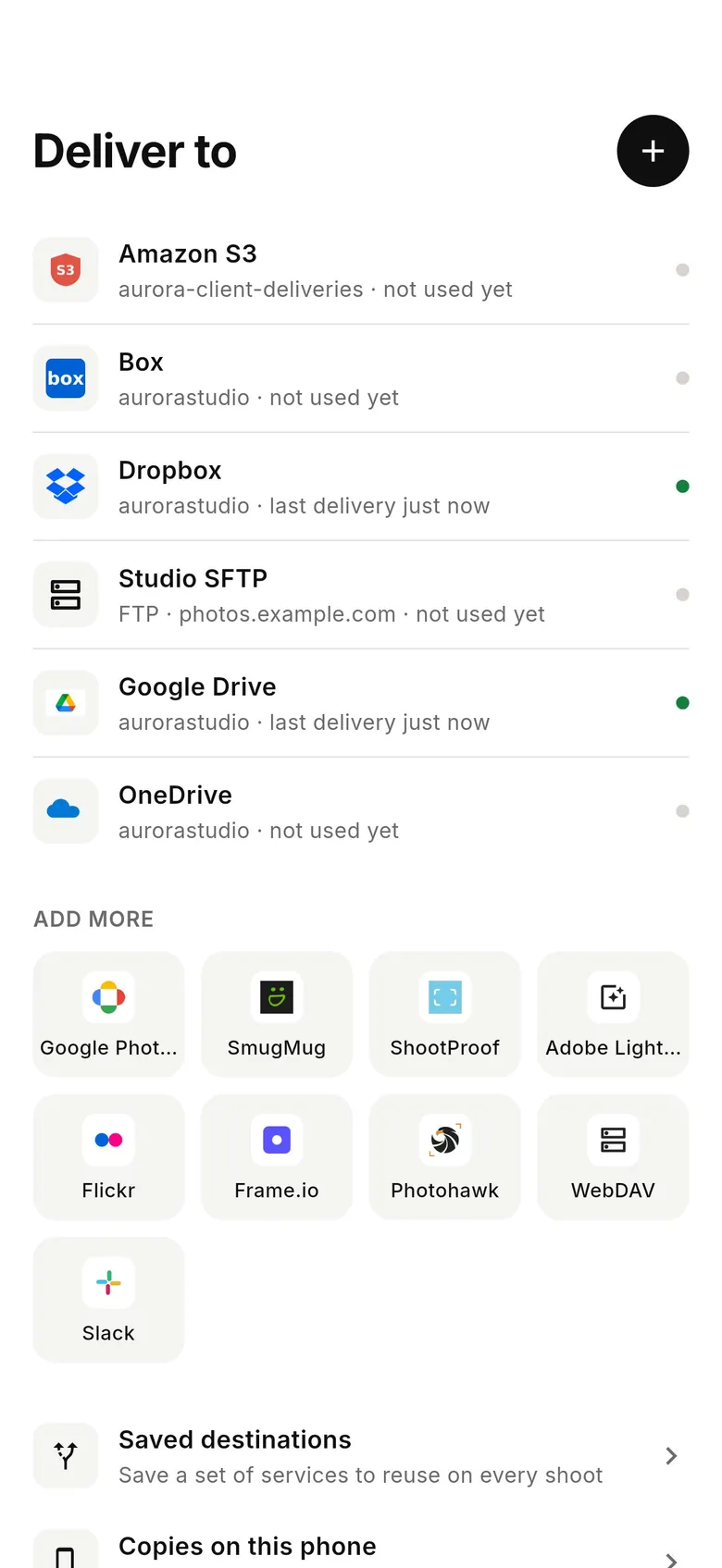
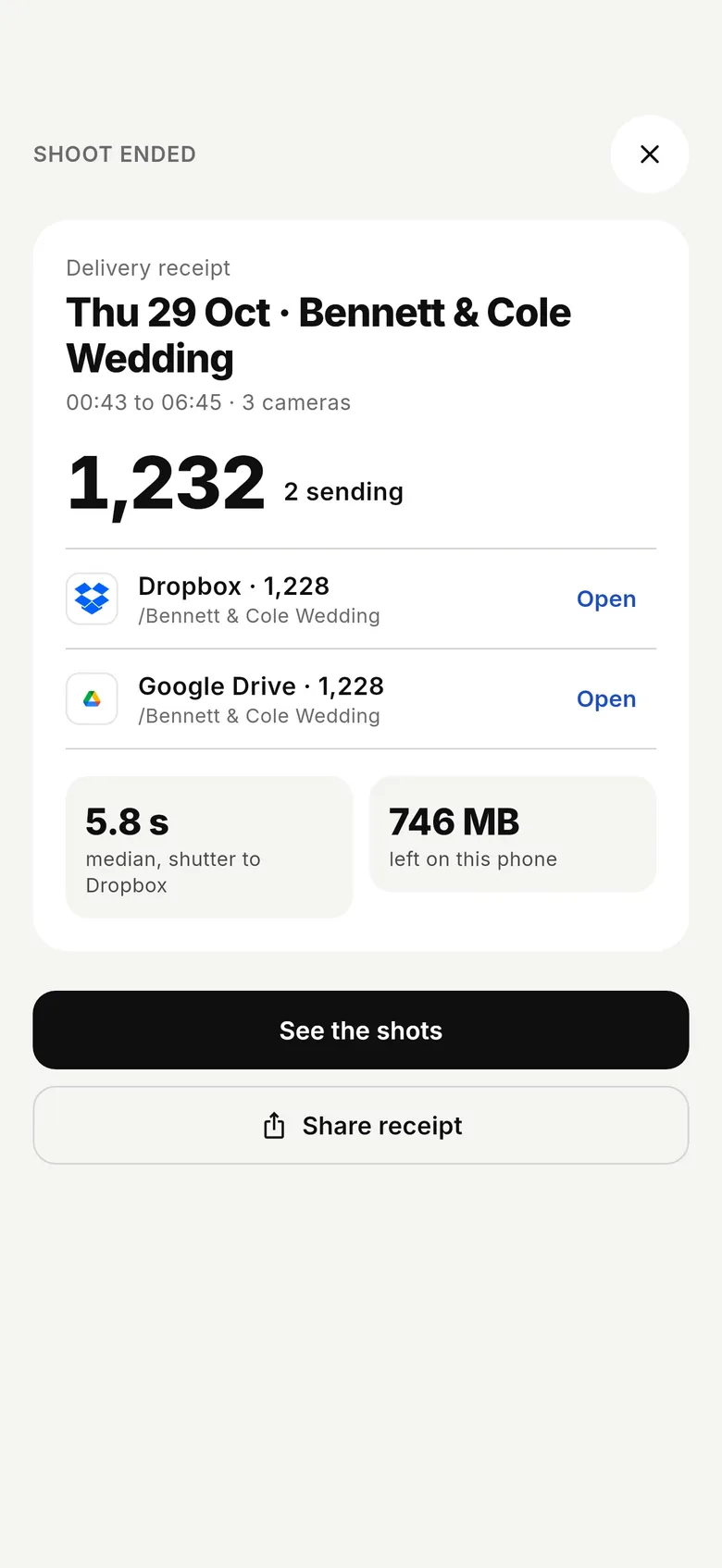
Connect Google Drive once, then every shoot from your Sony can deliver to it.
Connecting a Sony camera
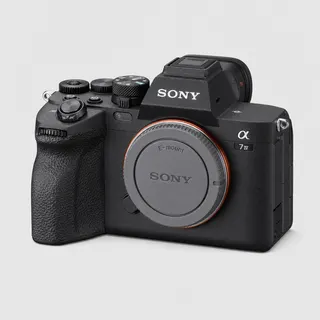
CloudTether covers Sony Alpha full-frame bodies — α1, α9 II and III, α7 III and IV, α7R IV and V, α7C and α7C II — APS-C bodies such as the α6400, α6600 and α6700, and the ZV-E10 and ZV-E1. USB is verified on a ZV-E10, and every Sony body runs the same code.
Sony needs one setting before it will tether: the USB connection mode must be PC Remote (Remote Shooting on newer menus). On older menus it's MENU → Setup → USB Connection → PC Remote; on the α7 IV generation it's MENU → Setup → USB → USB Connection Mode → Remote Shooting, plus Remote Shoot Function → On in the Network menu. The ZV-E10 defaults to USB streaming (webcam), which won't tether.
Disconnect any smartphone connection first, and set Still Img. Save Dest. to PC+Camera so the card keeps a copy. Full-frame Alphas have USB-C; the α6400, α6600 and ZV-E10 use Micro-USB, which needs a Micro-USB to USB-C cable.
Newer bodies — α1, α9 III, α7 IV, α7R V, α7C II — offer wireless PC Remote through an access point. We haven't tested it with CloudTether yet, so USB is the dependable path.
Rated send isn't available over Sony tethering (in PC Remote the phone can't read ratings from the card), so every shot is sent. Use JPEG only or a smaller delivery size to keep uploads light.
Getting the most out of Google Drive
Google Drive stores every file untouched — CR3, NEF, ARW, RAF and JPEG — in a folder you choose, with a folder per shoot inside it, and CloudTether's Google access is scoped to that folder. Teams on Google Workspace can route shoots into a Shared Drive, so editors, producers and the client's comms team all see each frame without being invited file by file.
Drive previews JPEGs instantly in a browser or the Drive app; RAW files are there to download into Lightroom or Capture One later. If people will look at photos on their phones during the event, send JPEGs or 2048 px copies to that folder and keep the RAW in a separate backup.
For a press office or agency, a Drive folder is often the hand-off the client already uses: editors open it in a browser, search by name or date and download what they need. Because each shoot gets its own folder inside the one you picked, a multi-day conference stays organised by day without sorting afterwards. If the organisation restricts third-party apps, a Workspace admin may need to allow CloudTether before you can pick a Shared Drive.
- Share the parent folder once — shoot folders created inside it inherit its sharing.
- Uploads count against the Google account's or Shared Drive's storage.
- Drive works over mobile data, so no venue Wi-Fi is needed.
Route per-session folders into a Shared Drive so the whole team has instant access.
Connects via Google OAuth — scoped to a folder you choose.
Sony to Google Drive — FAQ
Can I upload Sony photos to Google Drive automatically?
Yes. Tether your Sony to your phone with CloudTether over USB or Wi-Fi, and every shot uploads to Google Drive live as you shoot — no card offload and no card import.
Can I send Sony photos to Google Drive live while I'm shooting?
Yes — each frame lands in Google Drive seconds after the shutter, live, while you keep shooting. There's no SD-card step in the middle.
How does CloudTether connect my Sony to Google Drive?
Your Sony tethers to your phone over USB or its own Wi-Fi; connects via Google OAuth — scoped to a folder you choose.
Do I need a laptop to send Sony photos to Google Drive?
No. CloudTether runs on your phone — your Sony connects to the phone and uploads straight to Google Drive over mobile data or Wi-Fi, anywhere you have signal.
Can I send RAW files from my Sony to Google Drive?
Yes. Google Drive receives the files exactly as your Sony wrote them — RAW, JPEG or both. To save mobile data, turn on JPEG only and leave RAW files on the camera.
Which Sony cameras can send photos to Google Drive?
Any Sony body CloudTether supports, including the α7 IV, α7R V, α1, α9 III, ZV-E10, α7 III, α7C, α7C II. USB is verified on a ZV-E10, and every Sony body runs the same code.
Can I send only my best Sony shots to Google Drive?
Not from the camera — rated send isn't available over Sony tethering, so every shot is delivered into the Google Drive folder. Use JPEG only or a smaller delivery size to keep uploads light.


 Sony α7 IV to Google Drive
 Sony α7 III to Google Drive