
Fujifilm to ShootProof: auto-upload as you shoot
Tether your Fujifilm to your phone over USB or Wi-Fi and deliver every shot straight to ShootProof the instant you press the shutter — no laptop, no SD-card import. Real-time client proofing galleries.
By the CloudTether team · Updated

How it works for Fujifilm → ShootProof
Your phone sits between the camera and ShootProof: no laptop, no card reader.
- Step 1Fujifilm
Connect it to your phone with a USB-C data cable, then shoot as normal.
- Step 2Your phone
CloudTether copies each full-resolution photo off the camera seconds after the shutter and uploads it once.
- Step 3ShootProof
Every shot lands in ShootProof as a JPEG while you keep shooting — and in any other destination on the shoot.
How to live-upload Fujifilm photos to ShootProof
Connect your Fujifilm to your phone and every shot lands in ShootProof live as you shoot. Here's the full setup, start to finish:
- 1
Connect your Fujifilm
Connect over USB-C with the camera set to USB tether/PC shoot for a reliable link. Fujifilm Wi-Fi tethering is experimental in CloudTether — use a USB cable for paid work.
- 2
Connect ShootProof
Connects via ShootProof OAuth. Pick where photos should land — frames stream straight into the ShootProof event (or an album in it) you pick, so clients can proof and order before you've packed up.
- 3
Shoot as normal
Every frame your Fujifilm captures is detected and downloaded at full resolution while you keep shooting. ShootProof receives the JPEGs — RAW files are skipped for it, so shoot RAW+JPEG.
- 4
Photos deliver to ShootProof
Each photo uploads from your phone once and lands in ShootProof live, seconds after the shutter — and fans out to any other destinations on the session too.
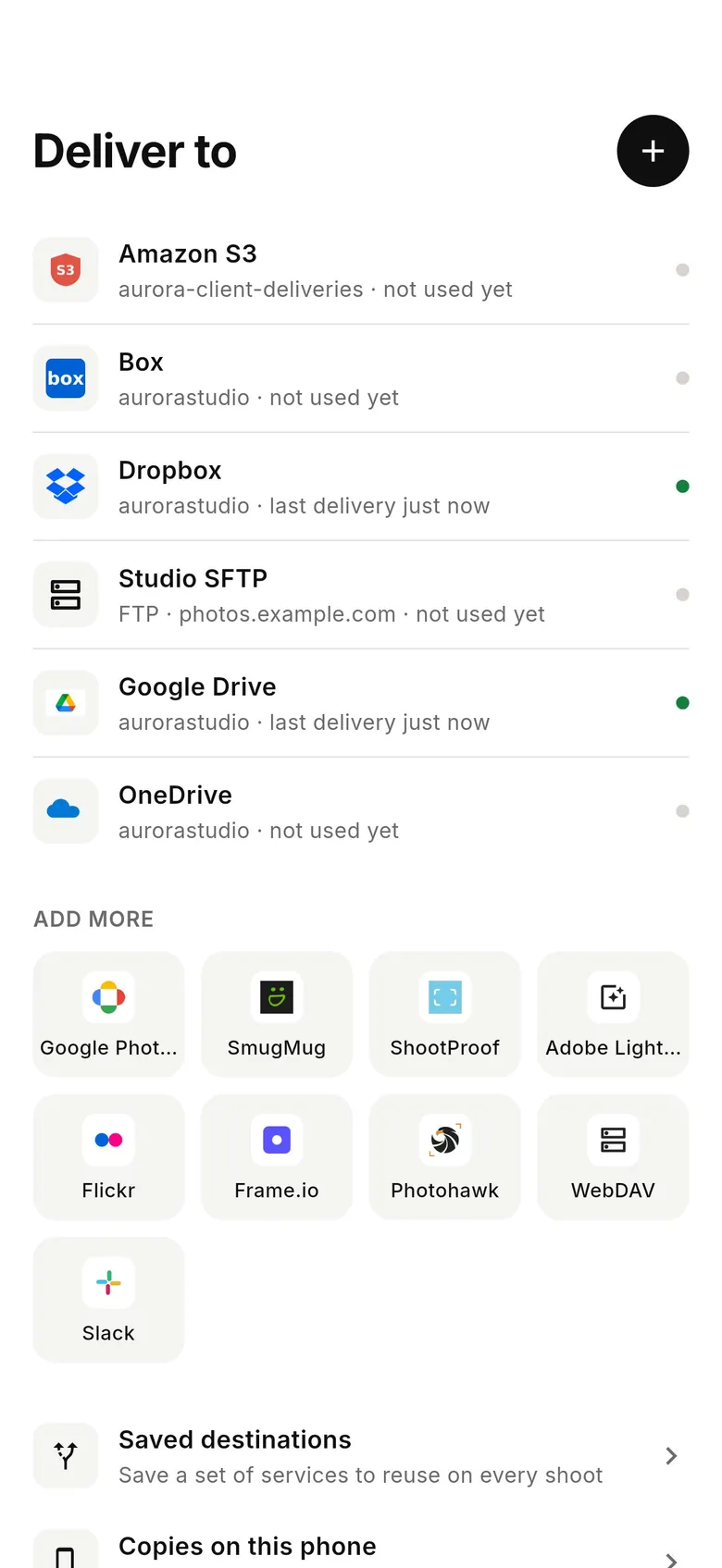
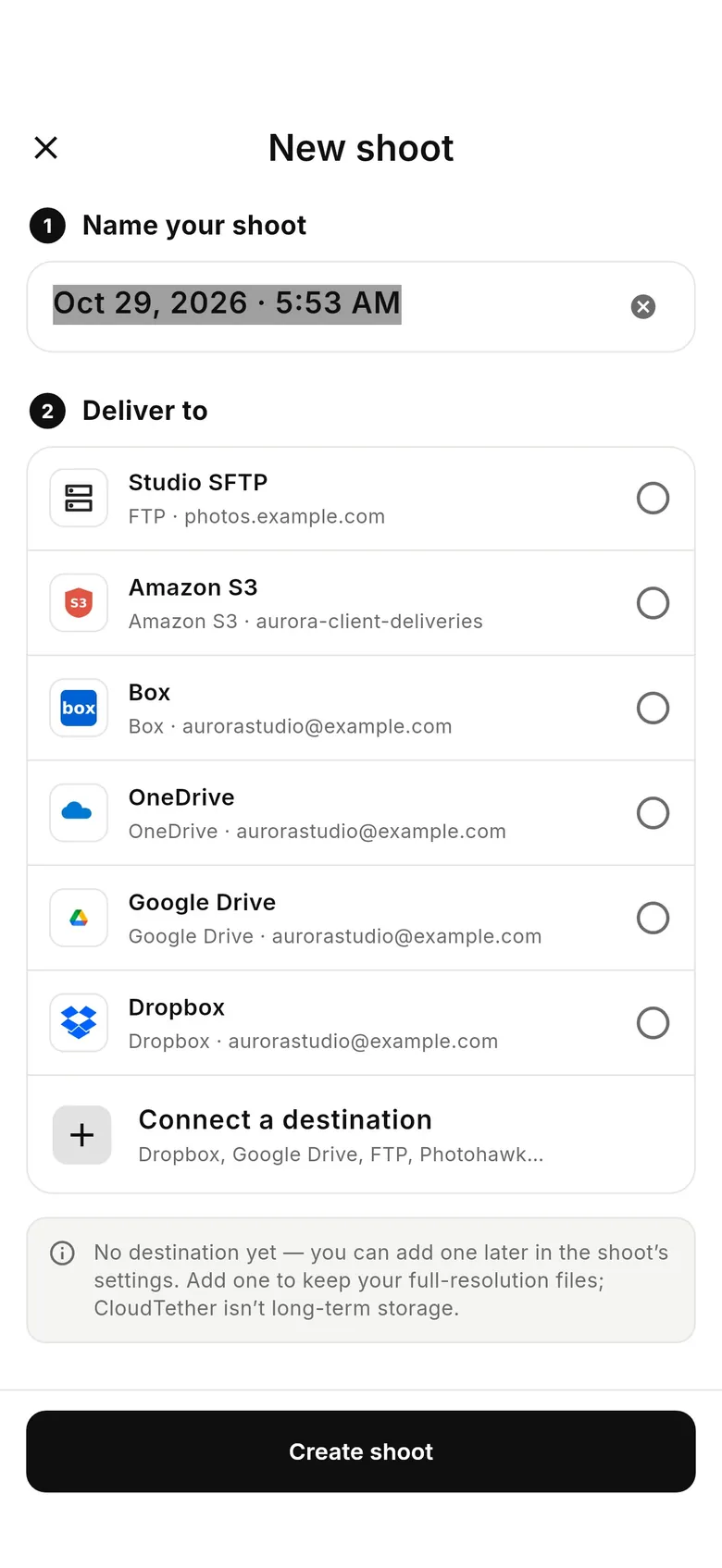
ShootProof in the CloudTether app
Connect ShootProof once, then every shoot from your Fujifilm can deliver to it.
Connecting a Fujifilm camera
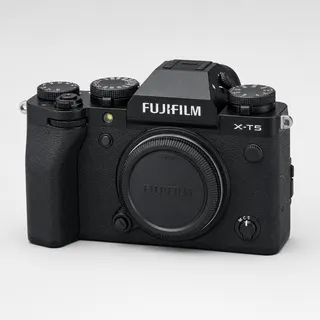
CloudTether covers Fujifilm X bodies — X-T5, X-T4, X-T30 II, X-H2, X-H2S, X-S20 and X100VI — and the GFX 100 II over USB-C. USB is verified on an X-T3, using CloudTether's standard PTP code.
Set the connection mode to USB TETHER SHOOTING AUTO (or FIXED) before plugging in — on newer bodies it's Network/USB setting → CONNECTION MODE, with USB POWER SUPPLY/COMM SETTING → AUTO (or POWER SUPPLY OFF/COMM ON).
Some Fujifilm bodies send shots over the cable instead of writing them to the card while tethered. Take a test shot and check the card before you count on it as a backup. GFX RAF files are very large; compressed RAW or JPEG only keeps delivery quick.
Fujifilm Wi-Fi tethering is experimental in CloudTether and not yet verified on most bodies. If you want to try it, choose Fujifilm as the brand in the Wi-Fi flow so the app targets Fujifilm's connection — but use a USB cable for paid work.
Rated send isn't available over Fujifilm tethering, so every shot is sent. Film-simulation JPEGs are often exactly what clients need, with the RAF kept on the card.
Getting the most out of ShootProof
ShootProof receives JPEGs; RAW files and video are marked Skipped rather than failed, so shoot RAW+JPEG. Create the event in ShootProof before you start: CloudTether lists your events newest first and lets you pick the event itself or one album inside it. Each shoot has one ShootProof target, so for a wedding you might point the getting-ready shoot at one album and start a second shoot for the ceremony.
Proofing galleries don't need full-size files. Web (2048 px) or Large (4096 px) in the shoot's Delivery resolution loads quickly on a client's phone and stays inside ShootProof's per-file size limit; keep Original if clients will order big prints. The event's own settings — access, favourites, price sheet — apply to every photo CloudTether adds.
A typical day: create the event the night before, add albums for the parts of the day, and share the event link once the first frames are in. Because CloudTether adds photos the way a manual upload would, favourites, downloads and the price sheet work as normal — you don't change how you run ShootProof, only when the photos arrive.
- Add Dropbox, Google Drive or an SFTP server to the same shoot to get the RAW off-site too.
- A delivery watermark can be set in the shoot's settings on the web dashboard.
- Two photographers can point their own phones at the same event.
ShootProof gets JPEGs (RAW and video are skipped), into the event or album you pick — shoot RAW+JPEG.
Full guide: Upload to ShootProof From Your Camera — Live, as You Shoot →Frames stream straight into the ShootProof event (or an album in it) you pick, so clients can proof and order before you've packed up.
Connects via ShootProof OAuth.
Fujifilm to ShootProof — FAQ
Can I upload Fujifilm photos to ShootProof automatically?
Yes. Tether your Fujifilm to your phone with CloudTether over USB or Wi-Fi, and every shot uploads to ShootProof live as you shoot — no card offload and no card import.
Can I send Fujifilm photos to ShootProof live while I'm shooting?
Yes — each frame lands in ShootProof seconds after the shutter, live, while you keep shooting. There's no SD-card step in the middle.
How does CloudTether connect my Fujifilm to ShootProof?
Your Fujifilm tethers to your phone over USB or its own Wi-Fi; connects via ShootProof OAuth.
Do I need a laptop to send Fujifilm photos to ShootProof?
No. CloudTether runs on your phone — your Fujifilm connects to the phone and uploads straight to ShootProof over mobile data or Wi-Fi, anywhere you have signal.
Can I send RAW files from my Fujifilm to ShootProof?
No — ShootProof receives JPEGs, and RAW files are skipped for it. Shoot RAW+JPEG; add Dropbox, Google Drive, OneDrive or an SFTP server to the same shoot if you want the RAW files off-site too.
Which Fujifilm cameras can send photos to ShootProof?
Any Fujifilm body CloudTether supports, including the X-T5, X-H2S, GFX 100 II, X-T4, X-T30 II, X-S20, X-H2, X100VI. USB is verified on an X-T3, using CloudTether's standard PTP code.
Can I send only my best Fujifilm shots to ShootProof?
Not from the camera — rated send isn't available over Fujifilm tethering, so every shot is delivered into the ShootProof event or album. Hide or remove frames in ShootProof afterwards, and use a smaller delivery size to keep uploads quick.


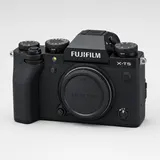 Fujifilm X-T5 to ShootProof