How to connect your camera to your phone (and which cameras do it best)
Short answer: most cameras made in the last several years connect to a phone in one of three ways. Bluetooth, through the camera maker's free app, pairs them and sends small copies and location. Wi-Fi moves full-size photos and lets the phone act as a remote. And a USB cable is the fastest way to move every full-resolution file. Install your brand's app, pair from the camera's menu, and you're connected; for every shot automatically, use a cable and a tethering app. If you're shopping, look for Wi-Fi and Bluetooth on the spec sheet — almost every current mirrorless and premium compact has both.
The three ways a camera connects to a phone
Bluetooth is a low-power link that stays on in the background. Cameras use it to pair with the phone, sync the clock, tag photos with the phone's location, wake the camera and — with some brands — send reduced-size copies. It's too slow for full-resolution files. Wi-Fi is the camera's own network (or a shared one). It carries full-size photos, video and the live view for remote shooting, and it's what the maker's app switches to when you download originals. USB is a cable between the camera and the phone: the fastest, steadiest way to move full-resolution files, including RAW, and the way a tethering app gets every shot as you take it. Our guide to Bluetooth vs Wi-Fi on a camera explains why Bluetooth alone won't move your pictures.
Before you start
Update the camera's firmware and the maker's app. Charge both devices. On the phone, allow the app's Bluetooth, nearby-devices or location permission on Android, and Local Network and Photos permission on iPhone — without them, the camera is never found. Pair from the camera's menu as well as the app, and watch the camera's screen: most bodies ask you to confirm a code, and missing that prompt is the commonest reason pairing fails. When the phone joins the camera's Wi-Fi and warns there's no internet, choose to stay connected.
How to connect your camera to your phone, brand by brand
Each maker has its own free app. The menu names vary a little between models, so use these as a map and check your camera's manual for the exact item.
| Brand | Maker's app | How to connect | Full-size photos |
|---|---|---|---|
| Canon | Camera Connect | Wireless or network menu › Connect to smartphone; pair over Bluetooth, then the app switches to Wi-Fi for transfers | Download in the app; RAW (CR3) as RAW when you choose that option |
| Nikon | SnapBridge | Network or setup menu › Connect to smart device › Pairing (Bluetooth) | Auto link sends 2 MP or 8 MP copies; download originals (and NEF on Wi-Fi bodies) by hand |
| Sony | Creators' App | Network menu › Smartphone Connect, then add the camera in the app | Choose original size in the app; RAW depends on the body |
| Fujifilm | XApp | Pair from the camera's Bluetooth or network settings and the app | Set Photo resize to original size; RAF on recent bodies |
| Panasonic | LUMIX Sync (LUMIX Lab on recent bodies) | Pair from the camera's Bluetooth settings and the app | Copy selected images over Wi-Fi |
| OM System / Olympus | OM Image Share | Connect from the camera's Wi-Fi or Bluetooth settings and the app | Copy selected images over Wi-Fi |
Features vary by model and app version; the makers' help pages list what each body supports. Ricoh, Pentax and Leica have their own apps too.
Connecting with a USB cable instead
A cable skips pairing altogether. Plug a USB-C cable from the camera into a USB-C iPhone (iPhone 15 and later), iPad or Android phone; a Lightning iPhone needs Apple's Lightning to USB 3 Camera Adapter plus the camera's cable. Set the camera's USB mode if it has one — PC Remote on Sony, USB tether on Fujifilm, PC(Tether) on Panasonic — and make sure the cable carries data, not just charge. Then either import from the phone's photos app, or use a tethering app so every new shot copies across automatically. Our camera tethering cable guide covers which cable fits which camera.
Getting every shot onto the phone automatically
The makers' apps are built for pairing, remote shooting and picking a few photos to share — some send small copies in the background, but none is designed to move every full-resolution frame as you shoot. A tethering app is. CloudTether connects Canon, Nikon, Sony and Fujifilm cameras to an iPhone, iPad or Android phone over USB or Wi-Fi and copies each original RAW or JPEG the moment the camera writes it, then can send it on to Dropbox, Google Drive, a client gallery or an FTP server. USB is verified on all four brands; Wi-Fi is verified on Canon and experimental on Fujifilm. Other brands that speak standard PTP, such as Panasonic Lumix, can connect over USB but aren't tested by us yet.
If the camera won't connect
Over Wi-Fi: make sure the camera is in the mode your app expects, approve any prompt on the camera, keep the phone on the camera's network, and turn off VPNs. Re-pairing from scratch fixes most problems after an update — delete the camera in the app and in the phone's Bluetooth list, delete the phone on the camera, and pair again. Over USB: use a data cable, set the camera's USB mode and turn the camera's own Wi-Fi off. We have step-by-step fixes for a camera that won't connect over Wi-Fi and one that isn't detected over USB.
Cameras that connect to your phone: what to look for
If you're buying a digital camera that connects to your phone, the spec sheet tells you most of what you need. Wi-Fi is the feature that actually moves full-size photos; Bluetooth makes the connection painless and keeps location and the clock in sync. A USB-C port gives you the fast cable option and usually charging from a phone charger or power bank. Then check three things the spec sheet doesn't always say: whether the maker's app can send original-size photos and RAW, or only resized copies; whether it can transfer automatically in the background; and whether the camera works with third-party tethering apps over USB or standard PTP/IP Wi-Fi, which matters if you want every shot delivered, not just a few shared.
Which kinds of camera connect to a phone?
Mirrorless cameras: almost every current model from Canon, Nikon, Sony, Fujifilm, Panasonic and OM System has Wi-Fi and Bluetooth, and most have USB-C. They're the best choice if phone connection matters. DSLRs: Canon and Nikon DSLRs from roughly the last decade mostly have Wi-Fi, many with Bluetooth; older ones may need an adapter or a cable. Premium compacts — a digicam with Wi-Fi — such as Canon's PowerShot G series, Sony's RX and ZV compacts, Fujifilm's X100 line, Ricoh's GR and Panasonic's travel zooms typically have Wi-Fi and often Bluetooth; check each model. Budget point-and-shoots often have no wireless at all, so read the specifications carefully. Action and 360 cameras connect through their own apps over Wi-Fi and Bluetooth, but usually use their own protocols rather than the standard ones tethering apps speak.
A quick buyer's checklist
Wi-Fi: yes, for full-size wireless transfers. Bluetooth: yes, for easy pairing, location and background transfers. USB-C: yes, for the cable option and charging. App: read recent reviews for your platform, iPhone or Android. Original-size and RAW transfer: confirm in the maker's help pages. Third-party tethering: if you'll deliver every shot, check the tethering app's camera list before you buy — CloudTether's lists verified bodies and what's not yet tested.
Connect once, deliver every shot
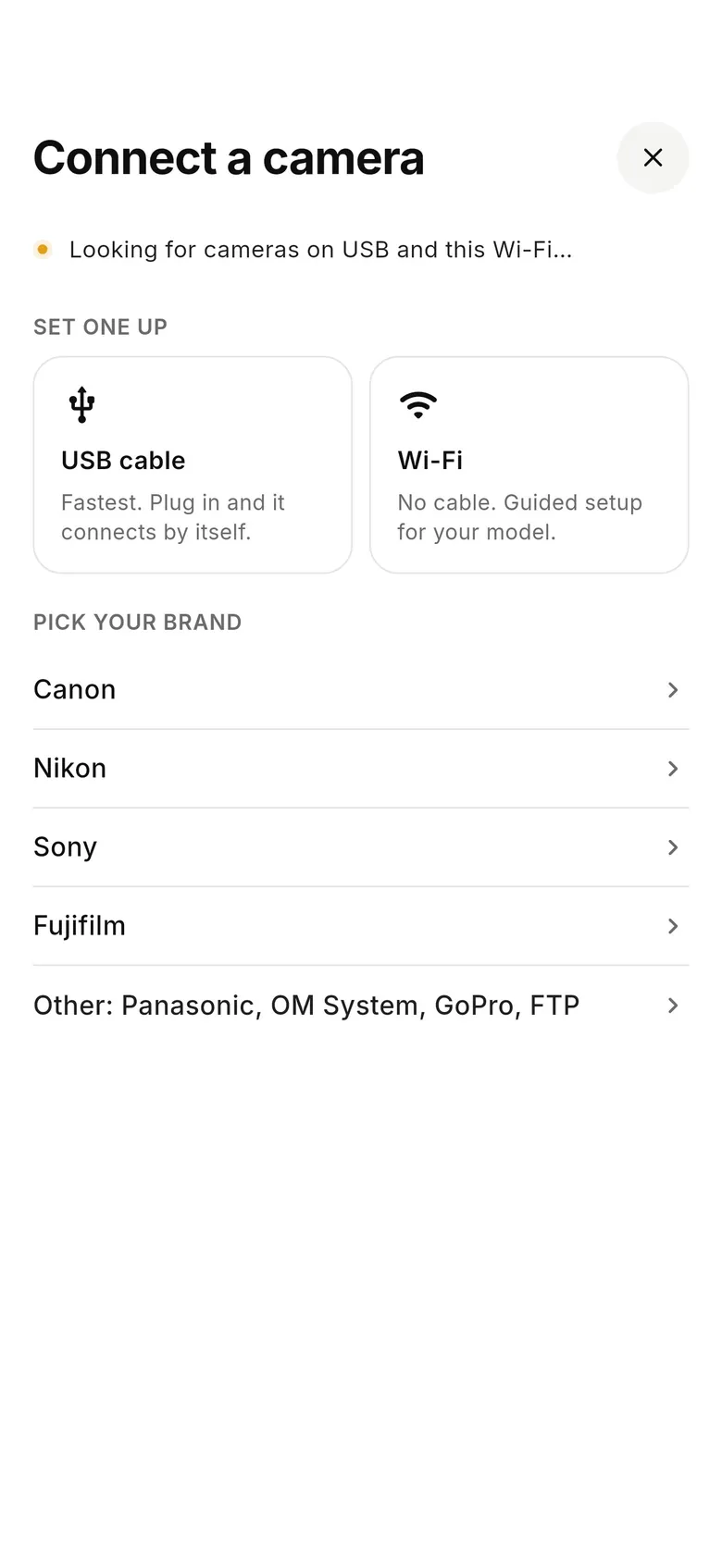
For sharing a few photos, the maker's app is free and already knows your camera. For weddings, events, sports, press or any job where every frame needs to be backed up and in the right place before you're home, connect the camera to your phone with CloudTether: plug in a USB-C cable or use the camera's Wi-Fi on a Canon, choose where shots go, and shoot. There's a 7-day free trial.
FAQ
How do I connect my camera to my phone?
Install the camera maker's app, turn on the camera's Bluetooth or smartphone-connection option, and pair from both the camera and the app, confirming the code on the camera. Or connect a USB cable and use a tethering app.
Can I connect my camera to my phone with a cable?
Yes. A USB-C cable works with USB-C iPhones, iPads and Android phones; Lightning iPhones need Apple's Lightning to USB 3 Camera Adapter. Set the camera's USB mode if it has one.
Does Bluetooth transfer photos from a camera?
Only small copies on some brands. Bluetooth pairs the devices and carries location and remote commands; full-size photos travel over Wi-Fi or a cable.
What is a digital camera that connects to a phone?
Any camera with Wi-Fi, Bluetooth or a USB port that a phone app can use — which includes almost every current mirrorless camera and most premium compacts.
Which cameras connect to iPhone and Android?
Current mirrorless and premium compact cameras from Canon, Nikon, Sony, Fujifilm, Panasonic and OM System connect to both through their makers' apps. Check the app's store listing for your phone.
Why won't my camera connect to my phone?
Usually missing app permissions, a missed pairing prompt on the camera, the phone leaving the camera's Wi-Fi, or — over USB — a charge-only cable or the wrong USB mode. Re-pair from scratch after updates.
How do I get every photo onto my phone automatically?
Use a tethering app. CloudTether connects Canon, Nikon, Sony and Fujifilm over USB or Wi-Fi and copies every full-resolution shot as you take it, then can send it to the cloud.
Tether your camera to the cloud with CloudTether
Deliver every shot to the cloud or a client gallery, live as you shoot — no laptop. Start with a 7-day free trial on iPhone, iPad or Android.